How to Check for Viruses on iPhone: iOS 26 Security Guide
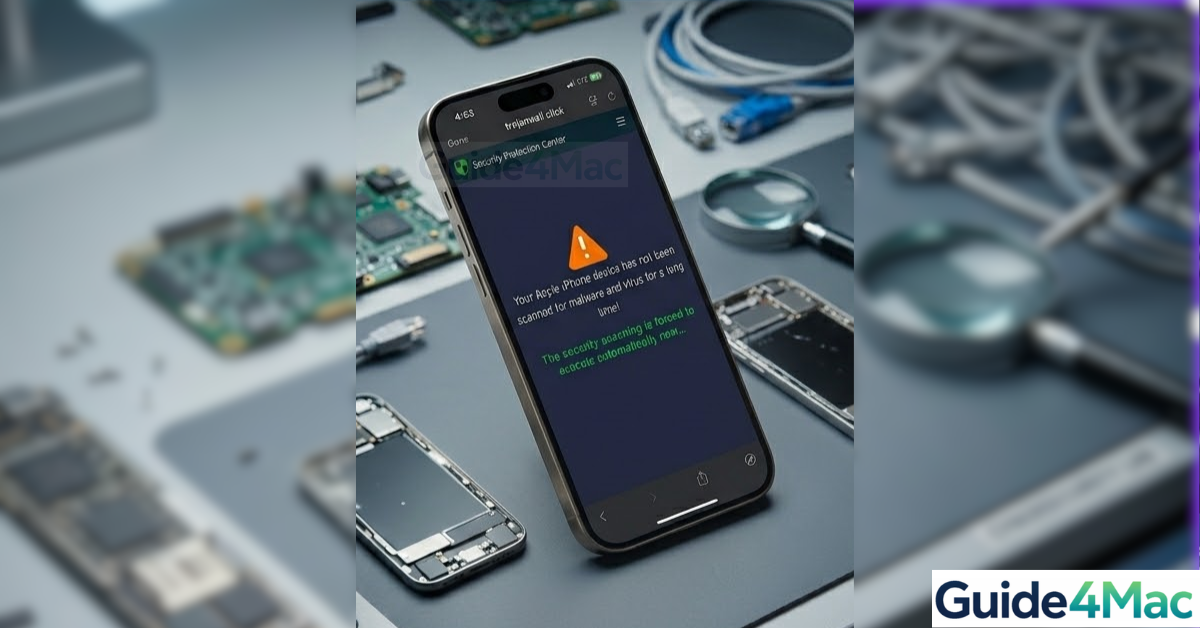
Many users worry about security and ask how to know if your iPhone has a virus. While iPhones are designed with strong security protections, malware and malicious apps can still affect devices in certain situations, especially if suspicious apps, profiles, or websites are involved.
The good news is that most iPhone problems that seem like viruses are actually caused by misbehaving apps, browser pop-ups, or configuration profiles. In this guide, you will learn the most common signs of malware on an iPhone and how to remove it safely. If your device is acting strangely after installing unknown apps, it can also help to review what to do when iPhone system data becomes unusually large since hidden cache files and rogue apps can sometimes cause similar behavior.
How Can You Tell If Your iPhone Has a Virus?
Unlike traditional computers, iPhones run apps in isolated environments that prevent most malware from spreading across the system. However, certain issues can still appear if malicious profiles, harmful websites, or suspicious apps are installed.
Common warning signs include:
• Sudden pop-up ads in Safari
• Apps crashing or behaving unexpectedly
• Unusual battery drain
• Unknown apps appearing on the Home Screen
• Increased mobile data usage
• iPhone overheating without heavy usage
If you notice several of these symptoms together, it is worth checking your device for potential threats.
1. Check for Unknown Apps
Malicious or suspicious apps are one of the most common causes of malware-like behavior on iPhones.
- Open the App Library or Home Screen.
- Look for apps you do not recognize.
- Press and hold the app icon.
- Tap Remove App.
- Select Delete App.
Removing suspicious apps helps prevent further issues.
2. Delete Suspicious Configuration Profiles
Some malware uses configuration profiles to modify system settings or install hidden controls.
- Open Settings.
- Tap General.
- Select VPN & Device Management.
- Look for unknown configuration profiles.
- Tap the profile.
- Select Remove Profile.
Only profiles installed by trusted organizations should remain on your device.
3. Clear Safari Website Data
Malicious websites can store scripts or pop-up triggers in your browser data.
- Open Settings.
- Tap Safari.
- Select Clear History and Website Data.
- Confirm the action.
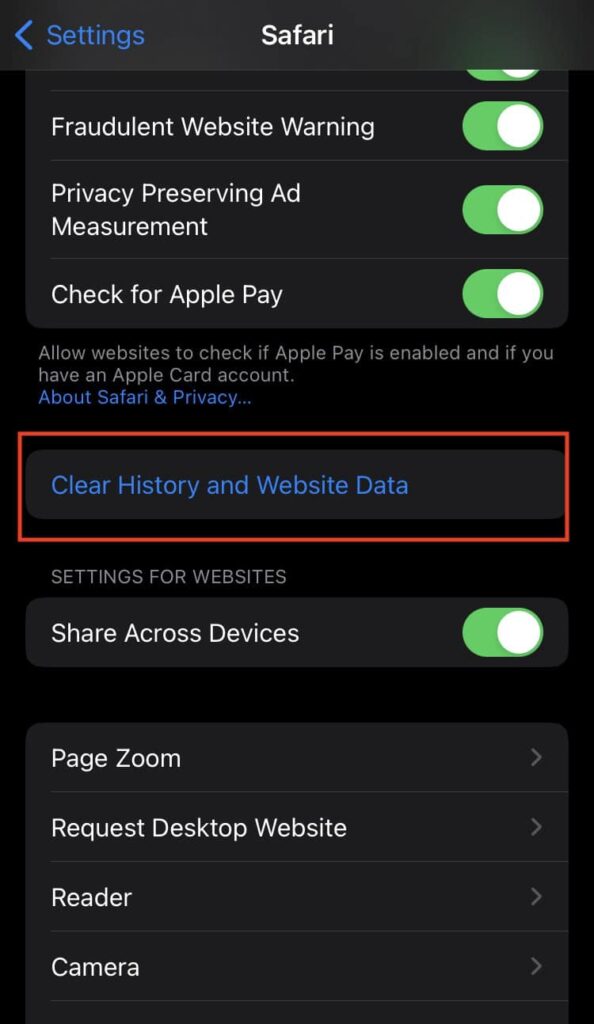
This removes stored website data and helps eliminate browser-based threats.
4. Check App Permissions
Apps with excessive permissions may cause unusual behavior or collect unnecessary data.
- Open Settings.
- Scroll to Privacy & Security.
- Review sections such as Location Services and Microphone.
- Check which apps have access.
- Disable permissions for suspicious apps.
Limiting permissions improves privacy and device security.
5. Update iOS
Keeping iOS updated is one of the best ways to protect your device from security vulnerabilities.
- Open Settings.
- Tap General.
- Select Software Update.
- Install any available update.
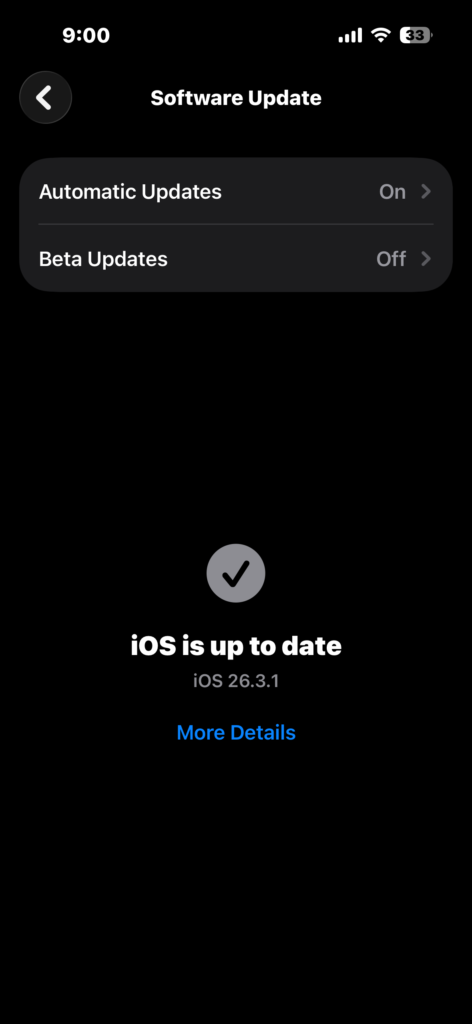
Apple frequently patches security vulnerabilities through iOS updates.
6. Restart Your iPhone
A simple restart can remove temporary processes that may be causing unusual behavior.
- Press and hold the Side button and Volume button.
- Wait for the Power Off slider.
- Drag the slider to turn off the device.
- Turn the phone back on.
This refreshes system processes and clears temporary glitches.
7. Reset Your iPhone (Last Resort)
If suspicious activity continues, resetting the device can remove hidden threats.
- Open Settings.
- Tap General.
- Select Transfer or Reset iPhone.
- Tap Erase All Content and Settings.
- Follow the setup instructions.
Before doing this, make sure you create a backup using iCloud or your computer.
Tips
• Only install apps from the App Store.
• Avoid clicking suspicious links in messages or emails.
• Keep iOS updated with the latest security patches.
• Review installed apps regularly.
• Use strong Apple ID passwords and two-factor authentication.
Keeping Your iPhone Safe From Malware
Although iPhones rarely get traditional viruses, suspicious apps, malicious websites, or unsafe configuration profiles can still cause problems. Regularly checking installed apps, clearing browser data, and updating iOS helps keep your device secure.
If unusual behavior continues even after removing suspicious apps, resetting the device can restore the system to a clean state.
Key Takeaways
iPhones are highly secure, but malware-like problems can still occur through suspicious apps, malicious websites, or configuration profiles. Checking installed apps, removing unknown profiles, clearing Safari data, and updating iOS can usually resolve these issues. Resetting the device is a reliable last resort if problems persist.
FAQs
Traditional viruses are very rare on iPhones, but malicious apps, profiles, and websites can still cause security issues.
Frequent pop-up ads, unknown apps, and unusual battery drain are among the most common warning signs.
Most iPhone users do not need antivirus apps because iOS security already isolates apps and prevents most malware.
Usually not. Most pop-ups come from malicious websites rather than an actual virus installed on the device.
Yes. Erasing all content and settings removes apps, profiles, and data that could contain malicious software.

0 Comments