How to Turn Off Share iPhone Analytics in iOS 26 (Privacy Guide)
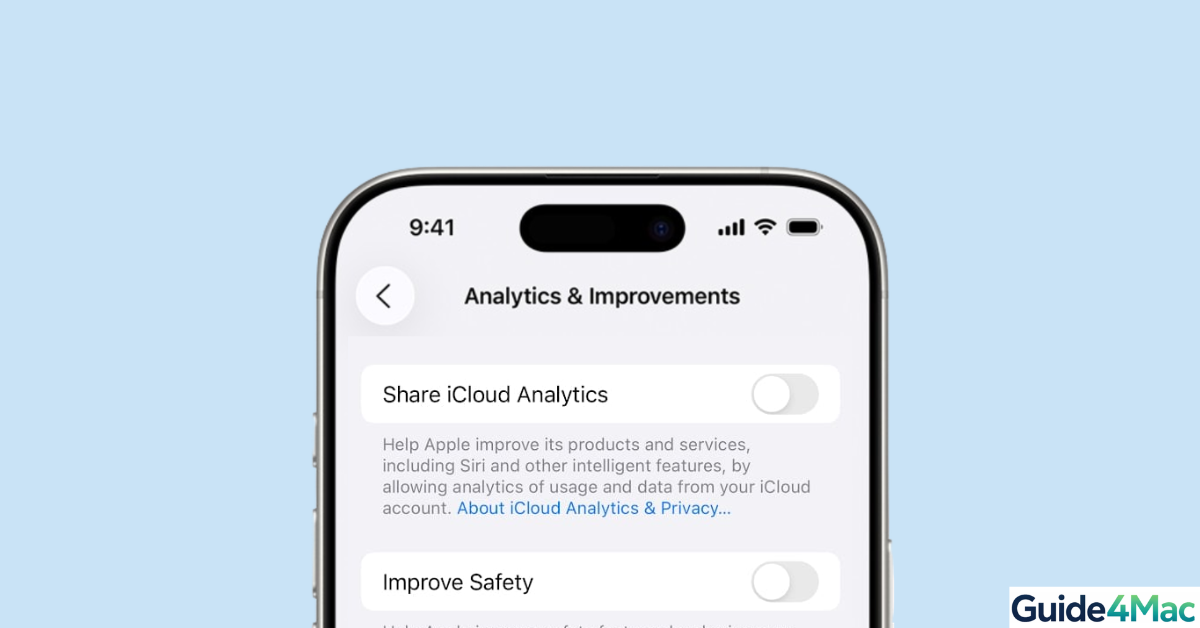
If you want to improve privacy, learning how to turn off iPhone analytics in iOS 26 is one of the quickest changes you can make. By default, Apple collects anonymized usage and diagnostic data to improve system performance and apps.
In this guide, you will learn how to disable analytics sharing completely, limit location-based data collection, and stop app tracking. These steps work on modern iPhones running iOS 26 and are safe for all users.
Why Should You Turn Off iPhone Analytics?
Apple uses analytics data to improve iOS stability, app performance, and features. The data is typically anonymized, but it still includes usage patterns, crash logs, and system activity.
Turning it off gives you more control over your data and slightly reduces background activity. It can also help improve battery life since your device stops sending periodic reports.
1. Turn Off Share iPhone Analytics (Main Method)
This is the most important setting. Disabling it stops your iPhone from sending daily usage and diagnostic reports to Apple.
- Open Settings.
- Tap Privacy & Security.
- Scroll down and tap Analytics & Improvements.
- Turn off Share iPhone Analytics.
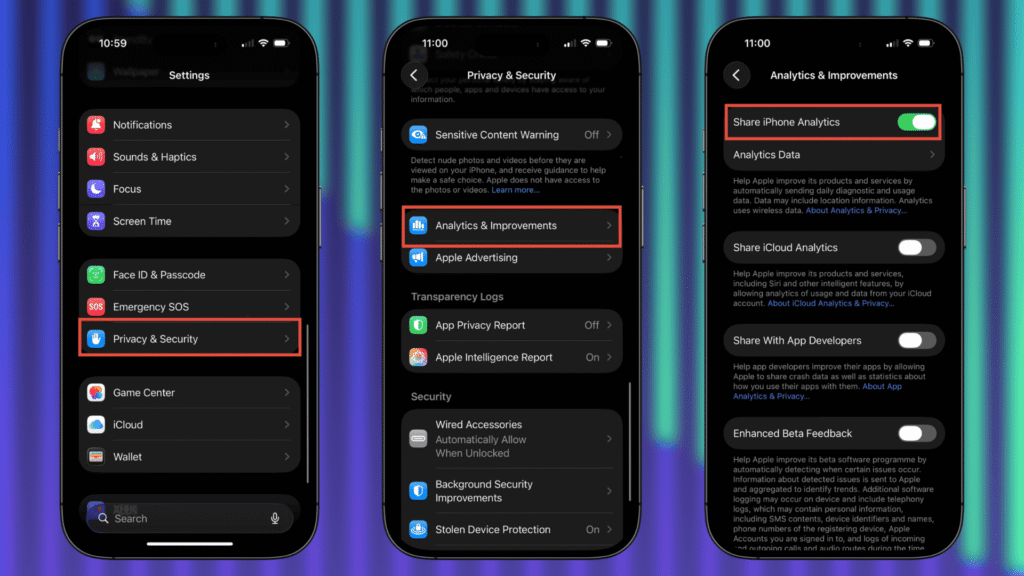
For maximum privacy, also turn off Share iCloud Analytics and Share With App Developers in the same menu.
2. Turn Off Analytics in Location Services
Even if you disable the main analytics toggle, your iPhone can still collect data through system services like location-based improvements.
- Open Settings.
- Tap Privacy & Security.
- Tap Location Services.
- Scroll down and tap System Services.
- Turn off iPhone Analytics.
- Turn off Improve Maps.
- Turn off other Product Improvement options.
This step is especially useful if you want to minimize background GPS and system data usage.
3. Turn Off App Tracking and Analytics
Apps can also request permission to track your activity across other apps and websites. Disabling this prevents third-party analytics tracking.
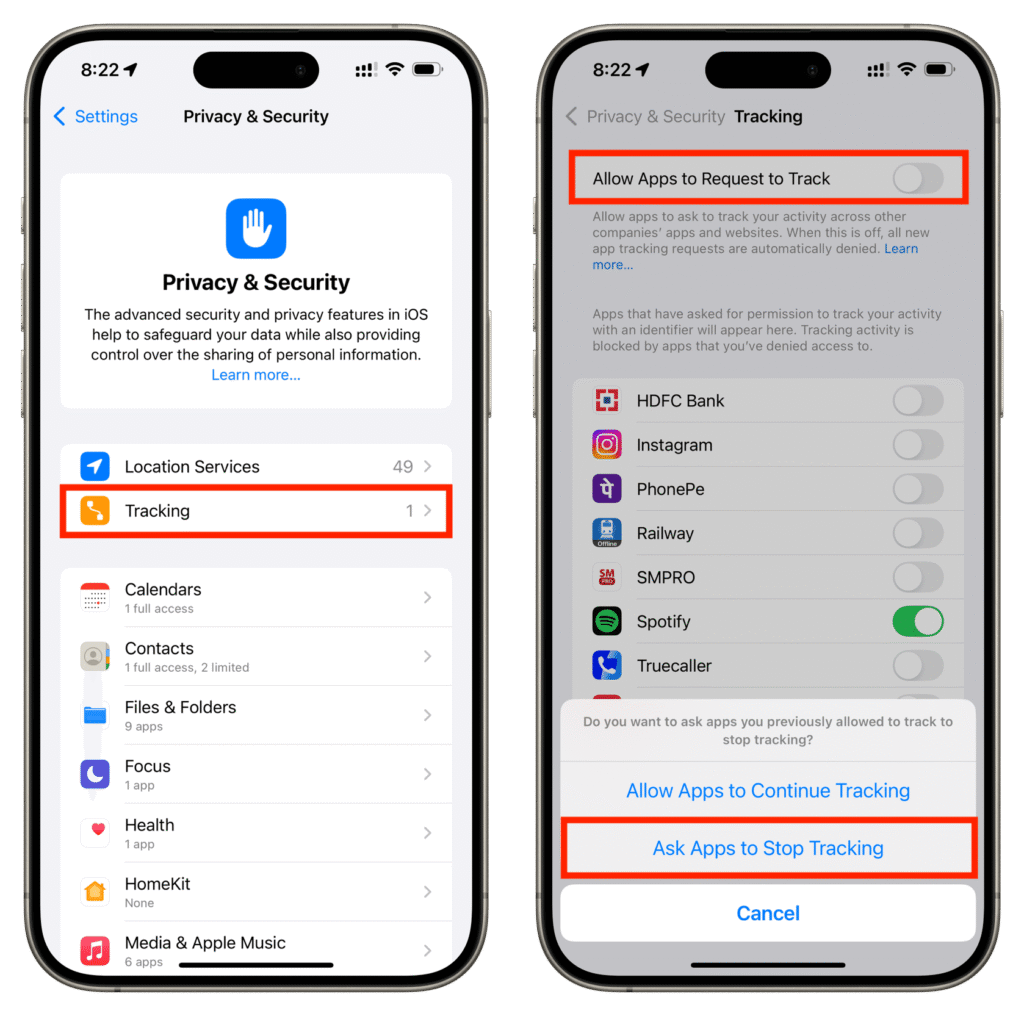
- Open Settings.
- Tap Privacy & Security.
- Tap Tracking.
- Turn off Allow Apps to Request to Track
- Select Ask Apps to Stop Tracking.
This is one of the most effective privacy settings on iOS, especially if you use social media or ad-heavy apps.
4. Disable Analytics for Apple Apps Individually
Some Apple apps like Keynote, Pages, or Numbers have their own analytics settings. These may remain enabled even after turning off system analytics.
- Open Settings.
- Scroll down and tap an Apple app like Keynote.
- Scroll to the Privacy section.
- Turn off Share Analytics Data.
Apple notes that some analytics may still be tied to your Apple ID when using certain features, especially with iCloud services.
5. Reset Location and Privacy Settings (Advanced)
If you want a clean reset of all permissions and analytics-related settings, this method can help.
- Open Settings.
- Tap General.
- Tap Transfer or Reset iPhone.
- Tap Reset.
- Select Reset Location & Privacy.
After this, your iPhone will prompt you again for permissions, allowing you to disable analytics from scratch.
Tips:
- Review analytics settings after every iOS update, as some toggles may reset
- Turning off analytics does not affect performance or updates
- Combine this with how to fix iPhone not charging to improve overall battery health
- You can also reduce background activity by clearing cache if you use Apple ecosystem devices
- And don’t forget to check your Apple coverage using before making major changes
Take Control of Your iPhone Privacy
Turning off analytics in iOS 26 is a simple but powerful privacy step. It reduces how much data your device shares while keeping all features intact.
If you want deeper control, combine this with steps like disabling tracking and reviewing app permissions regularly. Over time, these changes can make your iPhone feel more private and efficient.
Key Takeaways
Disabling iPhone analytics reduces the amount of usage data your device shares with Apple and developers. The process only takes a few steps inside Privacy settings.
You can further improve privacy by turning off location-based analytics and app tracking. These methods are safe and do not impact normal iPhone functionality. This guide is ideal for anyone who wants better privacy, improved battery efficiency, or more control over iOS data sharing.
FAQ
No. Your iPhone will continue to function exactly as before. Features like Face ID, iCloud, and app performance are not impacted by disabling analytics.
While you can’t manually delete individual log files, turning off “Share iPhone Analytics” stops new data from being sent. To “clear” existing logs, some users perform a Reset Location & Privacy under Settings > General > Transfer or Reset iPhone > Reset.
Turning off analytics stops diagnostic sharing, but it does not disable all tracking. For maximum privacy, you should also check your Tracking settings (Settings > Privacy & Security > Tracking) and ensure “Allow Apps to Request to Track” is turned off.

0 Comments