Mastering iOS 26 Portrait Mode: New Features & Pro Tips
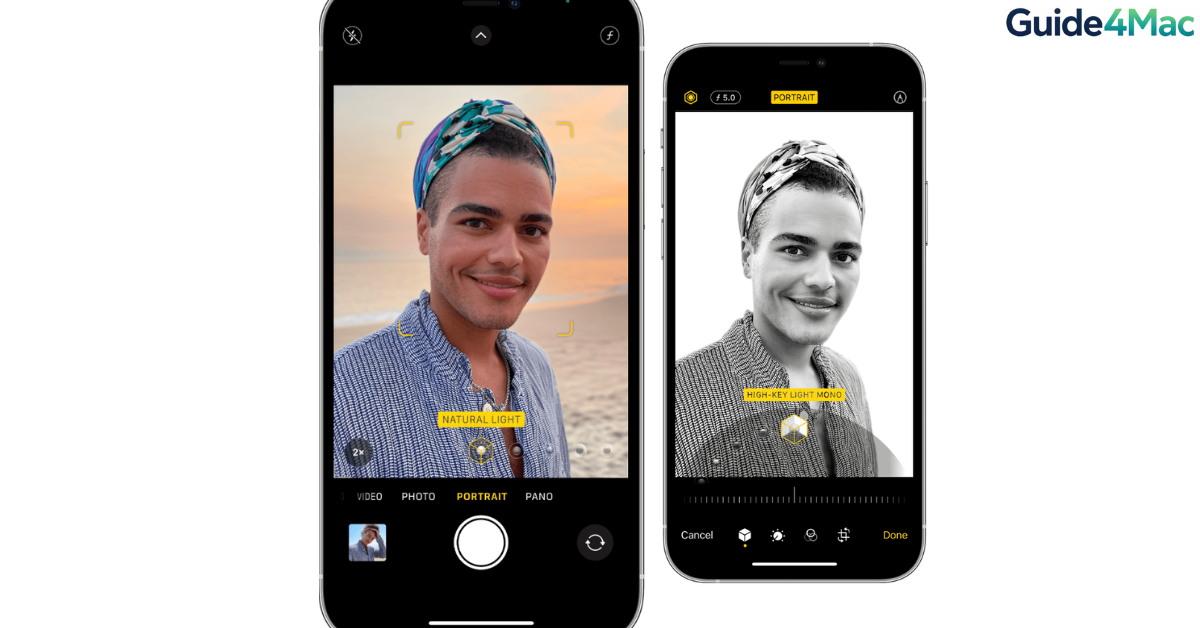
Portrait Mode on iPhone lets you capture photos with a sharp subject and a beautifully blurred background. This effect, often called background blur or bokeh, makes photos look more professional by keeping the main subject in focus while softening the surroundings.
Apple introduced Portrait Mode to simulate the depth effect produced by DSLR cameras. Modern iPhones use advanced sensors and computational photography to analyze depth and separate the subject from the background. In this guide, you will learn how to use Portrait Mode properly, adjust lighting effects, and take better portrait photos. If you want to explore more camera features available on newer iPhones, you can also check these advanced iPhone camera settings for better photos.
How Does Portrait Mode Work on iPhone?
Portrait Mode uses multiple camera sensors and Apple’s depth mapping technology to detect the subject in a photo. The iPhone then artificially blurs the background while keeping the subject sharp.
This feature works best when the subject is positioned a few feet away from the camera. iPhones with multiple lenses, including models like iPhone Pro devices, produce stronger depth effects because they use additional sensors to capture depth information.
The following steps explain how to activate and use Portrait Mode on your iPhone.
1. Enable Portrait Mode in the Camera App
Using Portrait Mode is very simple and only takes a few seconds inside the Camera app.
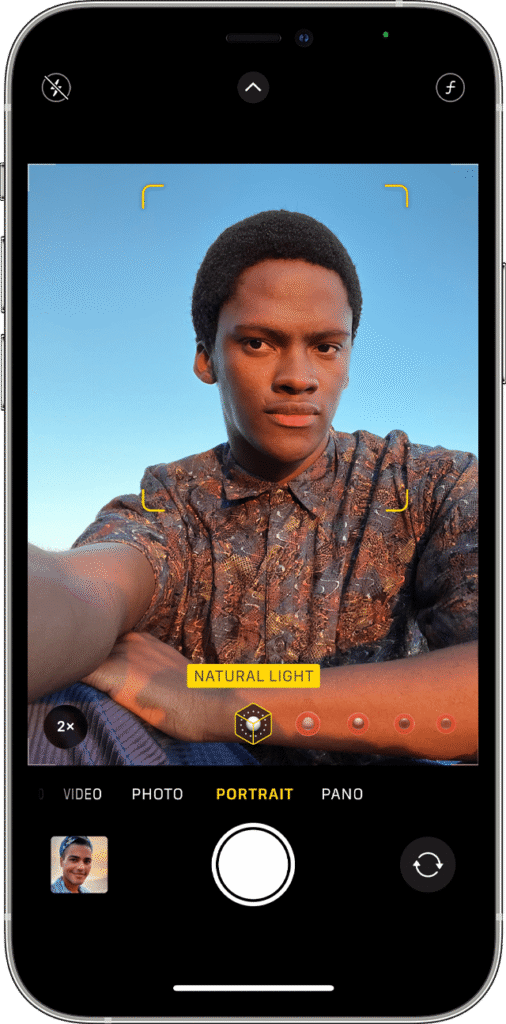
Steps to enable Portrait Mode
- Open the Camera app.
- Swipe through the camera modes.
- Select Portrait.
- Position your subject within the frame.
- Wait until the depth effect indicator appears.
- Tap the Shutter button to capture the photo.
Your iPhone will automatically blur the background while keeping the subject sharp.
2. Follow the Distance Suggestions
When using Portrait Mode, the Camera app may show instructions like “Move farther away” or “Place subject within 8 feet.”
These suggestions help the iPhone capture accurate depth information.
Steps to improve portrait detection
- Open the Camera app.
- Select Portrait mode.
- Place the subject about 2 to 8 feet away.
- Adjust your distance until the yellow indicator appears.
- Capture the photo.
Maintaining the recommended distance ensures the background blur looks natural.
3. Use Portrait Lighting Effects
Portrait Lighting allows you to apply studio style lighting effects to your portrait photos. These effects can dramatically change how the subject appears.
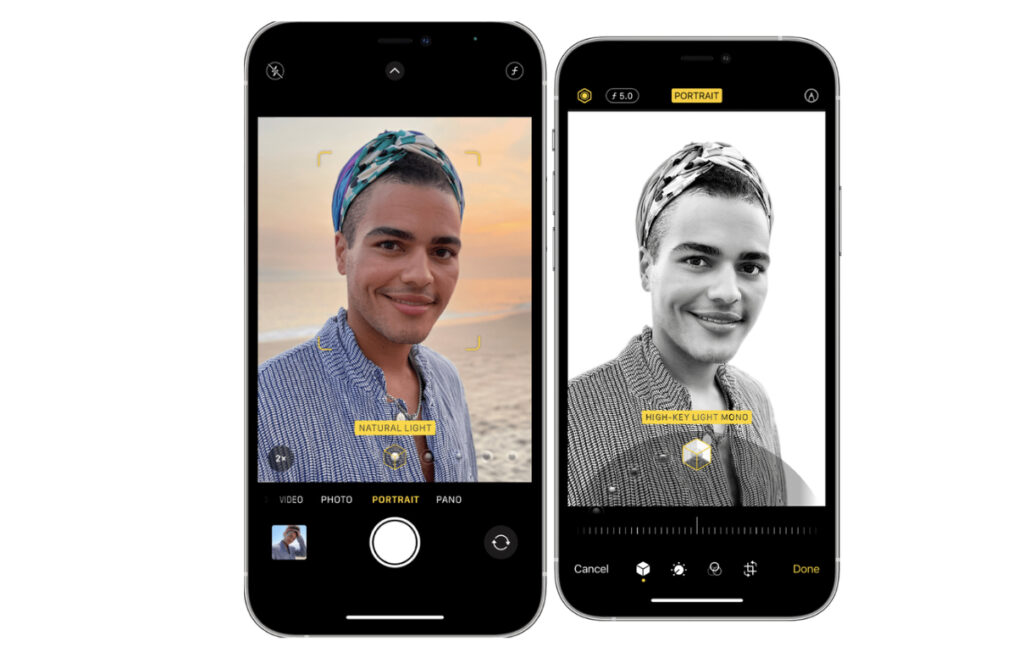
Steps to apply Portrait Lighting
- Open the Camera app.
- Select Portrait mode.
- Swipe through the Lighting effects options.
- Choose the lighting style you prefer.
- Take the photo.
Some common lighting effects include Natural Light, Studio Light, Contour Light, and Stage Light.
4. Adjust Background Blur After Taking the Photo
One powerful feature of Portrait Mode is the ability to adjust the background blur even after the photo has been taken.
This setting is called Depth Control.
Steps to adjust portrait blur
- Open the Photos app.
- Select the portrait photo.
- Tap Edit.
- Adjust the Depth slider.
- Tap Done to save changes.
Lower f-numbers create stronger background blur, while higher numbers reduce the effect.
5. Switch Between Portrait and Standard Photo
Sometimes a portrait photo looks better without the blur effect. Fortunately, you can disable Portrait Mode after capturing the image.
Steps to remove the portrait effect
- Open the Photos app.
- Select the portrait image.
- Tap Edit.
- Tap Portrait at the top of the screen.
- Tap Done.
The photo will revert to a normal image without background blur.
6. Use Portrait Mode on the Front Camera
Many modern iPhones also support Portrait Mode on the front facing camera, making it ideal for selfies.
Steps to take portrait selfies
- Open the Camera app.
- Tap the Front camera button.
- Swipe to Portrait mode.
- Position your face in the frame.
- Tap the Shutter button.
The iPhone will apply the same background blur effect used for rear camera portraits.
7. Use Portrait Mode for Non-Human Subjects
Portrait Mode works best with people, but newer iPhones can also recognize pets, objects, and other subjects.
Steps to capture portraits of objects
- Open the Camera app.
- Select Portrait mode.
- Position the object in the center of the frame.
- Adjust the distance until the depth indicator appears.
- Take the photo.
The effect works well for flowers, pets, and product style photography.
Tips
• Use natural lighting whenever possible for better portrait quality.
• Keep the subject several feet away from the background.
• Avoid busy backgrounds that confuse depth detection.
• Hold the iPhone steady when capturing portrait shots.
• Adjust the blur level after taking the photo for better results.
Capture Stunning Portrait Photos
Portrait Mode allows iPhone users to create professional looking photos without advanced photography equipment. By combining depth detection with intelligent software processing, the feature produces a natural background blur that highlights the subject.
Once you understand how distance, lighting, and depth settings work, you can capture much more impressive photos. With a little practice, Portrait Mode becomes one of the most powerful tools in the iPhone camera system.
Key Takeaways
Portrait Mode on iPhone creates a blurred background effect while keeping the subject sharp. The feature uses depth detection and computational photography to simulate DSLR style portraits. Users can enable the mode in the Camera app, apply lighting effects, and adjust blur levels after taking the photo. These tools help iPhone users capture professional looking portraits easily.
FAQs
Portrait Mode is available on many modern iPhones starting from iPhone 7 Plus and newer models, including devices with multiple camera lenses.
Yes. Using the Depth Control slider in the Photos app allows you to increase or decrease background blur.
Yes. Newer iPhones can recognize pets and objects, although the effect works best with people.
The camera needs the correct distance to capture depth information accurately.
Yes. You can disable the Portrait effect in the Photos app and convert the image back to a standard photo.

0 Comments