Force Quit Apps on iPad: Fix Freezes and Clear the App Switcher

Knowing how to close apps on iPad helps improve performance, fix unresponsive apps, and manage multitasking more efficiently. While iPadOS is designed to manage apps automatically in the background, sometimes manually closing an app is the fastest way to resolve glitches or freezes.
Whether you are using an iPad, iPad Air, or iPad Pro, the process is simple once you know where to look. If your device becomes slow or apps stop responding, closing them from the App Switcher can often fix the issue. In some cases, you may also need broader troubleshooting steps similar to those used when fixing an iPhone screen that is not responding to touch.
This guide explains how to close apps on iPad using the App Switcher, multitasking gestures, and when it actually helps.
Why Would You Need to Close Apps on iPad?
Apple designs iPadOS to suspend apps in the background instead of running them constantly. This helps preserve battery life and performance.
However, there are situations where closing an app is useful:
- The app becomes frozen or unresponsive
- The app crashes repeatedly
- You want to refresh a specific app
- The app is draining battery excessively
In these cases, force closing the app and reopening it can solve the problem quickly.
Close Apps Using the App Switcher
The App Switcher is the main interface used to close apps on iPad.
- Swipe up from the bottom of the screen.
- Pause in the middle of the screen.
- Wait for the App Switcher to appear.
- Locate the app you want to close.
- Swipe the app upward off the screen.
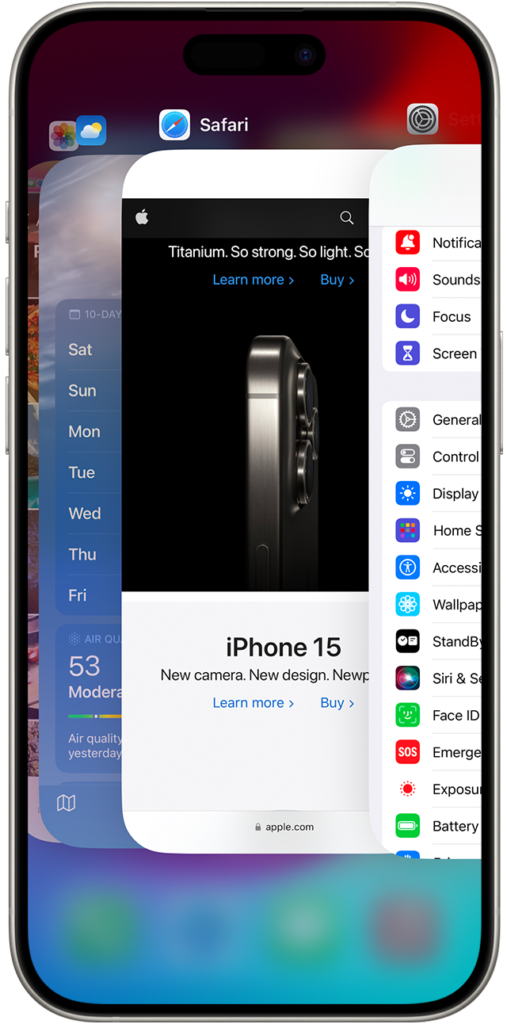
Once the card disappears, the app has been fully closed.
Close Apps Using the Home Button (Older iPads)
Older iPads that still include a Home button use a slightly different method to access the App Switcher.
- Press the Home button twice quickly.
- Wait for the App Switcher to open.
- Find the app you want to close.
- Swipe the app upward.
- Repeat for any other apps you want to close.
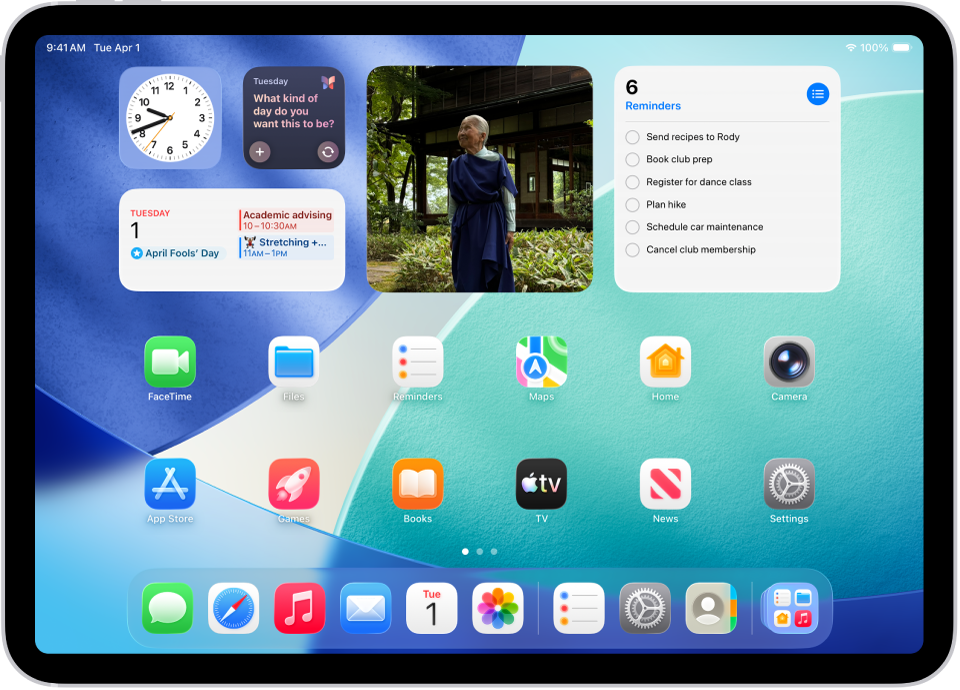
This method works on earlier iPad models running older versions of iPadOS.
Close Multiple Apps at Once
iPadOS allows you to close several apps simultaneously using multiple fingers.
- Open the App Switcher.
- Place two or three fingers on different app previews.
- Swipe them up at the same time.
This is helpful when clearing several background apps quickly.
When You Should NOT Close Apps
Contrary to common belief, closing apps frequently does not always improve performance.
In fact, iPadOS is optimized to manage apps efficiently in the background. Force closing every app repeatedly may actually cause the system to use more battery when reopening them.
You generally only need to close apps when:
- They stop responding
- They crash repeatedly
- They display bugs or glitches
For most everyday use, letting iPadOS manage apps automatically is the best approach.
Restart Your iPad if Apps Keep Freezing
If multiple apps keep freezing, the issue may be related to the system rather than a specific app.
- Press and hold the Top button and Volume button together.
- Wait for the Power Off slider.
- Drag the slider to turn off the iPad.
- Wait about 30 seconds.
- Press the Top button again to turn it back on.
Restarting refreshes system processes and often resolves app glitches.
If system bugs continue after restarting, updating iPadOS may also help.
Update Apps From the App Store
Outdated apps can cause crashes or performance issues.
- Open the App Store.
- Tap your profile icon.
- Scroll to the Available Updates section.
- Tap Update next to any apps listed.
Keeping apps updated helps maintain compatibility with the latest versions of iPadOS.
Tips
- Only close apps that freeze or misbehave.
- Use multitasking gestures to manage open apps quickly.
- Restart your iPad occasionally to refresh memory.
- Keep apps updated through the App Store.
- Avoid closing apps constantly unless necessary.
Keep Your iPad Running Smoothly
Closing apps on iPad is simple once you know how to access the App Switcher. While most apps can remain safely in the background, manually closing them is useful when troubleshooting freezes, crashes, or other glitches.
With iPadOS handling most background tasks automatically, the key is knowing when to close apps and when to let the system manage them. Understanding this balance helps keep your iPad running smoothly and efficiently.
Key Takeaways
Closing apps on iPad is done through the App Switcher by swiping app previews upward. This method works on both gesture-based iPads and older models with a Home button. While force closing apps can fix freezes or crashes, iPadOS normally manages background apps efficiently, so manual closing is only necessary in specific situations.
FAQs
Not usually. iPadOS suspends background apps automatically, so closing them frequently may not improve battery life.
If the App Switcher does not appear, try restarting the iPad or updating to the latest iPadOS version.
There is no built-in “close all” option, but you can swipe multiple apps at once using two or three fingers.
Only if an app is frozen or malfunctioning. Otherwise, iPadOS already manages system resources efficiently.
Swipe up from the bottom of the screen and pause in the middle, or double-press the Home button on older iPads.




0 Comments