How to Fix a Frozen iPad During Apple Pay Setup (iOS 26)
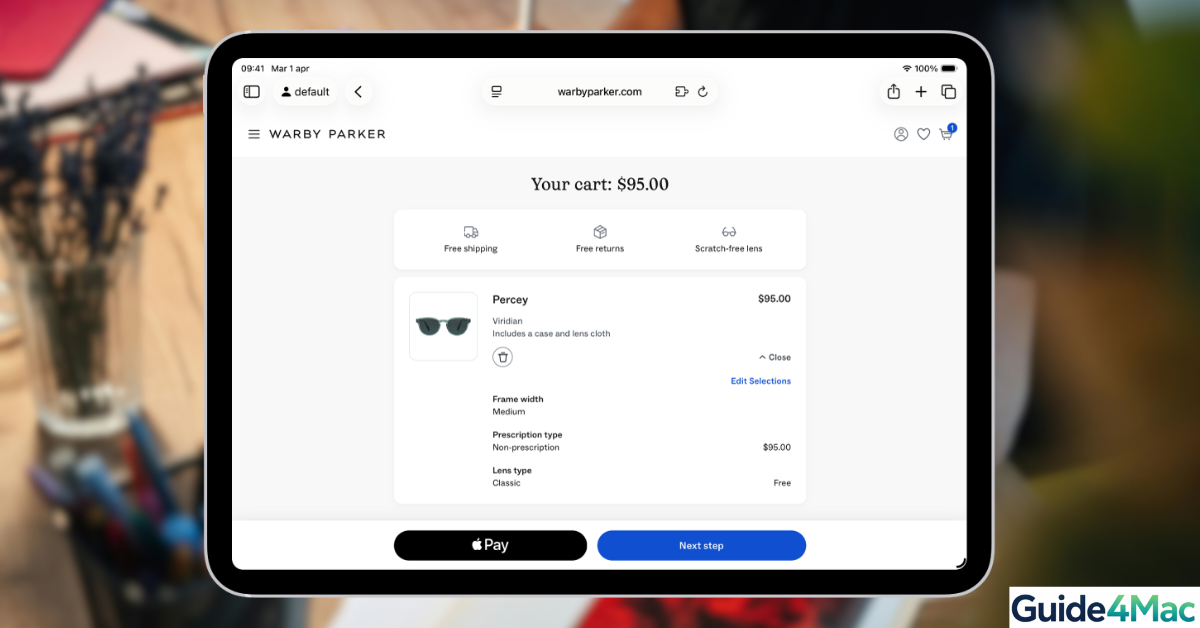
Setting up Apple Pay on your iPad should be quick and seamless—but sometimes the device freezes right in the middle of the process. This can happen while adding a card, verifying details, or confirming with your bank.
In most cases, this isn’t a serious issue. It’s usually caused by temporary system glitches, connectivity problems, or Apple ID sync issues. Below, you’ll find clear, step-by-step fixes to get everything working again.
Why the iPad Freezes During Setup
The freeze is often triggered by a synchronization timeout. When the setup process reaches the Apple Pay stage, the device attempts to verify regional eligibility and existing cards associated with your Apple Account. If there is high server latency or an unstable network, the “Set Up Later” command may fail to register, locking the UI.
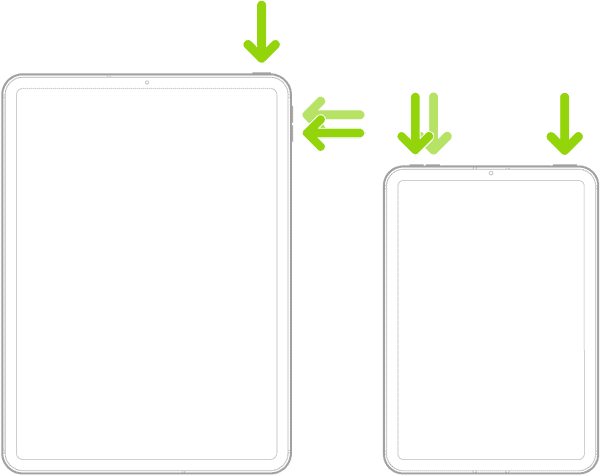
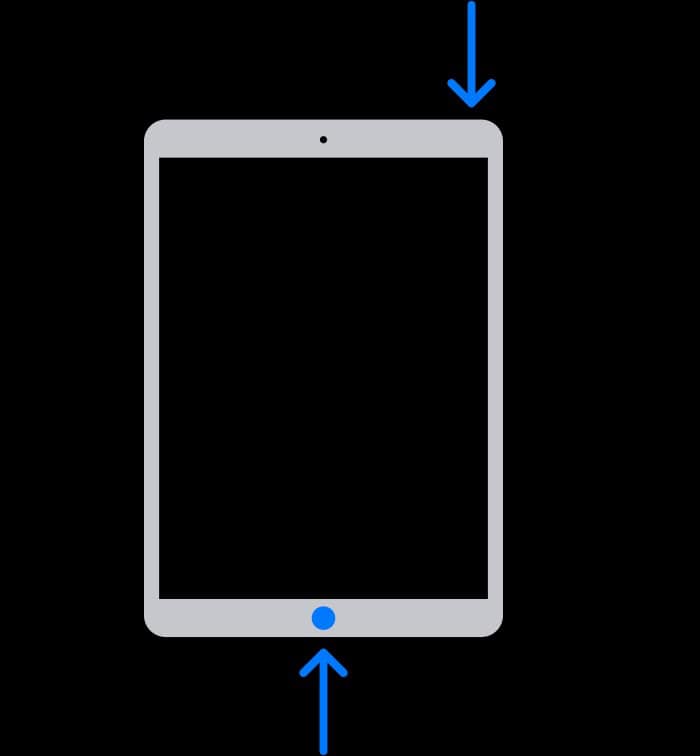
1. Force Restart Your iPad
Total Time: 2–3 minutes
A force restart immediately fixes most freezing issues by clearing system memory and restarting all background processes without deleting your data.
- Press Volume Up
Quickly press and release the Volume Up button.
- Press Volume Down
Quickly press and release the Volume Down button.
- Hold the Top Button
Press and hold the Top (Power) button until the Apple logo appears on the screen.

- Wait for Restart
Allow your iPad to fully reboot. This may take a minute.
- Try Apple Pay Again
Open the Wallet app and restart the Apple Pay setup process.
2. Check Your Internet Connection
Apple Pay needs a stable connection to verify your card with Apple and your bank. If the connection drops, your iPad can freeze mid-setup:
- Open Settings → Wi-Fi
- Make sure you’re connected to a strong, stable network
- Switch networks if the signal is weak
- Avoid public or unstable Wi-Fi
3. Sign Out and Back Into Your Apple ID
Apple Pay relies heavily on your Apple account. If there’s a sync issue, the setup process may freeze.
- Go to Settings → [Your Name]
- Scroll down and tap Sign Out
- Restart your iPad
- Sign back in with your Apple ID
4. Remove and Re-Add Your Card
If your iPad freezes while adding a specific card, the issue might be related to that card’s verification process.
- Open the Wallet app
- Remove the card you were trying to add
- Restart your iPad
- Add the card again from scratch
Make sure your bank supports Apple Pay and that your card details are correct.
5. Update iPadOS
Running outdated software can cause Apple Pay to freeze during setup—especially on newer versions like iOS 26.
- Go to Settings → General → Software Update
- Install any available updates
- Restart your iPad
- Try the setup again
6. Reset All Settings
If nothing else works, resetting all settings can eliminate hidden system conflicts.
- Go to Settings → General → Transfer or Reset iPad
- Tap Reset → Reset All Settings
- Enter your passcode and confirm
- Wait for your iPad to restart
This won’t delete your data—but you’ll need to reconfigure Wi-Fi and preferences.
Common Problems
- iPad freezes while adding a card
- Apple Pay verification screen doesn’t load
- Wallet app becomes unresponsive
- Screen locks during setup
Tips to Prevent Apple Pay Freezing
- Use a stable and fast Wi-Fi connection
- Keep iPadOS updated
- Make sure your Apple ID is properly synced
- Restart your iPad before setup
- Only use supported cards and banks
FAQs (People Also Ask)
Usually due to network issues, Apple ID sync errors, or software glitches.
No, it simply refreshes the system.
Yes, unstable connections can interrupt verification.
Contact your bank—they may need to approve Apple Pay.
Contact Apple Support—it may be a deeper system or account issue.


0 Comments