How to Reset iPad: Soft Reboot, Force Restart, Factory Reset, Use a PC [2026 Guide]
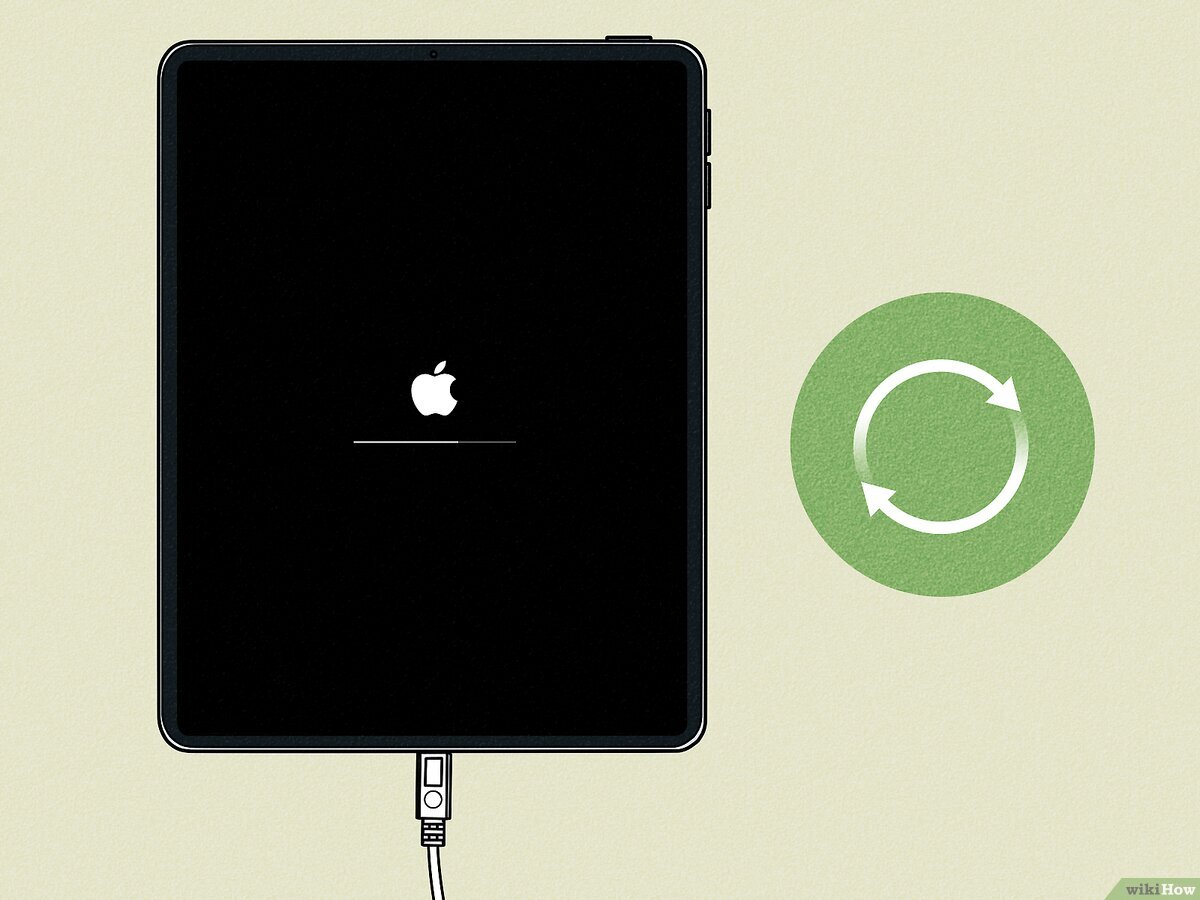
Sometimes your iPad needs a fresh start. Whether you are dealing with a frozen screen on the latest M4 iPad Pro or preparing to sell your older model to a new owner, knowing the correct reset procedure is essential to hide and wipe all your personal data. Since Apple has shifted away from the Home button on almost every modern model, the steps to refresh your device have changed significantly.
This guide covers every method to reset your iPad, from simple software reboots to full factory erases. We will walk you through the precise button sequences for various hardware generations and explain how to use a computer or iCloud if your device is completely unresponsive. By the end, you will have a clear path to getting your tablet back into peak working condition.
How to reset iPad using different methods?
The process for resetting an iPad depends entirely on whether your device has a physical Home button. For modern iPads without a Home button, you must use a specific sequence involving the volume keys and the top button. If your iPad still features the circular Home button below the screen, you can usually perform a reset by holding that button along with the power key simultaneously.
1. Performing a Soft Reset (Standard Restart)
A soft reset is the simplest way to fix minor performance hiccups or app crashes. It is a standard power cycle that doesn’t touch your data but refreshes the operating system.
- Wait for the power-off slider to appear on the screen.
- Drag the slider to the right.
- Wait 30 seconds for the device to turn off completely.
- Press and hold the Top button again until the Apple logo appears.
- Press and hold the Top button.
2. How to Force Restart iPad (Models Without Home Button and With)
Time needed: 1 minute
If your screen is black or the device is completely unresponsive, a standard restart won’t work. For the iPad Pro, iPad Air, and iPad mini models that use Face ID or Touch ID in the top button, use this hardware override: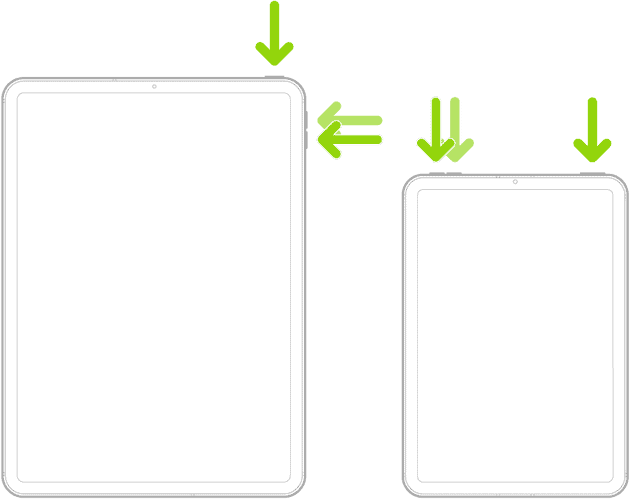
- Press Volume Up
Press and quickly release the Volume Up button (the one closest to the Top button).
- Press Volume Down
Press and quickly release the Volume Down button (the one furthest from the Top button).
- Press&Hold Top
Press and hold the Top button.
- Keep Holding Top Button
Keep holding the button even when the slider appears.
- Release Top Button
Release the button only when the Apple logo appears on the screen.
This sequence is vital for clearing hardware-level hang-ups on Apple Silicon chips. If you find yourself doing this often because of a laggy interface, you may need to clear mac cache or investigate system-level storage issues.
3. How to Force Restart iPad (Models With Home Button)
For legacy models or the base-model iPad that still features the circular button below the display, the process is more straightforward.

- Press and hold both the Home button and the Top (or Side) button simultaneously.
- Keep holding both buttons as the screen goes black.
- Release both buttons once the Apple logo appears.
If your tablet remains unresponsive after these steps, you may be facing a more serious hardware issue, such as an iPad black screen of death.
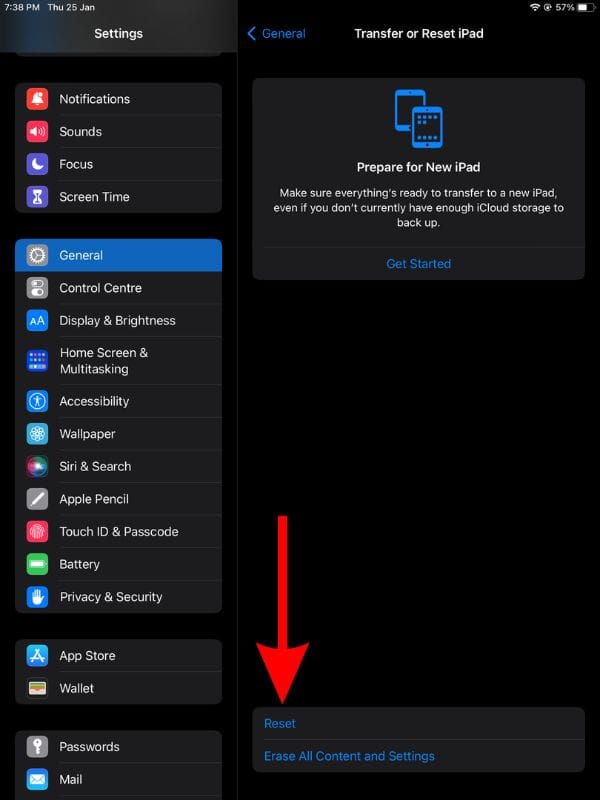
4. Factory Reset via Settings (Erase All Content)
When you are ready to sell your device or if you’ve encountered a critical software error that a restart won’t fix, a factory reset is the answer. This wipes the encryption keys and deletes all user data.
- Open the Settings app.
- Tap General.
- Scroll down and tap Transfer or Reset iPad.
- Tap Erase All Content and Settings.

- Tap Continue.
- Enter your passcode when prompted.
- Your iPad will attempt to back up to iCloud; you can skip this if you have already used a manual [how to back up iPhone](https://cite: 2) style method for your iPad.
- Enter your Apple ID password to turn off Find My and Activation Lock.
- Tap Erase iPad to confirm.
5. Using Recovery Mode with a Computer
If your iPad is disabled or stuck in a boot loop, you must use a computer to reinstall iPadOS. If the standard interface is unreachable, you will need to put iPad in recovery mode to allow the computer to communicate with the hardware.
- Connect your iPad to your computer.
- Open Finder (on Mac) or iTunes/Apple Devices app (on Windows).
- For No-Home-Button models: Press Vol Up, then Vol Down, then hold the Top button until the recovery screen (a cable pointing to a laptop) appears.
- For Home-Button models: Hold both the Home and Top buttons until the recovery screen appears.
- Locate your device on the computer.
- Select Restore to wipe the device and install a fresh OS.
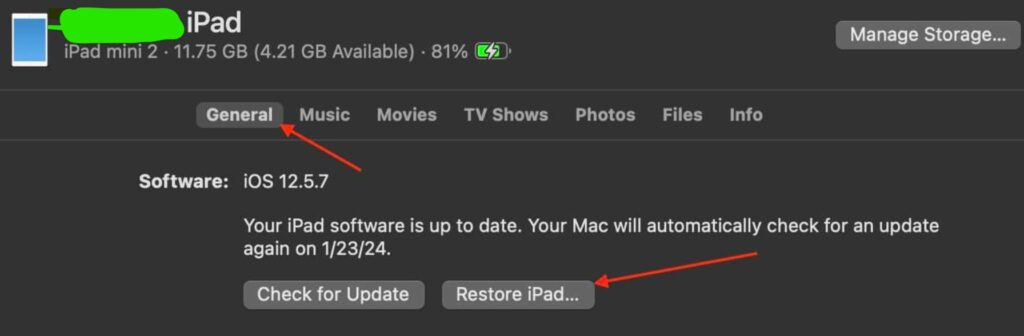
If the process fails, you might need to put iPad in recovery mode again or check your cable connection.
6. Remote Reset via iCloud
If your iPad is lost or the screen is physically shattered so you cannot type the passcode, you can wipe it remotely using Find My.
- Log into iCloud.com/find on any browser.
- Select your iPad from the “All Devices” list.
- Click Erase iPad.
- Confirm the prompt. The wipe will begin as soon as the iPad connects to Wi-Fi or Cellular.
Comparison of iPad Reset Scenarios
| Method | Primary Use Case | Data Safety |
| Soft Reset | App crashes, slow performance | Completely Safe |
| Force Restart | Frozen screen, unresponsive buttons | Completely Safe |
| Settings Reset | Selling, recycling, or major bugs | Deletes Everything |
| Recovery Mode | Forgotten passcode, boot loops | Deletes Everything |
| Remote Wipe | Stolen device, broken screen | Deletes Everything |
iPad Reset Tips
- Always back up iPhone and iPad data to iCloud or a computer before any factory reset.
- Use a force restart for frozen screens; it is safe and does not delete data.
- If you are moving to a new device, you should use Apple’s migration assistant to transfer your data before wiping the old one.
- Ensure your iPad is charged at least 50% before starting a full system restore.
- Have your Apple ID credentials ready to bypass the Activation Lock after the reset.
iPad Tablet System Refresh
A reset is the most powerful tool in your troubleshooting kit. Whether you are performing a simple button-combination restart to fix a laggy app or a full factory wipe to prepare for a new owner, these steps ensure your iPad remains secure and functional. Modern iPadOS is robust, but a clean slate is sometimes exactly what the hardware needs to return to peak performance.
Key Takeaways
This guide details how to perform soft, forced, and factory resets on all iPad models, including those with and without Home buttons. It covers hardware button combinations for frozen screens and software menus for erasing data before selling a device. Additionally, it provides instructions for using Recovery Mode and iCloud to reset an iPad when the device is disabled or lost.
FAQs:
You should perform a force restart; if that fails, connect the iPad to a computer and use Recovery Mode to “Update” or “Restore” the firmware.
Only if you enter the Apple ID password during the reset process; otherwise, the device will remain locked to your account for security.
You can use the Settings menu to reset, or if the screen is also broken, use the “Erase iPad” feature on iCloud.com from another device.
If you performed a factory reset, it may be asking for your Apple ID passcode to verify you are the owner, a feature known as Activation Lock.
A black screen is often solved by a force restart (Vol Up, Vol Down, then hold Top button) or by plugging the device into a charger for 30 minutes.




0 Comments