How To Get the Viral Light Switch Wallpaper on iPhone?
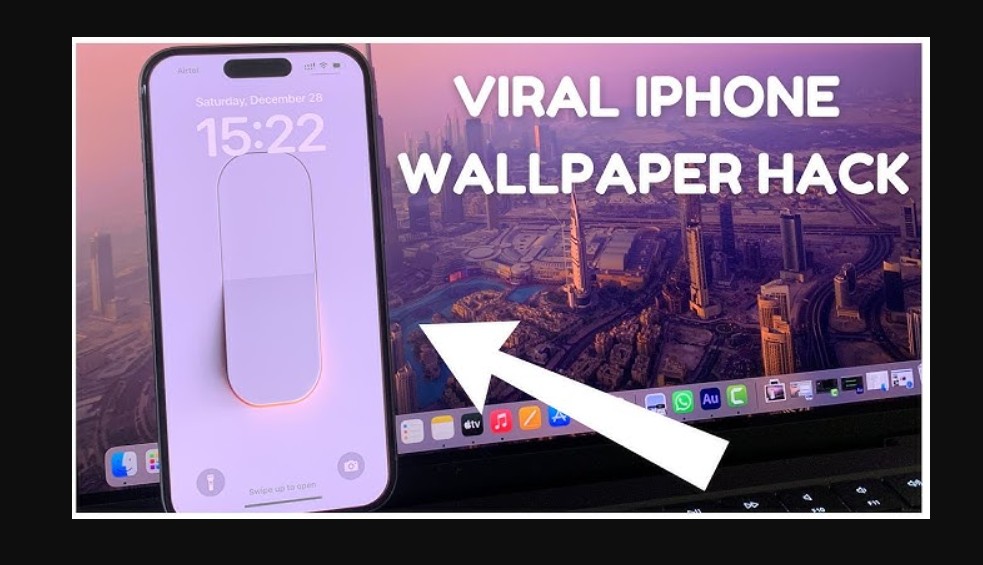
The light switch wallpaper became a sensation on social media, specifically TikTok and Instagram, due to its clever use of the iPhone Lock Screen mechanics. This interactive background creates the illusion that you are physically toggling a light on and off when you wake your device or press the screen. It relies on the way iOS handles transition animations between the dimmed state and full brightness to provide a satisfying, tactile visual experience.
Finding and setting up this specific wallpaper requires a bit more than a simple long-press on your current background. Because the effect depends on specific contrast levels and alignment with the iOS clock and buttons, you need the high-quality source file rather than a grainy screenshot. This guide explains where to source the authentic files and how to configure your settings to ensure the “glow” effect triggers perfectly every time you pick up your phone.
How do you get the viral light switch wallpaper?
The most reliable way to get this look is to download the assets directly from the creators who popularized the trend. Most versions of the wallpaper feature a minimalist light switch plate centered on a dark background. When the screen wakes, the “light” appears to flip on, illuminating the room behind the switch or simply changing the background color from black to a warm yellow.
1. Download the Wallpaper Files
Before you can apply the effect, you need both the “off” and “on” versions of the image, or a high-quality video file if you plan to use older Live Photo methods. However, for most modern iPhones running recent software, a single high-contrast image often suffices to trigger the transition fade.
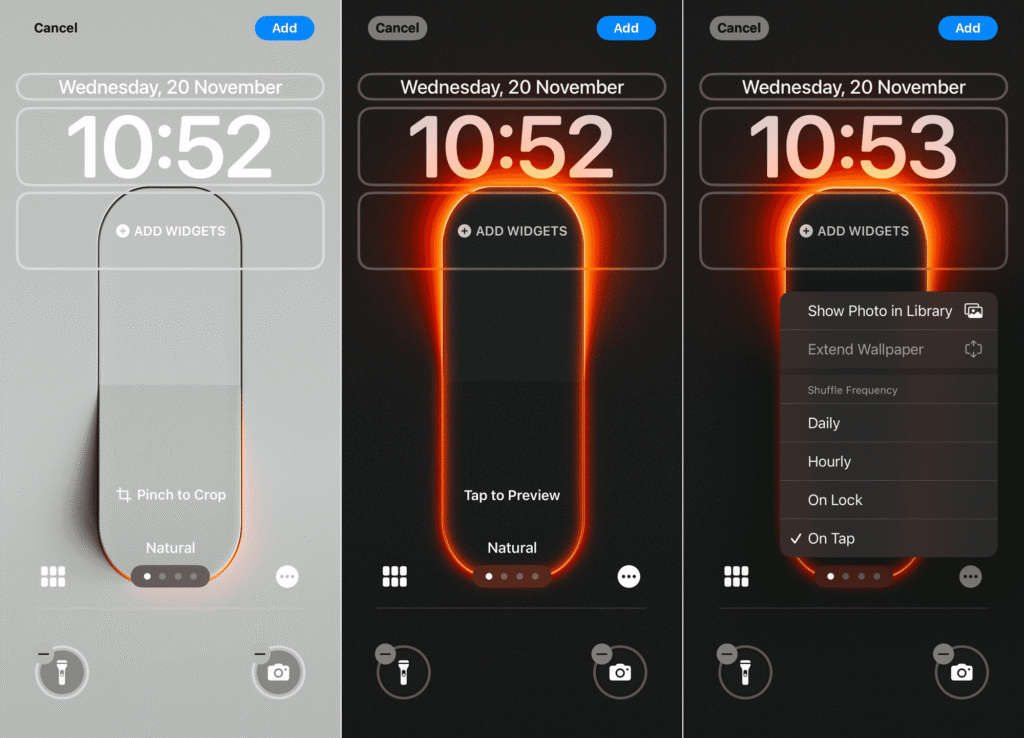
- Open your mobile browser and search for the original “light switch wallpaper” creators on platforms like Wallmosphere or Pinterest.
- Save the high-resolution image to your Photos app.
- Ensure the image is not cropped awkwardly, as the switch needs to be centered to look realistic.
2. Configure the Lock Screen
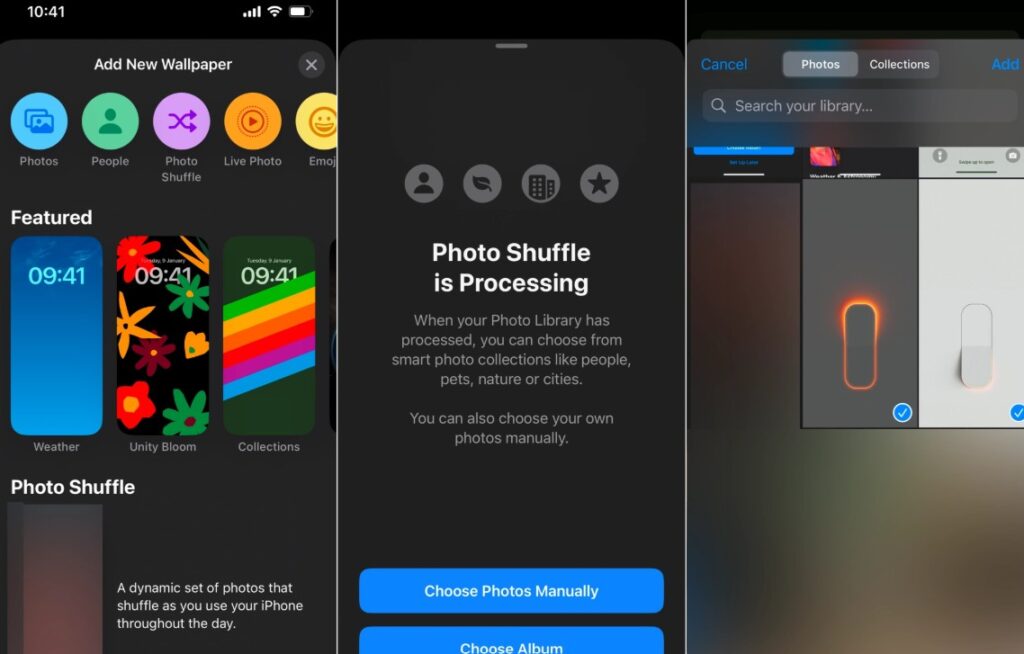
Once the image is in your gallery, you need to apply it through the iOS Lock Screen gallery to ensure the depth and brightness settings are handled correctly by the system.
- Lock your iPhone.
- Wake the screen.
- Long-press on your current Lock Screen.
- Tap the blue plus icon in the bottom right corner.
- Select Photos from the top row of options.
- Choose the light switch image you just saved.
3. Adjust the Image Placement
The realism of the toggle depends entirely on its position relative to your thumb and the internal iOS animations.
- Use two fingers to pinch and crop the image.
- Center the switch plate in the middle of the screen.
- Align the toggle so it does not interfere with the time display.
- Tap Add in the top right corner.
- Select Set as Wallpaper Pair.
4. Fine Tune the Always-On Display
If you have an iPhone 14 Pro or newer, the Always-On Display can actually enhance or ruin this effect depending on your settings.
- Open the Settings app.
- Tap Display & Brightness.
- Scroll down and tap Always On Display.
- Toggle the switch for Show Wallpaper to your preference.
If you find your viral light switch wallpaper is not “switching” properly, you may need to fix iPhone screen not responding to touch issues or simply restart the device to refresh the animation cache.
Technical Highlights of the Wallpaper Effect
- Luminance Mapping: Uses iOS transition fades to simulate a light bulb warming up.
- Contrast Optimization: Optimized for OLED displays to ensure “True Black” levels in the “off” state.
- Interactive Feel: Leverages the wake-to-unlock gesture for a physical feedback loop.
Essential Tips for the Best Viral Light Switch Effect
- Disable Perspective Zoom: If the image moves when you tilt your phone, the light switch illusion is broken. Keep it static.
- Check Battery Health: Extreme Low Power Mode can sometimes stutter the wake animation. If your device feels sluggish, you should check when to replace iPhone battery health metrics.
- Use Dark Mode: Ensure your system-wide Dark Mode is active to help the wallpaper blend seamlessly with the phone’s bezels.
- Match your Case: Users often find the effect is most immersive when using a black or white silicone case that matches the “room” in the wallpaper.
Lighting Up Your Lock Screen
The light switch trend is a perfect example of how users can turn basic system animations into a personalized, tactile experience. It does not require third-party apps or “jailbreaking” your device. It only requires a high-quality image and a few seconds in the Lock Screen editor.
By centering the asset and ensuring your display settings are optimized for high contrast, you can join the millions of users who have turned their iPhone into a digital fidget toy. If you enjoy this level of customization, you might also want to learn how to change font on iPhone to further match the aesthetic of your new interactive background.
Key Takeaways
This article explains how to find and install the viral light switch wallpaper on an iPhone by utilizing the built-in iOS Lock Screen customization tools. It details the process of sourcing high-quality assets, centering them for maximum visual impact, and adjusting system settings like the Always-On Display to perfect the animation. Following these steps allows users to create a realistic “light toggle” effect every time they wake their device.
FAQs:
You can find these images on community platforms like Reddit, Pinterest, or dedicated wallpaper sites like Wallmosphere.
Yes, any iPhone capable of running iOS 16 or later can use the customization features required for this effect.
The animation is actually a standard iOS wake-up fade. Ensure your brightness is high enough to see the transition and that you are not in a mode that disables animations.
While you can use a Live Photo, the viral version typically uses a static high-contrast image because the iOS wake animation creates a smoother transition than a triggered video.

0 Comments