How to Add the Volume Slider to Your iPhone Lock Screen in iOS 26
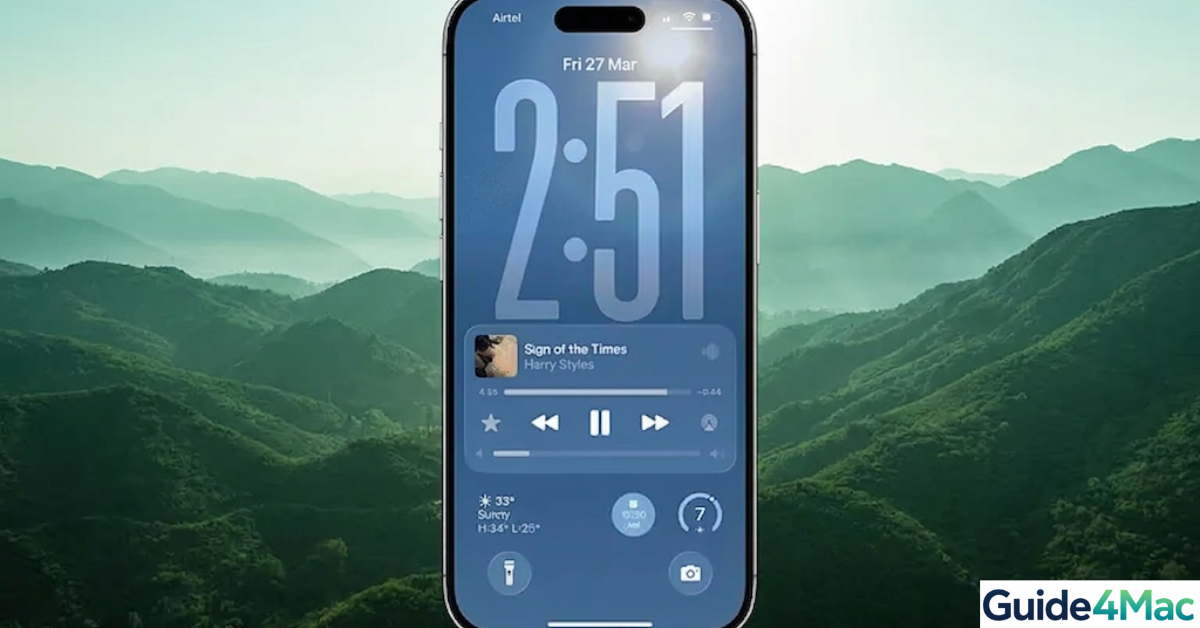
If you are trying to add a volume slider to the iPhone Lock Screen in iOS 26, you might be surprised that it is not always visible by default. Apple changed how volume controls appear, especially when media is not actively playing.
In this guide, you will learn how to bring back the volume slider on the Lock Screen, why it sometimes disappears, and several reliable ways to control volume quickly without unlocking your iPhone.
Why Is the Volume Slider Missing on iPhone Lock Screen?
In iOS 26, Apple redesigned media controls on the Lock Screen to be more dynamic. The volume slider now only appears when your iPhone detects active audio playback through apps like Music, Spotify, or Safari.
If no media is playing, the system hides the slider to keep the Lock Screen clean. This behavior is intentional and affects all modern devices, including iPhone 15 and newer models running iOS 26.
1. Play Media to Trigger the Volume Slider
The easiest way to make the volume slider appear is to start playing audio or video content.
- Open the Music app or any streaming app.
- Start playing a song or video.
- Lock your iPhone.
- Check the Lock Screen for the volume slider.
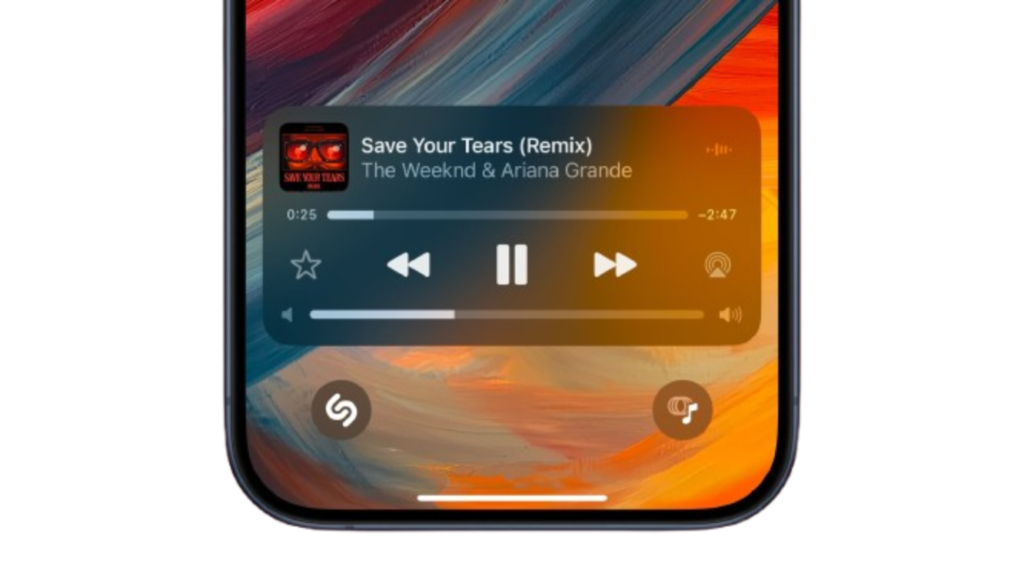
Once media is active, the slider appears automatically under the playback controls.
2. Use Control Center for Volume Control
If you do not see the slider on the Lock Screen, you can always adjust volume from Control Center.
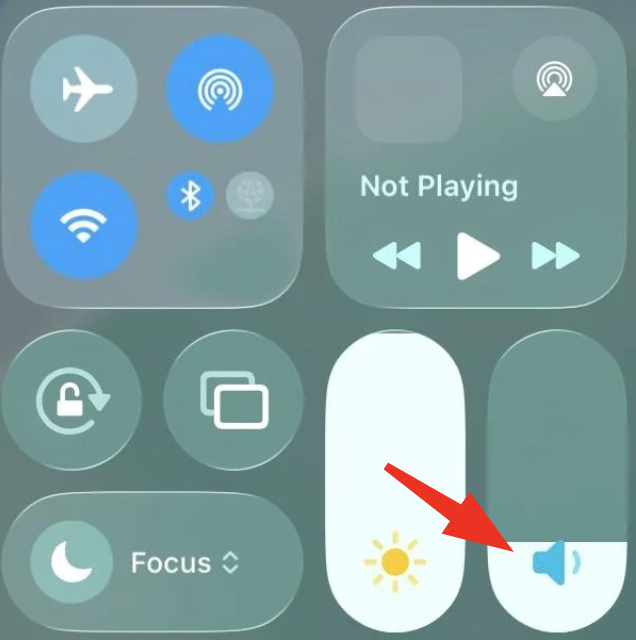
- Swipe down from the top-right corner of the screen.
- Locate the volume slider.
- Drag the slider up or down.
This method works even when your iPhone is locked and is often faster than relying on the Lock Screen widget.
3. Enable Live Activities for Media Controls
Live Activities help keep media controls visible on the Lock Screen. If disabled, the volume slider may not appear consistently.
- Open Settings.
- Tap Face ID & Passcode.
- Enter your passcode.
- Enable Live Activities.
With Live Activities turned on, media playback stays visible longer, including the volume slider.
4. Check Bluetooth and Audio Output
The volume slider behavior changes depending on where audio is playing. For example, if you are connected to AirPods or a Bluetooth speaker, controls may shift.
- Open Control Center.
- Tap the AirPlay icon.
- Select your audio output device.
If you often use wireless audio, learning how to connect AirPods Pro 3 to a laptop can help you better manage audio sources across devices.
5. Use Volume Buttons as an Alternative
Even if the slider is not visible, the physical volume buttons always work.
- Press the Volume Up button.
- Press the Volume Down button.
A temporary on-screen slider appears when you adjust volume this way, even on the Lock Screen.
6. Restart Your iPhone
If the volume slider never appears, a simple restart can fix temporary glitches in iOS 26.
- Press and hold the Side button and Volume button.
- Drag the slider to power off.
- Wait 30 seconds.
- Turn your iPhone back on.
If your device becomes unresponsive, you can force restarting your Apple Watch to troubleshoot other Apple devices as well.
7. Reset All Settings (Advanced Fix)
If settings are misconfigured, resetting them can restore default behavior without deleting your data.
- Open Settings.
- Tap General.
- Tap Transfer or Reset iPhone.
- Tap Reset.
- Select Reset All Settings.
This resets system preferences like WiFi, Bluetooth, and Lock Screen behavior.
Tips
- The volume slider only appears when media is actively playing
- Use Control Center for consistent access to volume controls
- Keep Live Activities enabled for better Lock Screen functionality
- Check audio output devices when using AirPods or speakers
- Update iOS regularly to fix UI bugs and glitches
Control Volume Faster on Your iPhone
The missing volume slider on the iPhone Lock Screen in iOS 26 is not a bug in most cases. It is part of Apple’s design to show controls only when needed.
Once you understand how it works, you can quickly bring it back by playing media or using Control Center. These methods ensure you always have fast access to volume controls without unlocking your device.
Key Takeaways
The volume slider on the iPhone Lock Screen only appears when audio or video is playing. This behavior is intentional in iOS 26.
You can still control volume using Control Center, physical buttons, or by enabling Live Activities.
These solutions work across all modern iPhones and help you manage audio quickly and efficiently.
FAQ
In iOS 26, the native slider only appears when a “Now Playing” session is active. To adjust the ringer volume specifically, you must use the physical buttons on the side of the phone.
This is a power-saving feature. If the screen dims or the “Always-On” display kicks in, the interactive slider may hide to prevent accidental touches in your pocket.
Yes, as long as your device supports iOS 26, these Lock Screen customization steps remain the same.

0 Comments