How To Airdrop from iPhone to Windows PC: Simple Methods
AirDrop is widely considered the gold standard for wireless file sharing due to its speed and encrypted proximity-based transfers. However, because AirDrop is a proprietary Apple technology, it does not natively appear in the Windows context menu. To bridge this gap, you must use alternative protocols that mimic the AirDrop experience, such as Intel Unison or browser-based encrypted relays, to move photos, videos, and documents without a Lightning or USB-C cable.
The underlying magic of AirDrop relies on a combination of Bluetooth Low Energy (BLE) for discovery and point-to-point Wi-Fi for the actual data payload. Windows PCs lack the specific Apple-signed handshake required for this direct connection. To bypass this limitation, modern solutions create a secure local network tunnel between your iOS device and your PC, allowing for high-speed transfers that rival the performance of the M-series Mac ecosystem.
How do you Airdrop files from an iPhone to a Windows PC?
Since you cannot simply tap an “AirDrop to PC” button, the most effective method is using Intel Unison or a dedicated web relay like SnapDrop. Intel Unison is the most “Apple-like” experience for Windows 11 users, providing a persistent link for gallery syncing and file dragging. If you prefer not to install software, web-based P2P (peer-to-peer) services allow you to transfer files through a shared Wi-Fi connection by simply opening a specific URL on both devices.
Using Intel Unison for Seamless Transfers
Intel Unison is the official recommendation for users with modern Windows 11 hardware. It creates a stable, encrypted pair between your iPhone and PC, allowing you to browse your iPhone’s camera roll directly from your desktop. This is the closest functional equivalent to the native Mac experience, supporting high-resolution media without the compression often found in messaging apps.
- Persistent connection that stays active in the background.
- Supports high-speed transfer of large 4K video files and ProRAW photos.
- Includes secondary features like responding to iMessages and viewing notifications on your PC.
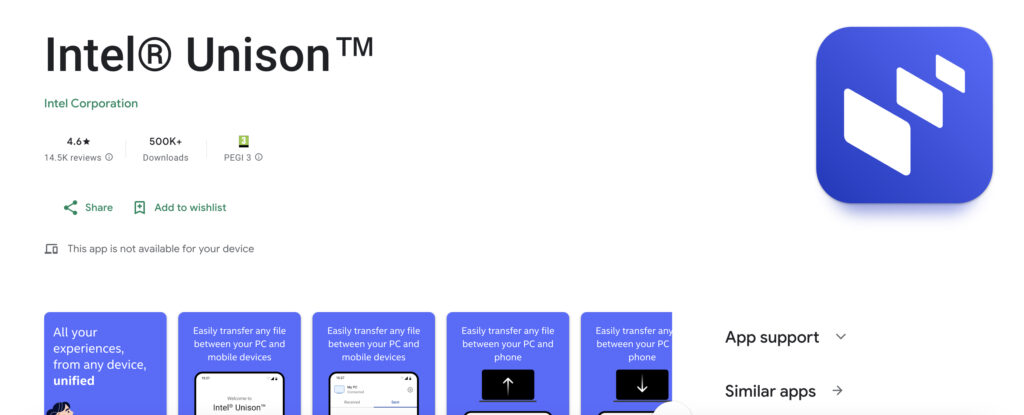
- Download the Intel Unison app on both your Windows PC and iPhone.
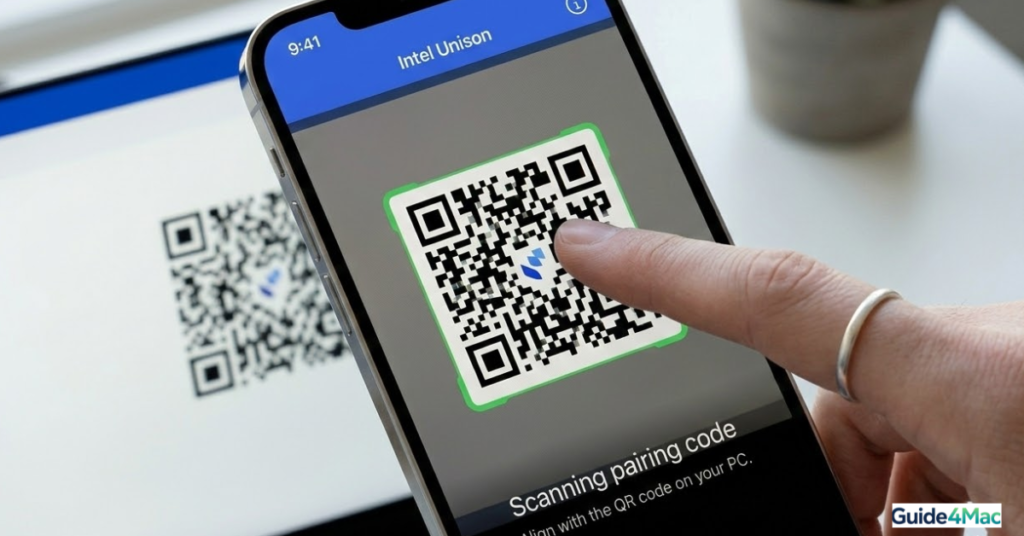
- Open the app on both devices and Scan the QR Code displayed on your PC using your iPhone.
- Confirm the Pairing Code matches on both screens.
- On your iPhone, select the Files or Photos you wish to send.
- Tap the Transfer icon and select your PC from the list.
Browser-Based Transfers via SnapDrop
If you are using a public computer or a device where you cannot install software, SnapDrop is the premier alternative. It uses WebRTC (Web Real-Time Communication) to discover devices on the same local network. Because the data is sent directly between devices and not stored on a server, it maintains the privacy standards expected by power users.
- No installation or account creation required for either device.
- Works on any version of Windows and any model of iPhone.
- Uses P2P encryption to ensure your files are not intercepted during the wireless hop.
- Connect both your iPhone and your Windows PC to the Same Wi-Fi Network.
- Open Snapdrop.net in Safari on your iPhone and in Chrome/Edge on your PC.
- On your iPhone, tap the Icon representing your PC that appears on the screen.
- Choose your Photo Library or a file from the Files App.
- On your PC, click Save to accept the incoming transfer.
Native iCloud for Windows Syncing
For those who want their files to “just appear” on their PC without manual sending, iCloud for Windows is the most reliable backend solution. By enabling iCloud Photos, every picture you take is automatically uploaded to Apple’s servers and then downloaded to a dedicated folder on your Windows machine. This method is ideal for long-term backups rather than one-off file sharing.
- Automatic background synchronization requires zero manual effort after setup.
- Integrates directly with Windows File Explorer for easy access.
- Ensures you are always backed up, helping you how to back up iphone and how to fix missing or incomplete photos imessage.
- Download iCloud for Windows from the Microsoft Store.
- Sign in with your Apple ID.
- Check the box next to Photos and iCloud Drive.
- Click Apply to begin the initial sync.
- Access your files via the iCloud Photos folder in File Explorer.

Direct Hardware Transfer (The Wired Method)
When wireless networks are congested or you are dealing with massive folders of data, a physical connection remains the fastest and most stable path. Connecting your iPhone via a high-quality cable allows Windows to treat the device as a digital camera, providing raw access to the DCIM folder. This is often the best way to how to make iphone pictures smaller by moving them to bulk storage on your PC.
- Maximum data transfer speeds limited only by the cable and port.
- Does not require a Wi-Fi connection or internet access.
- Allows for the use of the Windows Photos app for bulk importing.
- Connect your iPhone to your PC using a USB-C or Lightning cable.
- Tap Trust This Computer on your iPhone screen and enter your passcode.
- On your PC, open File Explorer and go to This PC.
- Right-click on your iPhone and select Import pictures and videos.
Comparison of iPhone to Windows Transfer Methods
| Method | Speed | Setup Difficulty | Best For |
| Intel Unison | Very High | Medium | Frequent users with Windows 11 |
| SnapDrop | High | Very Low | Quick, one-time file transfers |
| iCloud for Windows | Medium | High | Automated photo backups |
| Wired USB | Maximum | Low | Huge video files and bulk data |
Pro-Tips for Successful Transfers
- HEIC Compatibility: Windows does not natively display iPhone HEIC photos perfectly. You may need to download the “HEIF Image Extensions” from the Microsoft Store or change your iPhone settings to “Most Compatible” under Settings > Camera > Formats.
- Keep the Screen Awake: When using browser-based tools like SnapDrop, the transfer will fail if your iPhone screen turns off. Disable Auto-Lock temporarily in Settings > Display & Brightness.
- Firewall Exceptions: If your PC doesn’t show up in Intel Unison, ensure that your Windows Firewall isn’t blocking the app’s local network communication.
- Update Drivers: To ensure your PC recognizes the phone, you may need to install apple mobile device driver windows 11.
Breaking the Ecosystem Barrier
While a native AirDrop button for Windows remains an Apple-exclusive dream, the tools available in 2026 have effectively bridged the gap. Whether you choose the integration of Intel Unison or the simplicity of SnapDrop, moving your data across platforms is no longer a chore. By understanding these wireless protocols, you can maintain a productive workflow that utilizes the best of both iOS and Windows.
FAQ
No, AirDrop is an Apple-only feature. However, you can use third-party apps like Intel Unison or web-based services like SnapDrop to achieve the same wireless result.
Ensure both devices are on the same Wi-Fi network and that your Windows Firewall is not blocking the transfer application. For web tools, make sure the site is open on both devices.
A wired USB connection is generally the fastest and most stable method for large 4K video files, as it is not subject to Wi-Fi interference.
Not necessarily. You can use Snapdrop.net in your browser or a USB cable to move photos without installing any new software on your iPhone.
Yes, SnapDrop uses P2P encryption, meaning your files are sent directly between your devices and are never uploaded to a central server.

0 Comments