How to Block My Number on iPhone: 3 Simple Privacy Methods
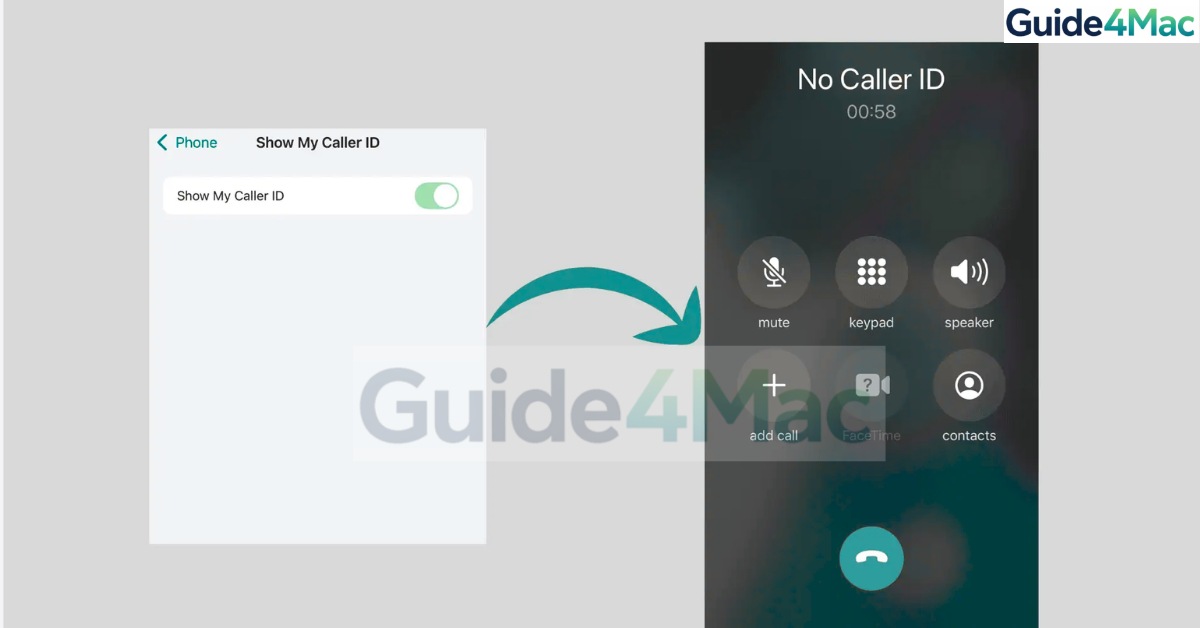
If you want to block your number on iPhone, you can hide your caller ID so the person you call cannot see your phone number. Instead, their screen will show messages like “No Caller ID,” “Private Number,” or “Unknown Caller.”
This feature can be useful when contacting businesses, protecting your privacy, or avoiding unwanted callbacks. In this guide, you will learn several ways to hide your number on an iPhone, including using system settings, dialing a special prefix, and checking carrier restrictions. If privacy is important for your calls, you may also want to learn how to make anonymous calls on iPhone using No Caller ID.
How Can You Block Your Number on iPhone?
Your iPhone allows you to hide your phone number through Caller ID settings in the Phone app. When this option is disabled, your number will not appear on the recipient’s screen when making calls.
However, this feature depends on your mobile carrier. Some carriers allow full caller ID control, while others require dialing a prefix before each call to hide your number.
Below are the most effective ways to block your number on iPhone.
1. Turn Off Show My Caller ID
The easiest way to hide your phone number is by disabling the Show My Caller ID option in iPhone settings.
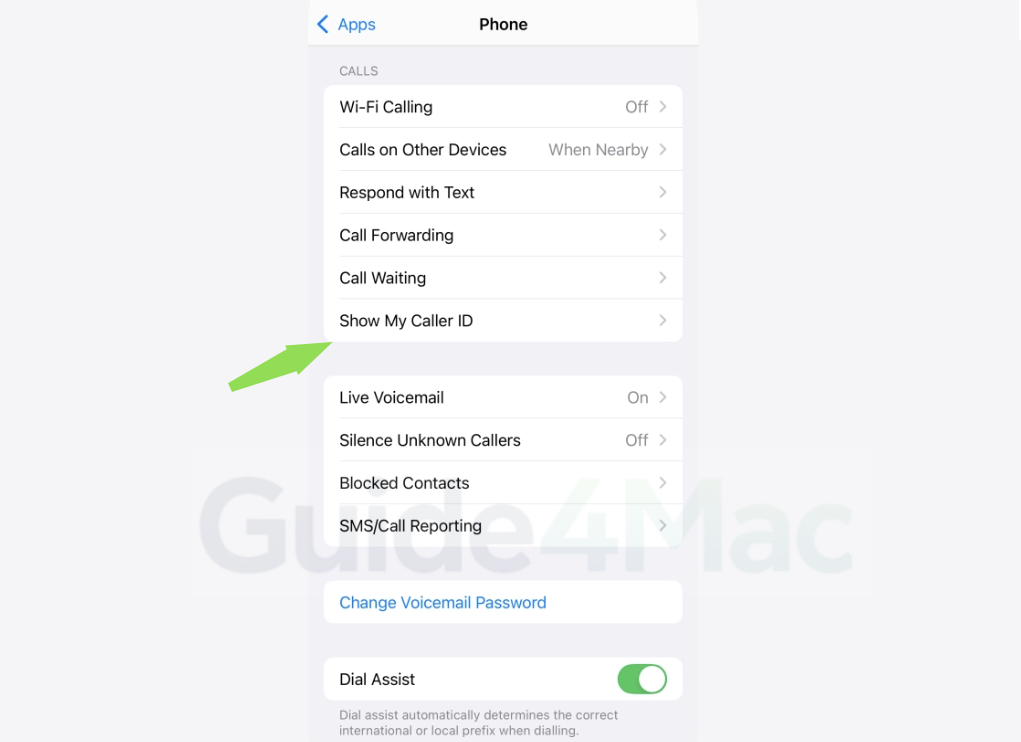
- Open Settings.
- Scroll down and tap Phone.
- Select Show My Caller ID.
- Turn the toggle off.
Once disabled, every outgoing call will hide your number automatically.
2. Dial a Caller ID Blocking Prefix
If you want to hide your number for a single call instead of permanently disabling caller ID, you can dial a special prefix before the phone number.
- Open the Phone app.
- Tap the Keypad tab.
- Dial *67 before the phone number.
- Press the Call button.
For example, dialing *67 123-456-7890 will hide your caller ID for that call only.
This method works in many countries but depends on your carrier.
3. Check Carrier Restrictions
Some carriers disable the Show My Caller ID option completely. If the setting is missing or grayed out, your carrier likely manages this feature.
- Open Settings.
- Tap Phone.
- Look for Show My Caller ID.
- If the option is unavailable, contact your carrier.
Your carrier may enable caller ID blocking on your account if requested.
4. Use Carrier-Specific Caller ID Codes
Certain carriers use different prefixes to hide phone numbers temporarily.
Common caller ID prefixes include:
• *67 in many regions including the United States
• #31# used by several European carriers
• Other region-specific dialing codes
To use them:
- Open the Phone app.
- Enter the carrier prefix before the number.
- Tap Call.
If you are unsure which prefix your carrier uses, contacting support is the best option.
5. Confirm Your Number Is Hidden
After enabling caller ID blocking, it helps to test the feature.
- Call a friend or family member.
- Ask them what appears on their screen.
- Confirm the call shows No Caller ID or Private Number.
Testing ensures the setting works before using it for important calls.
If you are troubleshooting calling behavior or unusual call settings, it can also help to review how to block spam calls on iPhone since certain phone filters may interact with caller ID features.
Tips
• Some people automatically block calls from hidden numbers.
• Emergency services will still see your number even if caller ID is hidden.
• Businesses may reject calls that do not display caller ID.
• Use caller ID blocking only when necessary for privacy.
• Check your carrier website for regional caller ID rules.
Protecting Your Privacy During Calls
Blocking your number on iPhone is a simple way to protect your privacy when making calls. By disabling the Show My Caller ID setting or using a dialing prefix, you can prevent your phone number from appearing on the recipient’s screen.
If the option is unavailable, your mobile carrier may control the feature, but most providers allow caller ID blocking when requested.
Key Takeaways
Blocking your number on iPhone hides your caller ID so recipients cannot see your phone number. The easiest method is turning off the Show My Caller ID setting in the Phone app. You can also dial special prefixes like *67 to hide your number for individual calls. If the option is missing, your mobile carrier may need to enable caller ID blocking on your account.
FAQ
Yes. Turning off the Show My Caller ID setting will hide your number for all outgoing calls until you enable it again.
Most phones display messages like “No Caller ID,” “Private Number,” or “Unknown Caller.”
Some carriers control caller ID settings. If the option is missing, contact your carrier for assistance.
No. Caller ID blocking only affects voice calls and does not hide your phone number when sending SMS messages.
Yes. Emergency services and certain government systems can still view your phone number even if caller ID is hidden.

0 Comments