Can’t Find CarPlay? How to Enable & Unlock CarPlay Settings
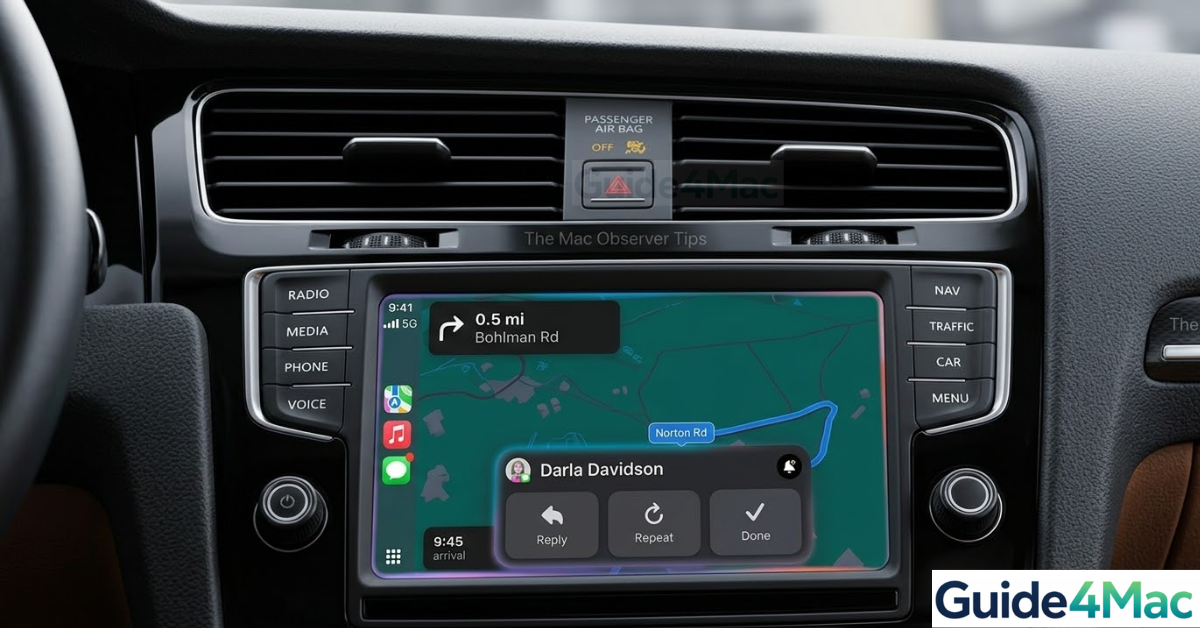
If you want to enable CarPlay on iPhone, the process is usually quick and only requires a few settings changes. Apple CarPlay allows your iPhone to integrate with your car’s infotainment system so you can access navigation, messages, music, and calls safely while driving.
Once enabled, CarPlay mirrors compatible iPhone apps onto your vehicle’s display, making it easier to interact with features like Maps, Siri, and Music. In this guide, you will learn several ways to enable Apple CarPlay and troubleshoot common connection issues. If you often rely on your phone while driving, you may also want to learn how to fix an iPhone that goes straight to voicemail so important calls are not missed during trips.
Why Is CarPlay Not Working on Your iPhone?
In most cases, CarPlay issues happen because of connection settings or restrictions enabled on the device. Apple supports both wired CarPlay through USB and wireless CarPlay through Bluetooth and Wi-Fi.
Common reasons CarPlay does not activate include:
• CarPlay disabled in iPhone settings
• Screen Time restrictions blocking CarPlay
• Faulty USB cable connection
• Bluetooth or Wi-Fi disabled for wireless CarPlay
• Outdated iOS software
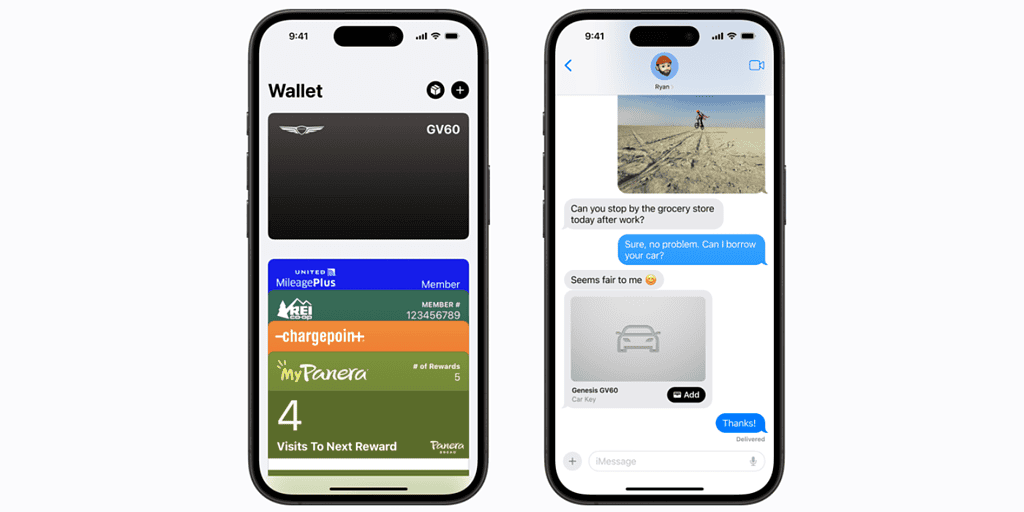
Checking these settings usually restores the connection quickly.
1. Enable CarPlay in iPhone Settings
Apple CarPlay must be enabled in the iPhone settings before it can connect to your car.
- Open Settings.
- Tap General.
- Select CarPlay.
- Choose your vehicle from the list.
- Enable Allow CarPlay While Locked if needed.
Once enabled, your car should appear automatically when connected.
2. Connect iPhone to the Car With a USB Cable
Many vehicles still use a wired connection for CarPlay.
- Start your vehicle.
- Connect your iPhone using a USB cable.
- Plug the cable into the CarPlay USB port in the car.
- Unlock your iPhone.
- Tap Allow if prompted.
Your car display should launch the CarPlay interface automatically.
3. Set Up Wireless CarPlay
Some newer vehicles support wireless Apple CarPlay.
- Start your vehicle.
- Enable Bluetooth on your iPhone.
- Open Settings.
- Tap General.
- Select CarPlay.
- Tap Available Cars.
- Choose your vehicle.
The iPhone will connect using Bluetooth and Wi-Fi.
4. Check Screen Time Restrictions
CarPlay may be blocked if Screen Time restrictions are enabled.
- Open Settings.
- Tap Screen Time.
- Select Content & Privacy Restrictions.
- Tap Allowed Apps.
- Enable CarPlay.
Disabling restrictions allows the feature to work again.
5. Restart Your iPhone and Car System
Sometimes connection problems happen because of temporary system glitches.
- Turn off your car.
- Restart your iPhone.
- Start the car again.
- Reconnect the device.
This refreshes both systems and can restore the CarPlay connection.
6. Update iOS
Older software versions can occasionally cause compatibility problems with vehicle systems.
- Open Settings.
- Tap General.
- Select Software Update.
- Install any available update.
Updating iOS often improves CarPlay compatibility with newer vehicles.
Tips
• Use an original Apple cable for reliable wired CarPlay connections.
• Enable Siri for better voice control while driving.
• Keep Bluetooth and Wi-Fi turned on for wireless CarPlay.
• Check your vehicle manual for specific CarPlay requirements.
• Update both your car system and iPhone regularly.
Enjoy Apple CarPlay on the Road
Apple CarPlay makes driving safer by placing essential iPhone apps on your car’s display. With navigation, calls, music, and messaging accessible through Siri or touch controls, it reduces distractions while driving.
Once properly configured, CarPlay should automatically connect whenever you enter your vehicle.
Key Takeaways
Enabling CarPlay on an iPhone usually requires activating the feature in Settings and connecting the phone to your car using USB or wireless pairing. Checking Screen Time restrictions, restarting devices, and updating iOS can resolve most connection problems. Once configured, Apple CarPlay integrates your iPhone apps directly into your car’s infotainment system.
FAQ
Open Settings, go to General, tap CarPlay, and connect your vehicle to enable the feature.
Common causes include disabled CarPlay settings, faulty cables, Bluetooth issues, or Screen Time restrictions.
Bluetooth is required for wireless CarPlay, but wired CarPlay works through a USB connection.
Yes. Many newer vehicles support wireless CarPlay using Bluetooth and Wi-Fi.
No. CarPlay is available only in compatible vehicles or aftermarket infotainment systems.

0 Comments