How To Activate Call Screening on Your iPhone: Complete Guide
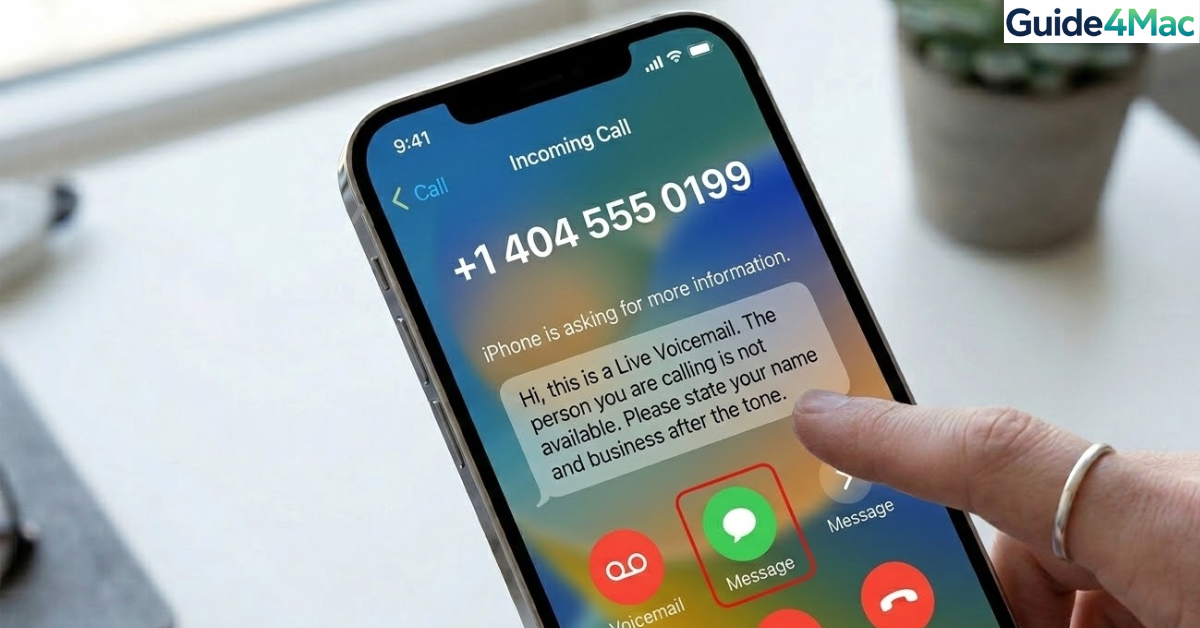
Unwanted telemarketing and spam calls have become a persistent issue, disrupting focuses and filling voicemails. While your iPhone’s basic silent toggle is effective, Apple’s Call Screening—implemented primarily via the silence unknown callers feature and advanced Live Voicemail—offers a proactive, intelligent defense. This system allows your device to actively vet incoming communication rather than simply muting it, restoring control over your reachability.
The core technology behind effective call screening on iOS leverages both local on-device intelligence and real-time carrier data. When these features are active, your iPhone analyzes an incoming number against your contacts, recent outgoing calls, and Siri Suggestions. If a match isn’t found, the call can be silently diverted or transcribed instantly, providing a seamless filtering layer that adapts to your usage patterns.
How do you enable and use call screening on an iPhone?
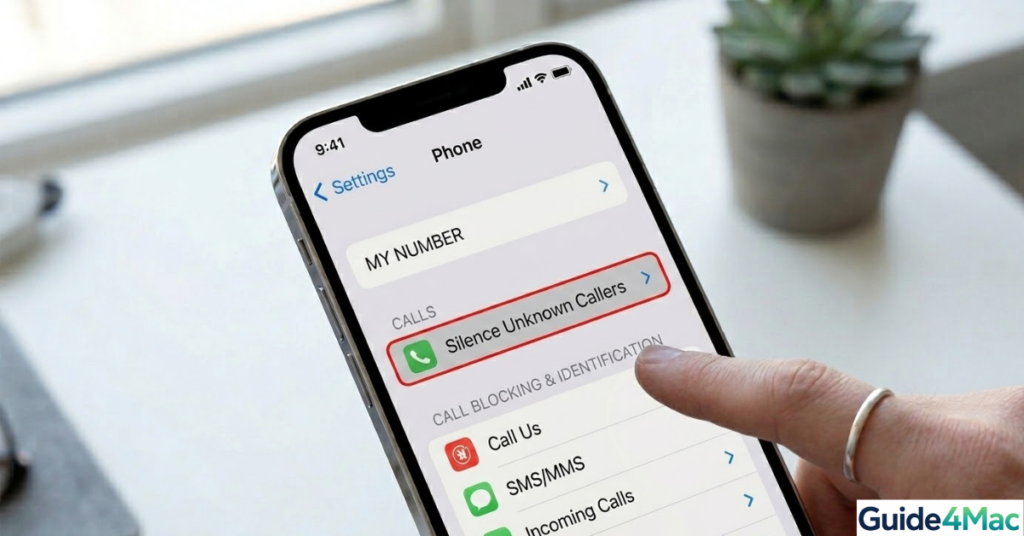
To achieve true call screening, you must first direct iOS to handle unidentified numbers silently. This is done by activating the built-in “Silence Unknown Callers” feature. Once enabled, calls from numbers not in your Contacts, Mail, or Messages are automatically sent to voicemail without ringing. For a truly interactive experience that mimics a “digital receptionist,” you can then layer this with Live Voicemail, allowing you to see a real-time transcription of the message as the caller speaks it.
1. Activating Silence Unknown Callers
This primary feature acts as the gateway filter for all screening logic. Enabling it immediately stops your iPhone from ringing for any unrecognized number, which is essential for blocking spam calls on iPhone. It relies strictly on your device’s known list of contacts and interactions to make instant routing decisions. As a native iOS tool, this powerful filtering capability is completely free to use.
- Instantly diverts calls from unidentified numbers directly to your voicemail.
- The call is logged in your Recents list, allowing you to review and return legitimate calls easily.
- Critical functionality for reducing immediate daily interruptions from automated systems.
- Open the Settings app on your iPhone.
- Scroll down and tap Phone.
- Tap on Silence Unknown Callers.
- Toggle the switch to the On (green) position.
2. Using Live Voicemail for Real-Time Screening
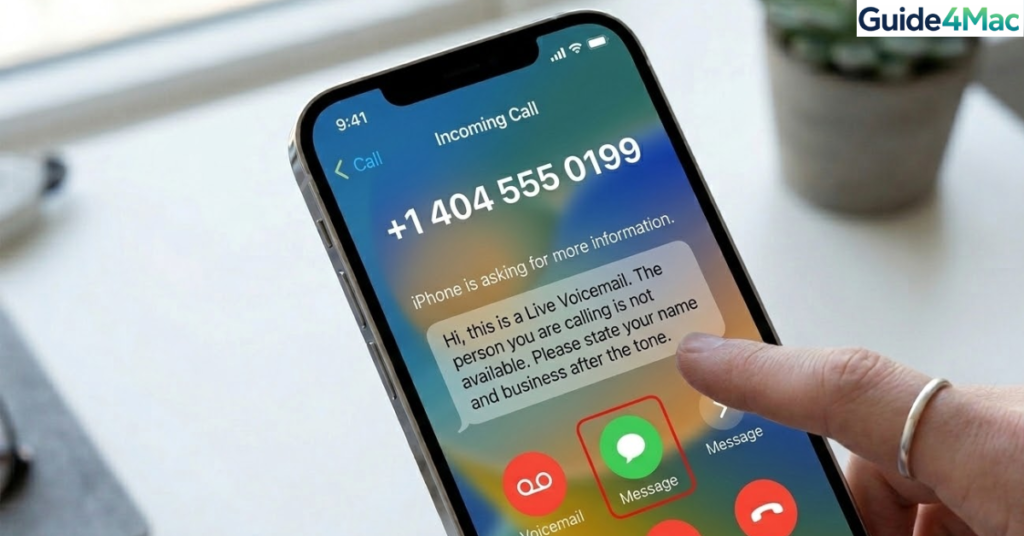
While silencing calls handles the distraction, Live Voicemail—introduced in iOS 17—provides the “use” aspect of screening. When an unknown call is silenced and sent to voicemail, your iPhone (if on a supported carrier and region) will display a real-time transcription of the caller’s message directly on your lock screen.
- On-device, private transcription that happens in real-time as the caller speaks.
- Provides the context needed to decide whether to interrupt your current activity.
- Allows interaction with the call (picking it up) even while the transcription is active.
- Ensure your iPhone is updated to at least iOS 17.
- When an unknown call is silenced and sent to voicemail, look at your lock screen.
- A live, scrolling transcription of the message will appear automatically.
- Tap Accept (green button) to take the call if the message is legitimate.
3. Optimizing Call Screening with Siri and Contacts
To ensure your legitimate contacts always ring through, your iPhone’s screening intelligence must be well-maintained. This involves a clean Contacts list and leveraging Siri’s ability to find phone numbers hidden in other apps like Mail or Messages. If Siri detects a number in an email, it will treat it as “known,” preventing a necessary business call from being accidentally silenced. Like all core iOS optimizations, this integrated feature requires no additional subscription.
- Siri Suggestions actively scan Mail and Messages to identify known numbers not yet in Contacts.
- Ensures that new, legitimate business or personal contacts are not incorrectly screened.
- Reduces the need to manually add every potential caller to your Contacts list.
- Open Settings and tap Siri & Search.
- Ensure Show in App (within the ‘Before Searching’ section) is enabled.
- Navigate to Settings > Contacts and verify that a clean list is synced.
Advanced Carrier-Level call screening
While Apple offers excellent on-device tools, major cellular carriers (like Verizon, T-Mobile, and AT&T) maintain their own massive, real-time databases of known spam and scam numbers. Leveraging these carrier-specific apps provides an additional “firewall” that can identify and label calls as “Scam Likely” before they even hit Apple’s native screening intelligence. This is a common and effective recommendation from expert discussions on Apple Communities when native tools aren’t sufficient. While these apps usually offer a free basic tier for identifying scam calls, additional features like active blocking or reverse lookups often require a premium subscription.
- Carrier apps provide definitive labeling (e.g., “Scam Likely”) on the incoming call screen.
- Offers network-level blocking of known malicious numbers, stopping the call before it rings.
- Complements iOS features by filtering out the highest-volume, obvious automated traffic.
- Identify your carrier’s spam protection app (e.g., Verizon Call Filter, T-Mobile Scam Shield).
- Download and open the application on your iPhone.
- Follow the in-app prompts to activate the basic spam detection features.
Feature Comparison of iOS Call Screening Methods
| Feature | Silence Unknown Callers | Live Voicemail (iOS 17) | Carrier-Level Apps (Basic) |
| Primary Method | Local Contact Check | On-Device Transcription | Network Spam Database |
| Call Handling | Silenced, Sent to VM | Real-Time Transcription on Lock Screen | Labeled (“Scam Likely”), Blocks Known Scam |
| Caller Experience | Sent to Voicemail (normal delay) | Prompted to leave a message (instantly) | Call may be terminated or sent to VM |
| Cost | Free (iOS Native) | Free (iOS Native, Carrier VM support req.) | Free (Basic, Premium tier available) |
| Carrier Req. | None | Visual Voicemail Support | Yes (Must use own carrier’s app) |
Pro-Tips for maintaining effective Call Screening
- Emergency Bypass: If you use do not disturb on iphone, you can still use call screening. Set critical contacts (like family) to “Emergency Bypass” within their Contact card so they always ring through any silent or screening settings.
- Check Carrier Compatibility: Live Voicemail is not universal. If the transcription is not appearing, verify with your carrier that your specific visual voicemail plan supports on-device transcription.
- Keep iOS Updated: Apple constantly refines its spam detection logic with iOS updates, which include enhancements for detecting and managing malicious communication patterns.
FAQs
The most effective approach is to enable “Silence Unknown Callers” in Settings to stop notifications for unidentified numbers, layered with iOS 17’s Live Voicemail to view real-time transcriptions of those calls as they happen.
Yes, it silences all incoming calls from numbers that are not found in your Contacts, Mail, or recent Messages/outgoing calls, diverting them instantly to your voicemail.
Live Voicemail requires iOS 17 or later, is only available in specific regions (like the U.S. and Canada initially), and depends on carrier support for visual voicemail. Ensure your software and carrier settings are up to date.
Ensure the number is saved in your Contacts. Alternatively, if Siri detects the number in an email (via Mail), it will treat the number as “known” and allow it to ring.
Yes, the native iOS features like “Silence Unknown Callers” and Live Voicemail transcription are completely free, on-device capabilities included with the operating system.

0 Comments