iPhone Calls Going Straight to Voicemail? 7 Fixes to Stop It Now
If your iPhone calls go straight to voicemail, incoming calls may never ring on your device. Instead, callers are immediately sent to voicemail, which makes it easy to miss important calls from friends, work contacts, or unknown numbers.
This problem can happen for several reasons, including Do Not Disturb settings, Focus modes, network issues, or call filtering features. In this guide, you will learn how to identify the cause and apply proven solutions to fix an iPhone that sends calls directly to voicemail. If you also want to manage unwanted calls, learning how to block your number on iPhone when making calls can help improve your call privacy settings.
Why Are Calls Going Straight to Voicemail on iPhone?
When calls go directly to voicemail, it usually means something is blocking incoming calls from reaching your device. This could be a software setting or a network issue.
Common causes include Focus modes like Do Not Disturb, call blocking features such as Silence Unknown Callers, or problems with your mobile network. In some cases, carrier settings or call forwarding may also redirect calls away from your iPhone.
Below are the most effective ways to fix the problem.
1. Turn Off Do Not Disturb or Focus Mode
Do Not Disturb and Focus modes can silence incoming calls.
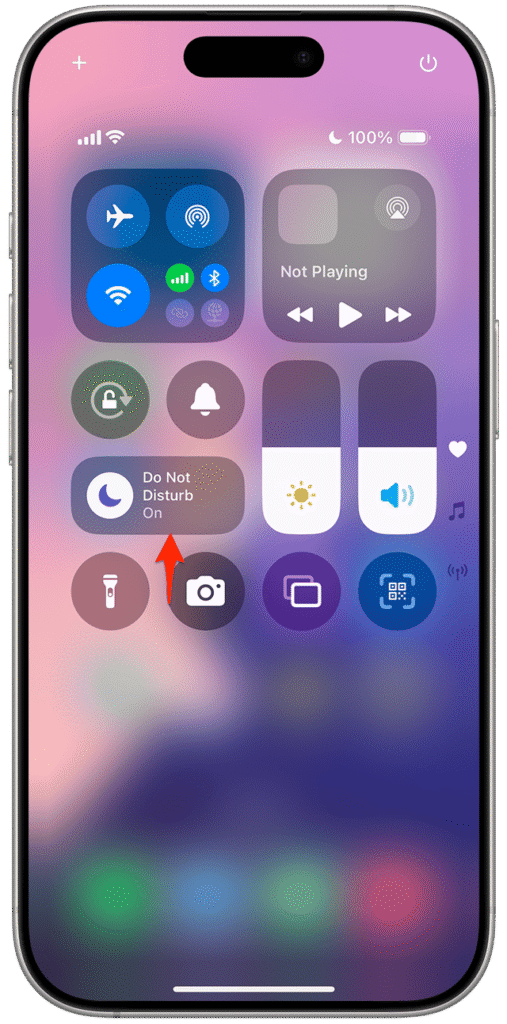
- Open Settings.
- Tap Focus.
- Select Do Not Disturb or the active Focus mode.
- Turn off the Focus toggle.
Once disabled, incoming calls should ring normally again.
2. Disable Silence Unknown Callers
This feature automatically sends calls from unknown numbers to voicemail.
- Open Settings.
- Tap Phone.
- Select Silence Unknown Callers.
- Turn off the toggle.
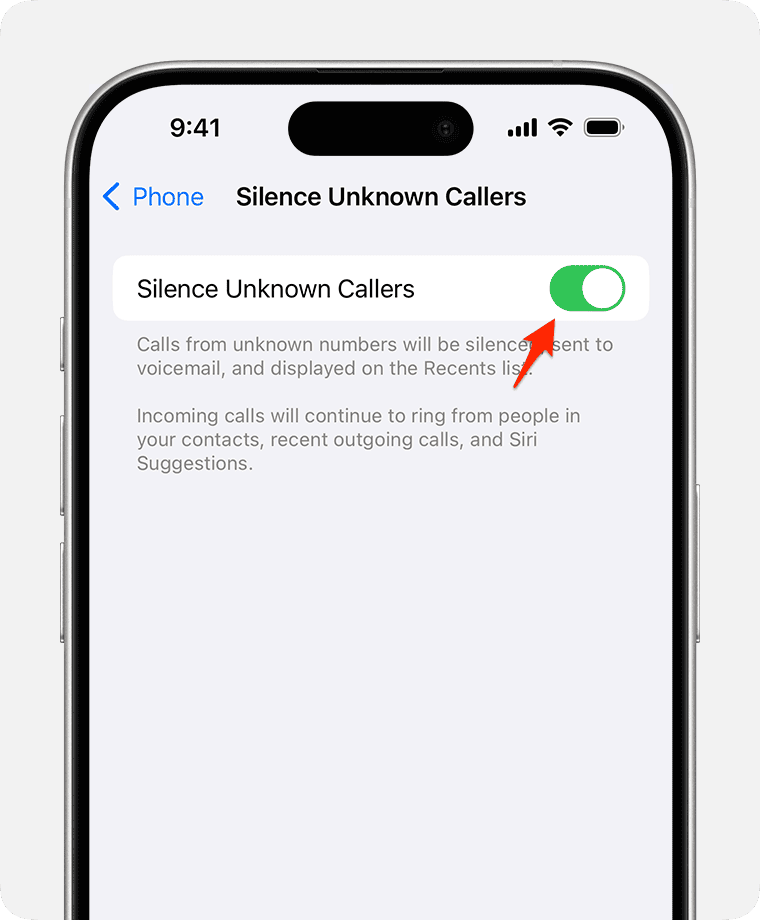
After disabling this feature, calls from new numbers should ring instead of going straight to voicemail.
3. Check Your Cellular Signal
Weak network coverage may prevent calls from reaching your device.
- Look at the signal bars in the status bar.
- Move to an area with stronger reception.
- Turn Airplane Mode on.
- Wait a few seconds.
- Turn Airplane Mode off.
This forces the iPhone to reconnect to the cellular network.
4. Check If Call Forwarding Is Enabled
Call forwarding may redirect calls to voicemail or another number.
- Open Settings.
- Tap Phone.
- Select Call Forwarding.
- Turn off Call Forwarding.
Disabling this option ensures calls are delivered directly to your iPhone.
5. Check Blocked Contacts
If a caller is blocked, their calls will automatically go to voicemail.
- Open Settings.
- Tap Phone.
- Select Blocked Contacts.
- Review the blocked list.
- Remove numbers you want to allow.
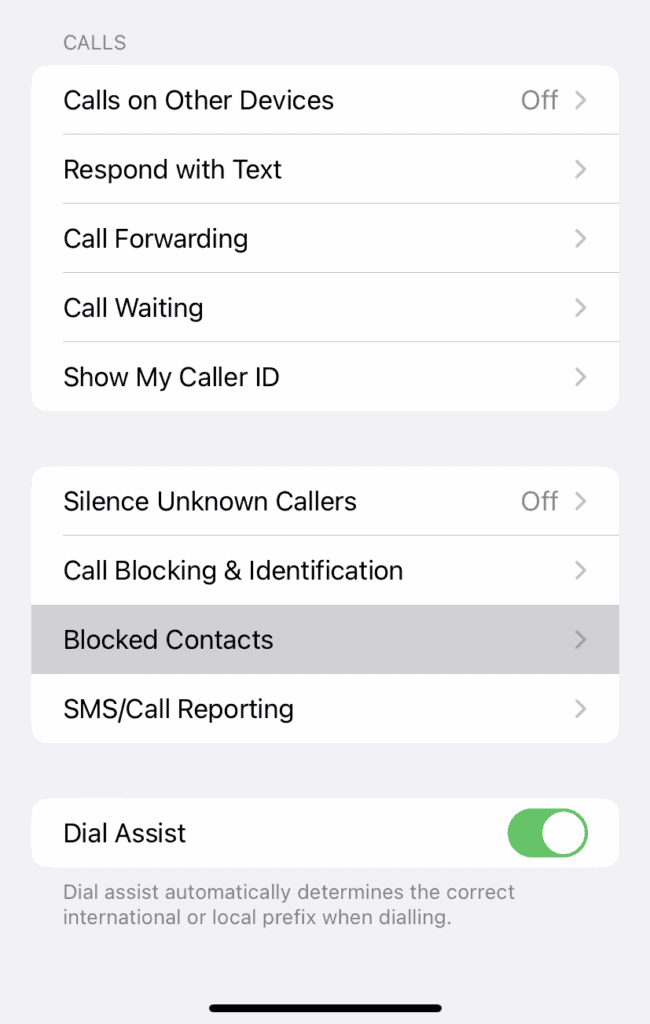
After removing a contact from the blocked list, they will be able to call you normally again.
6. Restart Your iPhone
Temporary software glitches can sometimes interrupt incoming calls.
- Press and hold the Side button and Volume button.
- Drag the Power Off slider.
- Wait 30 seconds.
- Press and hold the Side button again to turn the iPhone on.
Restarting refreshes system processes and may restore normal call behavior.
7. Update iOS
Software bugs can sometimes cause call-related problems.
- Open Settings.
- Tap General.
- Select Software Update.
- Install any available updates.
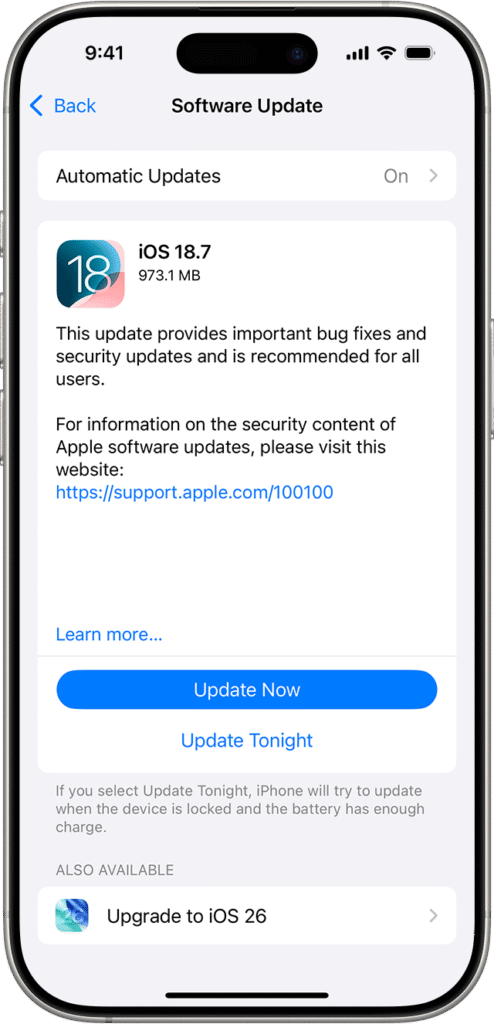
Keeping iOS updated helps ensure your iPhone works correctly with your carrier network.
If your device experiences other calling problems, you may also want to review solutions for not receiving verification texts on iPhone since similar network issues can affect calls and messages.
Tips
• Disable Focus modes when expecting important calls.
• Check network signal strength regularly.
• Review blocked contacts if specific people cannot reach you.
• Keep iOS updated to avoid bugs.
• Restart your iPhone occasionally to refresh system processes.
Get Your iPhone Ringing Again
When an iPhone sends calls straight to voicemail, the issue is usually related to settings like Focus mode, Silence Unknown Callers, or call forwarding. In some cases, weak cellular signals or software glitches can also interrupt incoming calls.
By reviewing your call settings, checking network connectivity, and updating iOS, you can usually restore normal call behavior and ensure that incoming calls reach your device properly.
Key Takeaways
Calls going directly to voicemail on iPhone usually happen because of Focus modes, call filtering settings, or network problems. Features such as Silence Unknown Callers or call forwarding may also redirect calls away from your device.
Disabling these settings, checking your signal strength, and updating iOS are the most effective ways to fix the issue and receive calls normally again.
FAQ
This often happens because Do Not Disturb, Silence Unknown Callers, or call forwarding is enabled.
Yes. Blocked contacts cannot reach you, and their calls are automatically redirected to voicemail.
Yes. If your iPhone cannot connect to the cellular network, incoming calls may go directly to voicemail.
Disable the Silence Unknown Callers option in Phone settings.
Restarting can resolve temporary software glitches that affect incoming calls.

0 Comments