QUICKLY FIX: iPhone Contacts Disappeared Step-By-Step
Losing contacts on your iPhone is tragical, especially if important phone numbers you are dialing daily suddenly vanish from the Contacts or Phone app. If your iPhone contacts disappeared, the issue is usually related to:
- syncing problems
- account settings
- temporary iOS glitches
These causes are more often encountered rather than complete data loss or permanent deletion from your iPhone.
Lets see together how you can restore missing contacts on your iPhone. We will cover iCloud sync fixes, account settings checks, iOS updates, and recovery options that work on modern devices like iPhone 15, iPhone 16, and newer models (iPhone 17 models) running recent iOS versions. If your device recently updated or synced with iCloud, these solutions should help recover your contacts quickly.
Before troubleshooting, it may also help to ensure your Apple account is properly signed in and can see your contacts from other syncs. If needed, check this quick guide on how to sign in to your Apple account which can resolve many iCloud sync problems.
How To Restore iPhone Contacts If They Suddenly Dissappeared?
1. Ensure You Are Signed Into iCloud
If you are logged out of iCloud, your contacts will not sync to your device. Signing back in often restores the entire contact list once synchronization completes.
- Open Settings.
- Tap Sign in to your iPhone at the top.

- Enter your Apple ID and password.
- Wait for iCloud to sync your data.
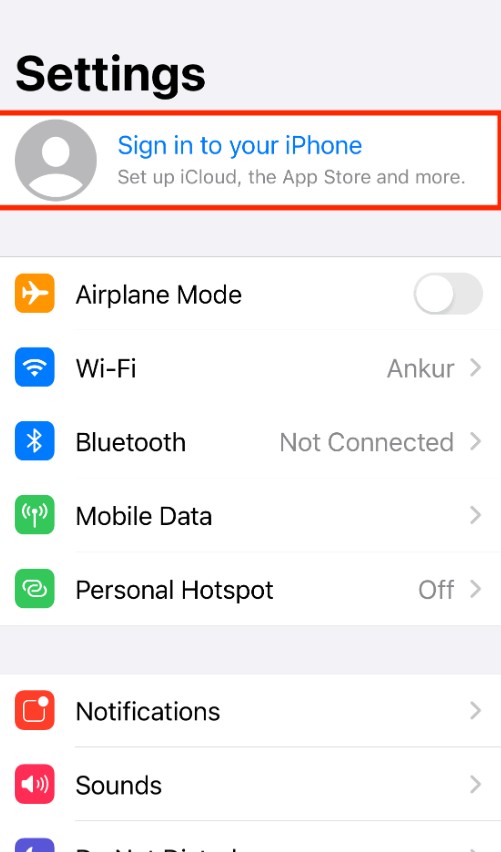
Once signed in, open the Contacts app and check if your contact list has returned.
2. Toggle iCloud Contacts Off and On
Re-syncing contacts with iCloud forces the system to reload your contact list. This method fixes many cases where contacts appear missing due to syncing delays.
- Open Settings.
- Tap Your Name at the top.
- Select iCloud.
- Tap Show All under Apps Using iCloud.
- Turn Contacts off.
- Choose Keep on My iPhone when prompted.
- Restart your iPhone.
- Turn Contacts back on.
- Tap Merge if prompted.
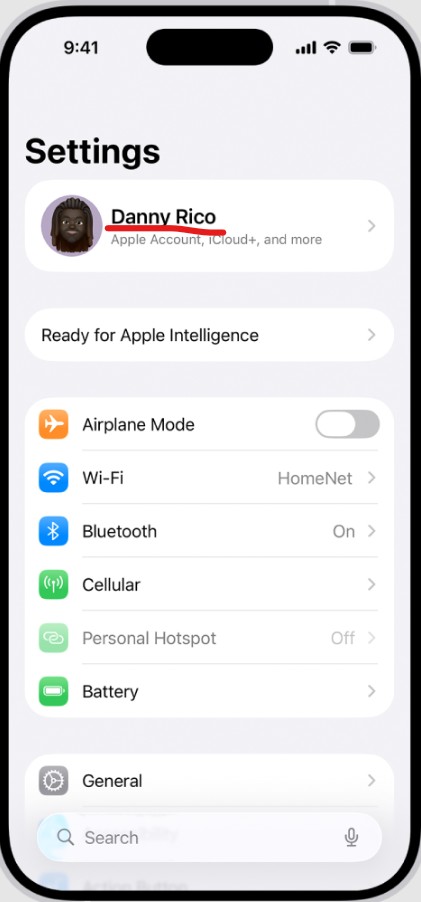
After a few minutes, iCloud should restore your contacts automatically.
3. Select the “All Contacts” List
Sometimes contacts are not actually deleted but hidden because the wrong contact list is selected.
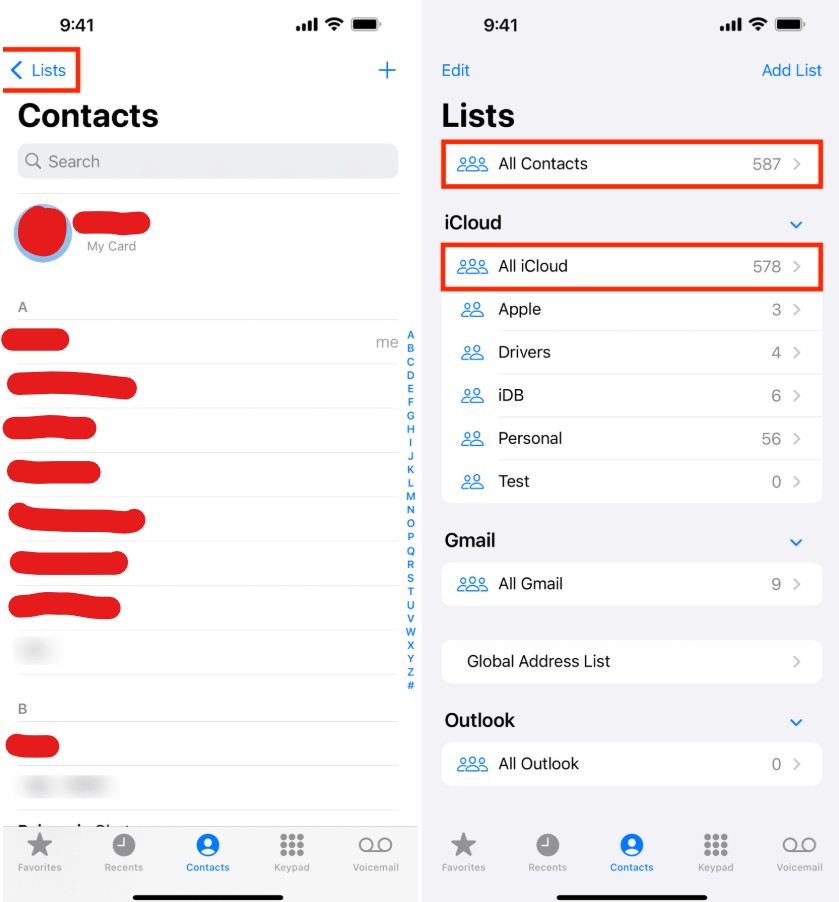
- Open the Contacts app.
- Tap Lists in the top-left corner.
- Select All Contacts.
Your complete contact list from iCloud and other accounts should now appear.
4. Check Contacts Sync in Account Settings
Contacts can sync from multiple accounts such as Gmail, Outlook, or corporate Exchange accounts. If syncing is disabled for one of these accounts, those contacts will disappear.
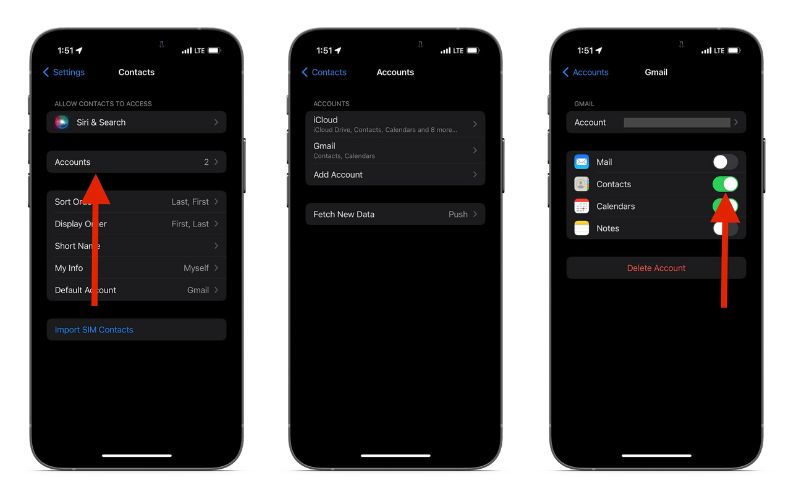
- Open Settings.
- Tap Contacts.
- Select Accounts.
- Open each account listed.
- Enable the Contacts toggle.
This ensures contacts from all accounts are visible on your iPhone.
5. Sign Out of iCloud and Sign Back In
If iCloud syncing becomes corrupted, signing out and back in can rebuild the connection and restore missing contacts.
- Open Settings.
- Tap Your Name.
- Scroll down and tap Sign Out.
- Enter your Apple ID password.
- Enable all data options under Keep a Copy Of.
- Tap Sign Out.
- Sign back in with your Apple ID.
Give iCloud a few minutes to sync contacts again.
6. Restart Your iPhone
A simple restart can fix temporary glitches that affect apps like Contacts, Phone, and iMessage.
If you are unsure how to do it, follow this guide on how to force restart or shut down your device.
- Press and hold the side button and volume button.
- Drag the Power Off slider.
- Wait 30 seconds.
- Turn the iPhone back on.
Many iOS syncing problems disappear after a restart.
7. Update iOS
Software bugs sometimes cause contacts to disappear after an update. Apple typically releases patches quickly to resolve such issues.
- Open Settings.
- Tap General.
- Select Software Update.
- Tap Download and Install if an update is available.
Keeping your device updated also improves stability and iCloud syncing reliability.
8. Restore Contacts From an iCloud or Local Backup
If the contacts were accidentally deleted, restoring your device from a backup may recover them.
You can restore from:
- iCloud backups
- Mac Finder backups
- Windows iTunes backups
Before restoring, make sure your most recent backup contains the missing contacts.
If you regularly back up your device, check this guide on how to create a full iPhone backup.
9. Reset All Settings
Resetting system settings can resolve deeper configuration issues without deleting your personal data.
Open Settings.
- Tap General.
- Select Transfer or Reset iPhone.
- Tap Reset.
- Choose Reset All Settings.
- Enter your passcode.
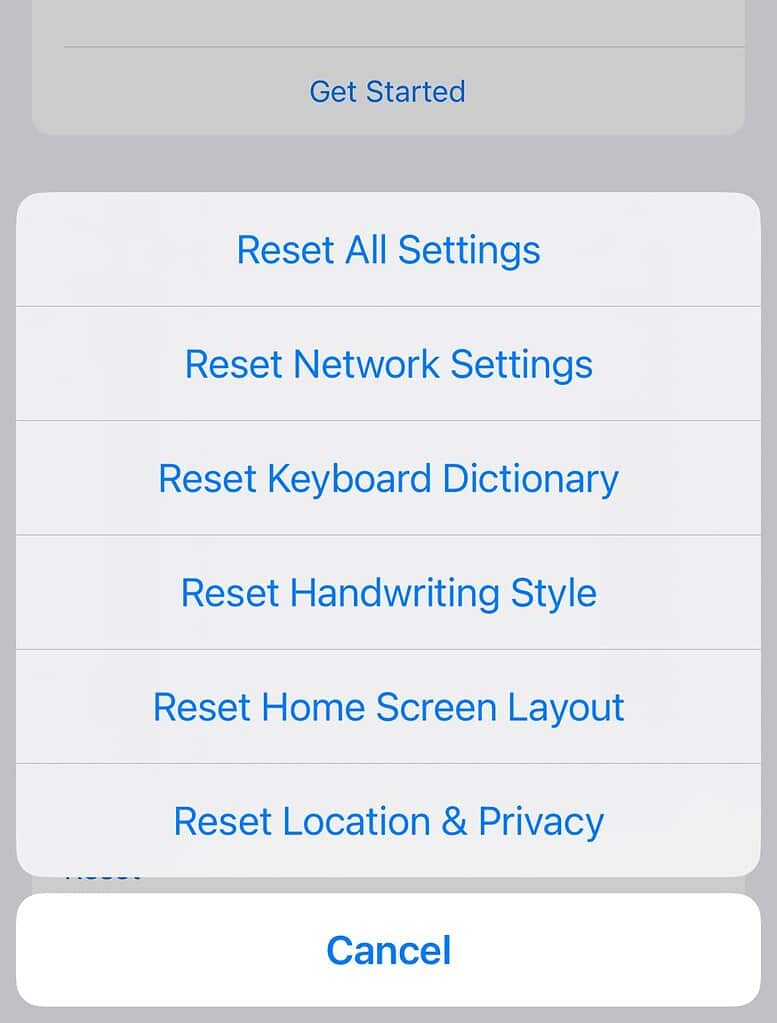
This resets Wi-Fi settings, display preferences, and permissions but keeps your data intact.
10. Use Data Recovery Software
If your contacts were permanently deleted and no backup exists, a recovery tool may help restore them.
One example is AnyRecover, which can scan an iPhone or backup to retrieve deleted data.
Key Features:
• Recovers contacts, photos, messages, and files
• Supports iPhone, iPad, and iOS backups
• Allows preview before recovery
• Works with both Windows and Mac
Tools like this should only be used if traditional recovery methods fail.
11. Contact Apple Support
If none of the fixes restore your contacts, the issue may be account-related or tied to your Apple ID.
You can:
- Visit an Apple Store Genius Bar
- Contact Apple Support online
- Use the Apple Support app
Technicians can check your iCloud account and restore archived contacts if available.
Why Did Your iPhone Contacts Disappear?
There are several reasons contacts may suddenly vanish from an iPhone. The most common cause is an iCloud synchronization issue, where contacts are still stored in iCloud but not displayed on the device.
Another common cause is account misconfiguration. Contacts may be stored across multiple sources such as iCloud, Gmail, Outlook, or Exchange, and if one of these accounts stops syncing, those contacts may temporarily disappear from the list.
Software bugs can also cause contact lists to disappear temporarily, particularly after an iOS update. In many cases, simply restarting the device or re-syncing contacts resolves the issue.
Below are the most effective fixes you should try.
Tips
• Always keep iCloud Contacts enabled for automatic syncing.
• Regularly back up your iPhone using iCloud or Finder.
• Avoid switching between multiple contact sources unless necessary.
• Check contact lists after major iOS updates.
Getting Your Contacts Back Quickly
When iPhone contacts disappear, the cause is usually a syncing issue rather than permanent deletion. Most users recover their contacts simply by re-enabling iCloud syncing or checking account settings.
If those steps fail, restoring from a backup or resetting settings usually resolves the issue. In rare cases, recovery software or Apple Support may be needed to retrieve lost data.
Key Takeaways
If your iPhone contacts disappeared, the issue is usually caused by iCloud sync problems, account settings, or temporary iOS bugs. Most cases can be fixed by re-syncing contacts, restarting the device, or checking account settings.
More advanced fixes include restoring from a backup, updating iOS, or resetting system settings. These solutions work for modern iPhones running recent iOS versions and help restore missing contacts safely.
FAQs:
The most common reason is an iCloud syncing issue or a disabled contact account. Sometimes contacts are hidden because the wrong contact list is selected.
Yes. If contacts are stored in iCloud, they may reappear automatically once syncing resumes or the device reconnects to the internet.
No. Resetting settings only affects system configurations like Wi-Fi and notifications. Your contacts and personal data remain untouched.
You can try enabling iCloud Contacts again or using data recovery software to scan your device for deleted contact data.
Contacts can be stored locally on the iPhone or synced with iCloud, Gmail, or Exchange accounts depending on your settings.

0 Comments