SOLVED: Fix iPhone Green Screen of Death? [Simple Steps]
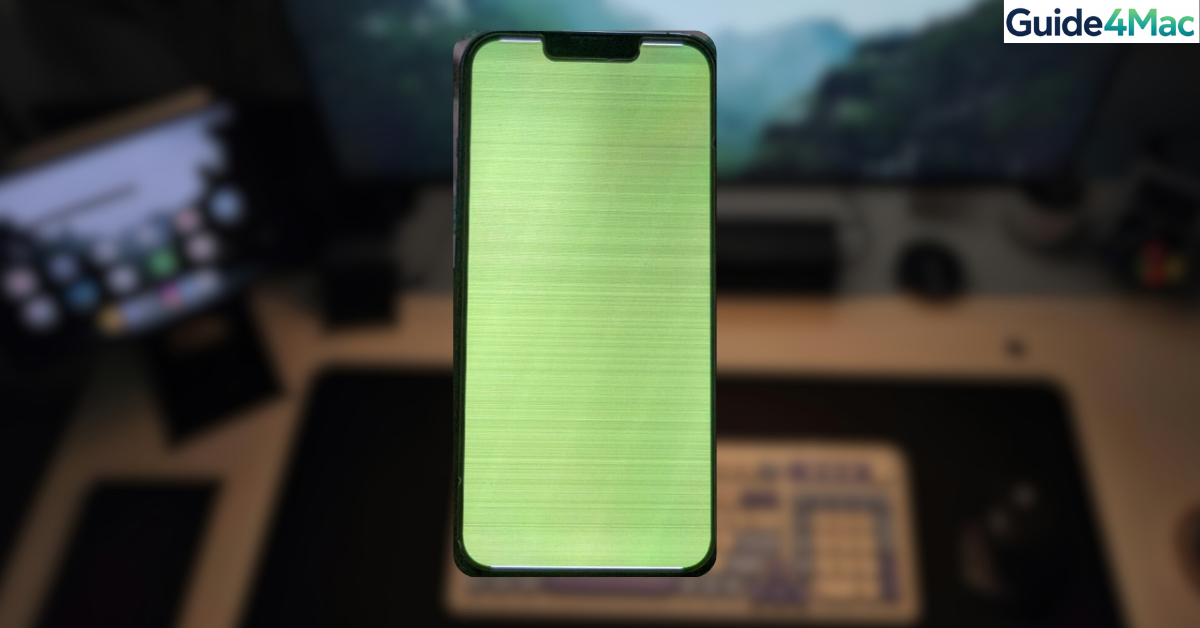
Seeing the iPhone Green Screen of Death can be alarming. Your display suddenly turns bright green or starts flickering, making the phone difficult or impossible to use. The issue is most often related to software glitches, firmware corruption, overheating, or hardware problems with the display.
In this guide, you will learn several ways to fix the problem, from simple fixes like a force restart to more advanced options such as reinstalling iOS through Recovery Mode. If you are troubleshooting other display issues as well, this guide may also help alongside fixes for a touchscreen that stops responding that sometimes appear with similar symptoms.
Why Is Your iPhone Showing a Green Screen?
A green screen on an iPhone usually points to a problem with the display system. It can be caused by temporary software glitches, corrupted firmware, or hardware faults in the screen or GPU.
The issue appears more frequently on OLED models such as iPhone X, iPhone 12, and iPhone 13. In some cases it happens after an iOS update or when the device overheats.
If the green screen appears only occasionally, it is likely a software issue that can be fixed. A permanent green screen often indicates hardware damage, which may require professional repair.
1. Force Restart Your iPhone
A force restart clears temporary system glitches that may cause the screen to turn green. This is the quickest fix and should be the first thing you try.
- Press and release the Volume Up button.
- Press and release the Volume Down button.
- Press and hold the Side button.
- Release the button when the Apple logo appears.
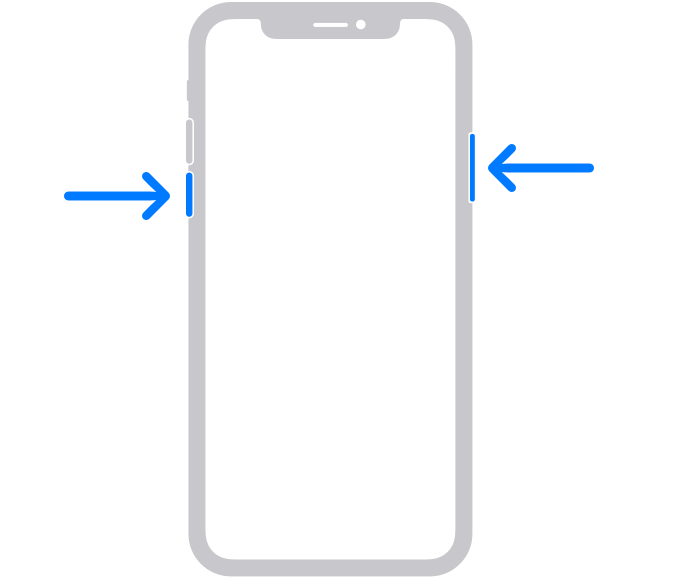
If your iPhone boots normally afterward, the issue was likely caused by a temporary iOS bug.
2. Put the iPhone Into Recovery Mode
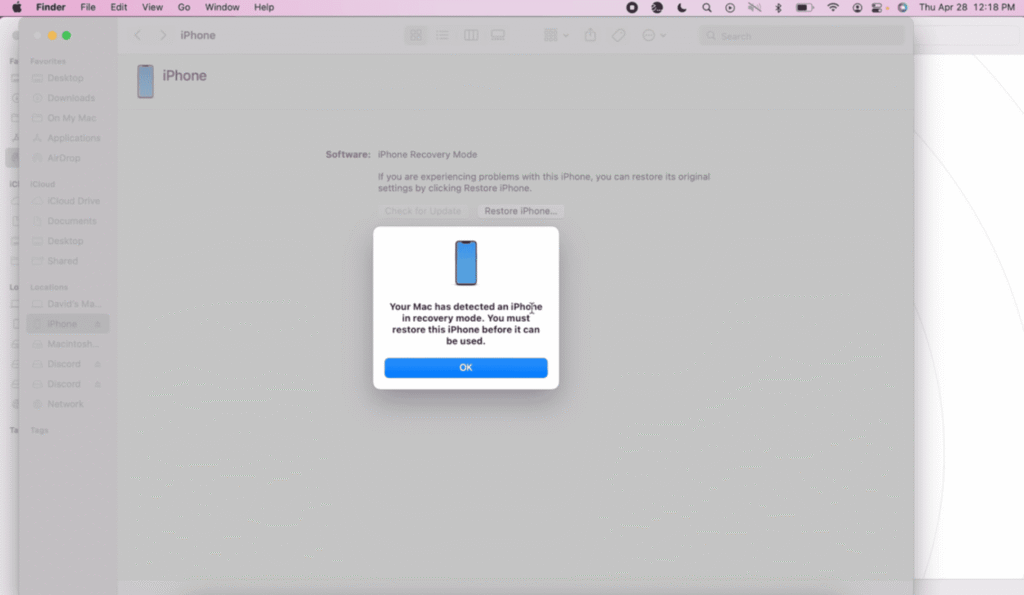
Recovery Mode allows you to reinstall iOS without wiping your personal data. This method can repair firmware corruption that may trigger display glitches.
- Connect your iPhone to a Mac or Windows PC using a USB cable.
- Open Finder on macOS or iTunes on Windows.
- Press and release Volume Up.
- Press and release Volume Down.
- Press and hold the Side button until the Recovery Mode screen appears.
- Select Update when prompted.
- Wait for the system to reinstall iOS.
Recovery Mode repairs the operating system while preserving apps and files in most cases.
3. Run Apple Diagnostics
If the green screen keeps returning, hardware problems might be the cause. Apple Diagnostics can identify display controller or GPU issues.
- Disconnect all accessories from your iPhone.
- Turn the device off.
- Hold the Volume Up and Side button while connecting it to a Mac running Apple Configurator.
- Follow the on screen instructions to start diagnostics.
- Note any error codes that appear.
These codes can help Apple Support determine whether the display or internal components are failing.
4. Restore iOS With Apple Configurator 2
Apple Configurator 2 is commonly used by IT professionals and repair technicians. It allows a deeper restore of iOS than the standard Finder restore.
- Download Apple Configurator 2 from the Mac App Store.
- Connect your iPhone to your Mac using a USB cable.
- Put the iPhone into DFU Mode.
- Select the device in Configurator.
- Click Restore to reinstall iOS.
This process completely reinstalls the firmware and operating system.
5. Check Battery Health and Overheating
Poor battery health or overheating can cause GPU instability, which sometimes triggers display glitches like a green screen.
You can quickly check your battery health inside iOS.
- Open Settings.
- Tap Battery.
- Tap Battery Health & Charging.
- Check Maximum Capacity and Performance Capability.
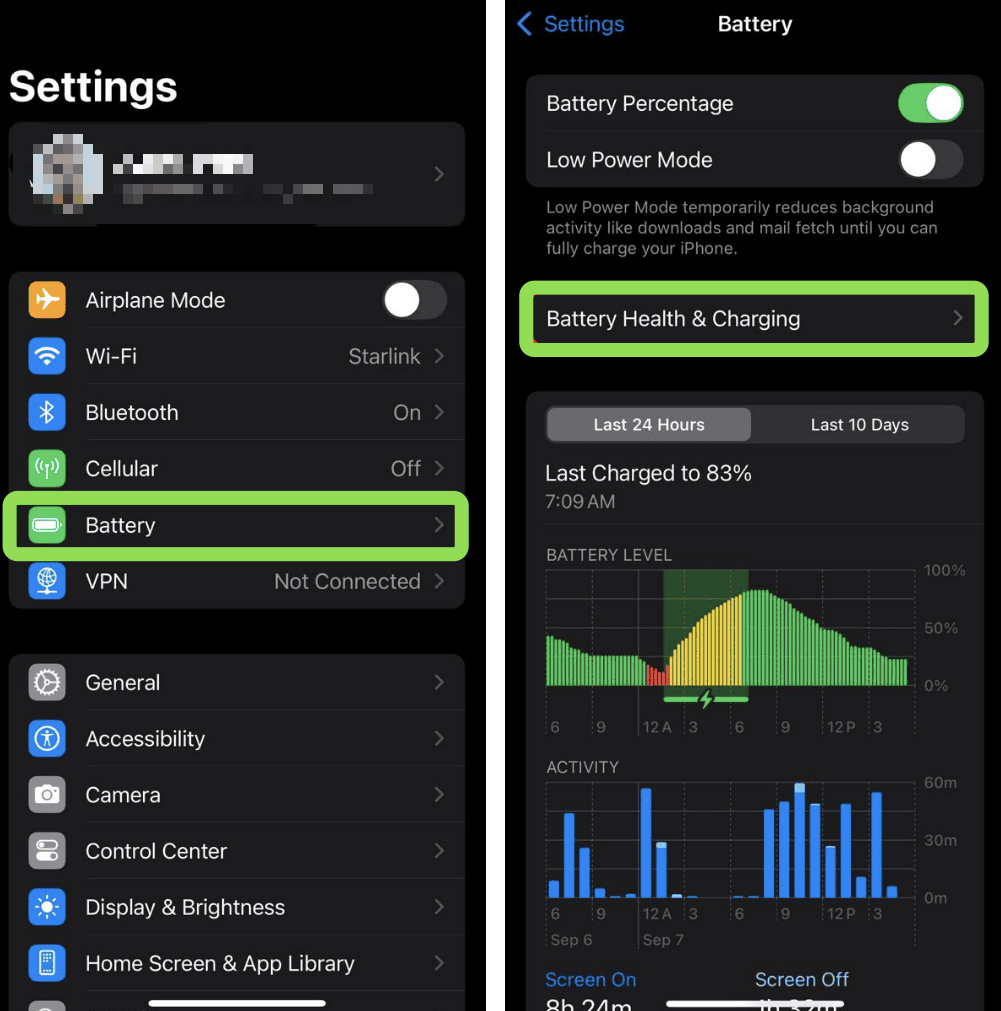
If battery capacity is below 80 percent, the device may struggle to maintain stable performance. Replacing the battery may prevent recurring display issues.
6. Reinstall iOS Using a Clean IPSW File
Over the air updates occasionally install corrupted firmware files. Installing a clean IPSW file ensures a complete and stable system restore.
- Visit ipsw.me and download the correct IPSW file for your iPhone model.
- Connect your iPhone to your Mac.
- Open Finder.
- Put the iPhone into Recovery Mode.
- Hold the Option key and click Restore iPhone.
- Select the IPSW file you downloaded.
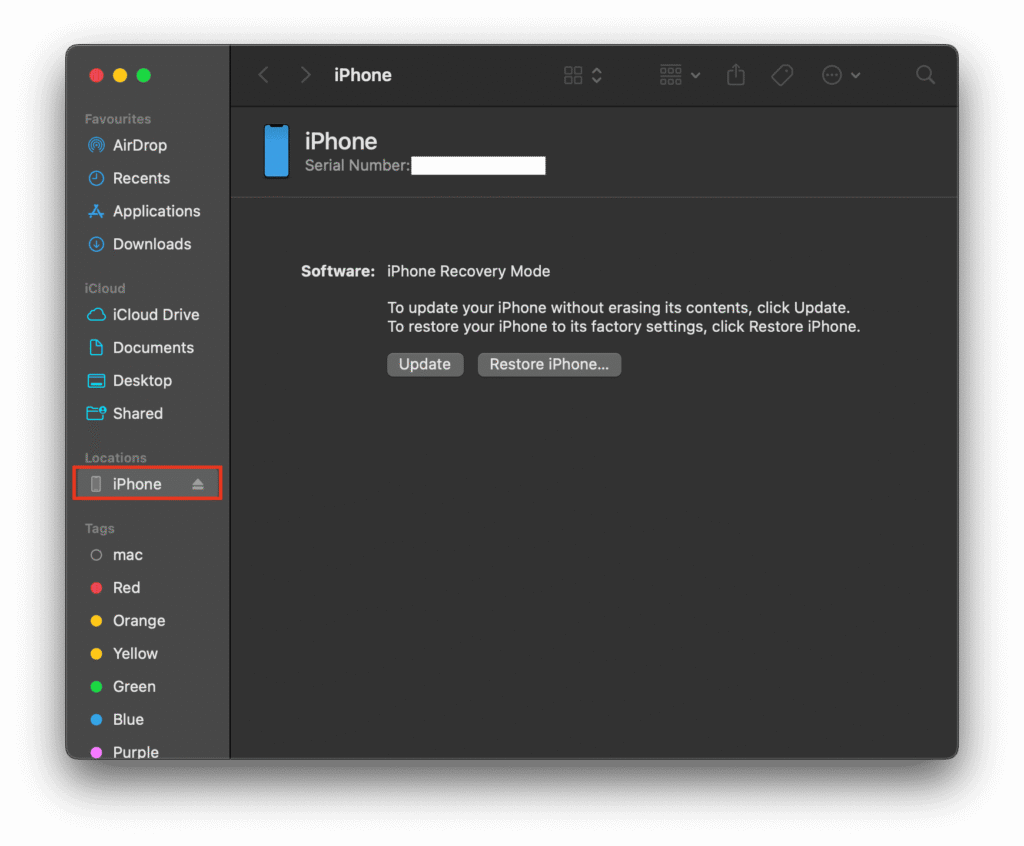
This process installs a fresh version of iOS directly from Apple’s servers.
7. Connect the iPhone to Finder or iTunes
Some users report that connecting their iPhone to a computer while performing multiple force restarts resolves the issue.
- Connect the iPhone to a Mac or PC using a USB cable.
- Open Finder or iTunes.
- Force restart the iPhone.
- Repeat the restart process three or four times.
The connection sometimes stabilizes firmware communication and clears the display glitch.
8. Adjust Display Settings
Incorrect display settings can occasionally cause green tint or flickering on OLED screens. Adjusting brightness or disabling certain features may help.
- Open Settings.
- Tap Display & Brightness.
- Increase the brightness level.
- Disable True Tone temporarily.
- Disable Night Shift if it is enabled.
If the issue disappears after these changes, a display configuration glitch may have been the cause.
9. Inspect for Water or Physical Damage
Physical damage or moisture inside the phone can affect the display circuitry and cause color distortion.
If your device recently got wet try to:
- Power off the iPhone immediately.
- Remove the SIM tray and inspect the Liquid Contact Indicator.
- Place the phone in a dry area with silica gel packets.
- Leave it for 24 to 48 hours before turning it back on.
If the green screen persists after drying, the display assembly may need replacement.
If your device is still under warranty or AppleCare+, you may want to check its status using the official coverage checker or follow a detailed guide on verifying Apple warranty coverage.
Tips
• Always back up your iPhone with iCloud or Finder before performing system restores.
• Avoid charging your phone when it feels excessively hot.
• Keep iOS updated because display bugs are often fixed in later updates.
• Remove thick cases if your phone frequently overheats.
• Use Apple certified cables and chargers to avoid power related glitches.
Getting Your iPhone Screen Back to Normal
The iPhone green screen problem usually comes down to either a software glitch or a hardware failure. Most temporary cases can be fixed with a force restart, recovery mode update, or a full iOS restore.
If the screen stays permanently green or flickers constantly, the display or logic board may be damaged. In that situation, visiting Apple Support or an authorized service provider is the safest option.
Key Takeaways
The iPhone Green Screen of Death is a display issue that may appear due to software bugs, overheating, or hardware failure. Many cases can be fixed by force restarting the device, reinstalling iOS, or restoring firmware through Recovery Mode. Hardware related problems may require diagnostics or display replacement. This guide helps iPhone users troubleshoot and restore their devices before seeking professional repair.
FAQs
The issue is usually caused by firmware corruption, display driver glitches, overheating, or hardware damage to the screen or GPU.
Reports are more common on OLED models such as iPhone X, iPhone 12, and iPhone 13, although it can happen on other devices as well.
A reset or firmware reinstall can fix the problem if it is software related. Hardware faults require repair or screen replacement.
Yes. Moisture inside the phone can damage display circuits and cause color distortion or flickering.
If software fixes fail and the screen remains green, replacing the display assembly or visiting Apple Support is usually necessary.

0 Comments