iPhone Not Ringing on Incoming Calls? Fix It Fast
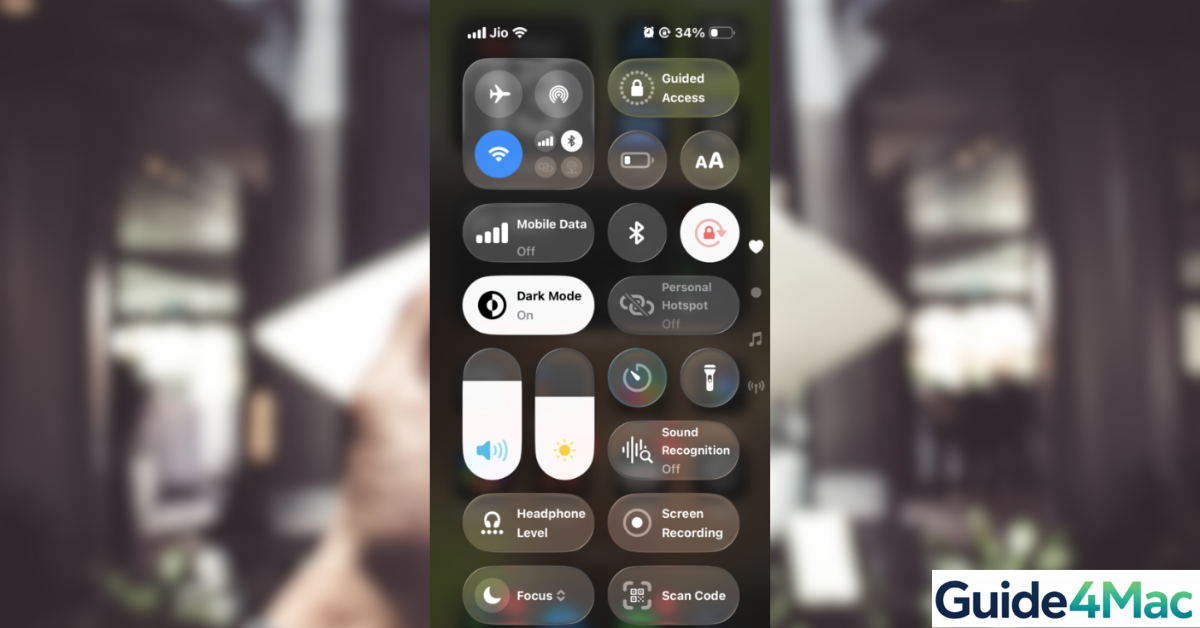
If your iPhone is not ringing on incoming calls, you might miss important phone calls even though your device appears to be working normally. This issue can happen due to silent settings, Focus modes, software glitches, or incorrect notification configurations.
In this guide, you will learn the most effective ways to fix an iPhone that does not ring when someone calls. These solutions cover common settings issues, call filtering features, and system fixes that work across recent iOS versions. If your calls also seem to be disappearing before you answer, you may want to check why iPhone calls go directly to voicemail for additional troubleshooting.
Why Is Your iPhone Not Ringing on Incoming Calls?
When an iPhone does not ring, the cause is usually related to a system setting that silences calls. Features like Silent Mode, Focus modes, Bluetooth audio routing, or Silence Unknown Callers can prevent the ringtone from playing.
In other cases, software bugs, network issues, or outdated iOS versions can affect how the Phone app handles incoming calls.
The fixes below address the most common reasons an iPhone stops ringing.
Turn Off Silent Mode
The first thing to check is whether your iPhone is set to Silent Mode. When enabled, the phone will vibrate instead of ringing.
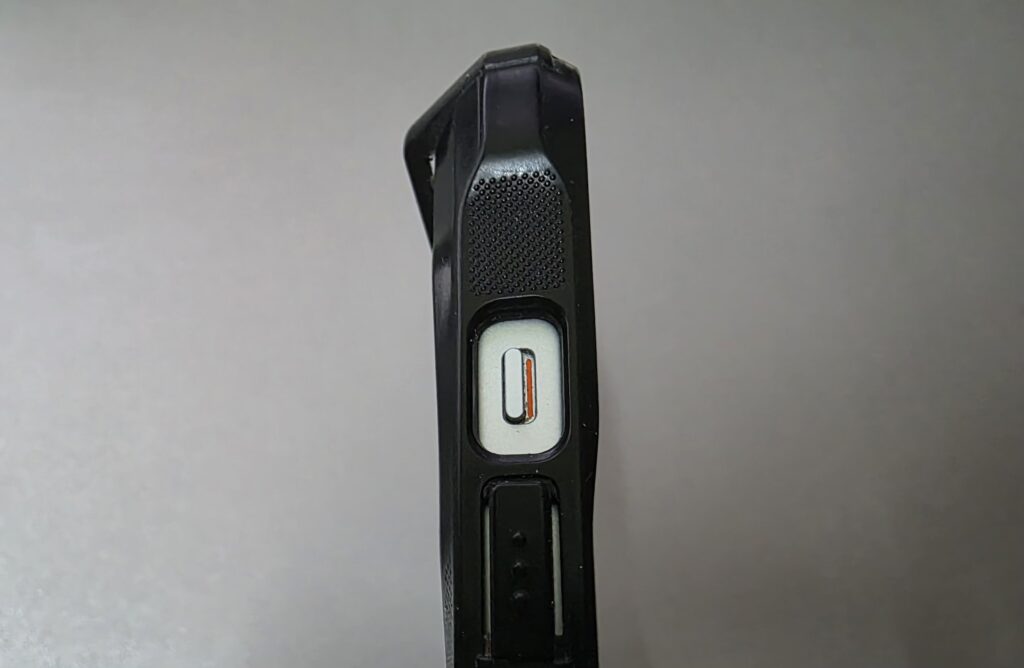
- Locate the Ring/Silent switch on the left side of your iPhone.
- Flip the switch upward so the orange indicator disappears.
Once Silent Mode is off, your iPhone should play the ringtone normally.
Increase the Ringer Volume
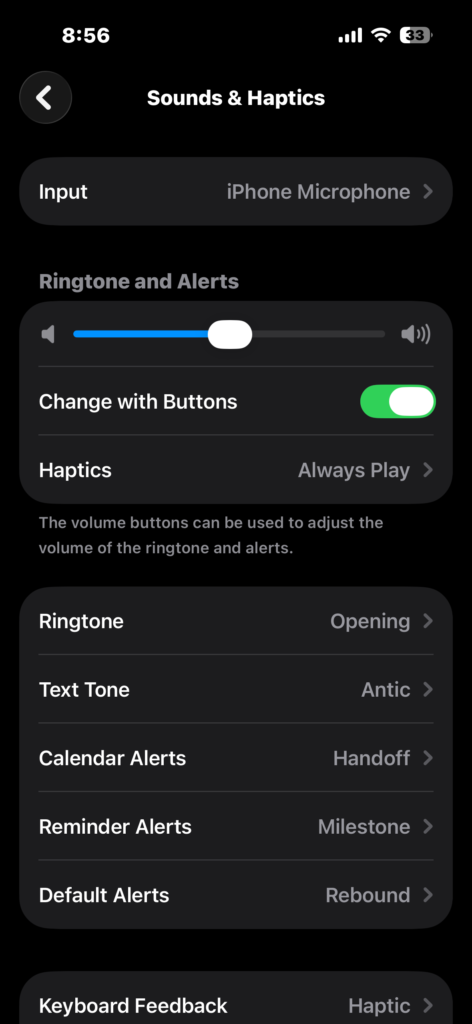
Your ringtone volume might be set too low, making it seem like the phone is not ringing.
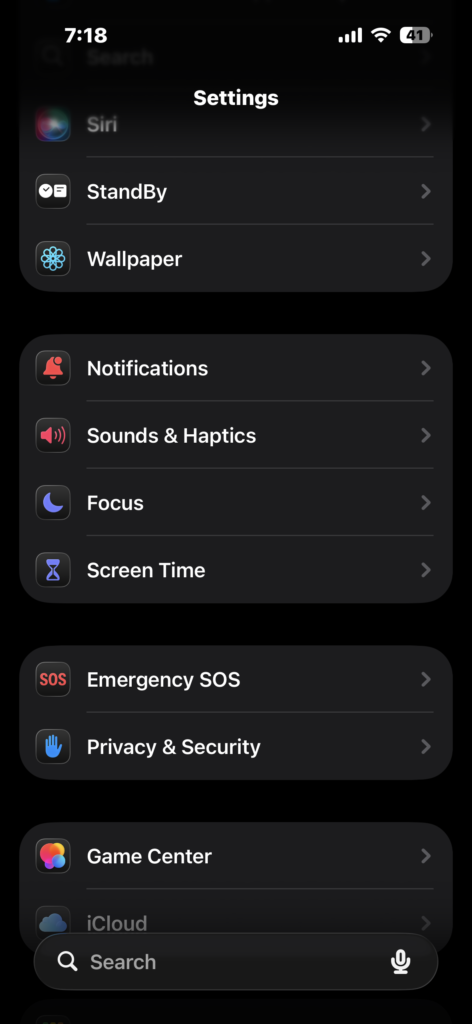
- Open Settings.
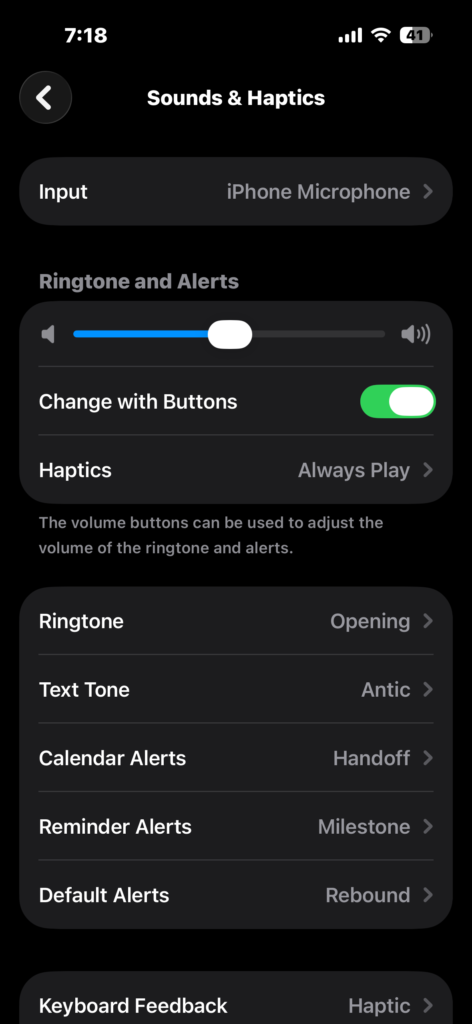
- Tap Sounds & Haptics.
- Find Ringtone and Alerts.
- Drag the volume slider to the right.
You can also enable Change with Buttons so the side volume buttons control ringtone volume.
Check Focus Mode Settings
Focus modes like Do Not Disturb, Sleep, or Work can silence incoming calls automatically.
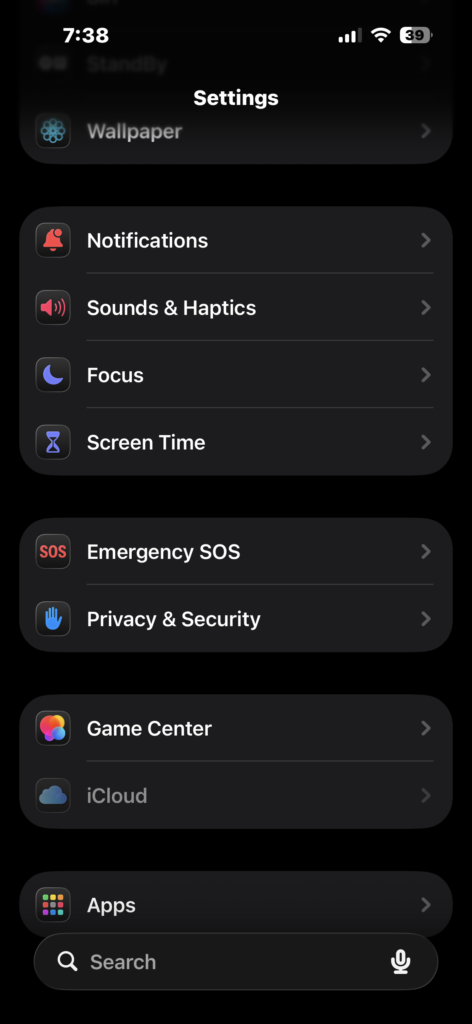
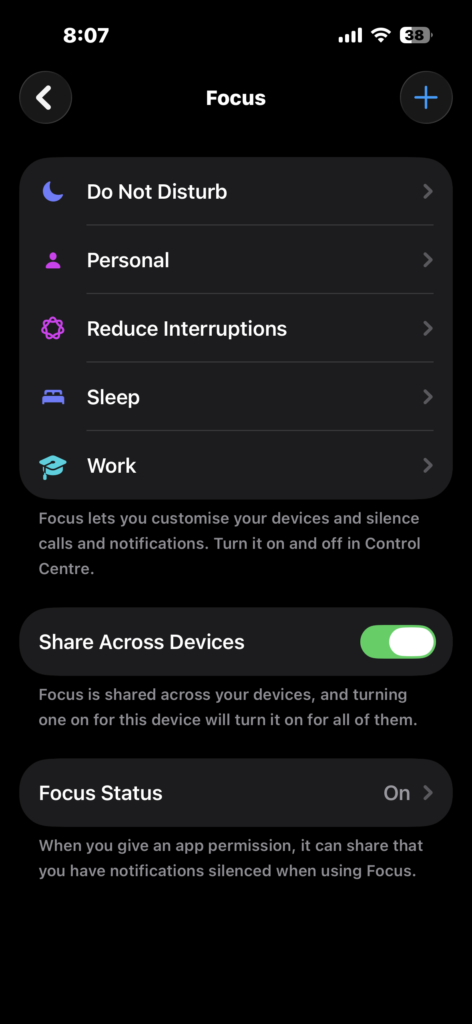
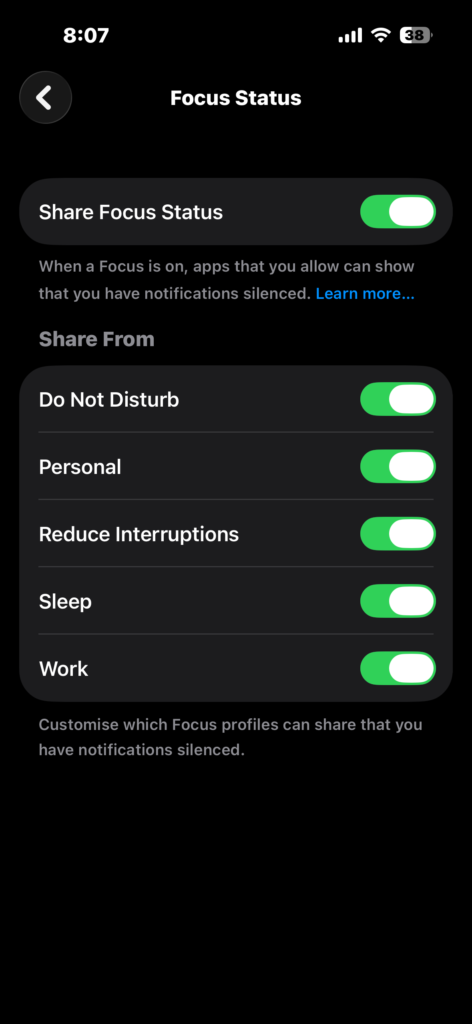
- Open Settings.
- Tap Focus.
- Select Focus Status.
- Turn the toggle Off.
If you use Focus modes regularly, review the Allowed Calls section to ensure important contacts can still reach you.
You can also read our guide on using Do Not Disturb correctly on iPhone if Focus settings continue to silence calls.
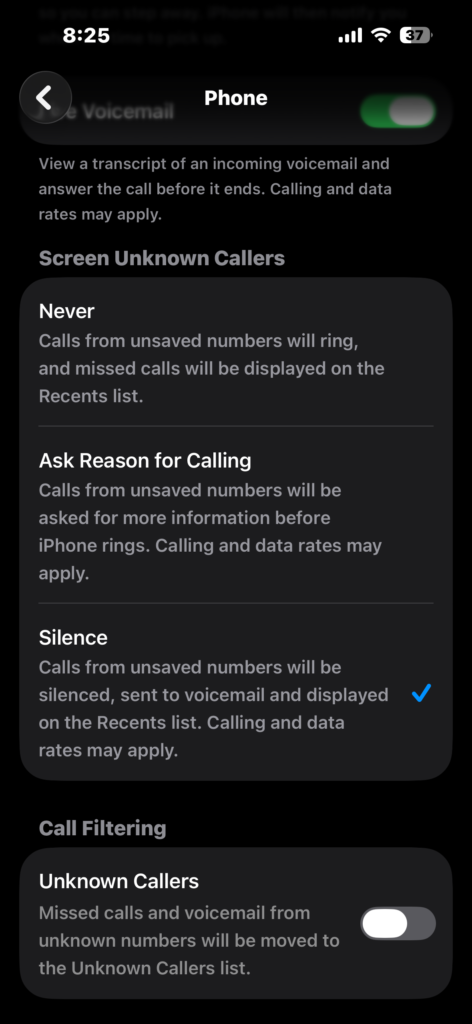
Disable Silence Unknown Callers
Apple includes a feature that sends unknown callers directly to voicemail. If enabled, your phone will not ring for numbers that are not saved in your contacts.
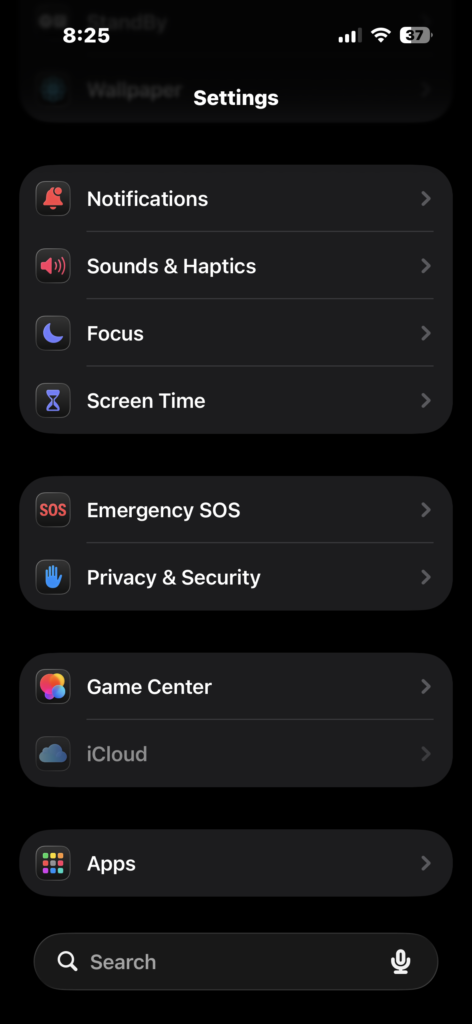
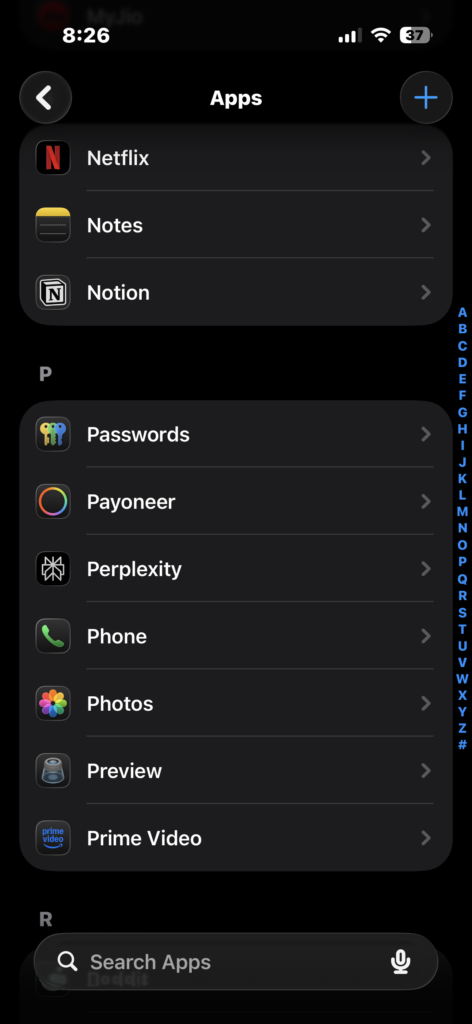
- Open Settings.
- Tap Apps.
- Scroll down and tap Phone.
- Under Screen Unknown Callers, tap Silence.
After doing this, you will hear all incoming calls except those that are unknown.
Check Bluetooth Audio Connections
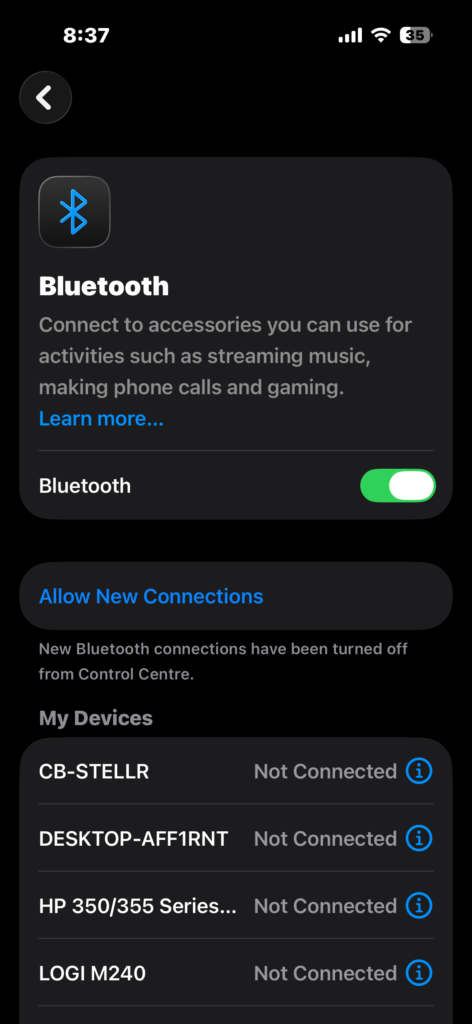
If your iPhone is connected to Bluetooth headphones or a car audio system, the ringtone might play through that device instead of the phone speaker.
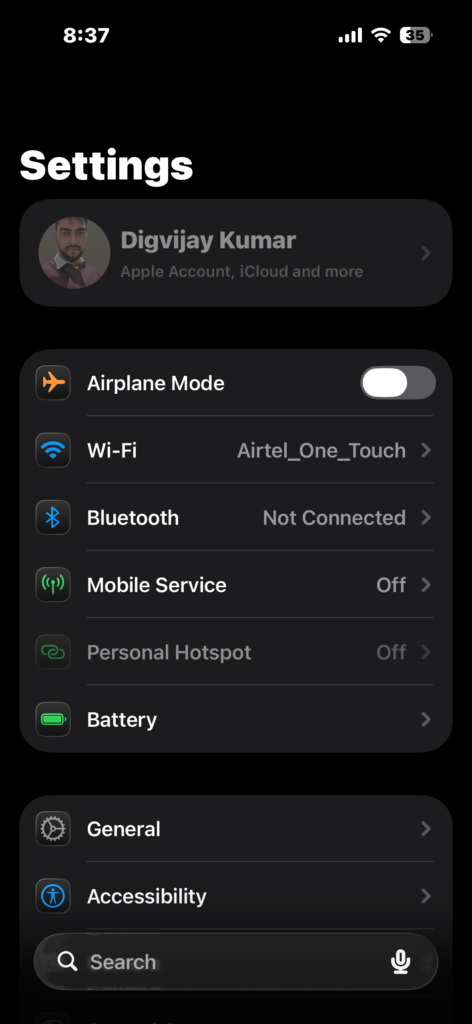
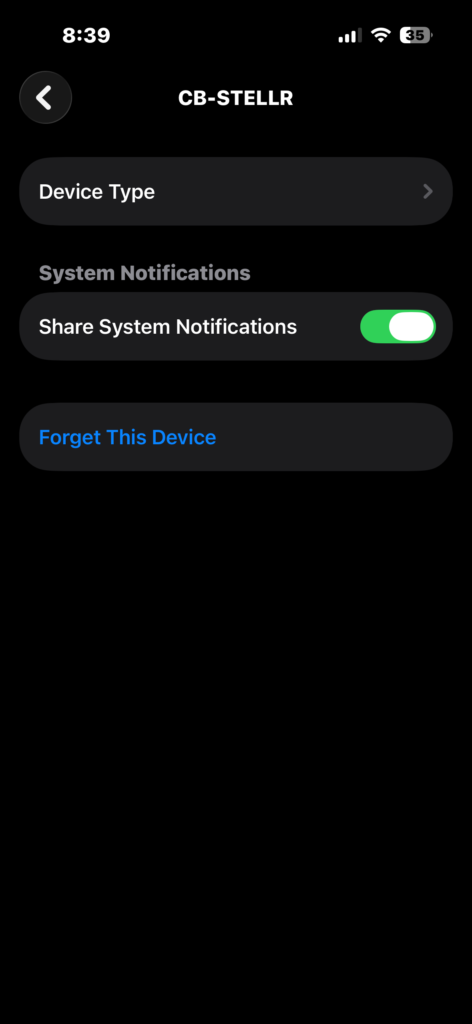
- Open Settings.
- Tap Bluetooth.
- Check the list of connected devices.
- Tap the i icon next to the device.
- Tap Forget This Device.
You can also temporarily disable Bluetooth to confirm whether it is causing the issue.
Restart Your iPhone
A simple restart can resolve temporary system glitches that prevent calls from ringing.
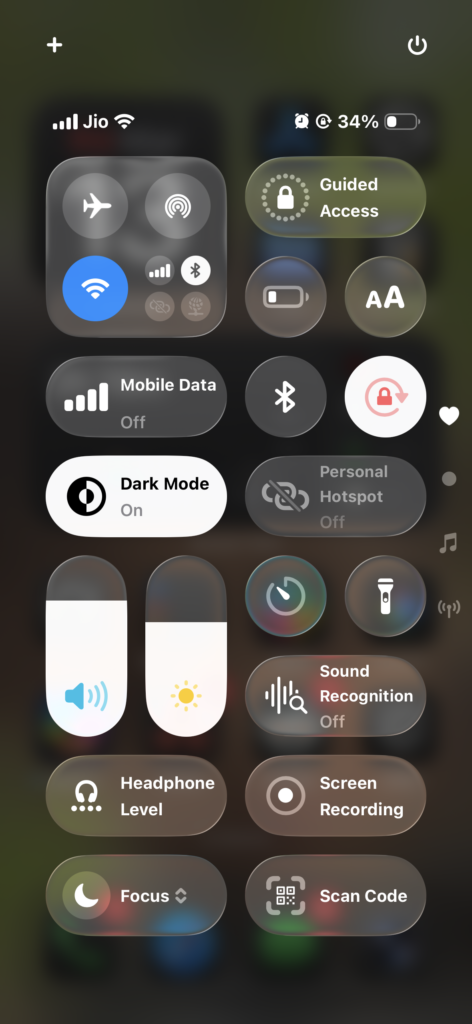
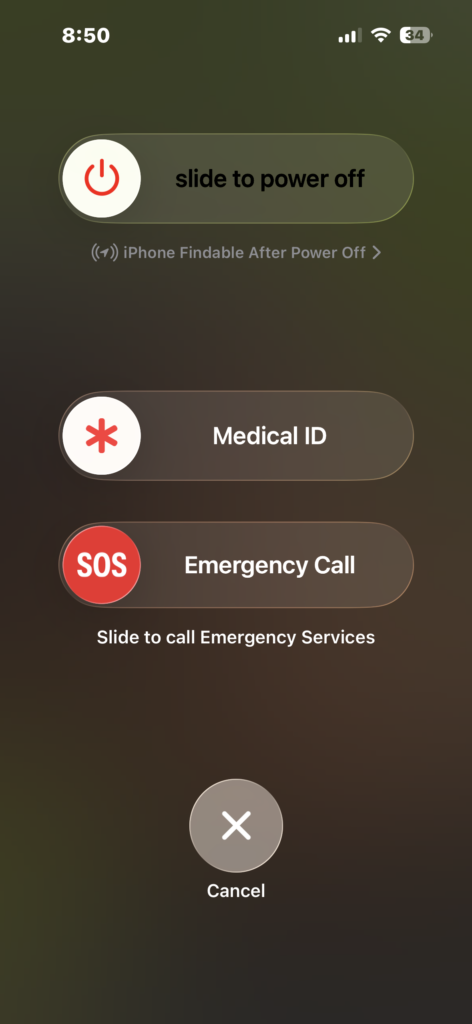
- Press and hold the Side button and Volume button (or tap the power icon in the control panel).
- Wait for the Power Off slider to appear.
- Drag the slider to turn off your iPhone.
- Wait 30 seconds.
- Press the Side button again to turn it back on.
Restarting refreshes background processes and fixes many minor bugs.
Check Ringtone Settings
If your ringtone is set to None, your phone will not play any sound during incoming calls.
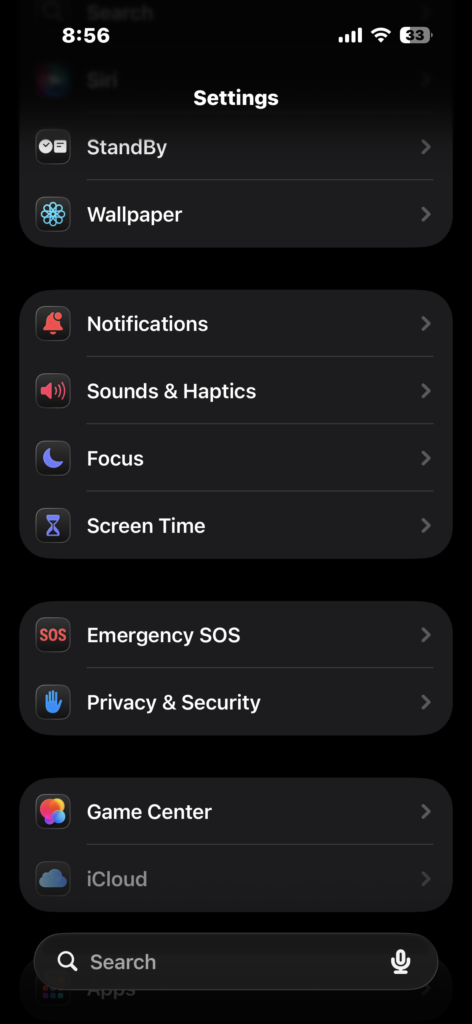
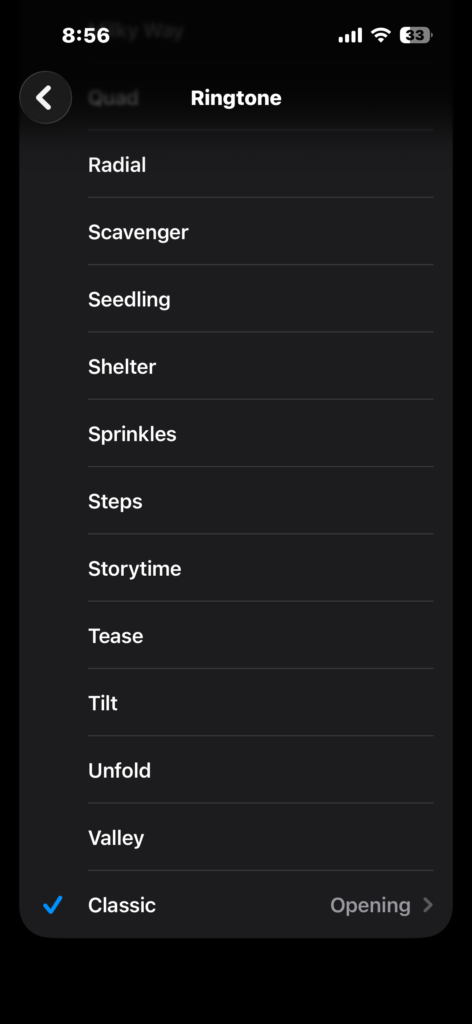
- Open Settings.
- Tap Sounds & Haptics.
- Tap Ringtone.
- Select a ringtone from the list.
Once selected, your iPhone will play that sound whenever someone calls.
Update iOS
Software bugs can occasionally cause issues with call notifications. Updating iOS ensures your device runs the latest fixes from Apple.
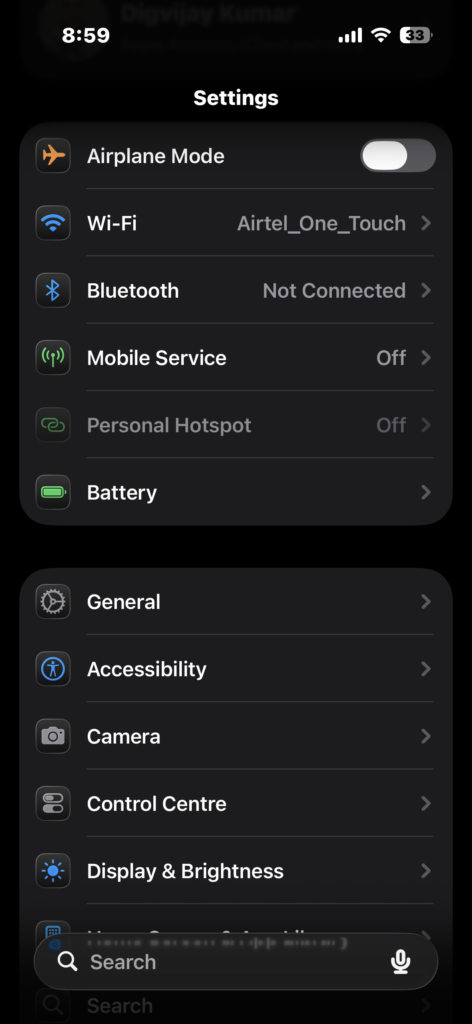
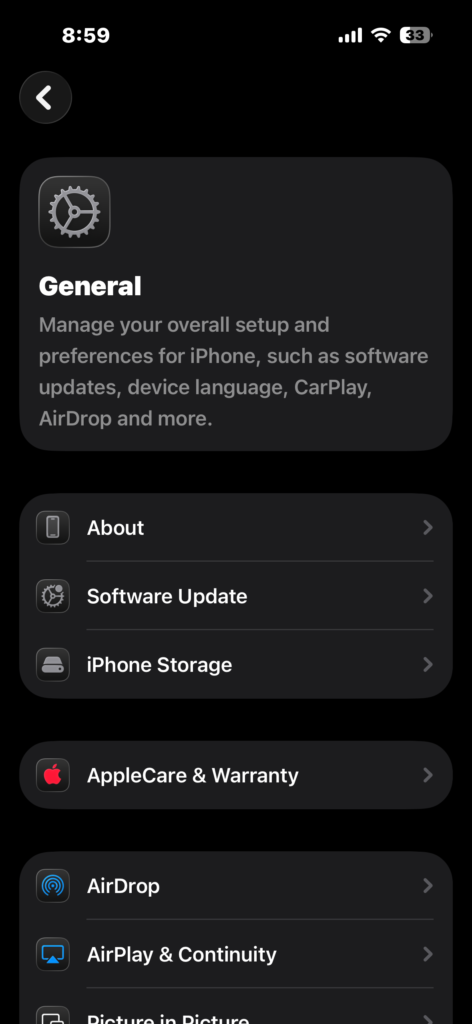
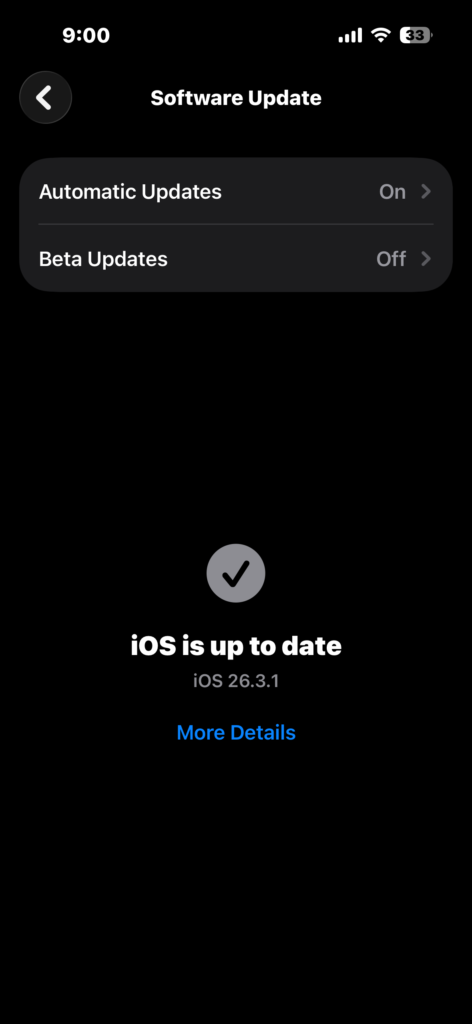
- Open Settings.
- Tap General.
- Tap Software Update.
- Tap Download and Install if an update is available.
Keeping your iPhone updated also improves stability and security.
Reset All Settings
If the problem continues, resetting system settings can restore default configurations without deleting your data.
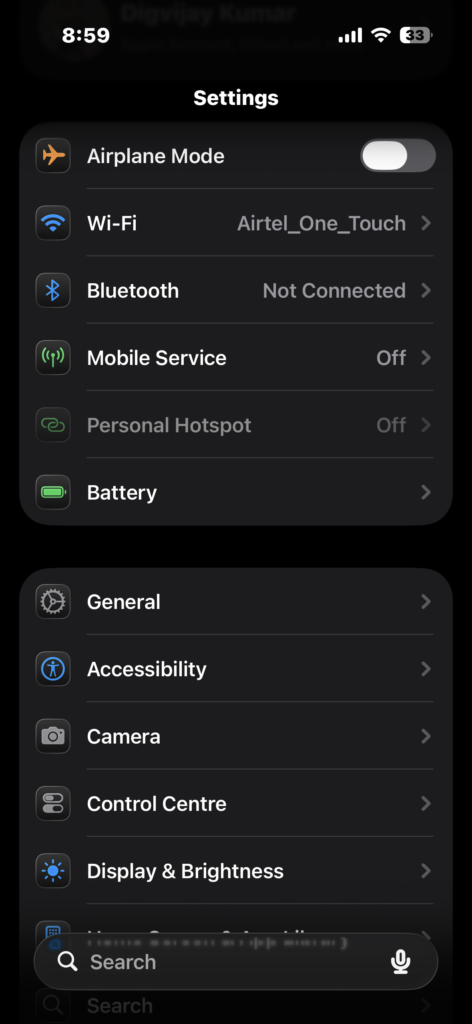
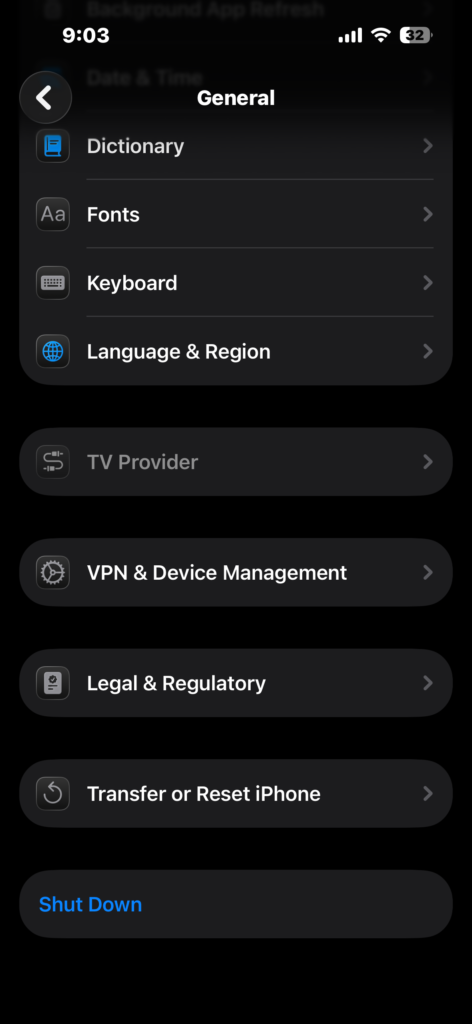
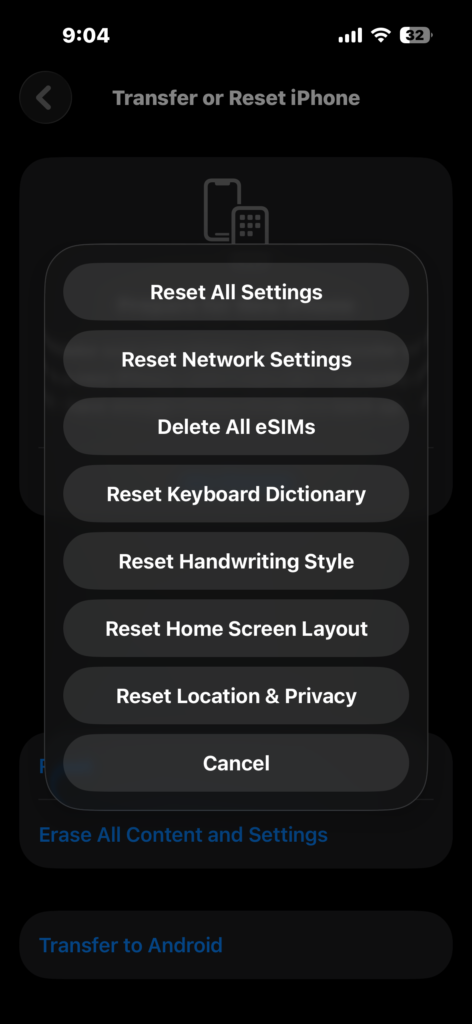
- Open Settings.
- Tap General.
- Tap Transfer or Reset iPhone.
- Tap Reset.
- Select Reset All Settings.
- Enter your passcode.
This resets Wi-Fi, notifications, and sound settings but keeps your files and apps intact.
Tips
• Check that ringer volume is not set to minimum.
• Make sure Focus modes are not scheduled automatically.
• Avoid connecting to unknown Bluetooth devices.
• Keep your iPhone updated to the latest iOS version.
• Test your ringtone after changing sound settings.
Get Your iPhone Ringing Again
An iPhone that does not ring usually comes down to a simple setting such as Silent Mode, Focus filters, or ringtone configuration. Checking these settings typically resolves the problem in just a few minutes.
If none of the fixes work, updating iOS or resetting system settings often restores normal call behavior. Once everything is configured correctly, your iPhone should ring normally for incoming calls again.
Key Takeaways
If your iPhone is not ringing on incoming calls, the issue is usually caused by silent settings, Focus modes, Bluetooth audio routing, or ringtone configuration. Checking the Ring/Silent switch, adjusting volume, and disabling Silence Unknown Callers often fixes the problem quickly. Restarting the device or updating iOS can also resolve system glitches. These solutions help ensure your iPhone alerts you properly when someone calls.
FAQ
This usually happens when Silent Mode is enabled or the ringtone volume is set too low.
Focus mode settings or Silence Unknown Callers may allow calls only from saved contacts.
Yes. If Bluetooth headphones or speakers are connected, the ringtone may play through that device instead of the phone speaker.
Focus modes, notification settings, or software bugs can prevent calls from ringing when the device is locked.
No. Resetting all settings only restores system preferences. Your apps, photos, and files remain safe.

0 Comments