How to Fix iPhone Screen Not Responding to Touch
If your iPhone screen is not responding to touch, it can make the device almost impossible to use. The issue can appear suddenly, even on newer models, and may affect the entire screen or only specific areas.
Touch problems can happen because of software glitches, a frozen app, screen protectors, moisture, or physical damage. In this guide, you will learn several practical solutions to restore touch responsiveness on your iPhone. If your device has additional display problems like flickering or green tint, you may also want to check this guide on fixing the green screen problem on iPhone.
Why Is Your iPhone Screen Not Responding to Touch?
When an iPhone stops reacting to touch input, the cause is usually either a temporary software issue or a hardware problem with the display digitizer.
Software problems often occur when apps freeze or when iOS processes become unresponsive. Hardware issues, on the other hand, may result from drops, water damage, or screen replacements that were not properly installed.
Before assuming the screen is broken, try the fixes below.
1. Clean the Screen and Remove Accessories
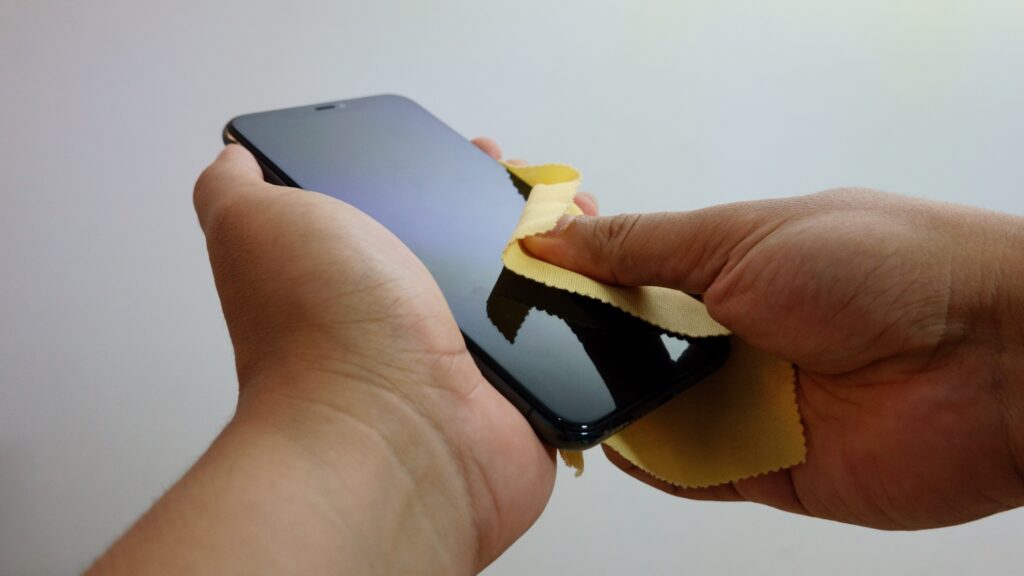
Dust, grease, or moisture can interfere with how the touch sensor reads your finger input. Screen protectors or thick cases can also cause touch sensitivity issues.
Cleaning the display is a simple but effective first step.
Steps to clean the iPhone screen
- Turn off your iPhone.
- Remove the screen protector.
- Remove the phone case.
- Wipe the screen using a microfiber cloth.
- Lightly dampen the cloth with water if needed.
Once the screen is clean, power the device back on and test touch responsiveness.
2. Restart Your iPhone
Many touch issues happen because an app or system process becomes stuck. Restarting the device clears temporary memory and reloads iOS components.
Steps to restart an iPhone
- Press and hold the Side button and a Volume button.
- Drag the Power Off slider.
- Wait 10 seconds.
- Press the Side button again to turn the device on.
After the restart, check whether the screen responds normally again.
3. Force Restart the iPhone
If the screen is frozen and you cannot use the Power Off slider, a force restart may fix the issue.
This process restarts the device without using the touchscreen.
Steps to force restart an iPhone
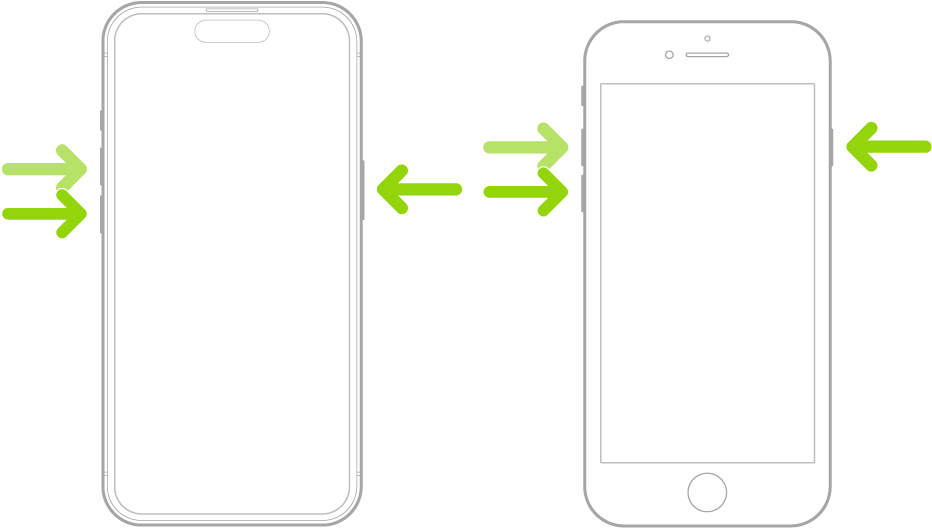
- Press and release the Volume Up button.
- Press and release the Volume Down button.
- Press and hold the Side button.
- Release the button when the Apple logo appears.
This works for iPhone 8 and newer models.
4. Remove Problematic Apps
Sometimes a single app can cause the screen to freeze or stop responding temporarily.
If the problem occurs while using a specific app, removing it can resolve the issue.
Steps to delete an app
- Touch and hold the app icon on the Home Screen.
- Tap Remove App.
- Select Delete App.
- Confirm the deletion.
After removing the app, restart your iPhone and see if the touchscreen works normally.
5. Update iOS
Software bugs in iOS can occasionally cause touch problems. Apple usually fixes these issues through updates.
Installing the latest version of iOS can restore normal touchscreen functionality.
Steps to update iOS
- Open Settings.
- Tap General.
- Select Software Update.
- Tap Download and Install.
Make sure your device has enough battery before updating.
6. Free Up Storage Space
Low storage can slow down system performance and cause apps to freeze or respond slowly.
If your iPhone is nearly full, clearing space can improve overall responsiveness.
Steps to check storage usage
- Open Settings.
- Tap General.
- Select iPhone Storage.
- Review which apps are using the most space.
If system files are taking too much space, this guide on fixing iOS and system data using too much storage may help.
7. Reset All Settings
If configuration issues are causing the touchscreen to malfunction, resetting settings can help without deleting personal data.
This will reset Wi-Fi, privacy, and system preferences.
Steps to reset all settings
- Open Settings.
- Tap General.
- Select Transfer or Reset iPhone.
- Tap Reset.
- Choose Reset All Settings.
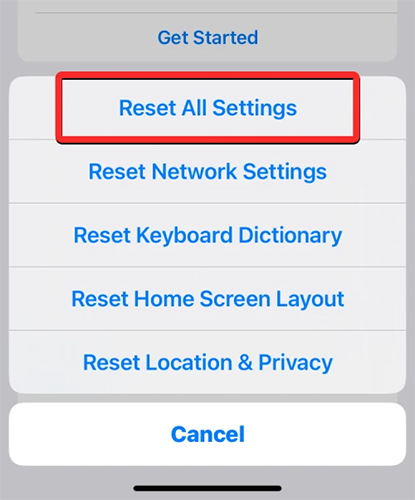
After the reset, test the touchscreen again.
8. Check for Physical or Liquid Damage
If your iPhone was recently dropped or exposed to water, the screen digitizer may be damaged.
Signs of hardware problems include:
- Touch working only in certain areas
- Ghost touches or random taps
- Completely unresponsive display
In these situations, the screen may need replacement.
Before visiting a repair center, you can also verify whether your device is still covered by AppleCare using this guide to check Apple warranty or AppleCare coverage.
9. Restore the iPhone Using Recovery Mode
If none of the software fixes work, restoring iOS can eliminate deeper system issues.
This process reinstalls the operating system.
Steps to restore your iPhone
- Connect the iPhone to a computer.
- Open Finder or iTunes.
- Force restart the device.
- Keep holding the Side button until recovery mode appears.
- Select Restore when prompted.
After the restoration finishes, test the touchscreen again.
Tips 💡
• Avoid using your iPhone with wet hands.
• Use high quality screen protectors that do not reduce sensitivity.
• Keep your device updated with the latest iOS version.
• Restart your iPhone occasionally to prevent system glitches.
• Avoid overfilling your device storage.
Bring Your iPhone Touchscreen Back to Life
A non-responsive touchscreen does not always mean your iPhone is permanently damaged. Many cases are caused by simple issues such as temporary software bugs, dirty screens, or problematic apps.
Start with the basic fixes like cleaning the display and restarting the device. If those steps do not help, updating iOS, resetting settings, or restoring the device can resolve deeper system problems.
Key Takeaways ⬇️
An iPhone screen that does not respond to touch is usually caused by software glitches, dirty displays, faulty apps, or hardware damage. Restarting the device, cleaning the screen, and updating iOS are often enough to fix the issue. If the problem persists after troubleshooting, resetting settings or restoring the device may help. This guide helps iPhone users diagnose and fix common touchscreen problems quickly.
FAQs
Random screen freezes are usually caused by apps crashing, low storage, or temporary system glitches.
Yes. Low quality or thick screen protectors can reduce touch sensitivity and make the display feel unresponsive.
This issue, often called ghost touch, can happen because of water damage, screen damage, or software bugs.
In many cases yes. Restarting clears temporary system errors that can prevent the touchscreen from working.
If the screen is cracked, shows ghost touches, or remains unresponsive after troubleshooting, replacing the display may be necessary.

0 Comments