How to Fix iPhone Stuck on Emergency SOS Screen: 2026 Guide
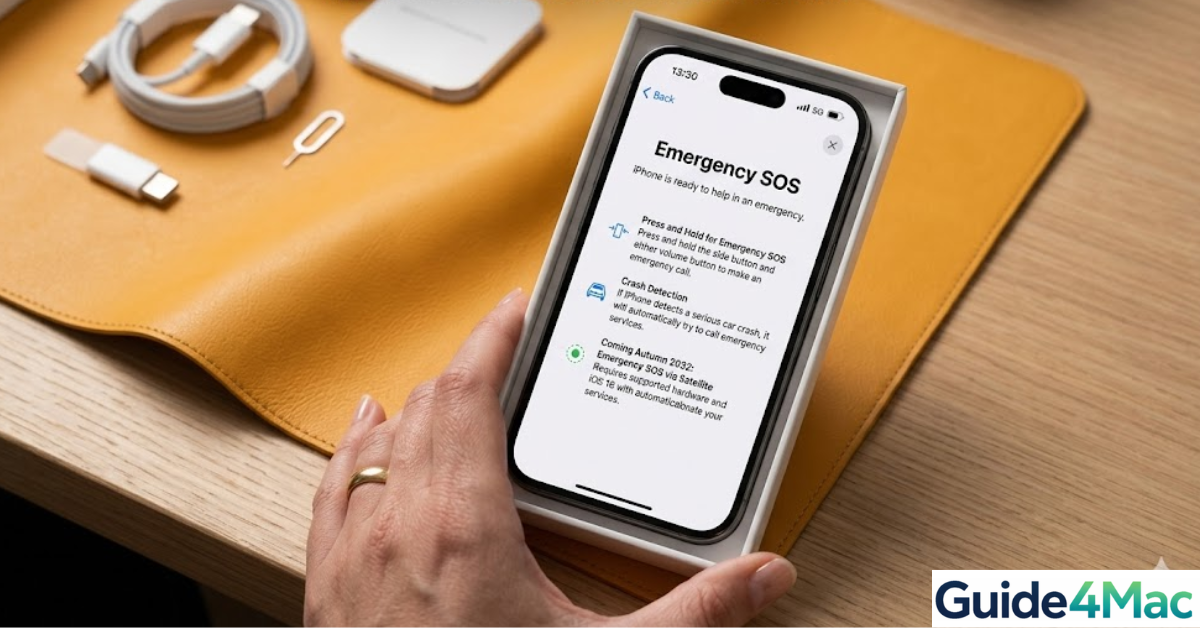
If your iPhone is stuck in Emergency SOS, it may repeatedly display the SOS screen, prevent normal use, or keep attempting emergency calls. This issue can happen after accidental button presses, software glitches, or network problems.
Emergency SOS is a safety feature designed to quickly contact emergency services and share your location. However, when it activates incorrectly, the iPhone can appear frozen or locked in SOS mode. If your device is also showing connectivity problems, it may relate to issues similar to iPhones stuck in SOS mode, which affects cellular service.
This guide explains the most effective ways to stop Emergency SOS mode and return your iPhone to normal operation.
Why Is Your iPhone Stuck in Emergency SOS?
Emergency SOS mode can trigger automatically when certain button combinations are pressed or when the system detects a potential emergency.
Common reasons include:
- Holding the Side button and Volume button for too long
- Software glitches in iOS
- Weak or missing cellular signal
- SIM card or carrier issues
- Accidental activation while the phone is in a pocket or bag
In most cases, the problem is temporary and can be resolved with a few simple troubleshooting steps.
1. Force Restart Your iPhone
A force restart is often the quickest way to exit Emergency SOS mode when the device becomes unresponsive.
- Quickly press the Volume Up button.
- Quickly press the Volume Down button.
- Press and hold the Side button.
- Release the button when the Apple logo appears.
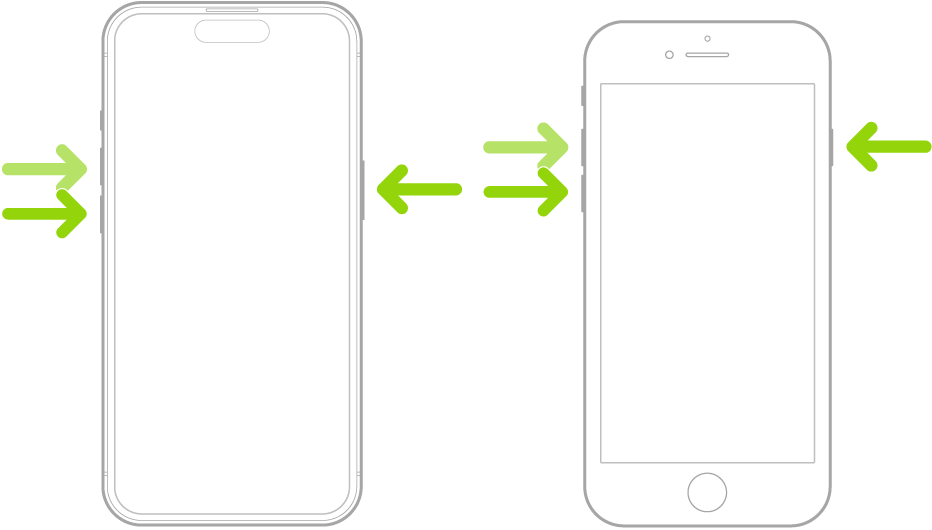
This restart refreshes the system without deleting any data.
If your device remains unresponsive, you may want to review how to force restart or shut down a Mac and Apple devices for similar troubleshooting techniques.
2. Check Cellular Network Signal
Sometimes Emergency SOS mode appears when your iPhone cannot connect to your carrier network.
- Open Settings.
- Tap Cellular.
- Toggle Cellular Data off.
- Wait a few seconds.
- Turn Cellular Data back on.
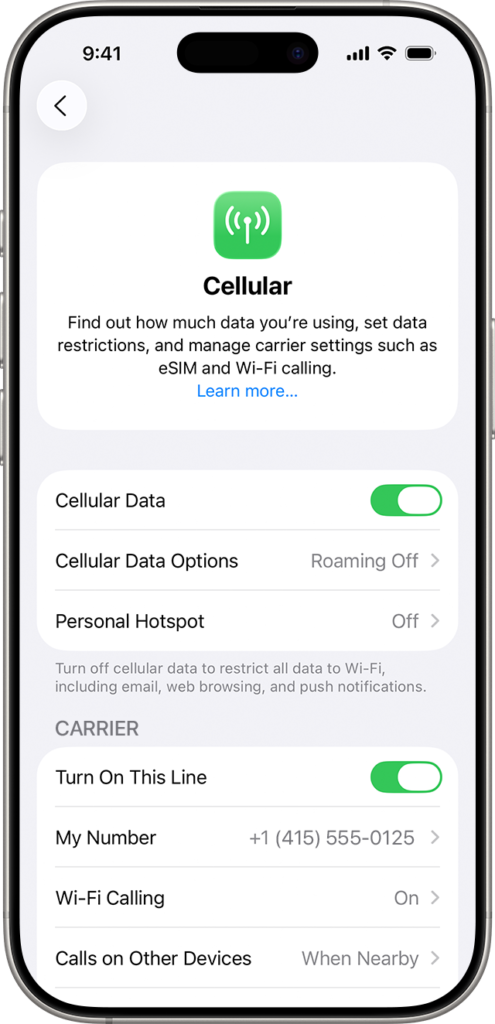
You can also try enabling and disabling Airplane Mode to refresh the network connection.
3. Turn Off Emergency SOS Auto Call
The Emergency SOS feature includes an Auto Call option that may activate unexpectedly if buttons are pressed accidentally.
- Open Settings.
- Tap Emergency SOS.
- Toggle off Call with Hold and Release.
- Toggle off Call with 5 Button Presses.
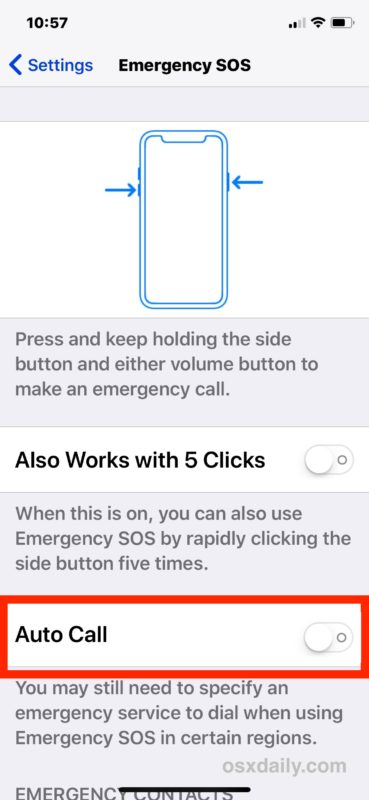
Disabling these settings prevents accidental SOS calls.
4. Remove and Reinsert the SIM Card
A SIM card problem can sometimes cause the iPhone to display SOS or Emergency mode.
- Turn off your iPhone.
- Insert the SIM ejector tool into the SIM tray.
- Remove the SIM card.
- Reinsert the SIM card carefully.
- Turn your iPhone back on.
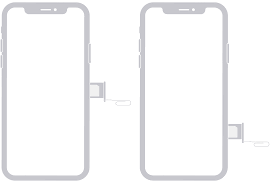
If the issue continues, the SIM card may need replacement from your carrier.
5. Update iOS
Software bugs occasionally cause Emergency SOS glitches. Updating iOS can fix these problems.
- Open Settings.
- Tap General.
- Tap Software Update.
- Install any available update.
Keeping iOS updated helps prevent many system issues, including network and safety feature bugs.
6. Reset Network Settings
Resetting network settings clears corrupted cellular or Wi-Fi configurations.
- Open Settings.
- Tap General.
- Select Transfer or Reset iPhone.
- Tap Reset.
- Choose Reset Network Settings.
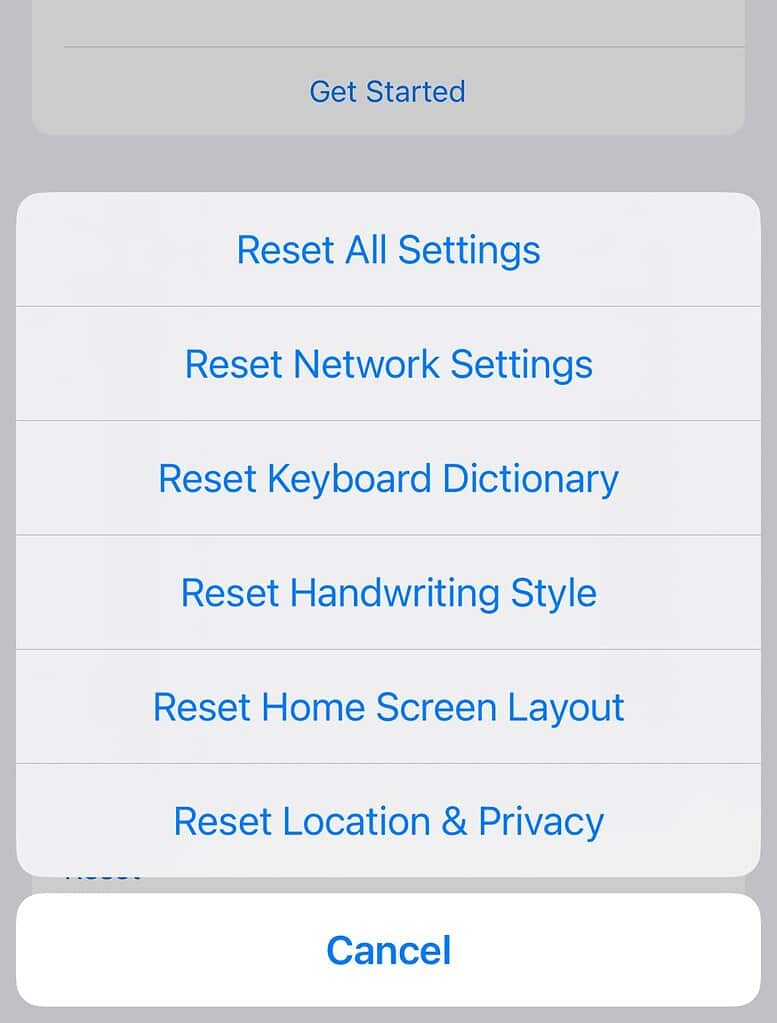
Your saved Wi-Fi passwords will be removed, but personal data remains safe.
7. Restore iPhone Using Recovery Mode
If none of the previous solutions work, restoring the device through recovery mode can resolve deeper system issues.
- Connect your iPhone to a Mac or Windows computer.
- Open Finder or iTunes.
- Force restart the iPhone while connected.
- Wait until the Recovery Mode screen appears.
- Select Update or Restore.
Updating first is recommended because it attempts to reinstall iOS without erasing data.
Tips
- Avoid pressing Side and Volume buttons simultaneously unintentionally.
- Keep iOS updated to reduce system bugs.
- Use a protective case that prevents accidental button presses.
- Check your carrier coverage when SOS appears frequently.
- Restart your iPhone regularly to refresh system processes.
Getting Your iPhone Back to Normal
Emergency SOS is an important safety feature, but it can be frustrating when it activates unintentionally or gets stuck. Fortunately, most cases are resolved with simple fixes like restarting the device, checking the network connection, or adjusting SOS settings.
If the issue continues after troubleshooting, restoring the iPhone or contacting Apple Support may be necessary. Once resolved, your device should return to normal operation without repeatedly triggering emergency mode.
Key Takeaways
An iPhone stuck in Emergency SOS usually occurs because of accidental button presses, network issues, or software glitches. Restarting the device, refreshing cellular settings, and updating iOS often resolve the problem quickly. If the issue persists, resetting network settings or restoring the iPhone through recovery mode can fix deeper system errors. These steps help return the device to normal operation while keeping the Emergency SOS safety feature available when needed.
FAQs
This usually happens due to accidental button presses, poor cellular signal, or software glitches affecting iOS.
Yes. When the Auto Call feature is enabled, the iPhone automatically contacts emergency services after the countdown ends.
You cannot fully remove the feature, but you can disable the automatic call options in Settings.
This typically means the device cannot connect to your cellular carrier but can still make emergency calls.
Yes. If the problem is related to network configuration or carrier settings, resetting network settings can resolve it.


0 Comments