How to Fix “Time Zone Cannot Be Set Manually” on iPhone
If you see the “Time Zone Cannot Be Set Manually” message on your iPhone, it usually means the device is automatically managing time settings or certain restrictions are preventing manual changes.
This issue often appears when automatic time settings are enabled, Location Services are controlling time zones, or Screen Time restrictions block the option. In this guide, you will learn how to fix the problem step by step so you can manually change the time zone again on your iPhone. If your device also has problems with the clock settings, you might want to check how to fix time zone settings that cannot be changed for additional troubleshooting.
Why Does iPhone Say Time Zone Cannot Be Set Manually?
When your iPhone displays the message “Time Zone Cannot Be Set Manually,” iOS is preventing manual changes to keep time settings consistent with your location and network.
This usually happens when Set Automatically is enabled in the Date & Time settings or when Location Services for System Services are managing the time zone. In some cases, Screen Time restrictions or mobile carrier settings may also lock the option.
The fixes below will help you regain manual control of your time zone settings.
1. Turn Off Automatic Date and Time
The most common reason you cannot manually change the time zone is that the automatic setting is enabled. When this option is active, iOS automatically adjusts the time based on your location.
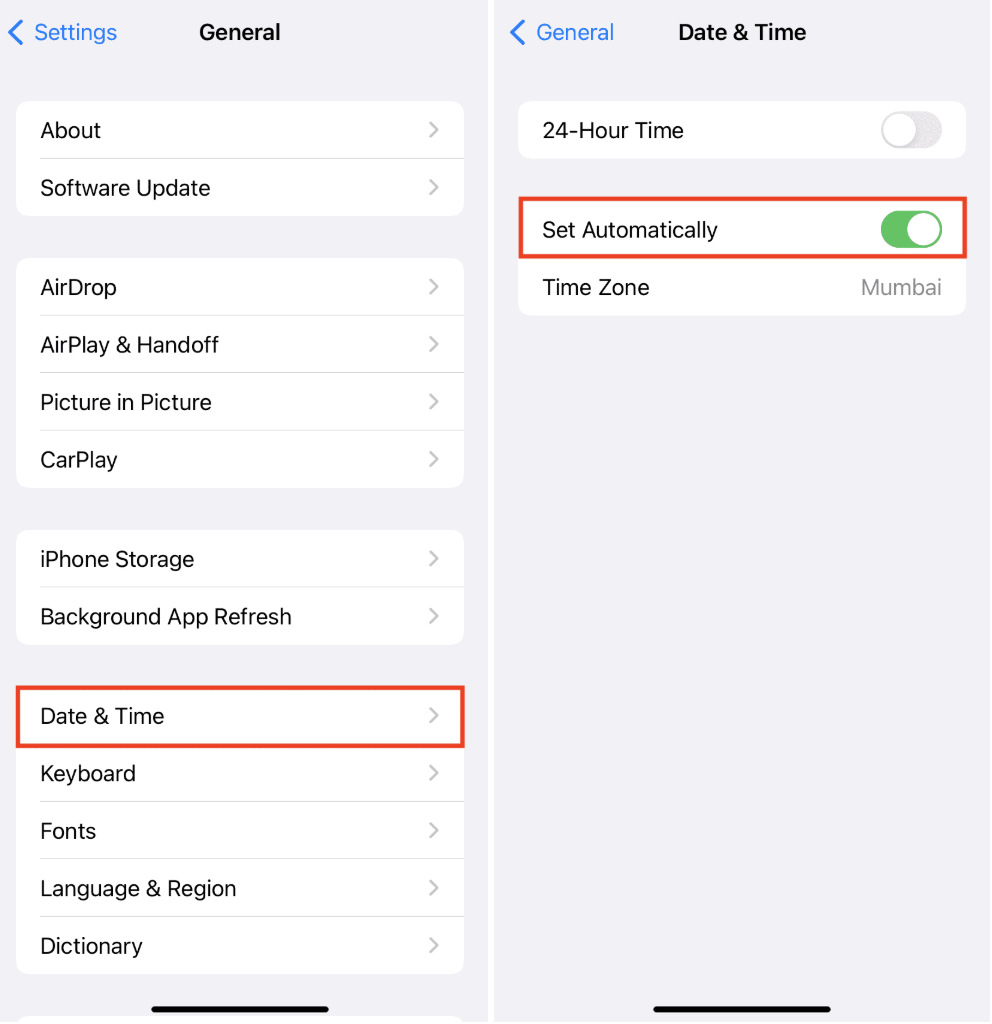
Steps to disable automatic time settings
- Open Settings.
- Tap General.
- Select Date & Time.
- Turn off Set Automatically.
- Tap Time Zone.
- Enter your preferred city.
Once automatic settings are disabled, you should be able to change the time zone manually.
2. Disable Location-Based Time Zone
Your iPhone can use Location Services to determine the correct time zone automatically. When this feature is enabled, manual changes may be restricted.
Turning it off restores manual control.
Time needed: 2 minutes
How to disable location-based time zone:
- Open Settings.
- Tap Privacy & Security.

- Select Location Services.
- Scroll to System Services.
- Turn off Setting Time Zone.
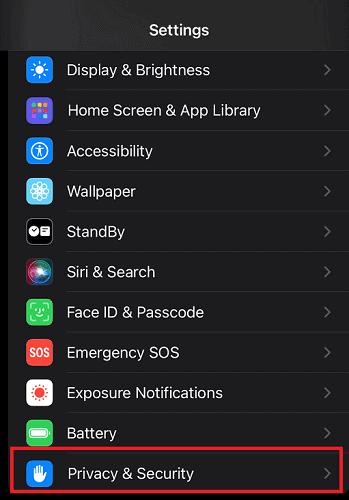
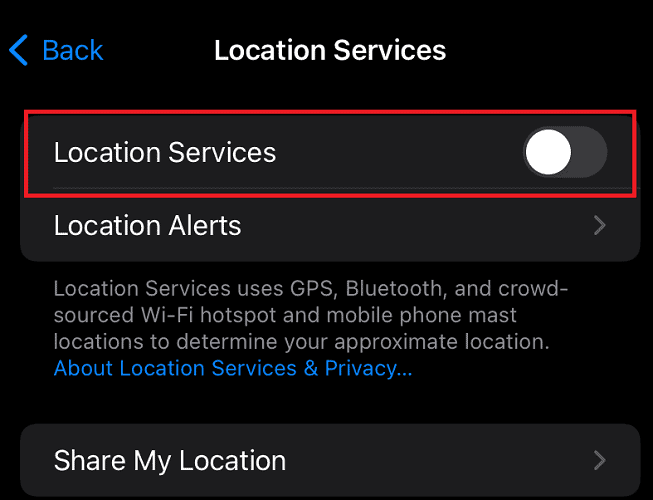
After disabling this option, return to the Date & Time menu and try adjusting the time zone again.
3. Check Screen Time Restrictions
Screen Time restrictions can prevent changes to system settings, including time and date options. This is common on devices used by children or managed through parental controls.
Steps to check Screen Time restrictions
- Open Settings.
- Tap Screen Time.
- Select Content & Privacy Restrictions.
- Tap Location Services.
- Make sure changes are allowed.
If restrictions were enabled, disabling them may allow the time zone to be edited again.
4. Restart Your iPhone
Temporary software glitches can sometimes prevent the Date & Time settings from updating correctly. Restarting the device often resolves these small system issues.
Steps to restart your iPhone
- Press and hold the Side button and a Volume button.
- Drag the Power Off slider.
- Wait 10 seconds.
- Press the Side button again to power the device back on.
After restarting, check the Date & Time settings again.
5. Update iOS
Outdated versions of iOS may contain bugs that affect system settings. Installing the latest update can fix these problems.
Steps to update iOS
- Open Settings.
- Tap General.
- Select Software Update.
- Tap Download and Install.
Keeping your iPhone updated helps prevent issues with system settings like time zones.
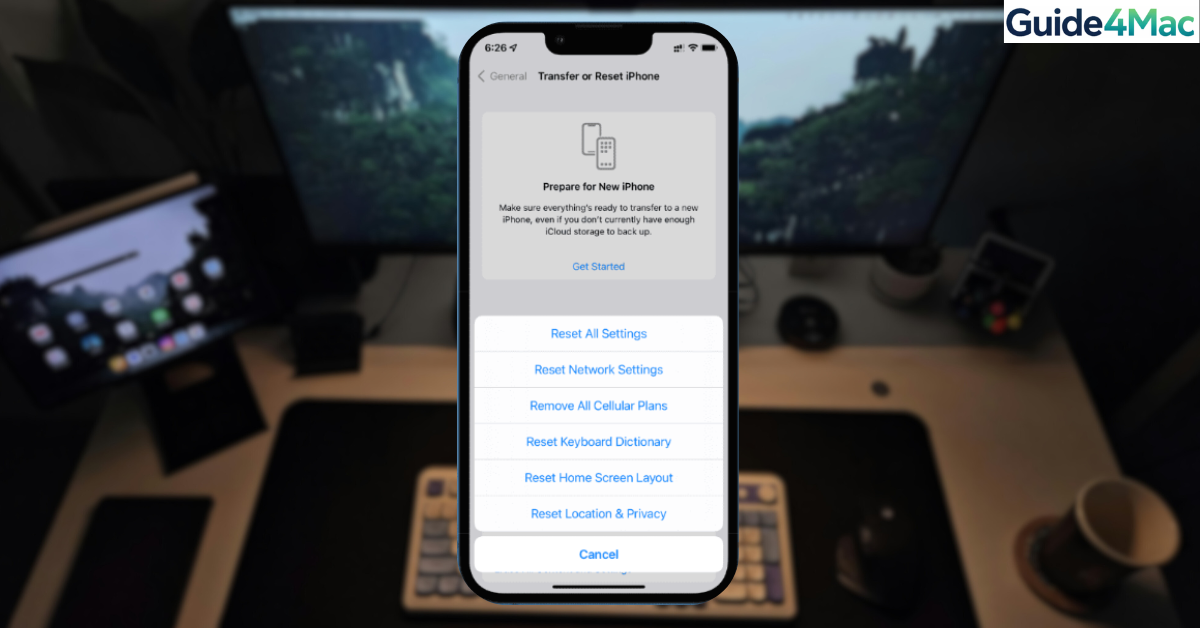
6. Reset Location and Privacy Settings
If location permissions or system services are misconfigured, resetting these settings can restore proper behavior.
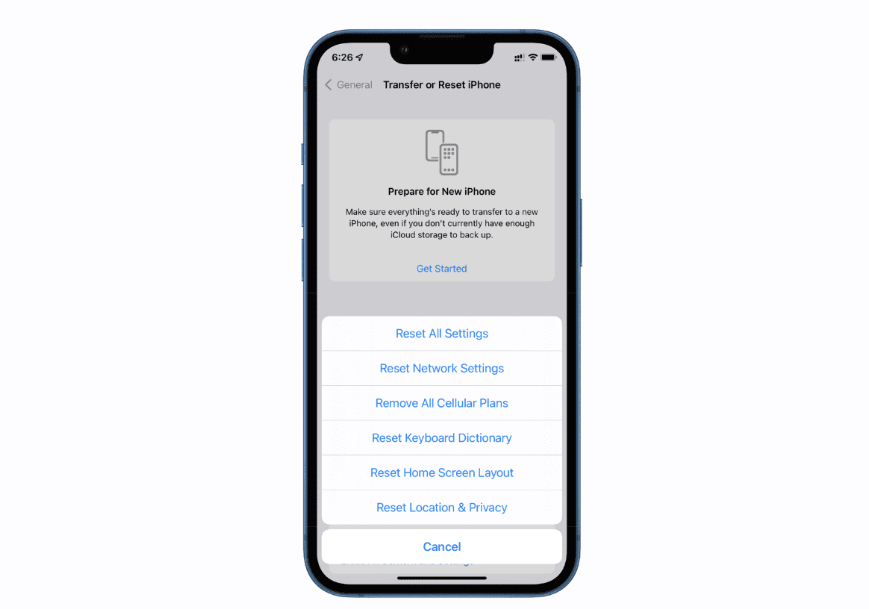
Steps to reset location settings
- Open Settings.
- Tap General.
- Select Transfer or Reset iPhone.
- Tap Reset.
- Choose Reset Location & Privacy.
You will need to grant location permissions again after performing this reset.
7. Reset All Settings
If none of the previous fixes work, resetting all system settings may solve the problem.
This will not delete your data but will reset WiFi networks, privacy permissions, and preferences.
Steps to reset all settings
- Open Settings.
- Tap General.
- Select Transfer or Reset iPhone.
- Tap Reset.
- Choose Reset All Settings.
Once the reset is complete, check if the time zone option is available again.
Tips
• Keep Set Automatically enabled if you travel frequently.
• Make sure Location Services are working properly.
• Avoid using unofficial configuration profiles that modify system settings.
• Update iOS regularly to prevent settings bugs.
• Restart your device occasionally to refresh system services.
Take Control of Your iPhone Time Settings
The “Time Zone Cannot Be Set Manually” message is usually caused by automatic time settings or restrictions controlling the clock configuration.
By disabling automatic time adjustments, reviewing Location Services, and checking Screen Time restrictions, most users can restore manual control quickly. If the issue continues, resetting location or system settings usually resolves the problem.
Key Takeaways
The “Time Zone Cannot Be Set Manually” message appears when iOS automatically manages time settings or restrictions block manual changes. Turning off automatic time, disabling location-based time zone services, and checking Screen Time restrictions often fix the issue. Updating iOS or resetting system settings can also restore manual control. These steps help iPhone users regain full access to time zone settings.
FAQs
This usually happens because the Set Automatically option is enabled or Location Services are managing the time zone.
Yes. If Screen Time restrictions are enabled, certain system settings including Date & Time may be locked.
For most users, yes. Automatic time ensures the clock stays accurate when traveling or switching networks.
This may happen if your mobile carrier manages time settings or if Screen Time restrictions are enabled.
No. Resetting settings only restores system preferences. Your apps, photos, and personal data remain safe.

0 Comments