iPhone Model Lookup: How to Find Your Model Number & Specs
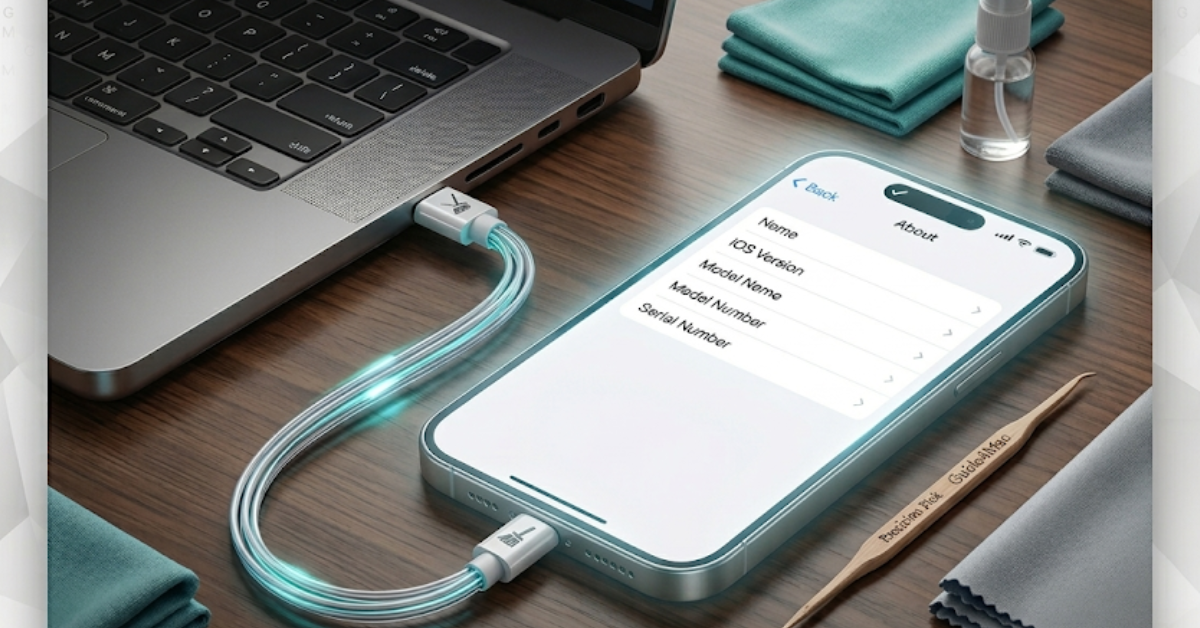
If you are wondering what iPhone do you have, you simply did not pay any attention when paying it, didn’t you? Many Apple users want to identify their exact iPhone model when buying accessories, checking warranty coverage, selling the device, or troubleshooting software issues.
Apple uses several identifiers for every iPhone, including the model name, model number, and serial number. Understanding these identifiers makes it easy to confirm whether you have an iPhone 15, iPhone 14 Pro, iPhone SE, or another model. In this guide, you will learn multiple reliable ways to identify your iPhone model using iOS settings, hardware clues, serial numbers, and Apple account tools.
If you are also verifying device coverage or purchase status, it can help to review how to check Apple warranty coverage before contacting Apple Support.
How Can You Identify What iPhone Model You Have?
Apple devices store their hardware details inside iOS, which means the fastest way to identify your phone is usually through the Settings app. However, there are several other methods that can help if the phone will not turn on or if you want to double check the exact model.
Below are the most reliable ways used by Apple Support, repair technicians, and experienced users.
1. Check Your iPhone Model in Settings (Fastest Method)
The easiest way to identify your iPhone is by checking the About section in the Settings app. This page contains the official device name, model number, and serial information stored in iOS.
This method works on all modern iPhones running recent versions of iOS.
Time needed: 2 minutes
The easiest way to identify your iPhone is through the system settings.
- Open Settings
Tap the Settings app on your iPhone.
- Go to General
Scroll down and select General.
- Tap About
Open the About section.
- Find Model Name
Look for Model Name to see the exact device name.
- Tap Model Number
Tap Model Number to reveal the hardware identifier (A-number).

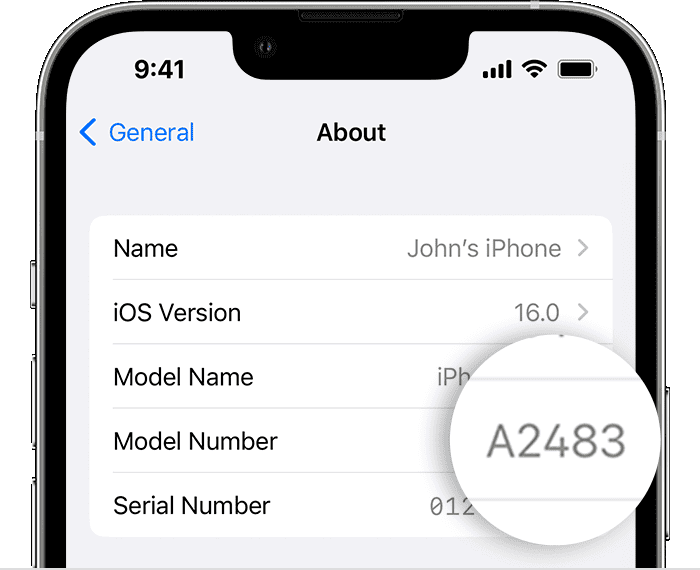
The model name will directly tell you if you have an iPhone 14, iPhone 13 Pro, iPhone 12, or another device. The model number can also be matched against Apple’s official device list.
If you are troubleshooting system issues while checking device information, you may also find it useful to read how to fix iOS lag or performance issues.
For example:
- A2483 corresponds to iPhone 13 Pro
- A2649 corresponds to iPhone 14
- A2890 corresponds to iPhone 15 Pro
This approach is commonly used by Apple technicians when verifying hardware compatibility for repairs or accessories.
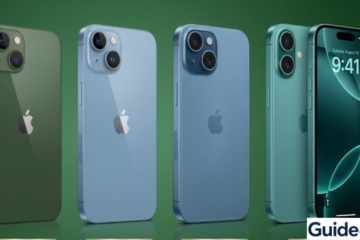
2. Identify Your iPhone by Physical Design
Sometimes the device cannot be unlocked or powered on. In that situation you can still identify the iPhone by looking at its physical features.
Apple changes design elements with nearly every generation, which makes visual identification possible.
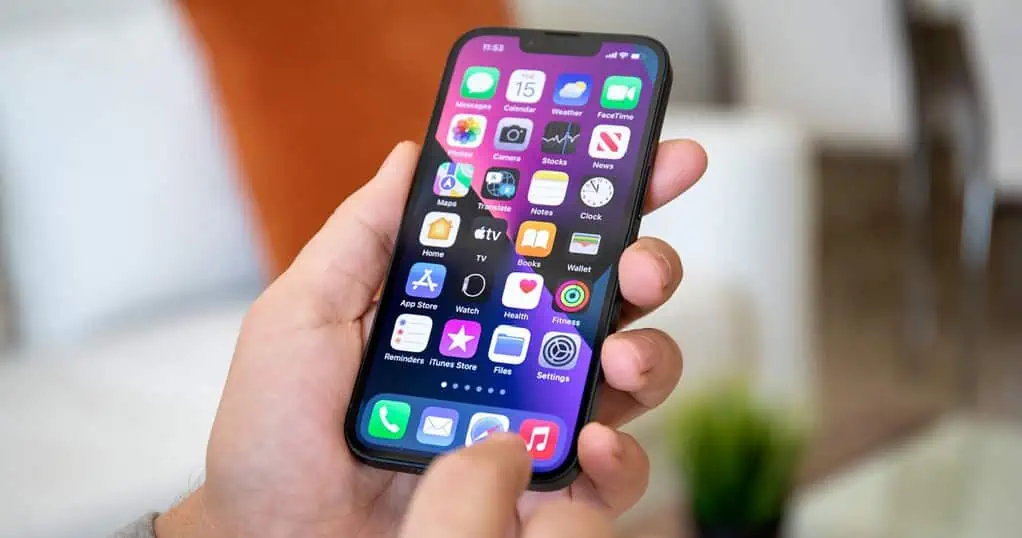
Look for these clues:
• Camera layout (single, dual, or triple camera)
• Notch or Dynamic Island
• Lightning vs USB-C port
• Rounded or flat edges
• Home button or Face ID
Examples:
- iPhone X, XS, and 11 have rounded edges and a notch.
- iPhone 12, 13, and 14 have flat edges and a notch.
- iPhone 15 models use USB-C instead of Lightning.
These visual cues are often used by repair technicians before opening a device.
3. Check the iPhone Serial Number on Apple’s Website
Another reliable method is to check your device serial number using Apple’s official coverage lookup page. This reveals the exact iPhone model and warranty information.
- Open Settings.
- Tap General.
- Select About.
- Copy the Serial Number.
- Visit Apple’s coverage checker website.
- Enter the serial number.

The result will display your iPhone model and warranty status. If you want a deeper explanation of this process, you can also read how to check Apple warranty status.
4. Check Your Apple ID Device List
If the iPhone is signed in with your Apple ID, you can identify it from another Apple device such as a Mac, iPad, or even another iPhone.
Apple automatically lists all devices connected to your account.
- Open Settings.
- Tap your Apple ID name at the top.
- Scroll down to Devices.
- Select the iPhone from the list.
You will see the model name, device type, and other details. This method works well if the phone itself is not accessible.
5. Identify the iPhone Using the SIM Tray or Back Panel
Some older iPhones include model identifiers printed on the physical device.
Examples include:
• iPhone 7
• iPhone 6 and 6s
• iPhone SE (1st generation)
To check:
- Remove the SIM tray using a SIM tool.
- Look for the small model code printed on the tray.
- Match it with Apple’s model database.
On very old models like the iPhone 5 or iPhone SE (2016), the model number may also be printed on the back of the device.
Tips
• If your iPhone will not turn on, check the model number on the SIM tray.
• Newer models after iPhone 12 all use flat edge designs.
• iPhone 15 devices switched from Lightning to USB-C charging.
• Apple’s Settings → About page always provides the most accurate identification.
Know Your iPhone With Confidence
Identifying your iPhone model is usually quick once you know where to look. The Settings app provides the fastest answer, but model numbers, serial numbers, and physical design features can also confirm the device.
These techniques are the same ones used by Apple Support and repair professionals. Once you know your model, it becomes much easier to troubleshoot issues, install compatible accessories, or check warranty coverage.
Key Takeaways
Identifying your iPhone model is simple once you know the right methods. The fastest option is checking the About section in Settings, which displays the device name and model number. If the phone cannot be unlocked, you can use physical design clues, serial number lookup, or Apple ID device lists. These techniques help users quickly confirm their iPhone model for troubleshooting, repairs, and compatibility checks.
FAQs
Open Settings, tap General, then About. The Model Name field will display your exact iPhone model.
Yes. Tap the model number in the About section to reveal the identifier code starting with “A”, which can be matched to Apple’s device list.
You can identify it using the SIM tray model number, camera layout, port type, or by checking your Apple ID device list.
Yes. Entering the serial number on Apple’s coverage checker reveals the exact device model and warranty information.
Look at design details such as camera layout, port type, and notch design. The Settings About page is the most accurate way to confirm the model.
0 Comments