How to Login Gmail on iPhone (13-to-17) (Easy Step-by-Step Guide)
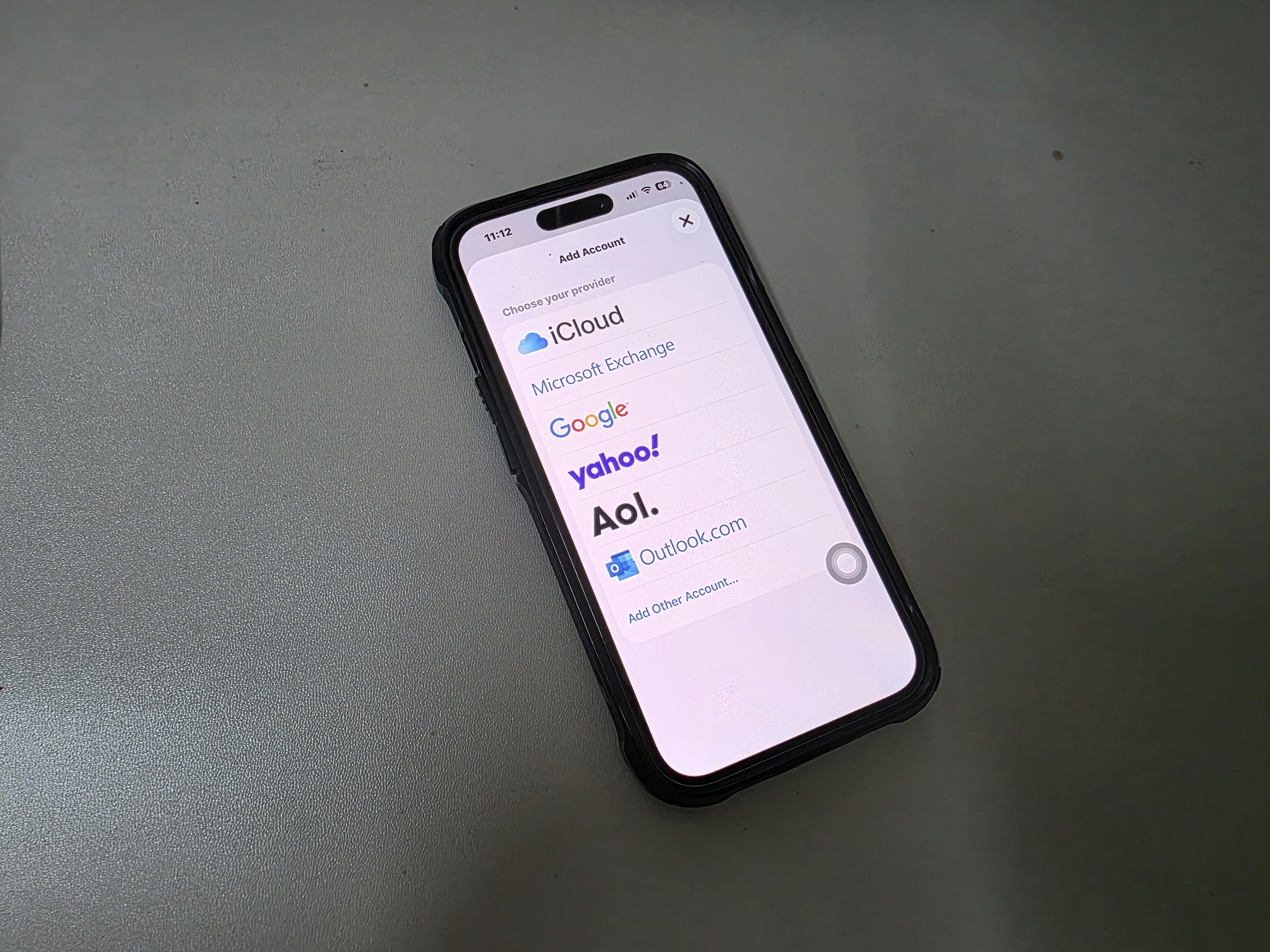
Accessing your Gmail on an iPhone should be as easy as it is described below. Whether you want to use Apple’s built-in Mail app or the official Gmail app, we present both methods in a beginner-friendly way so you can easily set this up.
Before getting started, make sure your account details are correct and up to date. If you run into sign-in issues, it often helps to review how your account is set up or update your credentials through this guide on signing into your Apple account or by updating your credentials via changing your email password on iPhone.
How to Login Gmail on iPhone?
Method 1: Use Mail App On Iphone
Time needed: 4 minutes
This is how you login into Gmail App on your iPhone using the native Mail App:
- Open Settings
Go to the Settings app on your iPhone to begin the setup process.
- Access Mail Settings
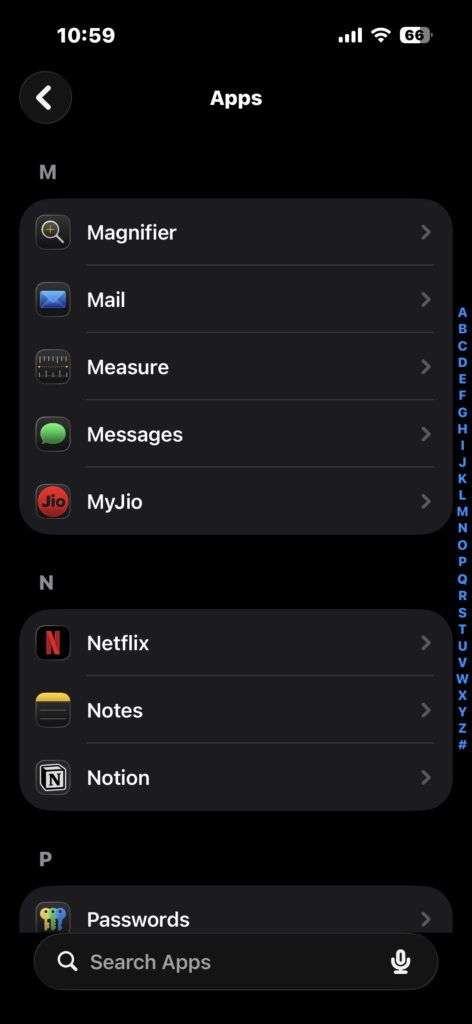
Scroll down and tap on Mail, then select Accounts to view your existing email accounts.

- Add a New Account
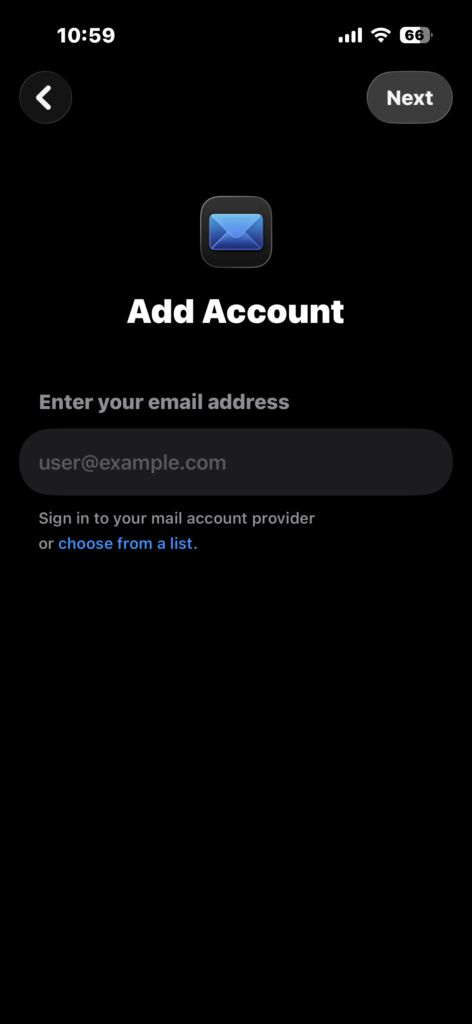
Tap on Add Account to start adding your Gmail account.
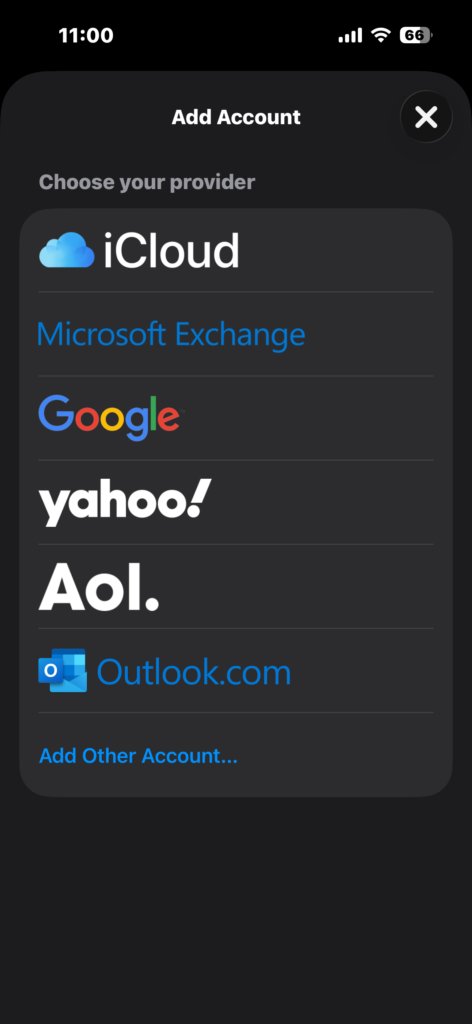
- Choose Google
From the list of providers, select Google to proceed with Gmail login.
- Enter Gmail Address
Type your Gmail email address and tap Next to continue.
- Enter Password
Input your Gmail account password and proceed to the next step.
- Complete Verification
If prompted, complete two-factor authentication or any additional verification steps
- Enable Mail Sync
Make sure the Mail option is enabled so your emails will sync properly.
- Save Account
Tap Save to complete the process and finish logging into Gmail on your iPhone.
Method 2: Login Gmail Using the Gmail App
If you prefer Google’s interface and features, the Gmail app is a great alternative.
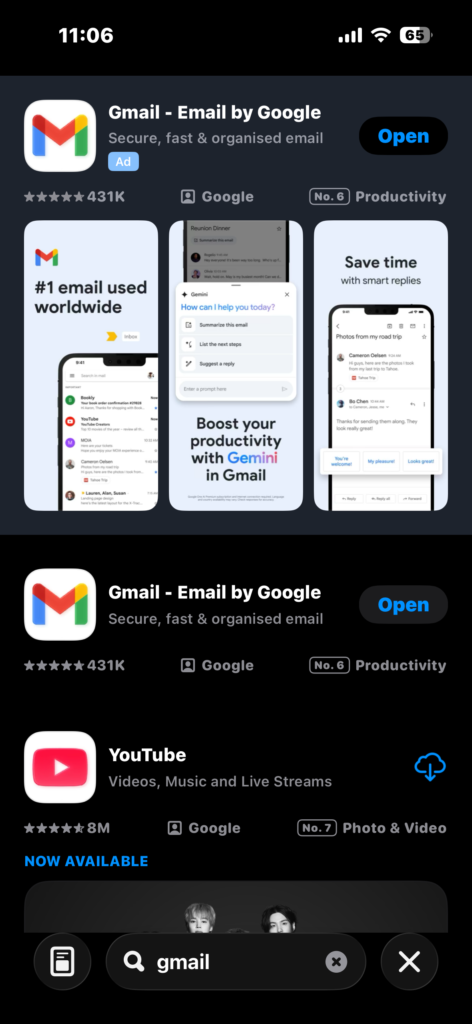
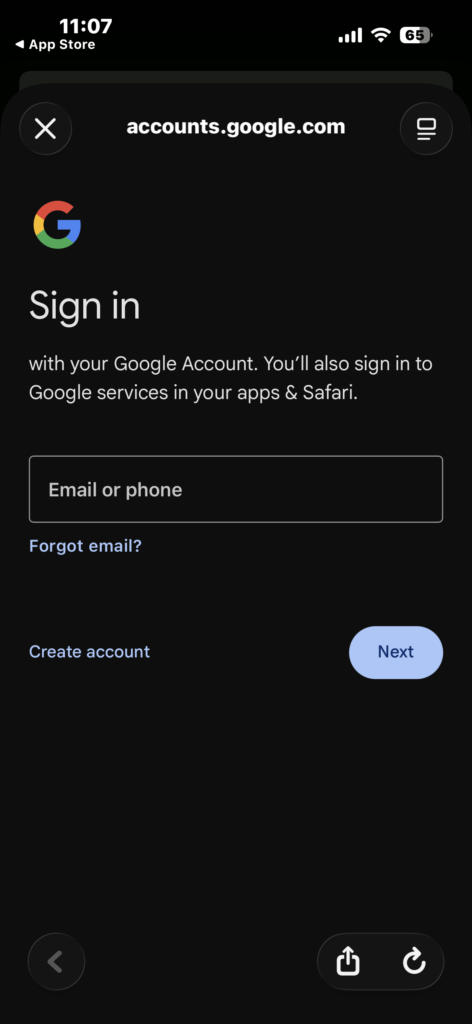
Steps to Sign in Gmail App on iPhone:
- Download Gmail from the App Store.
- Open the app.
- Tap Sign In.
- Enter your Gmail address.
- Tap Next and enter your password.
- Complete verification if required.
You’ll now have full access to your Gmail inbox with Google’s native features.
For a breakdown focused entirely on this process, you can also explore logging into Gmail on iPhone.
Alternative: Add Gmail as a New Account
Sometimes “logging in” simply means adding the account to your device. If your Gmail isn’t showing up in the Mail app, adding it manually usually resolves the issue. The full process of adding an email account to iPhone walks through all the available setup options.
Common Gmail Login Problems on iPhone
Many login issues come from simple misconfigurations. Here are the most common ones:
- Incorrect email or password
- Two-factor authentication issues
- Gmail sync disabled
- Poor internet connection
- Outdated iOS version
If your Gmail connects but doesn’t update, the issue is usually related to syncing. In those cases, resolving Apple Mail not syncing with Gmail typically restores normal email behavior.
How to Fix Gmail Not Working on iPhone
- Re-enter your password
- Restart your iPhone
- Remove and re-add your Gmail account
- Check Mail sync settings
- Update iOS to the latest version
When login problems keep coming back, it often points to outdated or incorrect credentials. Updating them through changing your email password on iPhone usually resolves persistent sign-in issues.
Tips for Managing Gmail on iPhone
- Use the Mail app for unified inbox management
- Use the Gmail app for advanced features like labels
- Enable notifications for real-time updates
- Add multiple Gmail accounts if needed
FAQs?
Go to Settings → Mail → Accounts → Add Account → Google, then enter your Gmail login details and enable Mail syncing.
This usually happens because of incorrect credentials, verification issues, or network problems. Updating your password or re-adding the account typically fixes it.
Open Settings → Mail → Accounts → Add Account → Google, then sign in and enable Mail.
No, the Mail app works perfectly. The Gmail app simply provides additional Google-specific features like labels and categorization.
Ensure Mail is enabled in your account settings and that background app refresh is turned on.
It’s usually caused by sync issues, outdated settings, or incorrect login details. Re-adding the account or updating your credentials resolves most cases.

0 Comments