How to Make iPhone Pictures Smaller: 7 Easy Ways
If you need to make iPhone pictures smaller, it usually means reducing their file size so they are easier to send, upload, or store. Photos taken with modern iPhones can be very large because the camera captures high-resolution images using advanced formats like HEIF.
Large photo files can quickly fill your storage or fail to upload to websites with size limits. In this guide, you will learn several ways to shrink photo file sizes on your iPhone without losing too much image quality. If your storage is already full because of large media files, you may also want to learn how to make iPhone pictures take less storage space using additional settings and compression tricks.
Why Are iPhone Photos So Large?
Modern iPhones capture high resolution images using advanced sensors and computational photography. This results in sharper photos but also significantly larger file sizes.
Features such as HDR processing, Live Photos, and 48-megapixel camera modes on newer models can increase image size even more. While Apple uses efficient formats like HEIF, some images can still reach several megabytes depending on lighting conditions and detail.
Fortunately, there are multiple ways to reduce the size of your photos.
Change Camera Format to High Efficiency
One of the easiest ways to make photos smaller is switching the camera format from Most Compatible (JPEG) to High Efficiency (HEIF).
HEIF images maintain excellent quality while reducing file size significantly.
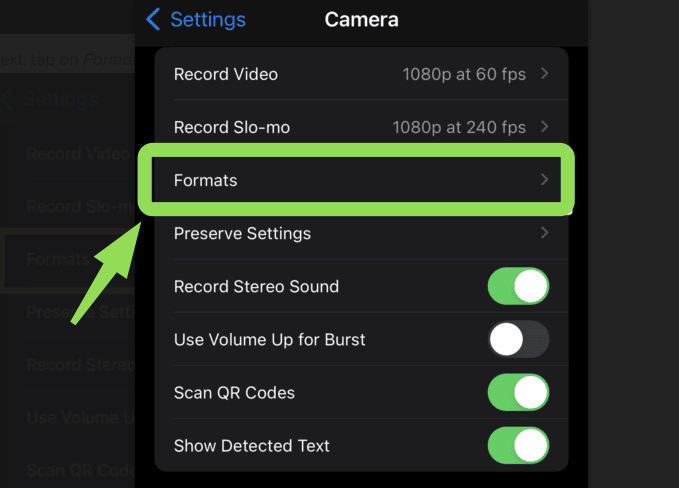
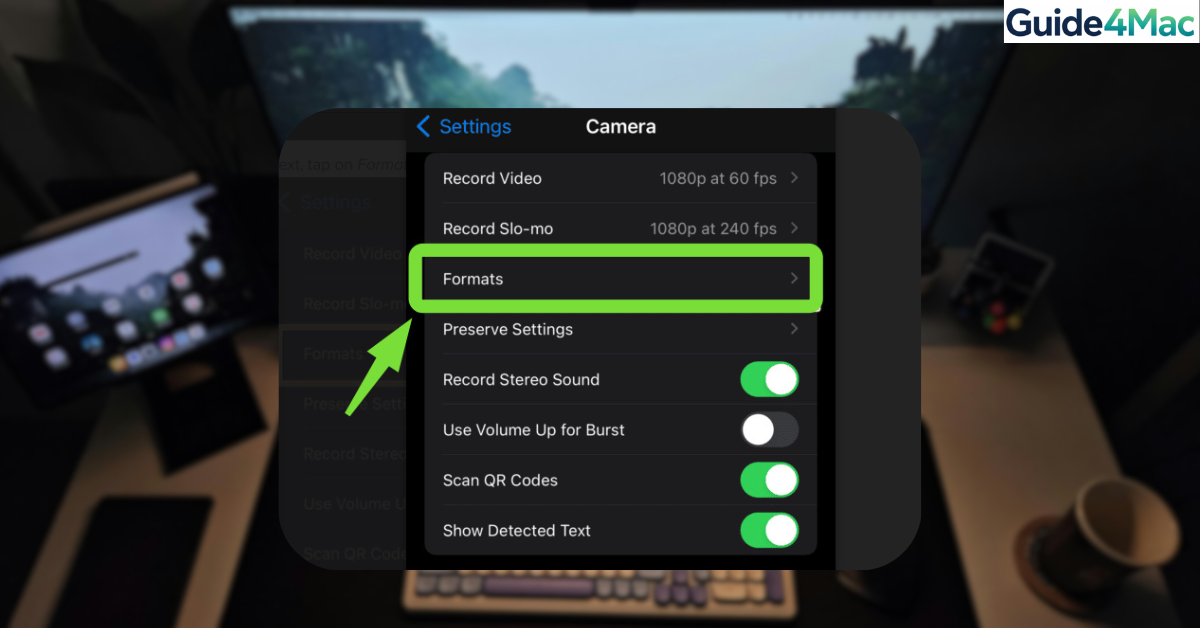
Steps to enable High Efficiency format
- Open Settings.
- Tap Camera.
- Select Formats.
- Choose High Efficiency.
From now on, new photos will take up less storage space.
Reduce Photo Resolution Before Sending
When sharing images through apps like Mail or Messages, you can reduce the resolution to create a smaller file.
This option is particularly useful when sending photos by email.
Steps to send smaller photos in Mail
- Open the Photos app.
- Select the image you want to send.
- Tap the Share button.
- Choose Mail.
- Select a smaller image size when prompted.
Options usually include Small, Medium, Large, and Actual Size.
Use the iPhone Screenshot Trick
Taking a screenshot of an existing photo can create a smaller version of the image. While the resolution may be reduced slightly, it often keeps enough detail for sharing online.
Steps to create a smaller image using a screenshot
- Open the photo in the Photos app.
- Press the Side button and Volume Up together.
- Tap the screenshot preview.
- Crop the image to remove extra areas.
- Save the edited screenshot.
The saved screenshot will usually have a smaller file size.
Resize Photos Using the Shortcuts App
Apple’s Shortcuts app can automatically resize images before saving or sharing them. This method works well if you frequently need smaller pictures.
Steps to resize photos with Shortcuts
- Open the Shortcuts app.
- Tap Create Shortcut.
- Add the Resize Image action.
- Choose your desired width or height.
- Add the Save to Photo Album action.
- Run the shortcut on your selected photos.
This creates a resized copy while keeping the original image unchanged.
Compress Photos Using Files App
You can also reduce image size by compressing photos into a ZIP file using the Files app. This is helpful when sending multiple photos.
Steps to compress photos
- Open the Photos app.
- Select the photos you want to compress.
- Tap Share.
- Choose Save to Files.
- Open the Files app.
- Select the saved photos.
- Tap Compress.
The system will create a ZIP archive containing smaller compressed files.
Turn Off Live Photos
Live Photos capture a short video clip along with the photo. This significantly increases the file size.
Disabling Live Photos reduces storage usage for future pictures.
Steps to disable Live Photos
- Open the Camera app.
- Tap the Live Photo icon at the top.
- Turn the feature off.
Future photos will only save a still image.
Use a Third-Party Photo Compression App
Several apps in the App Store specialize in reducing photo size without major quality loss. These apps allow batch compression and advanced resizing options.
Two commonly used tools include Compress Photos & Pictures and Photo Compress.
These apps allow users to quickly shrink photos before sharing them online or uploading them to websites.
Key Features
• Batch image compression
• Adjustable image quality settings
• Automatic file size reduction
• Support for multiple photo formats
Pricing: Free with optional premium features
Tips
• Use High Efficiency camera format to keep file sizes smaller.
• Disable Live Photos if you do not need motion capture.
• Resize images before uploading them to websites.
• Use screenshot cropping for quick smaller copies.
• Compress multiple photos into ZIP files for easier sharing.
Smaller Photos, More Storage Space
Large photo files are common on modern iPhones because the camera captures extremely detailed images. While this improves image quality, it can quickly fill your storage or make files difficult to send.
By changing camera formats, resizing images, or compressing photos before sharing, you can significantly reduce photo file sizes. These simple adjustments help keep your storage free while still preserving good image quality.
Key Takeaways
iPhone photos can become very large due to high resolution cameras and features like Live Photos. Switching to High Efficiency format, resizing images, and compressing photos are effective ways to reduce file size. These methods allow users to share images more easily and save valuable storage space. Anyone who frequently sends or uploads photos will benefit from using these techniques.
FAQ
Modern iPhones capture high resolution images and use features like HDR and Live Photos, which increase file size.
Yes. The HEIF format provides similar image quality to JPEG but usually uses less storage.
Resizing slightly reduces resolution, but the quality is usually still good enough for sharing or uploading.
Yes. The Files app or third party compression apps allow you to compress multiple images at once.
Sending the photo through the Mail app and selecting a smaller image size is one of the fastest ways to reduce file size.


0 Comments