How to Mass Delete Text Messages on iPhone
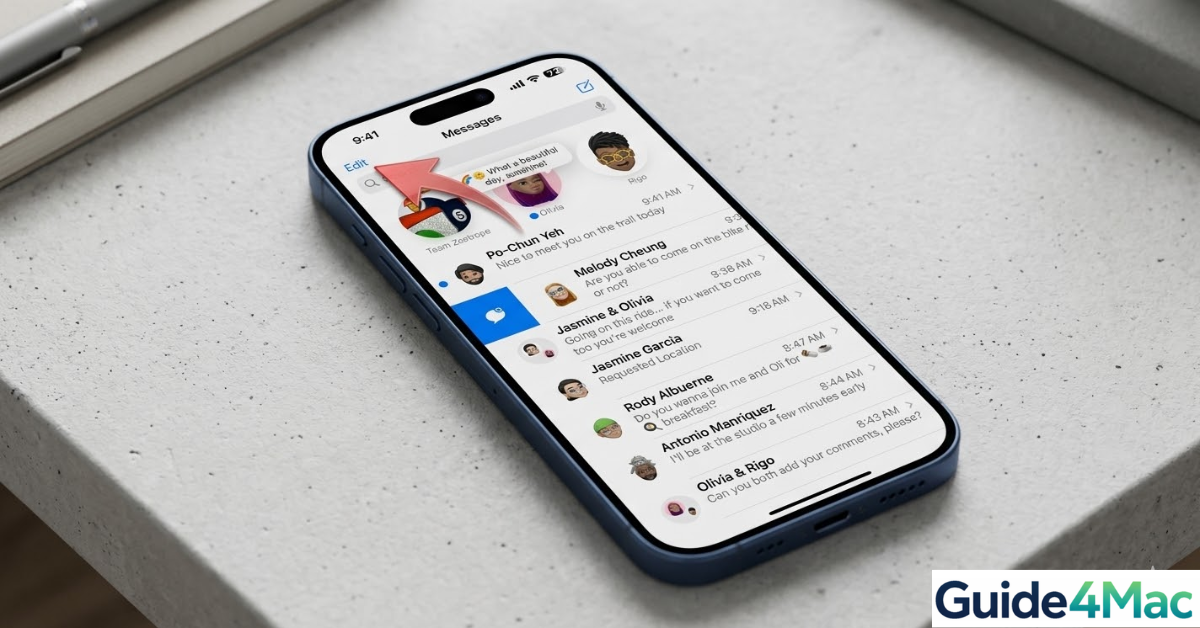
If your inbox is full, learning how to mass delete text messages on iPhone can quickly free up storage and declutter the Messages app. Over time, conversations, attachments, and media files can consume significant space on your device.
Bulk deleting messages helps keep the iPhone running smoothly and makes it easier to manage conversations. If your phone storage is already full, you may also want to review ways to fix iPhone storage full issues or check other data like photos and apps.
This guide explains several ways to delete multiple texts at once, remove entire conversations, and automatically clean up old messages on iOS.
Why Would You Want to Mass Delete Messages on iPhone?
Text messages accumulate quickly. Over time, long conversations filled with photos, videos, and documents can take several gigabytes of storage on your device. Apple notes that messages and attachments can be removed at any time without affecting the recipient’s copy of the conversation.
Cleaning up your Messages app helps in several situations:
- Freeing storage space when your iPhone is nearly full
- Removing sensitive conversations for privacy
- Cleaning up old verification codes and spam texts
- Improving message search performance in iOS
If you regularly manage storage on your iPhone, it is also worth learning how to make iPhone pictures smaller, since photos and attachments are often the biggest contributors to storage usage.
1. Delete Multiple Conversations at Once
The fastest way to mass delete texts is to remove several entire conversations from the Messages list. This deletes every message, photo, and attachment in those threads.
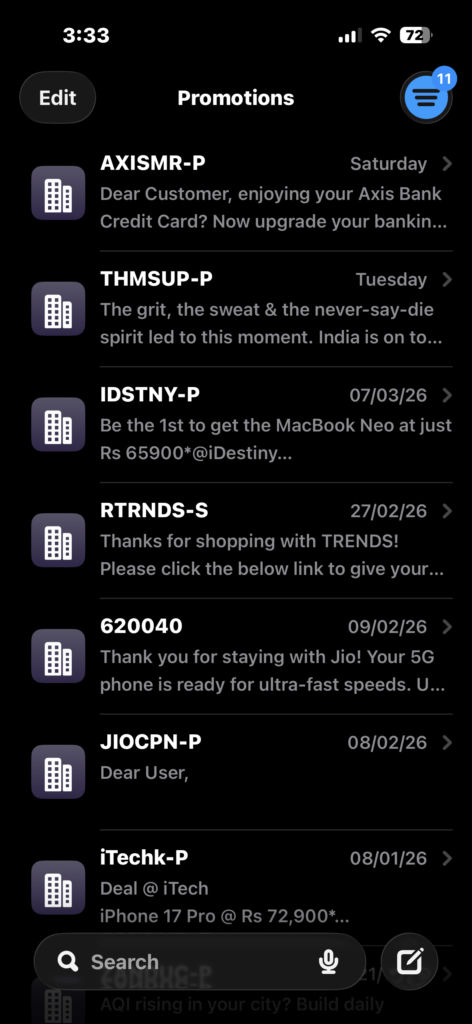
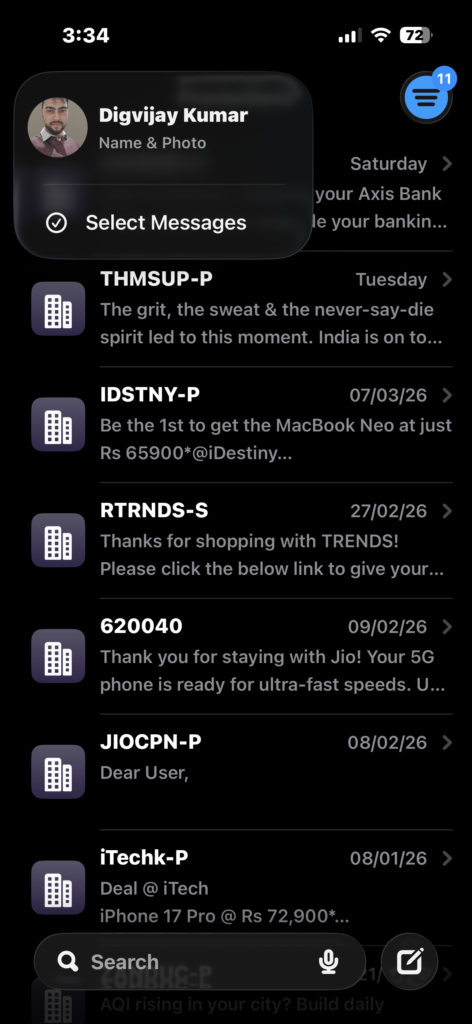

- Open the Messages app.
- Tap Edit in the top left corner.
- Tap Select Messages.
- Tap the circles next to the conversations you want to delete.
- Tap Delete at the bottom of the screen.
This method is ideal if you want to quickly clean up dozens of threads. Remember that once conversations are deleted, you can only recover them from the Recently Deleted folder for a limited time.
2. Delete Multiple Messages Inside a Conversation
Sometimes you want to keep the conversation but remove specific messages, such as photos, spam, or verification codes.
To delete multiple messages inside a single chat:



- Open the message thread in the Messages app.
- Long-press a message, and select More.
- Check the circles next to the messages you want to remove.
- Tap the trash can icon.
This feature allows you to remove dozens of texts without deleting the entire conversation. Apple confirms that deleting messages on your device does not remove them from the recipient’s phone.
If you frequently clean up conversations, you may also want to understand how to check message delivery and block unwanted contacts. Our guide on checking if someone blocked you on iPhone or iMessage explains how message behavior can change depending on the contact.
3. Automatically Delete Old Messages
If you prefer a hands-off solution, iOS can automatically delete older messages after a certain period.
Instead of manually cleaning conversations, the Messages app can remove old texts automatically.
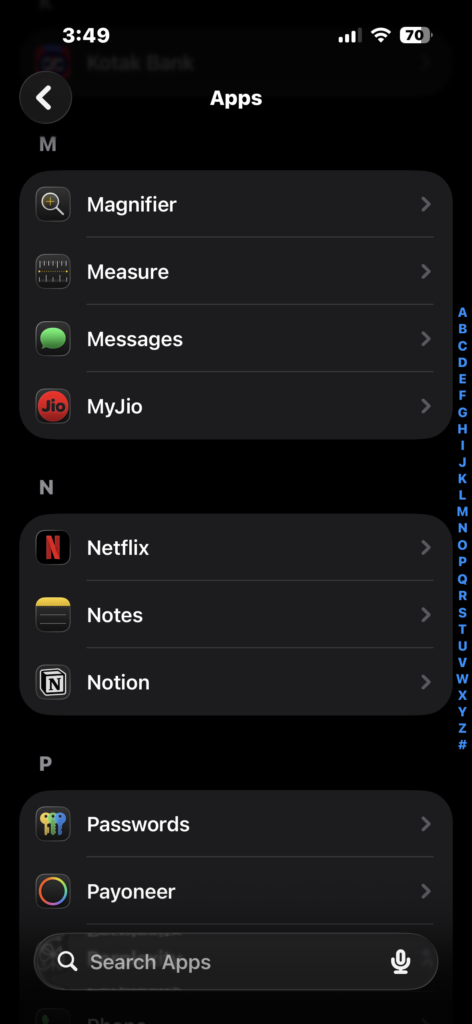
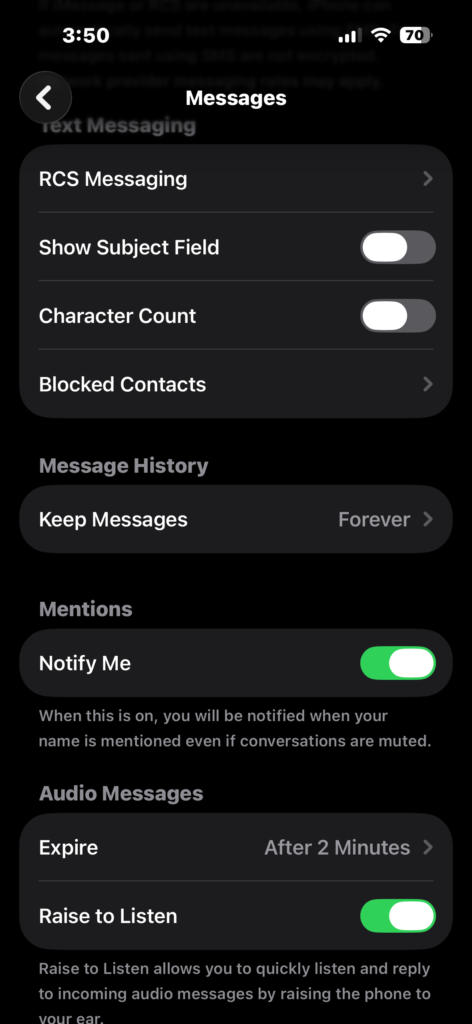

- Open the Settings app.
- Go to Apps > Messages.
- Scroll to Message History.
- Tap Keep Messages.
- Choose 30 Days or 1 Year.
Once this option is enabled, iOS automatically removes messages and attachments older than the selected time period.
This is especially useful for users who receive many automated messages like two-factor authentication codes or delivery updates. If you often receive these codes but do not get them properly, see this troubleshooting guide for fixing iPhone not receiving verification texts.
4. Delete Large Attachments From Messages
Attachments like photos, videos, GIFs, and documents often consume far more storage than the text messages themselves.
Instead of deleting entire chats, you can remove only the largest files.
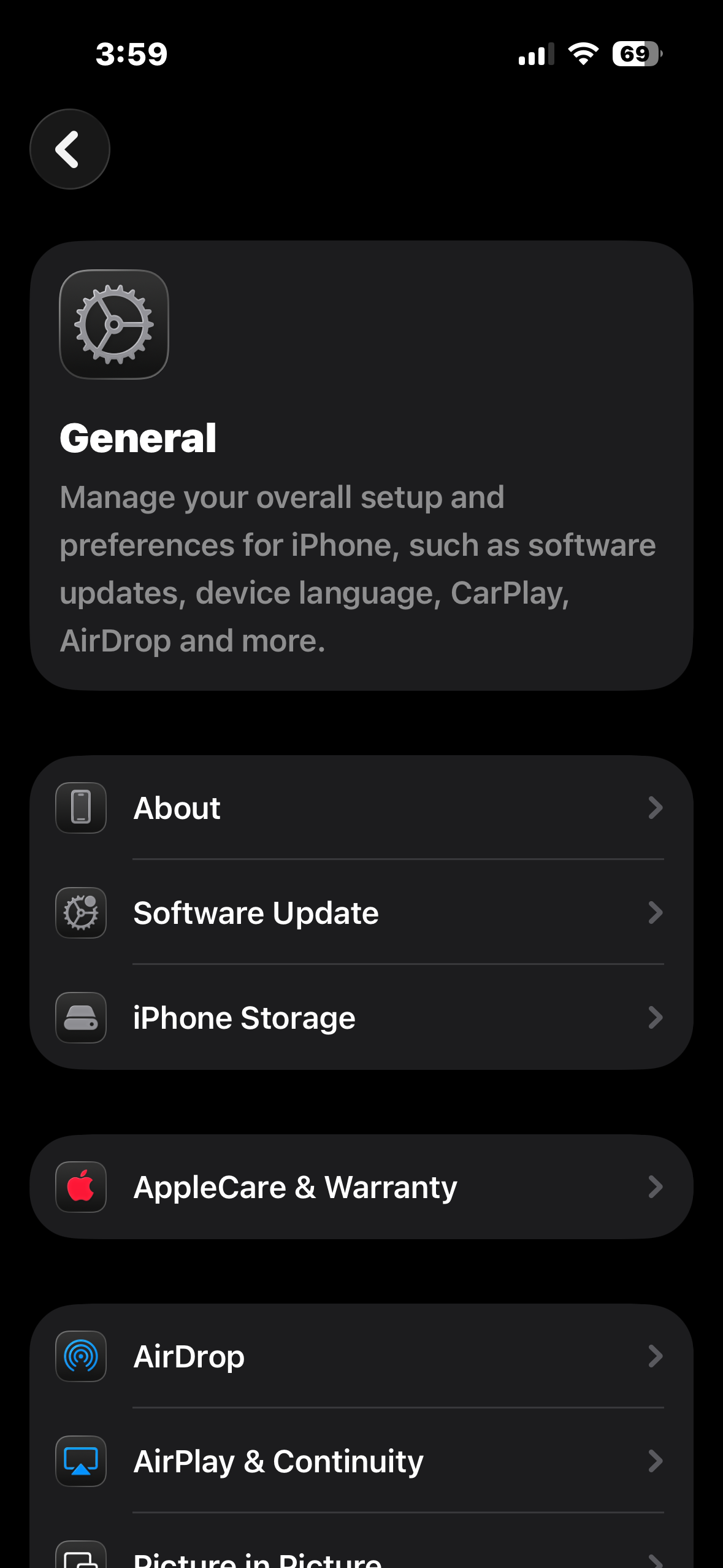
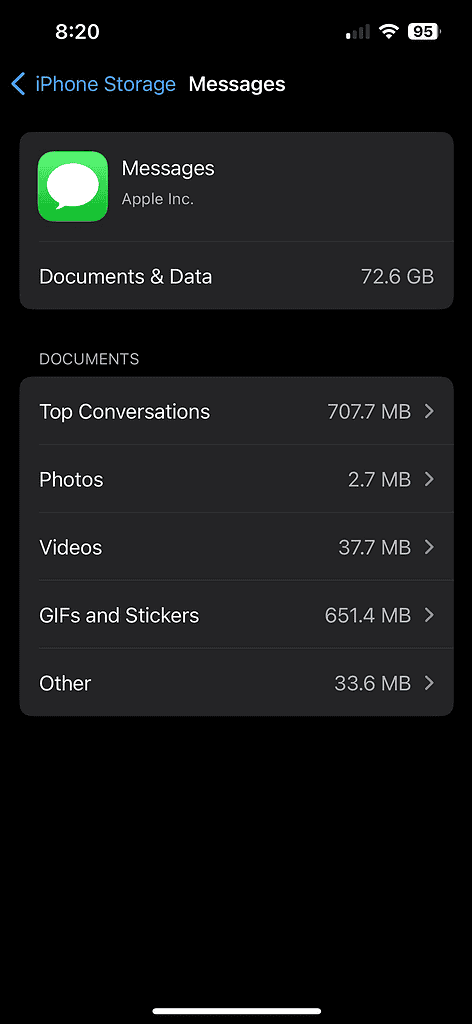
- Open Settings.
- Tap General.
- Tap iPhone Storage.
- Tap Messages.
- Open categories such as Photos, Videos, or GIFs and Stickers.
- Tap Edit.
- Select the files you want to remove.
- Tap Delete.
This approach allows you to keep the conversation while freeing storage space from large attachments. Many users discover that removing just a few large video files can recover several gigabytes.
If message attachments continue filling your storage, you may also want to review how iCloud and backups handle message syncing. Keeping your Apple account properly configured helps ensure deletions sync across devices. You can review account setup in this guide about how to sign in to your Apple account.
Tips to clear space on your iPhone
• Always back up your iPhone before deleting large message collections.
• Use Messages in iCloud so deletions sync across iPhone, iPad, and Mac.
• Delete large attachments first if your goal is freeing storage space.
• Review the Recently Deleted folder to permanently remove messages sooner.
• Restart your iPhone after deleting large batches to refresh storage calculations.
Clean Up Your Messages Without Losing Important Data
Mass deleting text messages on iPhone is easier than most users expect once you know where the tools are located. The Messages app allows you to remove entire conversations, delete selected messages, automatically erase old texts, or clean up large attachments that consume storage.
Using these methods regularly keeps your iPhone organized and prevents the Messages database from growing excessively large. If you combine message cleanup with general storage management, your device will stay faster and easier to navigate.
Key Takeaways
Deleting multiple text messages on iPhone can help reclaim storage space and organize your Messages app. iOS provides several built-in tools to remove entire conversations, delete selected messages inside chats, automatically erase older texts, and remove large attachments. These options work across modern iOS versions and sync through iCloud when enabled. Anyone experiencing cluttered message threads or storage warnings can benefit from these cleanup methods.
FAQs?
There is no single “Delete All” button. However, you can select multiple conversations in the Messages list and delete them together.
Deleted messages move to the Recently Deleted folder where they remain for up to 30 days before permanent removal. You can delete them immediately from that folder if needed.
Yes. Messages often contain photos and videos that consume significant space. Removing large attachments can free several gigabytes of storage.
No. Deleting a message only removes it from your device. The recipient still keeps their copy of the conversation.
If Messages in iCloud is enabled, deletions sync across your iPhone, iPad, and Mac automatically.


0 Comments