How to Optimize Your iPhone Settings for Smoother Gaming in 2026
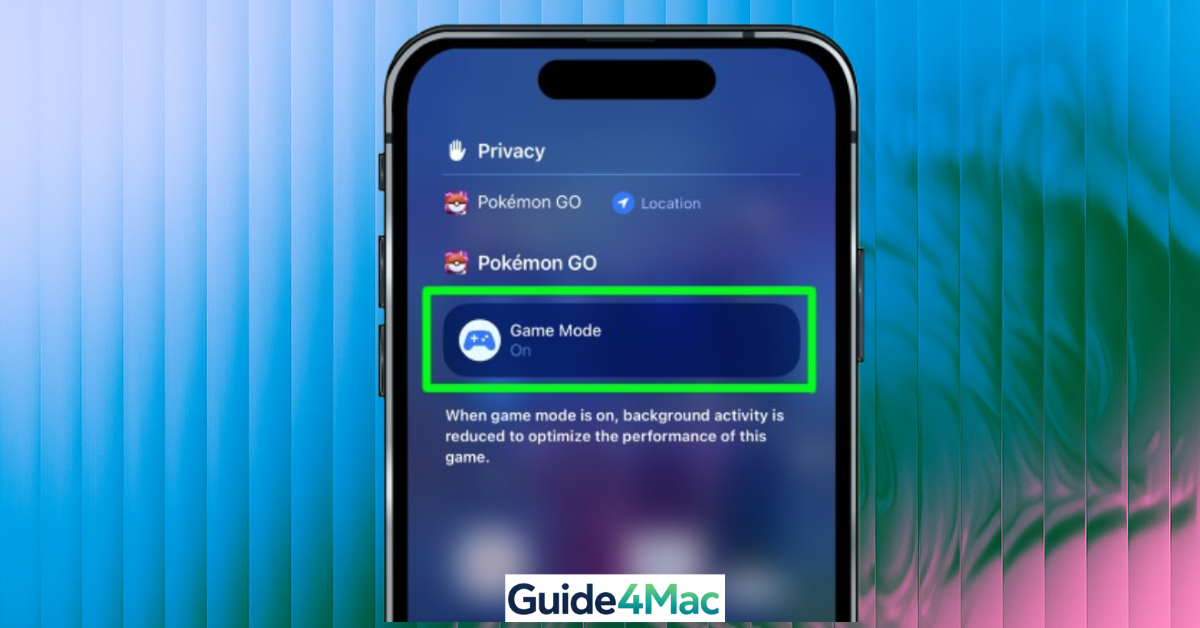
If you want smoother gameplay, learning how to optimize iPhone settings for gaming performance can make a noticeable difference. Even powerful iPhones can lag if background processes, notifications, or system settings are not properly managed.
In this guide, you will learn the exact tweaks to improve gaming performance on iOS, reduce lag, and get more stable frame rates without installing any third-party apps.
Why Is Your iPhone Lagging During Games?
iPhone gaming performance depends on several factors, including background activity, thermal throttling, and network stability. Even on newer devices, heavy games can struggle if system resources are being used elsewhere.
Optimizing settings helps free up RAM, reduce CPU load, and prevent interruptions. These changes are especially useful on older devices or during long gaming sessions.
1. Enable Low Power Mode (Quick Performance Boost)
Low Power Mode reduces background activity, which can improve stability during gaming sessions.
- Open Settings.
- Tap Battery.
- Tap Power Mode.
- Turn on Low Power Mode.
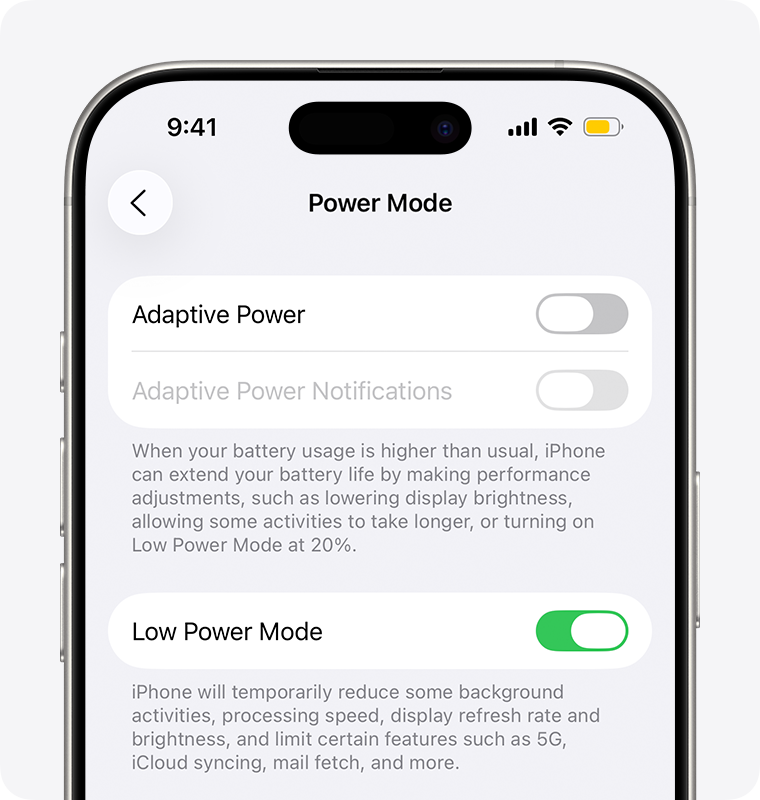
This limits background refresh and visual effects, helping your iPhone focus on the game.
2. Turn Off Background App Refresh
Apps running in the background can consume memory and processing power.
- Open Settings.
- Tap General.
- Tap Background App Refresh.
- Tap Background App Refresh again.
- Select Off.
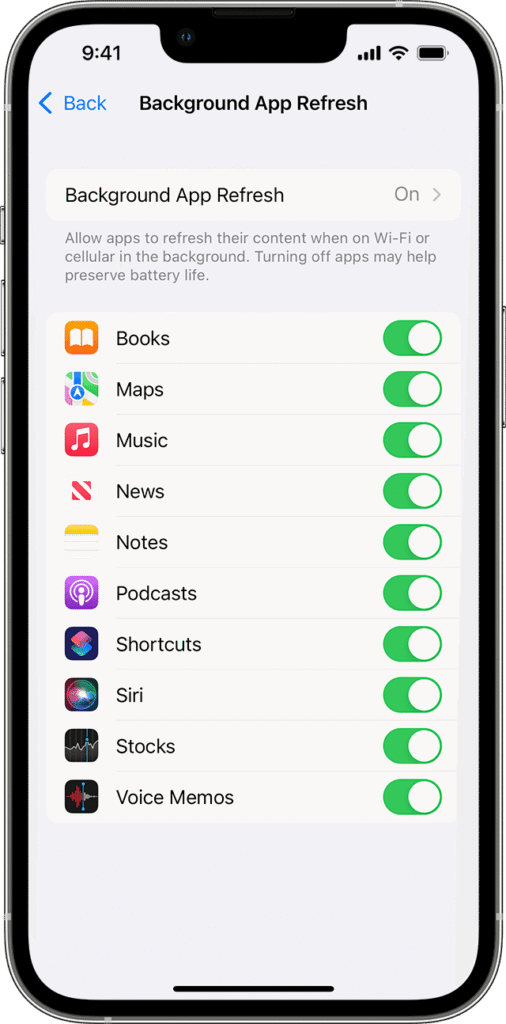
You can also leave it on for WiFi only if you need some apps to stay updated.
3. Disable Notifications While Gaming
Notifications can interrupt gameplay and cause performance drops.
- Open Settings.
- Tap Focus.
- Select Do Not Disturb.
- Turn it on.
You can customize Focus mode to allow calls from specific contacts if needed. If you have issues managing notifications, you can try turning off the Do Not Disturb function on iPhone.
4. Reduce Motion and Visual Effects
Animations and visual effects use GPU resources that could be better used by games.
- Open Settings.
- Tap Accessibility.
- Tap Motion.
- Turn on Reduce Motion.
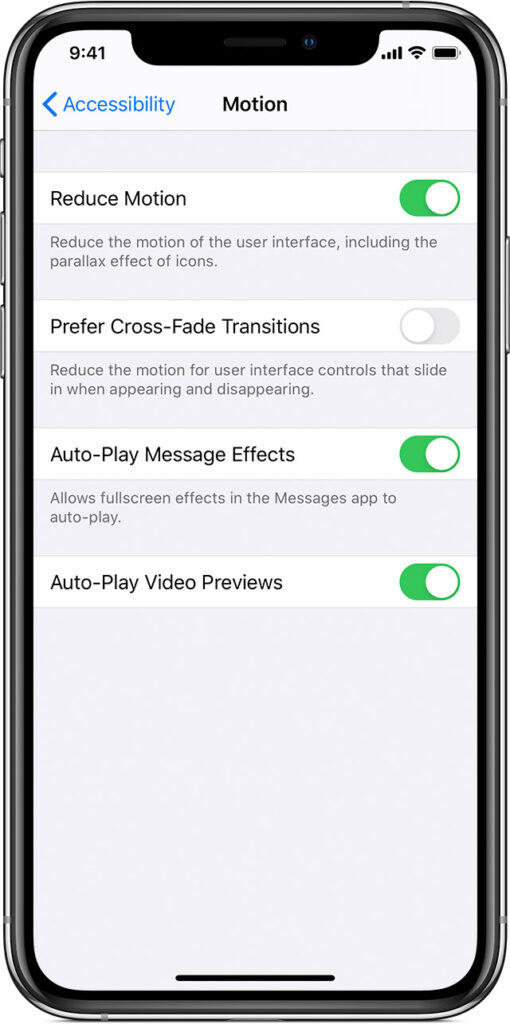
You can also enable Reduce Transparency under Display settings for additional gains.
5. Clear Storage Space
Low storage can slow down your iPhone and impact gaming performance.
- Open Settings.
- Tap General.
- Tap iPhone Storage.
- Delete unused apps or large files.
If your storage is constantly full, you may also want to deep clean excessive system storage.
6. Close Background Apps
Keeping too many apps open can consume RAM and reduce gaming performance.
- Swipe up from the bottom of the screen.
- Pause to open the app switcher.
- Swipe up on apps to close them.
This is especially helpful before launching heavy games.
7. Check Your Internet Connection
Online games depend heavily on network stability.
- Open Settings.
- Tap WiFi.
- Connect to a stable network.
For competitive gaming, avoid public WiFi and use a strong home network instead.
8. Update iOS to the Latest Version
Apple often includes performance improvements and bug fixes in updates.
- Open Settings.
- Tap General.
- Tap Software Update.
- Install any available update.
9. Manage Heat and Charging
Overheating can reduce performance due to thermal throttling.
- Avoid playing while charging.
- Remove your phone case if it gets hot.
- Play in a cool environment.
Tips
- Restart your iPhone before long gaming sessions
- Keep at least 10 to 15 percent storage free
- Use Focus mode to avoid interruptions
- Lower in-game graphics settings if available
- Avoid multitasking while gaming
Game Smoother Without Upgrading
You do not need a new iPhone to get better gaming performance. Small system tweaks can significantly reduce lag and improve stability.
By disabling unnecessary features and managing resources properly, you allow your iPhone to focus entirely on gameplay. This leads to smoother performance and a better overall experience.
Key Takeaways
Optimizing iPhone settings can improve gaming performance by reducing background activity and freeing system resources. Simple changes like disabling notifications and animations make a noticeable difference.
These steps are useful for both older and newer iPhones, helping you achieve smoother gameplay without extra apps or upgrades.
FAQ
No. Low Power Mode is the “gaming killer.” It caps the display at 60Hz (even on Pro models) and reduces GPU performance by up to 30%. Always ensure this is OFF before starting a session.
Not directly, but charging while gaming does. Charging generates heat; combining that with the heat of a high-end game will almost certainly trigger thermal throttling. If possible, play on battery or use a “pass-through” cooling grip.
For competitive gaming (low ping), Wi-Fi 7 (on iPhone 16/17) is significantly more stable. 5G is fast but fluctuates based on your distance from the tower, which can cause “rubber-banding” in online games.
Closing unnecessary apps can free up RAM and improve performance.

0 Comments