iPhone Safari Tab Recovery Guide: How to Find Recently Closed Pages
Accidentally closing browser tabs happens to everyone. If you need to restore closed Safari tabs on iPhone, the good news is that Safari includes several built-in ways to recover them quickly.
Whether you closed one tab by mistake or lost an entire browsing session, Apple’s browser keeps recently closed tabs available for recovery. If your issue also involves browsing problems, you may want to check how to view your Safari browsing history on iPhone, which can help locate pages you visited earlier.
This guide walks through multiple ways to reopen closed Safari tabs, restore entire sessions, and recover pages synced through iCloud.
Why Do Safari Tabs Disappear on iPhone?
Safari tabs may disappear for several reasons. Sometimes you close them accidentally, but other times iOS may automatically remove them depending on your Safari settings.
Common causes include:
- Accidentally tapping the Close All Tabs option
- Safari’s auto-close tabs setting
- Restarting the iPhone with private tabs open
- Clearing browsing data
- Tabs synced across devices through iCloud
The methods below work on recent iOS versions and most iPhone models.
1. Reopen Recently Closed Safari Tabs
Safari includes a built-in list of recently closed tabs that allows you to restore pages quickly.
Time needed: 2 minutes
Safari includes a built-in list of recently closed tabs that allows you to restore pages quickly.
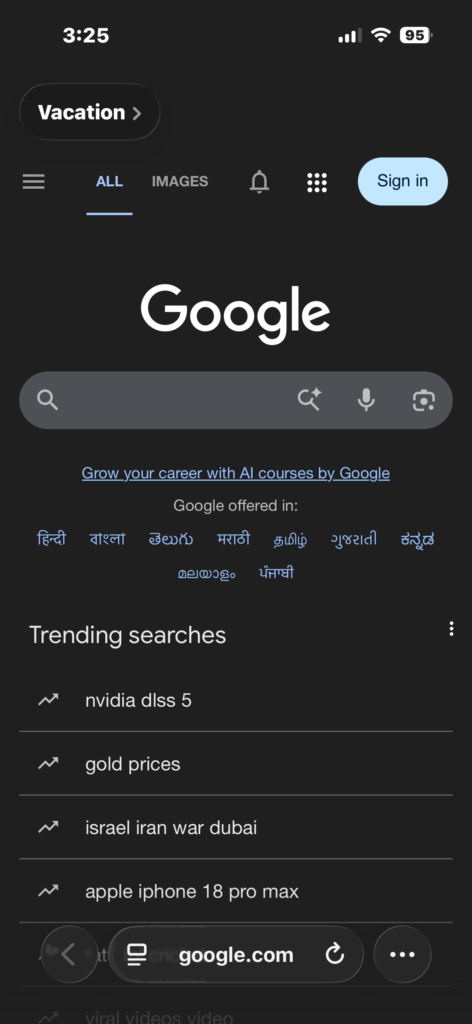
- Open Safari on your iPhone.
Launch the Safari browser from your Home Screen.
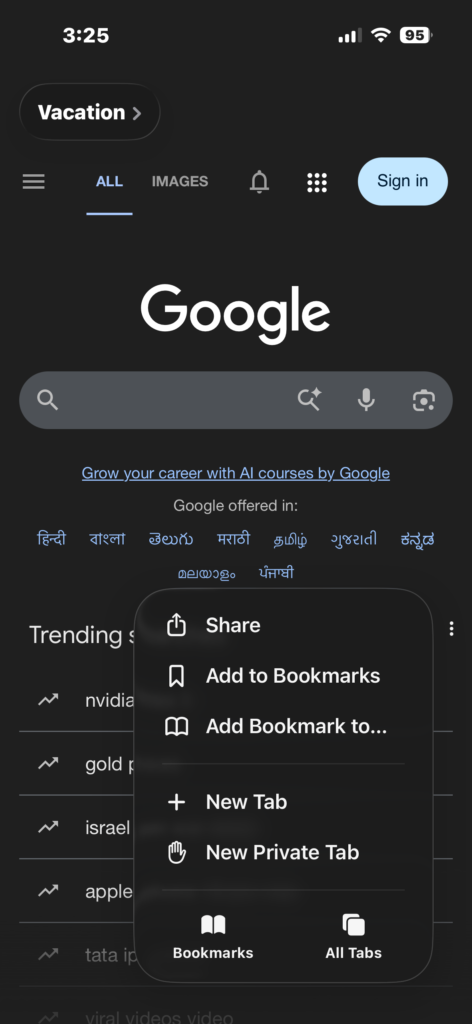
- Tap the three dots > All Tabs (in the bottom right).
Tap the three dots or tab button, then select All Tabs in the bottom-right corner of the screen.
- Long-press the plus sign (+).
Press and hold the + button to open the list of recently closed tabs.
- Tap the tab you want to reopen.
Tap the webpage you want to reopen from the list.
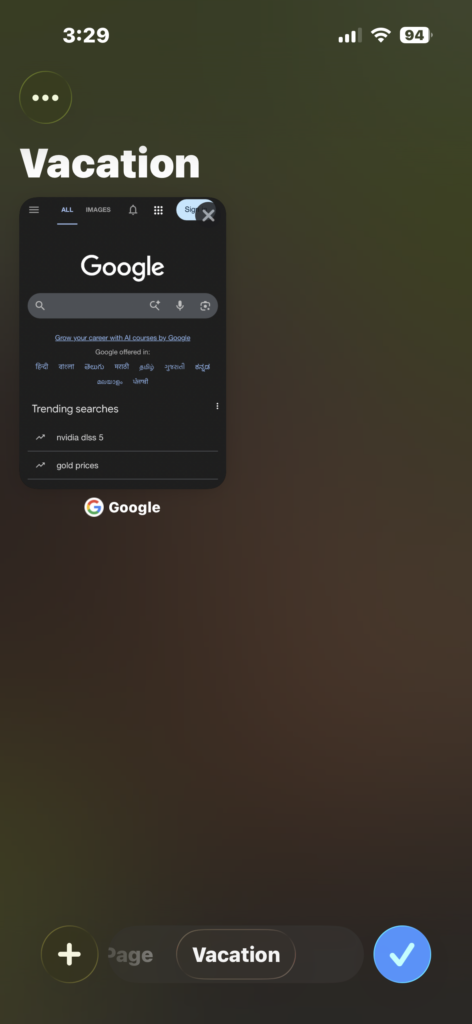
Safari will instantly reopen the selected webpage in a new tab. If the list does not appear, your best option is to recover pages through Safari history.
If you frequently close tabs by accident, adjusting the tab layout or learning how to restore accidentally closed Safari tabs on iPhone can make browsing easier.
2. Restore Closed Tabs From Safari History
If the tab you need does not appear in the recently closed list, Safari history can help you recover it.
- Open Safari.
- Tap the Bookmarks icon.
- Select the History tab.
- Scroll through your browsing history.
- Tap the page you want to reopen.
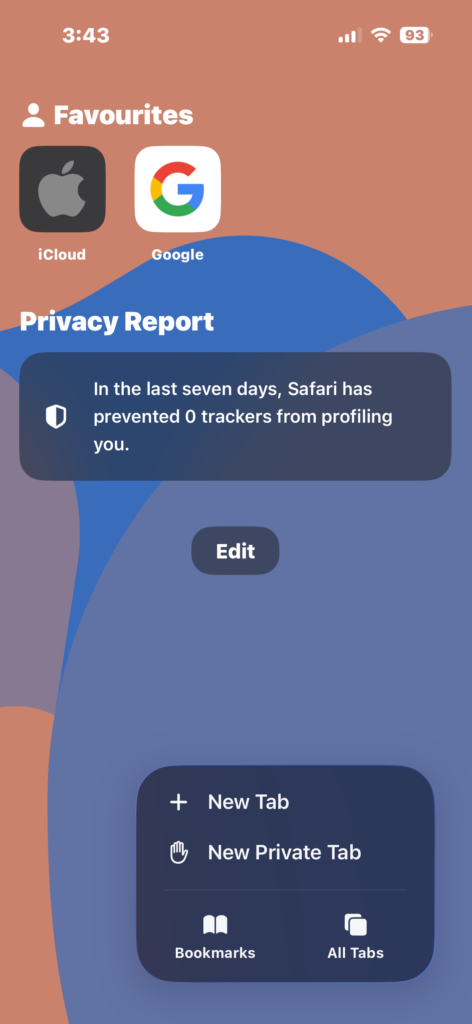
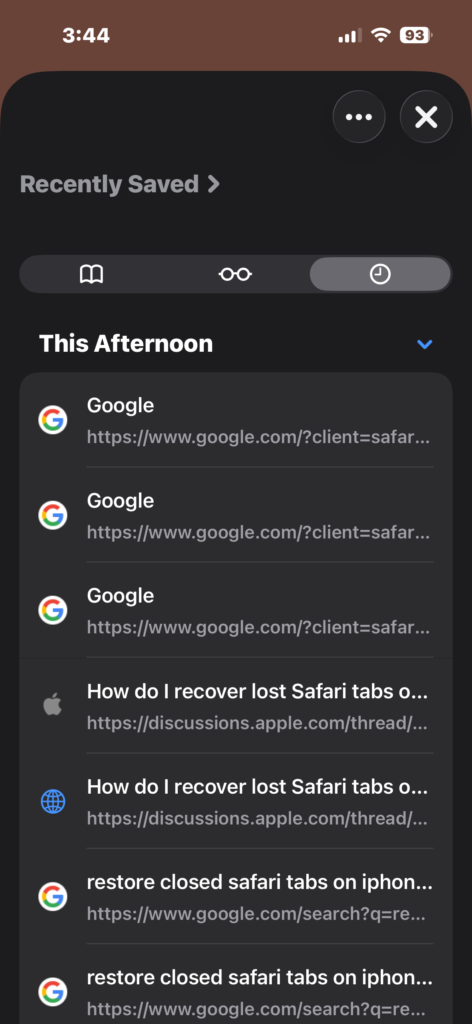
This method works well when the tab was closed a long time ago or when you cannot remember exactly when it was closed.
3. Restore Tabs From iCloud Tabs
If you use multiple Apple devices, Safari may still have your tab open on another device through iCloud Tabs.
- Open Safari on your iPhone.
- Tap the Tabs button.
- Scroll to the iCloud Tabs section.
- Find the tab from another device.
- Tap the tab to open it.
This feature works when Safari syncing is enabled in iCloud settings. It allows you to reopen tabs from a Mac, iPad, or another iPhone.
How to Restore Safari Tabs on iPhone (iOS 26)
Total Time: 1 Minute
Requirements: iPhone running iOS 16 through iOS 26.
1. The Instant Undo Method (Popup)
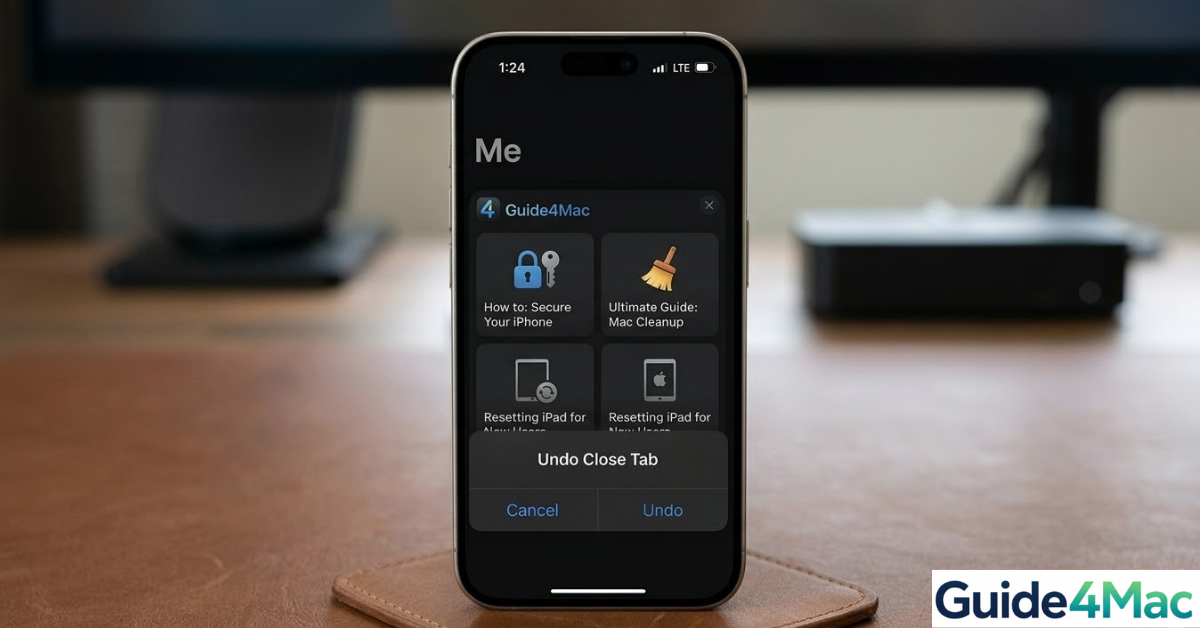
If you just swiped a tab away in the Tab Overview, this is the visual confirmation shown in our featured image.
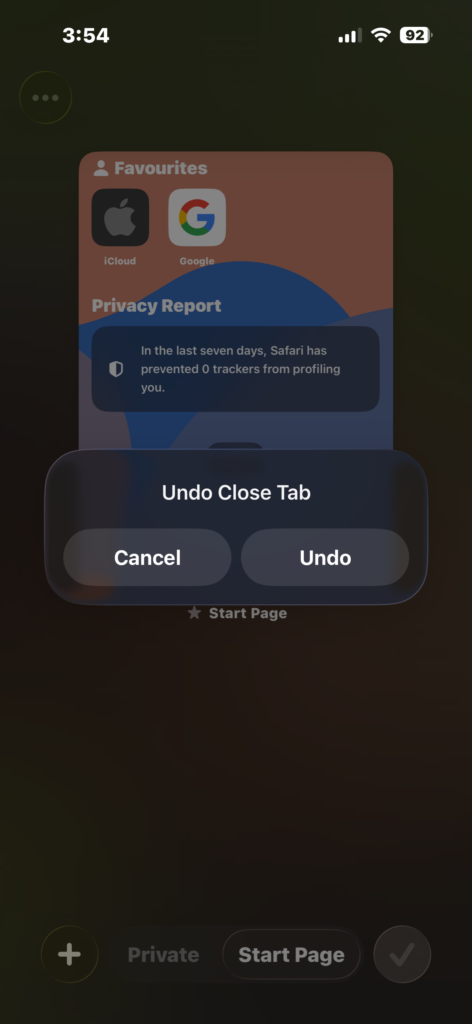
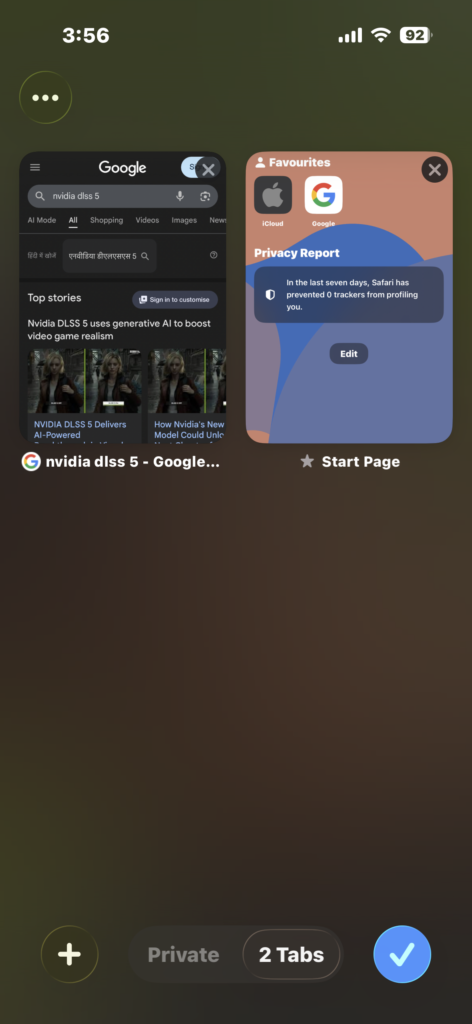
- Navigate to the Tabs icon (two overlapping squares) in Safari.
- If you just closed a tab, physically shake your iPhone.
- A prompt titled “Undo Close Tab” (like the one pictured above) will appear.
- Tap Undo to instantly restore the tab to its original position.
2. Recovering a Closed Tab Group
iOS 26 allows you to restore entire sets of tabs.
- In the Safari Tab Switcher, tap the bottom-center menu (showing the number of tabs or group name).
- If you accidentally deleted a group, tap Edit in the top left.
- Check the “Recently Deleted Groups” section to bring back the entire collection of sites.
4. Historical Lookup (30-Day Recovery)
If you closed the tab hours or days ago, use the history search.
- Open Safari and tap the Book icon at the bottom.
- Tap the Clock (History) icon.
- Pull down on the list to reveal the Search bar. Type a keyword from the lost website.
- Tap the result to restore the tab.
Prevent Safari From Automatically Closing Tabs
Safari can automatically close tabs after a set time if the feature is enabled.
To change this behavior:
- Open Settings.
- Scroll down and tap Safari.
- Tap Close Tabs.
- Select Manually instead of a time period.
This ensures Safari keeps your tabs open until you close them yourself.
Recover Tabs After Clearing Safari Data
If you cleared Safari’s browsing data, recovering tabs becomes harder because Apple removes the local browsing records.
However, you may still recover them through:
- iCloud tabs from another Apple device
- Your Google account history if signed in
- Saved bookmarks in Safari
If you are troubleshooting Safari behavior, clearing cache sometimes helps. You can also check guides on fixing large iOS system data storage issues that affect Safari performance.
Tips
- Use Safari Tab Groups to organize important pages.
- Bookmark critical pages before closing them.
- Enable iCloud Safari syncing for easier recovery across devices.
- Avoid clearing Safari history if you may need to restore tabs later.
- Check your browsing history before assuming the page is lost.
Bring Your Safari Tabs Back Quickly
Losing Safari tabs on iPhone can be frustrating, but Apple includes several tools to help recover them. Recently closed tabs, browsing history, and iCloud syncing all provide ways to reopen lost pages.
Once you know where these features are located, restoring a closed tab only takes a few seconds. Keeping Safari synced with iCloud and bookmarking important pages can also prevent future frustration.
Key Takeaways
Safari allows you to restore closed tabs on iPhone using recently closed tabs, browsing history, or iCloud syncing. The quickest method is pressing and holding the Plus icon to access recently closed pages. If that does not work, Safari history or iCloud tabs can still recover lost webpages. These methods help users quickly bring back accidentally closed browser sessions.
FAQs?
Recently closed tabs typically remain available until Safari clears them or you restart the browser several times.
Safari does not always offer a single restore-all option, but you can reopen multiple tabs from the recently closed list.
This may happen if you tapped Close All Tabs, cleared Safari data, or enabled automatic tab closing in Safari settings.
Usually no. However, iCloud tabs from another device or saved bookmarks may still restore them.
Yes. If Safari syncing is enabled in iCloud settings, open tabs can appear on other Apple devices signed in with the same Apple ID.

0 Comments