How to Restore Missing App Icons to iPhone Home Screen (2026)
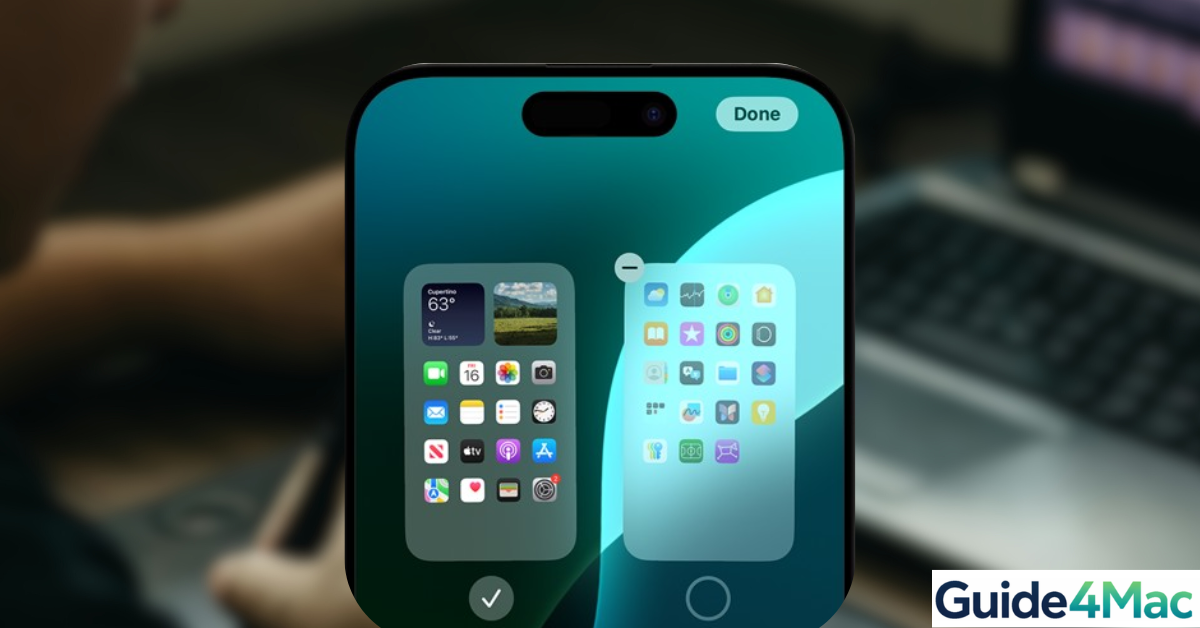
If your icons disappeared from the iPhone Home Screen, the apps are usually still installed on the device. In most cases, they were accidentally removed from the Home Screen, hidden in the App Library, restricted by Screen Time settings, or moved to another page.
This guide explains how to restore icons to the iPhone Home Screen using several reliable solutions. You will learn how to find hidden apps, reset the Home Screen layout, check restrictions, and bring your apps back without reinstalling them.
If icons disappeared along with contacts or other data, you might also want to review this guide on fixing missing iPhone contacts to rule out broader sync issues.
Why Are Icons Missing From Your iPhone Home Screen?
Apple introduced the App Library in iOS 14, which automatically organizes apps and allows users to remove them from the Home Screen while keeping them installed. Because of this feature, apps can disappear from the Home Screen but still exist on the device.
Other causes include accidentally deleting the icon from the Home Screen, disabling apps through Screen Time restrictions, or hiding entire pages of apps. Fortunately, restoring them usually takes only a few seconds.
1. Restore Icons From the App Library
If an app was removed from the iPhone Home Screen but not deleted, it will still appear in the App Library. You can quickly restore it by adding it back to the Home Screen.
- Swipe to the App Library
Swipe left through all your Home Screen pages until you reach the App Library.
- Find the Missing App
Locate the app you want to restore. You can browse the categories or use the search bar at the top.
- Press and Hold the App Icon
Touch and hold the app icon until a menu appears.
- Tap “Add to Home Screen”
Select Add to Home Screen to place the icon back on your main Home Screen.

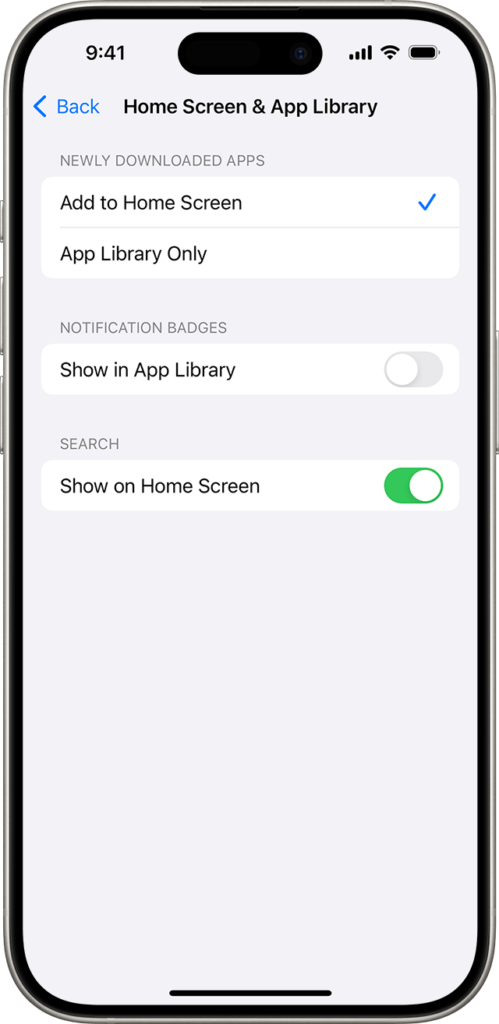
This instantly should place the app icon back on the main Home Screen page.
If you have trouble finding apps across your device, you can also use Spotlight Search, similar to how you would search Safari history or files on iOS. You can learn more about finding items quickly in this guide on viewing Safari history on iPhone.
2. Use Spotlight Search to Find the Missing App
Spotlight Search can help locate apps that are installed but not visible on the Home Screen.
- Swipe down on the Home Screen.
- Type the name of the missing app.
- Press and hold the app icon in the results.
- Tap Add to Home Screen.
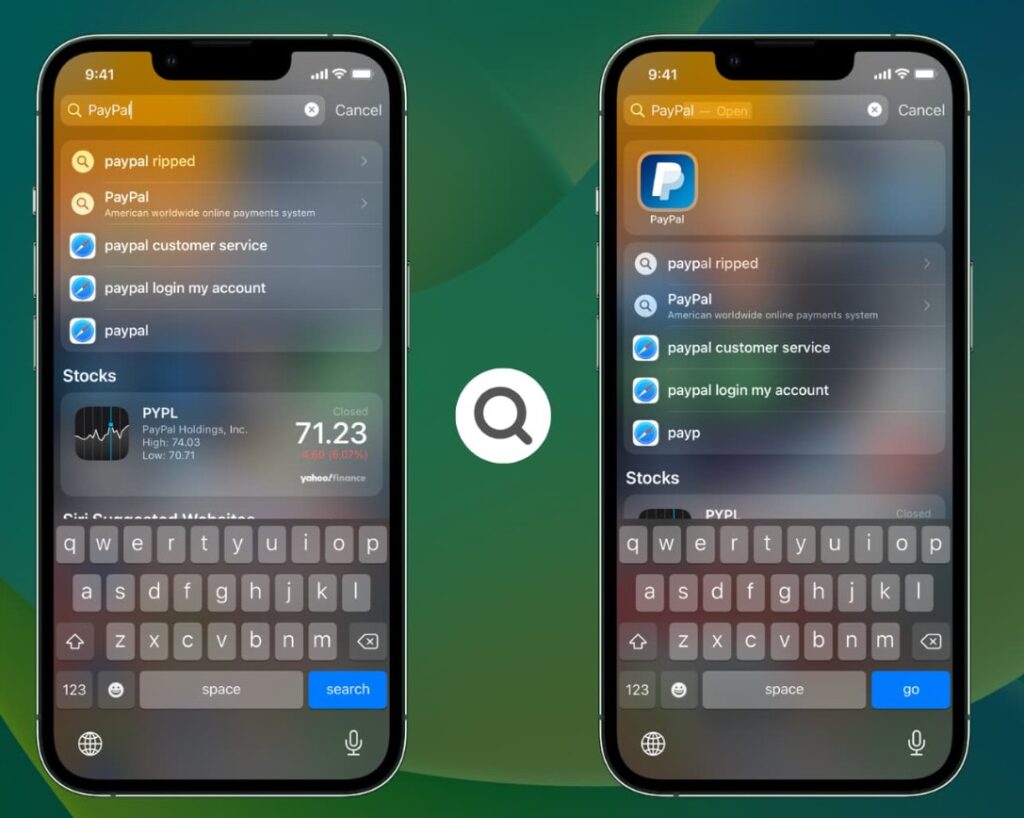
This method is particularly helpful if you have many apps or multiple Home Screen pages.
3. Check If the App Is Hidden by Screen Time Restrictions
Screen Time can hide certain apps like Safari, Camera, or AirDrop if restrictions are enabled.
- Open Settings.
- Tap Screen Time.
- Select Content & Privacy Restrictions.
- Tap Allowed Apps.
- Enable the app you want to restore.
Once re-enabled, the icon should immediately return to the Home Screen.
If Screen Time restrictions are interfering with notifications or calls, you might also check related settings explained in this guide on fixing an iPhone that doesn’t ring for incoming calls.
4. Unhide Hidden Home Screen Pages
Sometimes entire pages of apps are hidden rather than deleted.
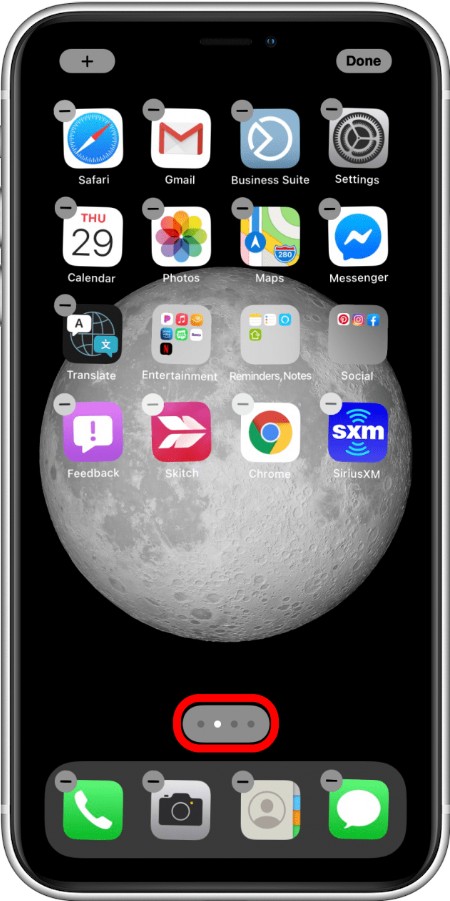
- Press and hold an empty area on the Home Screen.
- Tap the page dots at the bottom of the screen.
- Look for unchecked pages.
- Enable the pages you want to restore.
- Tap Done.
Once the page is visible again, all icons on that page will reappear.
5. Reset the Home Screen Layout
If many icons are missing or the layout looks unusual, resetting the Home Screen layout can restore the default arrangement.
- Open Settings.
- Tap General.
- Select Transfer or Reset iPhone.
- Tap Reset.
- Choose Reset Home Screen Layout.
- Confirm the reset.
This places all built-in apps back in their original positions and moves third-party apps into alphabetical order.
6. Reinstall the App From the App Store
If the app was deleted completely, reinstalling it is the only way to restore the icon.
- Open the App Store.
- Tap the Search tab.
- Type the name of the app.
- Tap the Download icon.
- Wait for the installation to finish.
After installation completes, the icon will automatically appear on the Home Screen.
If you frequently reorganize apps, learning how to customize layouts can also help keep things organized, similar to adjusting the search bar position on iPhone.
Tips
• Use App Library to quickly find apps that are no longer on the Home Screen.
• Avoid deleting icons accidentally when editing Home Screen pages.
• Disable Screen Time restrictions if important apps disappear.
• Keep your iPhone updated to the latest iOS version.
• Restart your iPhone if icons fail to appear after restoring them.
Bring Your Missing Icons Back Quickly
Most missing iPhone icons are not deleted but simply hidden somewhere on the device. The App Library, hidden pages, and Screen Time restrictions are the most common reasons they disappear from the Home Screen.
By checking these settings and restoring apps using the steps above, you can quickly return your Home Screen to normal without losing data or reinstalling apps unnecessarily.
Key Takeaways
If icons disappear from the iPhone Home Screen, they are usually still installed and simply hidden in the App Library or restricted by settings. Restoring them typically involves adding the app back from the App Library, enabling it in Screen Time, or resetting the Home Screen layout.
These solutions work across modern iOS versions and help users quickly recover missing app icons without affecting their data or device settings.
FAQs
Apps can disappear if they were removed from the Home Screen, hidden by Screen Time restrictions, placed in the App Library, or located on a hidden Home Screen page.
Yes. If the app still exists in the App Library, you can press and hold the icon and select Add to Home Screen.
No. Resetting the layout only rearranges icons. It does not remove installed apps or delete data.
The App Library is located on the last page of the Home Screen. Swipe left until you reach it.
These apps are sometimes hidden by Screen Time restrictions, which can be re-enabled from the Allowed Apps settings.

0 Comments