How to See If Someone Checked Your Location on iPhone
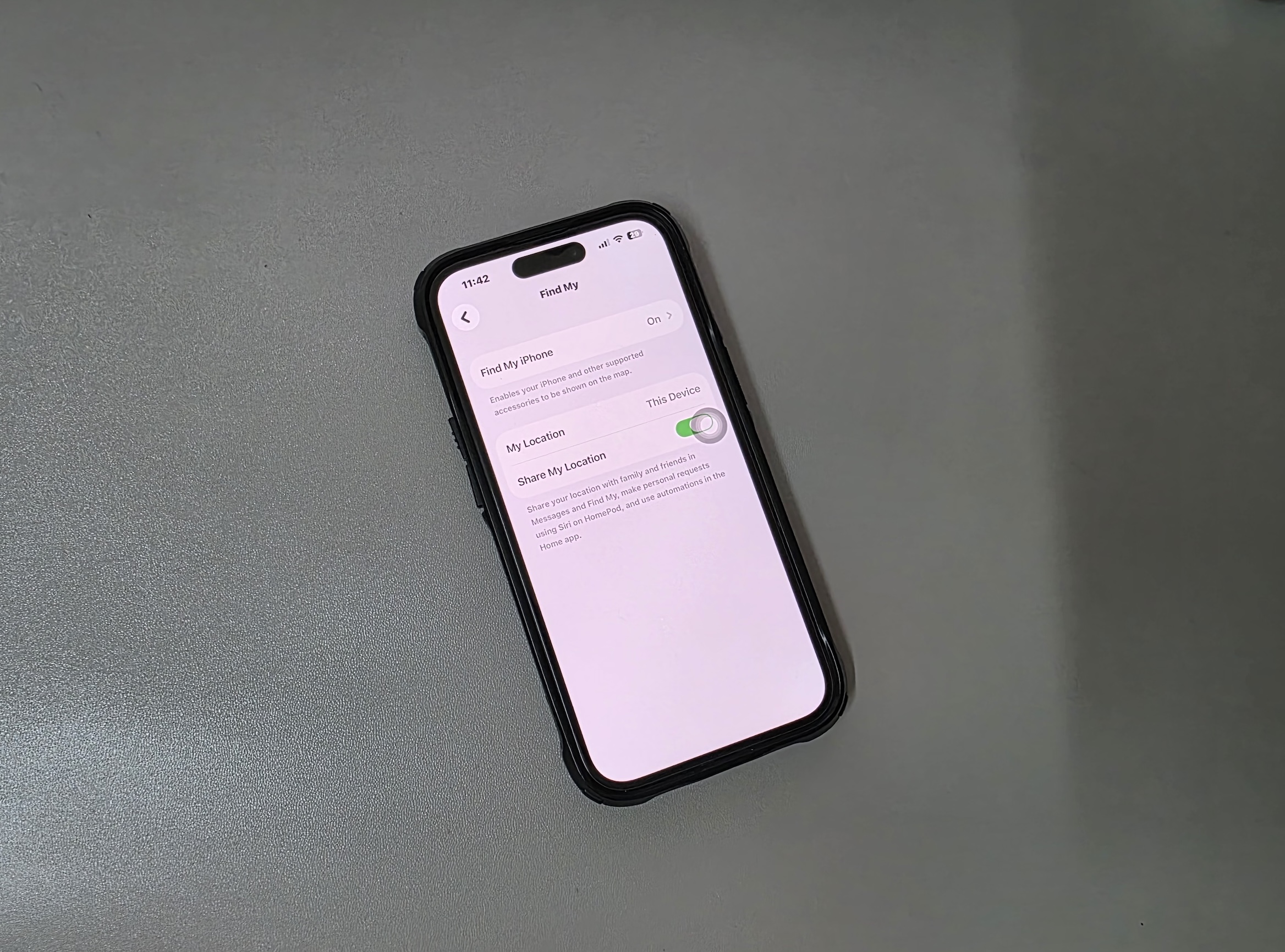
Many iPhone users wonder how to see if someone checked their location on iPhone, especially when using Apple’s location-sharing features like Find My. Apple allows you to share your location with friends and family, but the system does not always clearly show when someone views that information.
Location sharing on iPhone is designed with privacy in mind. While you can see who has access to your location, Apple does not provide a direct notification every time someone checks it. However, there are several ways to review location permissions and monitor who can see your location. If you are already managing privacy features on your device, it may also help to review how Apple communication tools work, such as checking whether someone blocked you in our guide about how to check if someone blocked you on iPhone or iMessage.
Can You See If Someone Checked Your Location on iPhone?
No, you cannot No, iPhone does not directly notify you when someone checks your location via the Find My app. Apple’s location sharing system focuses on privacy and simplicity. When you share your location through the Find My app, contacts can view your location whenever the sharing permission is active. However, the iPhone does not show a log or notification each time someone checks it.
Instead of tracking views, iOS allows you to see who currently has access to your location and when location services were recently used. By reviewing these settings, you can determine whether someone is able to view your location.
Below are the most useful ways to verify location sharing activity and manage who can see your location.
1. Check Who Can See Your Location in Find My
The Find My app shows everyone who currently has permission to view your location. This is the most important place to verify who may be checking your location.
Time needed: 2 minutes
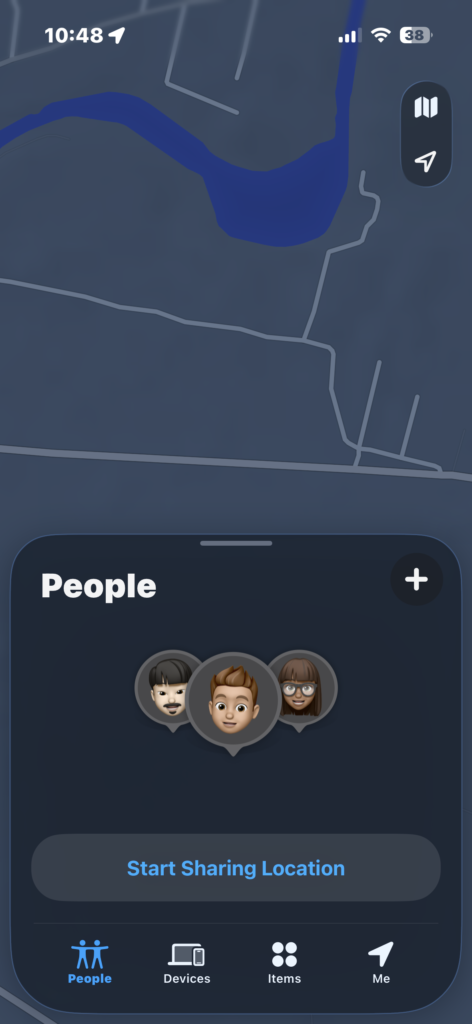
- Open the Find My app
Open the Find My app on your iPhone and tap the People tab at the bottom of the screen.
- Review the people list
Look at the list of contacts shown under People. These are the individuals who currently have access to your location.
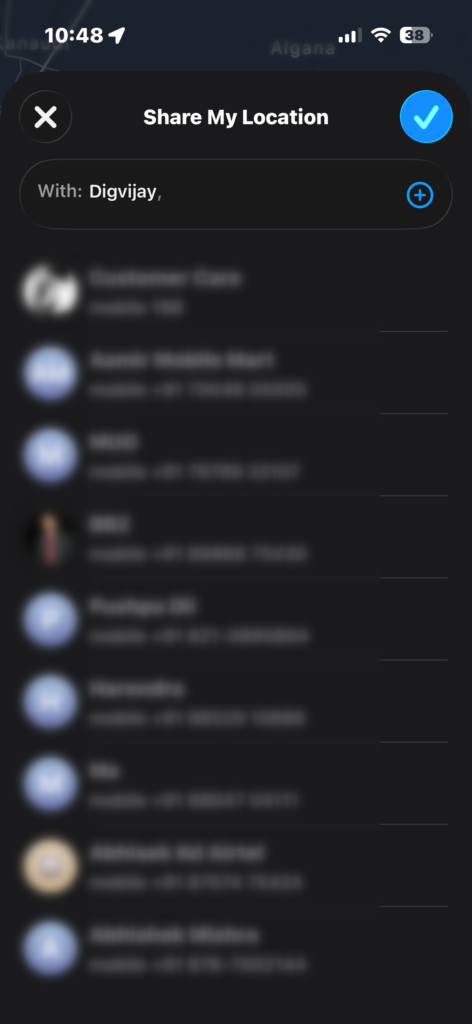
- Select a contact
Tap a person’s name to see details about location sharing with that contact.
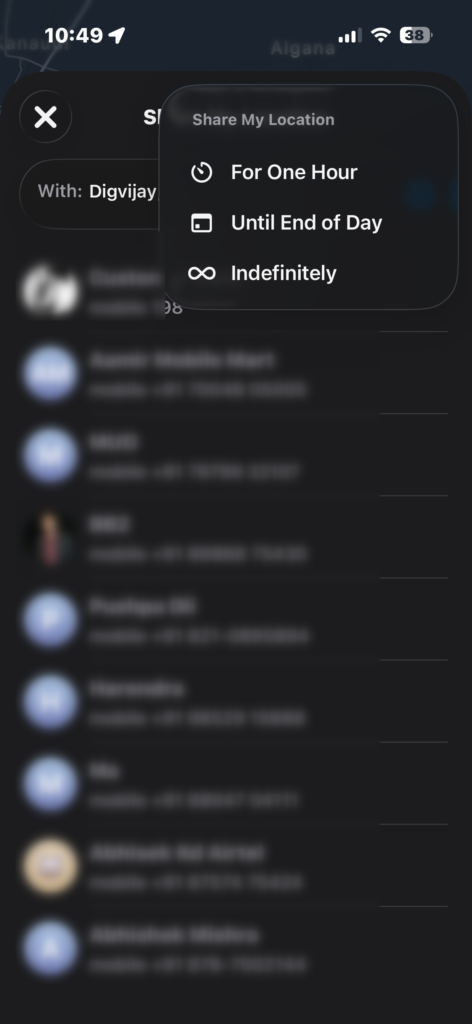
- Manage sharing settings
Choose Stop Sharing My Location if you no longer want that person to see your location.
If someone appears in this list, they can view your location whenever it is updated.
2. Check Location Services Activity
The iPhone also shows when apps have recently used location services.
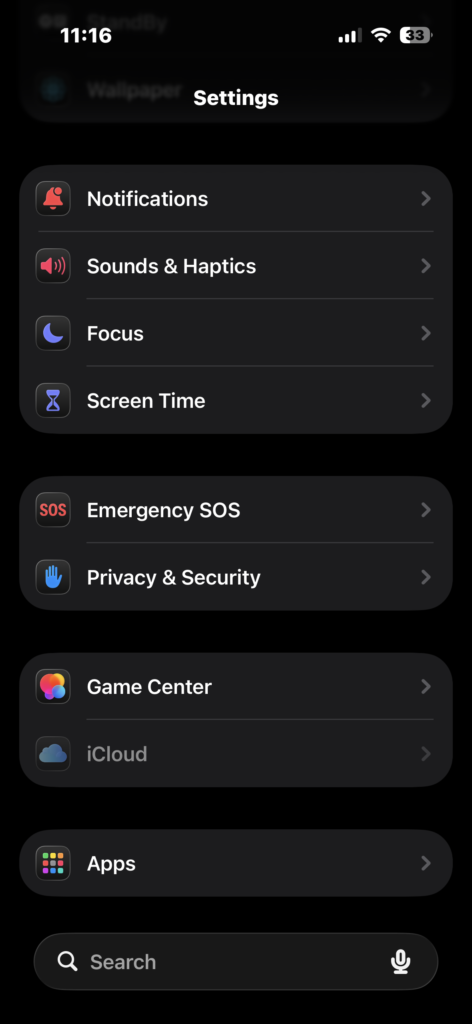
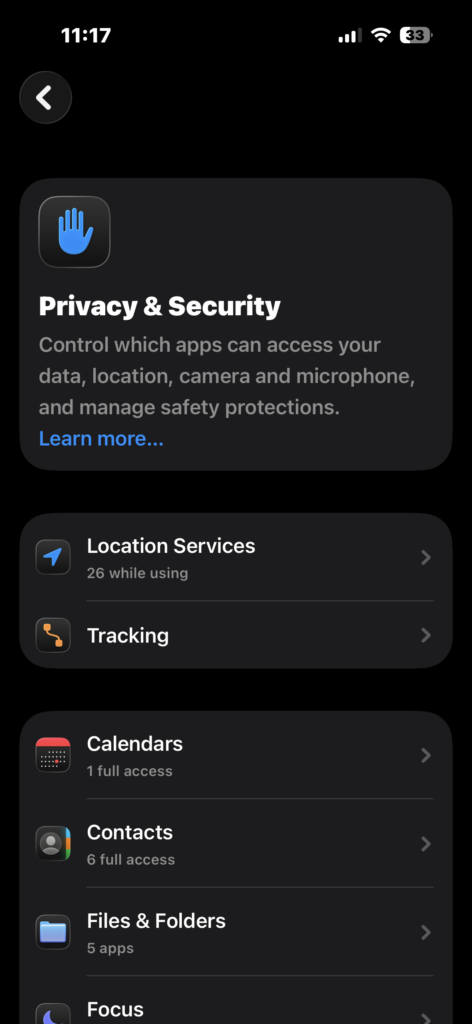
- Open the Settings app.
- Tap Privacy & Security.
- Tap Location Services.
- Scroll through the apps that use your location.
- Look for purple or gray location arrows next to apps.
A purple arrow means the app recently accessed your location. If the Find My app shows activity, someone may have viewed your shared location recently.
3. Review the Find My Location Sharing Settings
You can also verify whether location sharing is enabled at the system level.
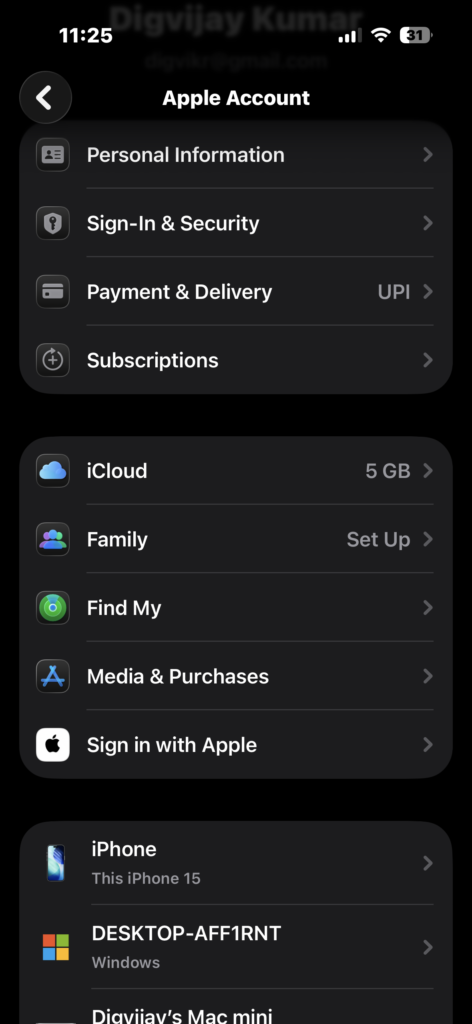
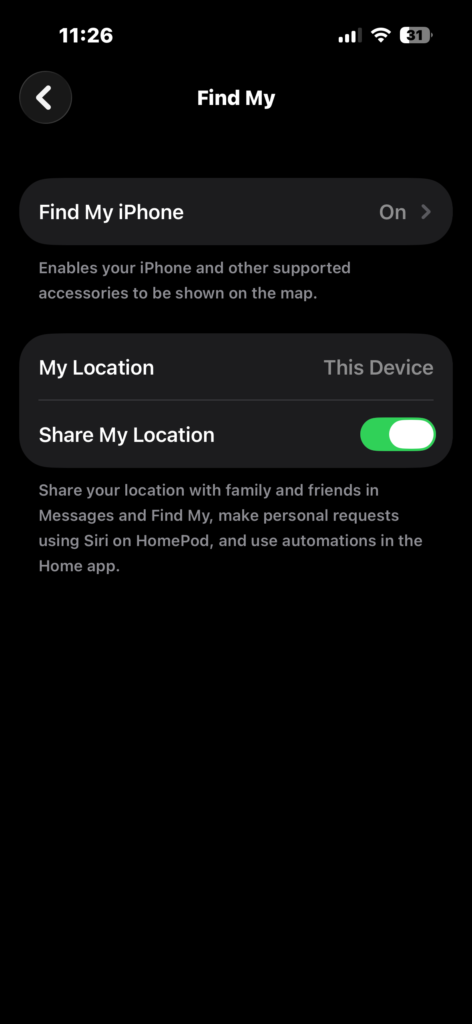
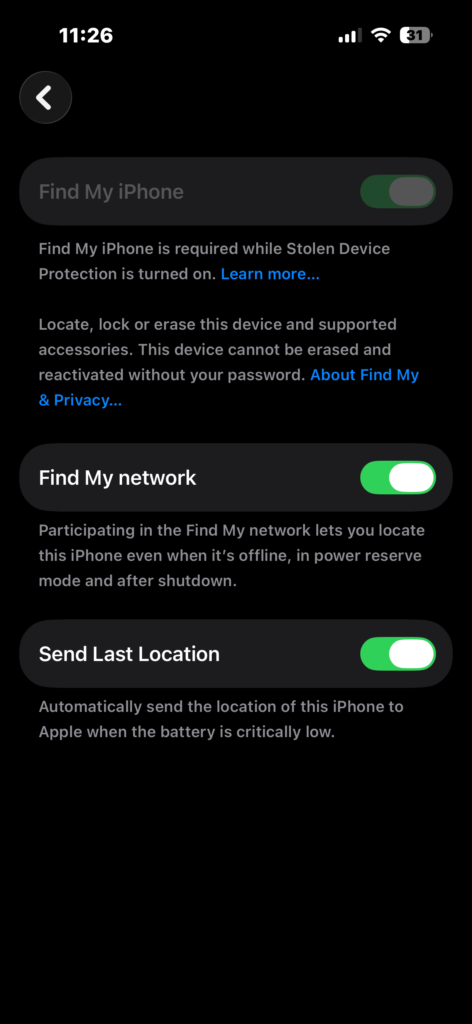
- Open Settings.
- Tap your Apple ID name at the top.
- Go to Find My > Find My iPhone.
- Check if Send Last Location is enabled.
If this setting is turned off, nobody can see your location through Apple’s location sharing system.
If you frequently use Apple services across devices, you may also want to verify your Apple account configuration using this guide on how to sign in to your Apple account properly.
4. Stop Sharing Your Location
If you suspect someone is checking your location and you want to stop it, you can remove their access instantly.
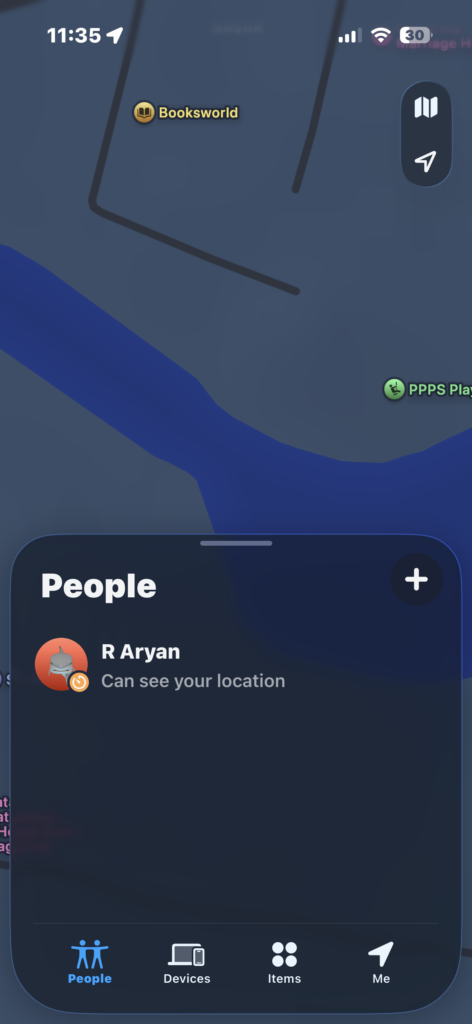
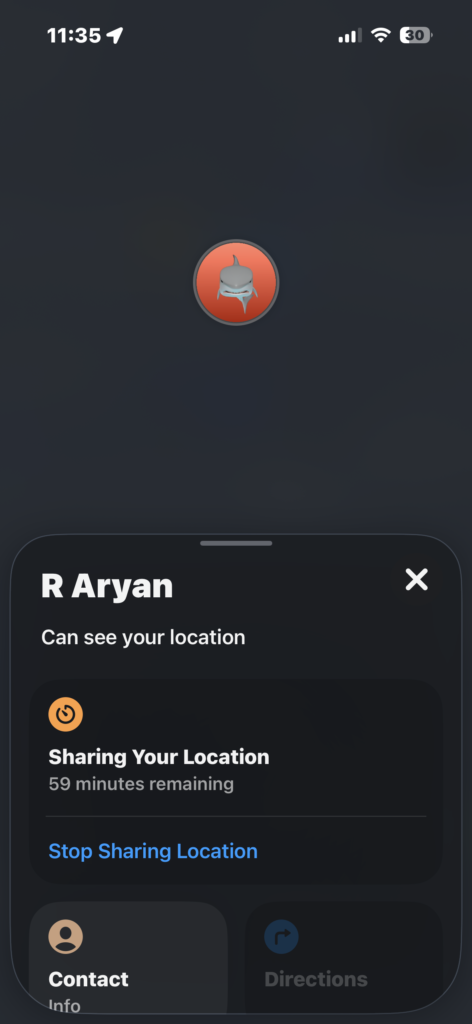
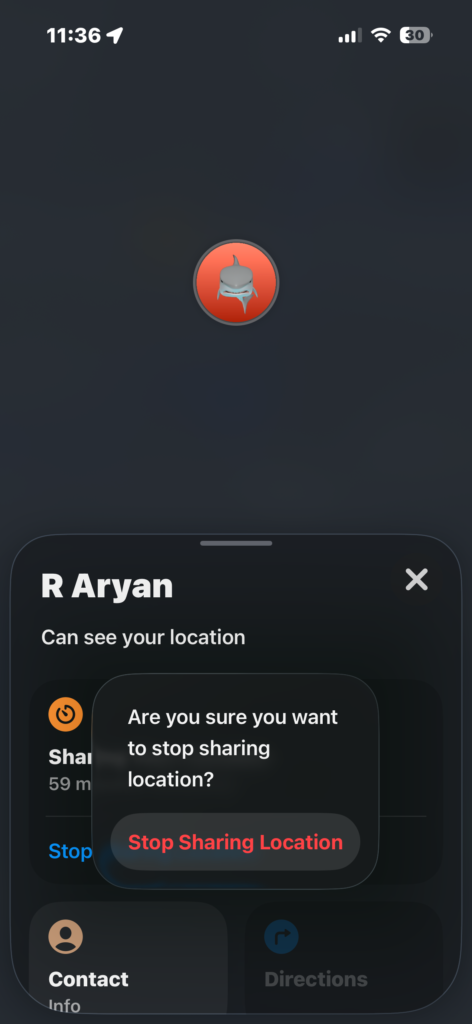
- Open the Find My app.
- Tap the People tab.
- Select the person from the list.
- Tap Stop Sharing Location.
Once you remove them from the list, they will no longer be able to see your location.
If you frequently manage privacy and notifications on your device, it is also useful to understand system focus features, such as those explained in this guide about how to use Do Not Disturb on iPhone.
Tips
- Review location sharing permissions regularly
- Only share your location with trusted contacts
- Disable location sharing if you no longer need it
- Use temporary location sharing instead of permanent access
- Update iOS regularly to keep privacy settings secure
Keep Control of Your Location Privacy
While iPhone does not show a direct history of who checked your location, it provides several tools to manage and monitor location sharing. By reviewing the Find My app and checking location services activity, you can determine who currently has access to your location.
The best way to protect your privacy is to regularly review sharing permissions and remove contacts who no longer need access. Apple’s location system is designed to give users full control over who can see their real-time location.
Key Takeaways
Apple does not show a log of when someone checks your location on an iPhone. Instead, the system allows users to see who currently has access through the Find My app. Reviewing location services activity and Find My settings can help determine whether someone may have viewed your location. If you want to stop someone from seeing your location, you can remove them from the Find My sharing list instantly.
FAQs?
No. Apple does not send notifications when someone views your shared location.
Only if you previously granted them permission through Find My or another location sharing feature.
Open the Find My app and check the People tab to see everyone currently sharing location access.
Yes. You can remove them in the Find My app by tapping their name and selecting Stop Sharing My Location.
Yes. Disabling location services or Share My Location prevents others from viewing your location.

0 Comments