Did your Mac start running slower after update? Welcome onboard then! Many users notice decreased responsiveness, longer load times, or occasional freezes after a system update.
If your MacBook or iMac is lagging after an update, understanding what’s affecting performance is the key. Updates often introduce system optimizations, but leftover cache, temporary files, or software conflicts can temporarily slow down your Mac. Check out the solutions below to safely identify and address these issues on your own without harming your macOS.
Why Macs Run Slow After Updates
System updates improve security and features, but they can also trigger performance issues:
– Old cache and temporary files remain after updating
– Background processes and indexing may temporarily use high CPU
– Certain apps may not yet be optimized for the latest macOS version.
Understanding and cleaning these areas can help your Mac return to normal speed without risking important files.
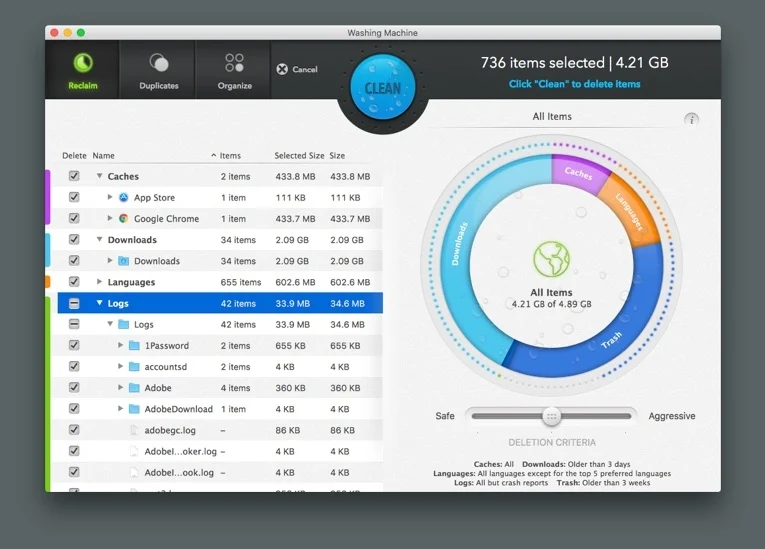
How Intego Washing Machine Helps
1. Scan & Analyze
– The tool scans your Mac for temporary files, leftover caches, and other hidden data that may slow down your system.
2. Review Findings
– Provides a clear overview of which apps or system areas are consuming excessive resources.
3. Clean Safely
– Removes unnecessary files without affecting critical system components or active applications.
Key Features
1. Temp & Cache Detection: Identifies files slowing your system
2. Safe Cleanup: Ensures critical system files remain untouched
3. App Optimization: Removes leftover files from apps after updates
4. Duplicate Finder: Identifies redundant files to free storage
5.System Organization Tools: Keeps your Mac structured for smoother operation
Verified Safety: AppEsteem Certified / Mac Safe
Compatibility: Supports macOS Big Sur, Monterey, Ventura, and newer versions
How to Fix a Slow Mac After Update Manually?
1. Clear System & User Cache
Temporary files from previous macOS versions may accumulate after updates.
– Open Finder
– Click Go > Go to Folder
– Type: ~/Library/Caches/ and –/Library/Caches/
Delete unneeded contents (keep folder structure intact)
2. Check Background Processes
Updates may trigger Spotlight indexing or background app refreshes.
1. Open Activity Monitor
2. Check CPU and Memory usage
3. Quit or pause high-usage apps temporarily
3. Remove Old Login Items
Go to System Settings > Users & Groups > Login Items. Remove unnecessary startup apps that may slow your Mac.
4. Clear App Temp Files
– Navigate to ~/Library/Caches/
– Identify app folders that may store leftover update data
– Remove safely
5. Restart & Monitor
Restart your Mac to let changes take effect and background processes settle. Monitor performance for improvements.
So, How to Fix Mac Lagging After Update?
If your Mac is lagging after updating to Tahoe, removing leftover cache, temporary files, and unnecessary app data can make a significant difference.
For a faster, guided solution, Intego Washing Machine simplifies this process safely, scanning and cleaning areas that manually could take hours.
Always remember to Empty the Trash after cleaning, so storage is fully recovered.