How to Add Email Account to Mac (Step-By-Step Guide)
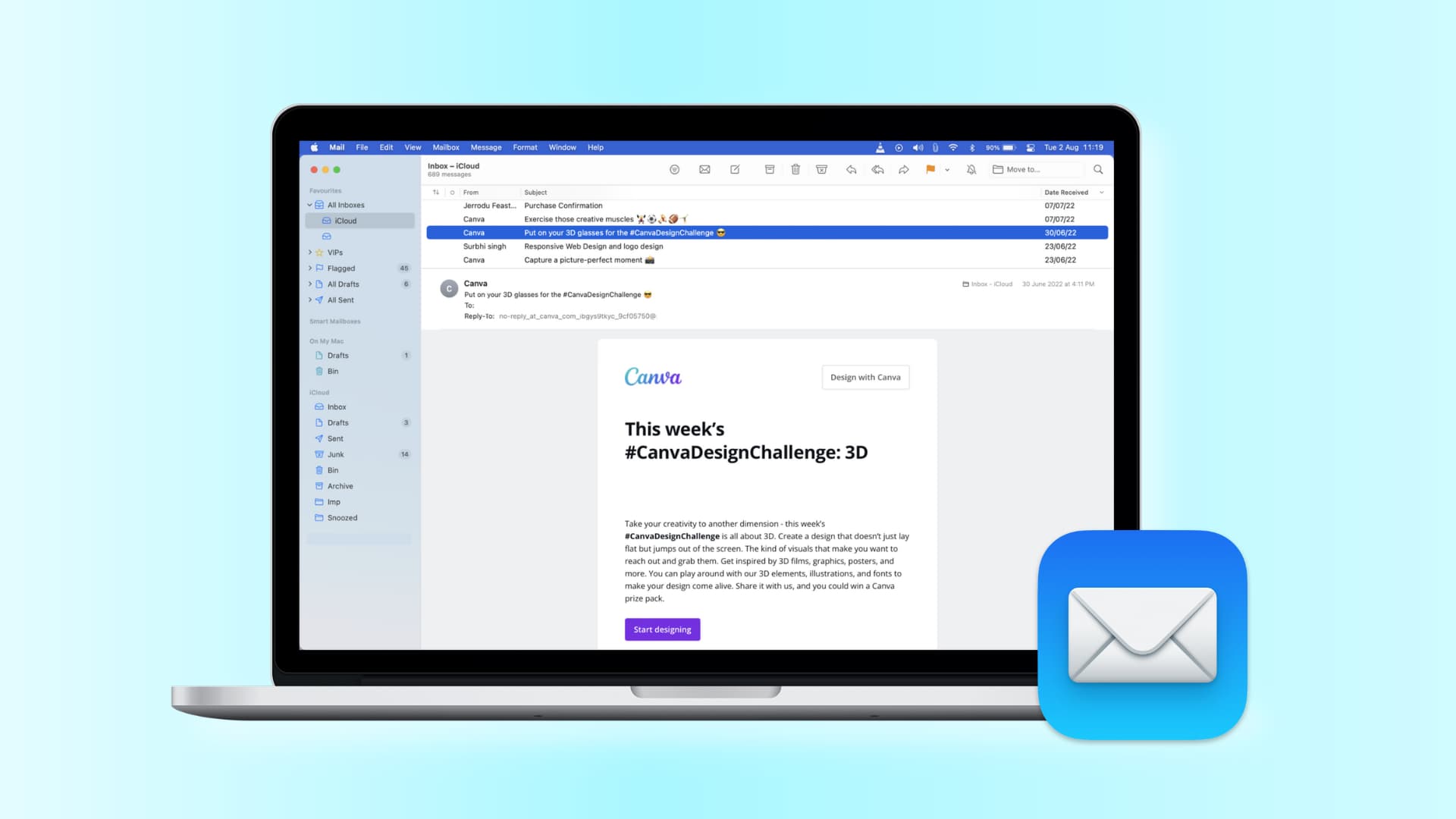
Adding an email account to your Mac is not so complicated for ANY user. Moreover, it’s even easier than you thought if you’re using Apple’s built-in Mail app. Whether you want to connect Gmail, Outlook, Yahoo, or a custom email, macOS makes the process simple and beginner-friendly. Let’s see together how to do it.
Add an Email Account to Mac Using the Mail App
1. Add Email Account to Mac
Time needed: 5 minutes
This method shows how to quickly add an email account to your Mac using the Mail app, allowing you to sync emails, contacts, and calendars across your Apple devices.
- Open the Mail App
Launch the Mail app from your Dock or Applications folder. If this is your first time opening it, you’ll automatically see the account setup screen.
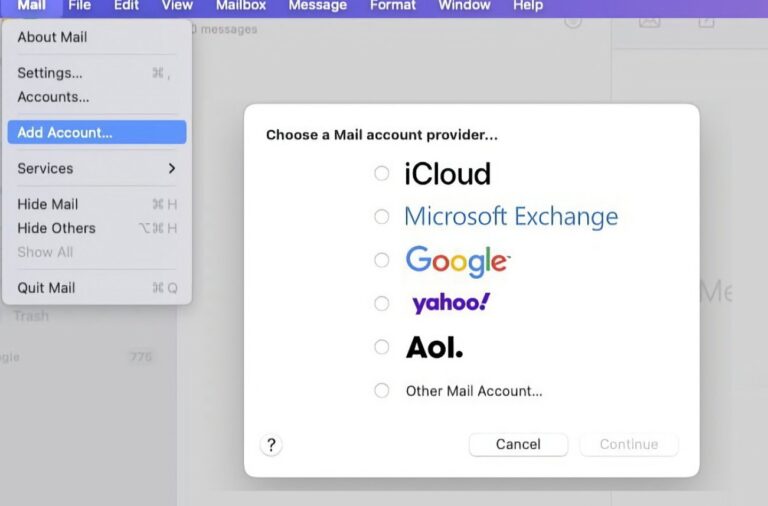
- Choose Your Email Provider
Select your email provider from the list, such as Google, iCloud, Outlook, or Yahoo. If your provider isn’t listed, choose “Other Mail Account.”

- Enter Your Login Details
Type your email address and password. For Gmail or Outlook, a browser window may open to securely sign in.
If you need more help with Google accounts, understanding how to log in to Gmail on MacBook can make the process smoother. - Allow Permissions
Choose what you want to sync, such as Mail, Contacts, and Calendar. Most users keep all options enabled for full integration.
- Finish Setup
Click “Done” to complete the process. Your emails will begin syncing automatically in the Mail app.
2. Add Email via System Settings
If you prefer, you can add your email account through macOS settings instead of the Mail app.
Add Account from Internet Accounts
- Open Apple menu > System Settings
- Click Internet Accounts
- Choose your provider
- Sign in and enable Mail
This method is useful because it syncs your email across apps like Contacts and Calendar automatically. If you also use other Apple devices, you can follow similar steps for iPhone by learning how to add an email account to your iPhone, or for tablets by seeing how to add an email account to your iPad.
Common Problems When Adding Email to Mac
Email Not Accepted
- Incorrect password or email address
- Two-factor authentication blocking access
Gmail Not Syncing
- IMAP may be disabled
- Google security settings blocking login
Account Added but No Emails
- Sync is turned off
- Wrong account type (POP instead of IMAP)
If emails stop updating later, you can fix the issue by following steps to resolve Apple Mail not syncing with Gmail.
Fixes and Troubleshooting
Check Your Credentials
Make sure your email and password are correct. If your password was recently changed, updating it by learning how to change your email password on iPhone can help keep everything in sync across devices.
Enable IMAP
For Gmail users, ensure IMAP is enabled in Gmail settings for proper syncing.
Remove and Re-Add the Account
Sometimes the easiest fix is to delete the account and add it again.
Update macOS
Older macOS versions can cause compatibility issues with email providers.
Verify Apple Account
Make sure your Apple account is properly connected by following how to sign in to your Apple account.
Helpful Tips for a Better Experience
- Use IMAP instead of POP for real-time syncing across devices
- Keep all Apple devices connected to the same accounts
- Enable notifications to stay updated on new emails
- Organize emails using folders and filters
- Avoid adding duplicate accounts
If you manage multiple Gmail accounts, learning how to log in to Gmail on iPhone can also improve your workflow across devices.
FAQs
How do I add Gmail to Mac Mail?
Choose Google when adding an account, sign in through the browser, and allow permissions.
Why can’t I add my email to Mac?
This is usually caused by incorrect login details, security restrictions, or server issues.
What is IMAP and should I use it?
IMAP keeps your emails synced across all devices. It’s the recommended option.
Can I add multiple email accounts on Mac?
Yes, you can add and manage multiple accounts in the Mail app.
Do I need server settings for Gmail?
No, Gmail setup is automatic. Manual settings are only needed for custom email providers.
Where are email accounts managed on Mac?
Go to System Settings > Internet Accounts to view and manage all connected accounts.

0 Comments