How to Unlock Mac Without Password (2026 Expert Guide)

If you need to unlock a Mac without a password, you still have several built-in macOS recovery options available. Apple designed these tools so users can regain access if they forget their login credentials, especially on devices like the MacBook Air, MacBook Pro, or iMac.
This guide explains the safest ways to unlock your Mac without the original password. You will learn how to reset it using your Apple ID, a FileVault recovery key, Recovery Mode, or another administrator account. If you also forgot your Apple account credentials, you may first need to recover them using methods explained in this guide about finding your Apple ID password without resetting it before attempting these solutions.
Why Can’t You Unlock Your Mac Without a Password?
macOS uses strong security protections such as FileVault encryption, login passwords, and Apple ID authentication. These mechanisms prevent unauthorized access to your data and system files.
When you enter the wrong password multiple times, macOS usually shows recovery options like resetting the password using your Apple ID or recovery key. If those options do not appear immediately, entering the incorrect password up to three times usually triggers them.
Below are the most reliable ways to unlock your Mac safely.
1. Reset Your Mac Password From the Login Screen
The fastest method is to reset the password directly from the login window using your Apple ID.
- Turn on your Mac.
- Enter the wrong password three times.
- Click Reset it using your Apple ID when the option appears.
- Enter your Apple ID credentials.
- Select the user account you want to reset.
- Enter a new password.
- Restart your Mac.
- Log in using the new password.
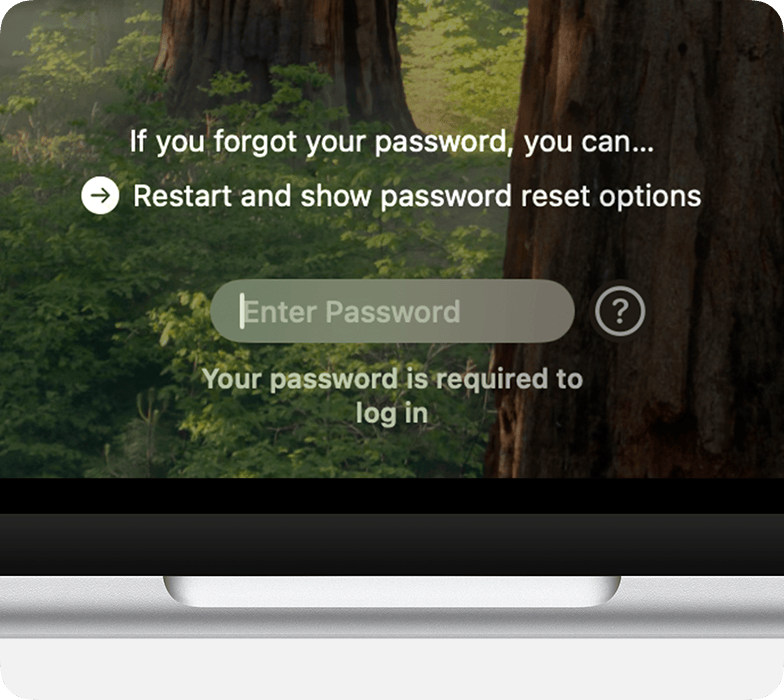
This method works only if the Apple ID password reset option was enabled in System Settings > Users & Groups beforehand.
2. Unlock Mac Using the FileVault Recovery Key
If FileVault disk encryption is enabled, you can unlock your Mac with the recovery key that was generated when FileVault was activated.
- At the login screen, enter an incorrect password three times.
- Click Reset using your recovery key.
- Enter your FileVault recovery key.
- Type your new password.
- Confirm the new password.
- Log in with the updated credentials.
This option only works if FileVault was enabled before you forgot the password. The recovery key is typically saved in your Apple account or stored when you first set up disk encryption.
If your Mac storage issues are related to encryption or system data problems, this guide on fixing large macOS System Data storage can also help troubleshoot related disk problems.
3. Use the Reset Password Assistant in Recovery Mode
If the login screen reset options do not appear, you can reset the password through macOS Recovery Mode. First, start your Mac in Recovery Mode.
➜ For Apple Silicon Macs (M1, M2, M3, M4):
- Turn off your Mac.
- Press and hold the power button.
- Wait until Startup Options appears.
- Click Options.
- Click Continue.
➜ For Intel-based Macs:
- Turn off your Mac.
- Turn it back on.
- Immediately press Command + R.
- Release the keys when the Apple logo appears.
Once in Recovery Mode, reset the password:
- Open Utilities.
- Select Terminal.
- Type
resetpassword - Press Return.
- Click Forgot all passwords if prompted.
- Enter a new password.
- Click Next.
- Restart the Mac.

This tool launches the Reset Password Assistant, which allows you to create a new login password without knowing the previous one.
4. Reset the Password Using Another Administrator Account
If another administrator account exists on the Mac, it can reset the password of the locked account.
- Log in using another admin account.
- Click the Apple menu.
- Open System Settings.
- Select Users & Groups.
- Click the info icon next to the locked account.
- Select Reset Password.
- Enter the new password.
- Log out and sign in with the new password.
This approach is common in shared computers or office Macs where multiple administrator accounts exist.
5. Unlock Your Mac Using Apple Watch
If you previously enabled the Apple Watch unlock feature, you can log in automatically without entering a password.
- Click the Apple menu.
- Select System Settings.
- Click Touch ID & Password.
- Enable Unlock your Mac with Apple Watch.
- Wear your Apple Watch and unlock it.
- Wake your Mac to unlock it automatically.
To use this feature, your Apple Watch and Mac must:
• Use the same Apple ID
• Have two-factor authentication enabled
• Be signed in to iCloud
If you are troubleshooting other Apple ecosystem issues, this guide on unlocking a Mac without the login password provides additional context for related login problems.
Tips
• Always store your FileVault recovery key in a secure location.
• Enable Apple ID password reset in macOS settings.
• Keep two administrator accounts on important Macs.
• Use Touch ID or Apple Watch unlock for faster access.
• Regularly back up your Mac using Time Machine.
Regaining Access to Your Mac Safely
Forgetting a Mac password can be frustrating, but macOS provides several recovery tools to regain access without losing data. Most users can unlock their device using Apple ID verification, FileVault recovery keys, or Recovery Mode utilities.
If none of these solutions work, the final option is to erase the Mac and reinstall macOS. However, this removes all data unless you have a backup, so it should only be used as a last resort.
Key Takeaways
Being locked out of a Mac does not mean the device is permanently inaccessible. macOS includes multiple password recovery options, including Apple ID resets, FileVault recovery keys, and Recovery Mode tools.
These built-in solutions help legitimate users regain access while keeping the system secure from unauthorized access attempts.
FAQs
Yes, you can reset the password using a FileVault recovery key or Recovery Mode tools like the Reset Password Assistant.
No. Resetting the login password does not remove personal files or user data stored on the Mac.
If you lose the recovery key and cannot verify your Apple ID, you may have to erase the Mac and reinstall macOS to regain access.
Apple can assist if you provide proof of purchase and verify ownership of the device.
No. These methods should only be used to recover access to your own Mac. Unauthorized access to someone else’s computer is illegal.

0 Comments