How to Play Clash Royale on Mac? (M1-M4, Intel)

If you want to play Clash Royale on Mac, you might have noticed that the game is not officially available as a native macOS app. Clash Royale was designed primarily for iPhone and Android devices, so it does not appear in the Mac App Store for most users.
Fortunately, there are several reliable ways to run the game on macOS. You can mirror your iPhone screen, use an Android emulator, or install the mobile version through Apple Silicon compatibility. In this guide, you will learn the easiest methods to play Clash Royale on a Mac, whether you use an Intel Mac or a newer Apple Silicon model like a MacBook Air or MacBook Pro.
If you plan to mirror the game from your phone, you may also want to learn how to mirror your iPhone to a PC or Mac.
Can You Play Clash Royale on Mac?
Apple does not currently provide a direct Mac version of Clash Royale. The game was developed by Supercell specifically for mobile platforms.
However, macOS users can still run the game using alternative methods. These include screen mirroring from an iPhone, running the Android version through an emulator, or installing compatible iOS apps on Apple Silicon Macs.
The following solutions explain each method step by step.
Play Clash Royale Using an Android Emulator
Android emulators allow your Mac to simulate an Android device. This lets you download and play the Android version of Clash Royale directly on macOS.
Two of the most commonly used emulators are BlueStacks and NoxPlayer.
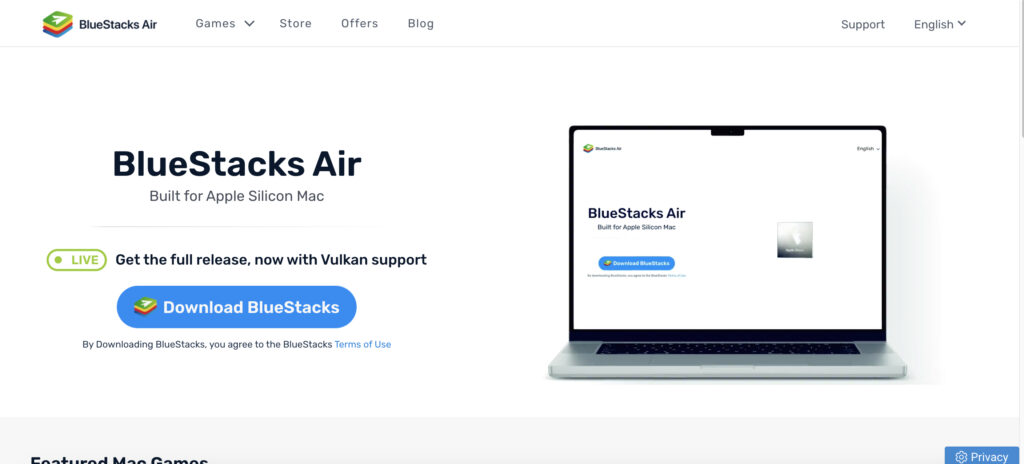
Steps to play Clash Royale using an emulator
- Download BlueStacks from its official website.
- Install the emulator on your Mac.
- Launch the emulator.
- Sign in with your Google account.
- Open the Google Play Store.
- Search for Clash Royale.
- Click Install.
- Launch the game once installation finishes.
After installation, the game runs like it would on an Android phone.
Mirror Clash Royale From iPhone to Mac
If you already play Clash Royale on your iPhone, screen mirroring is another easy way to play it on a larger screen.
This method streams the game from your iPhone directly to your Mac display.
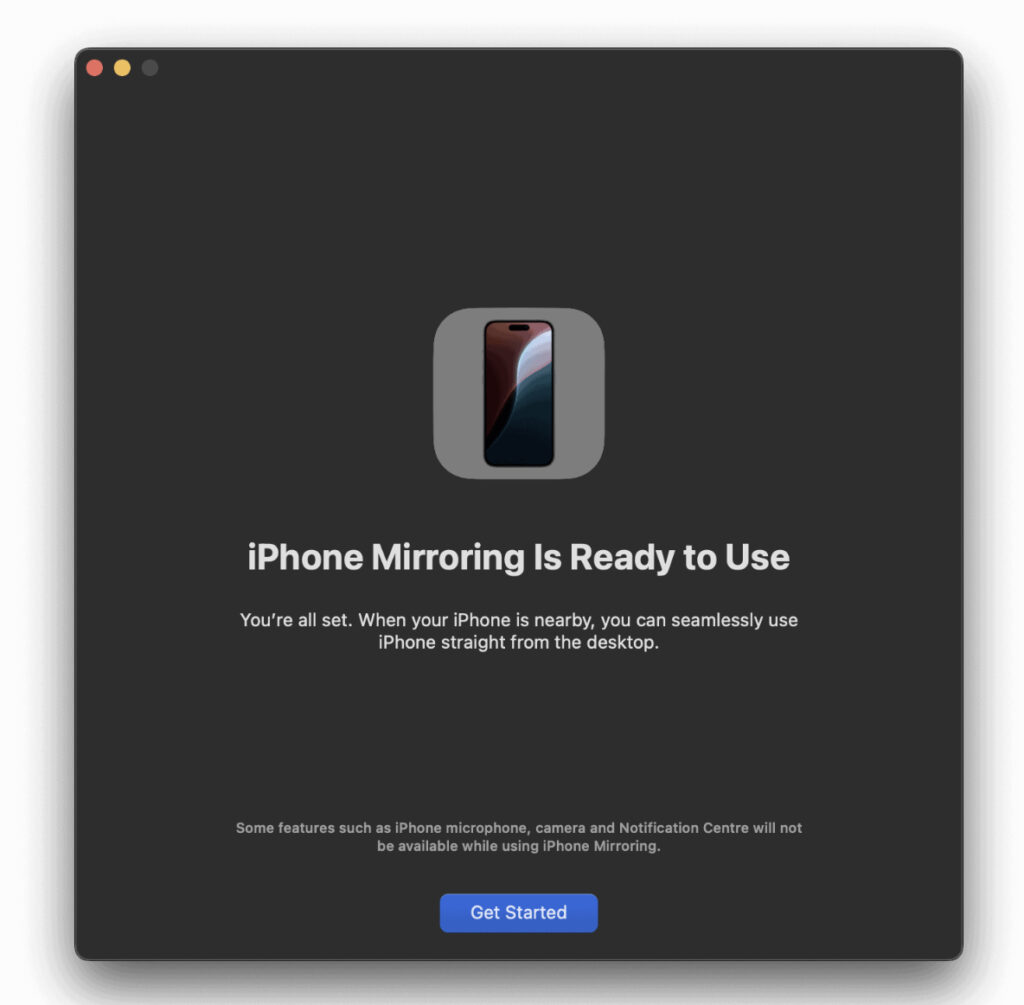
Steps to mirror Clash Royale from iPhone
- Connect your iPhone and Mac to the same WiFi network.
- Install a screen mirroring tool on your Mac.
- Open Control Center on your iPhone.
- Tap Screen Mirroring.
- Select your Mac from the list.
- Launch Clash Royale on your iPhone.
The game will appear on your Mac screen while still being controlled from your iPhone.
Install iPhone Apps on Apple Silicon Macs
Newer Macs powered by Apple Silicon chips like Mac Studio or MacBook Pro can run many iPhone and iPad apps directly.
This works because Apple Silicon uses the same architecture as iOS devices.
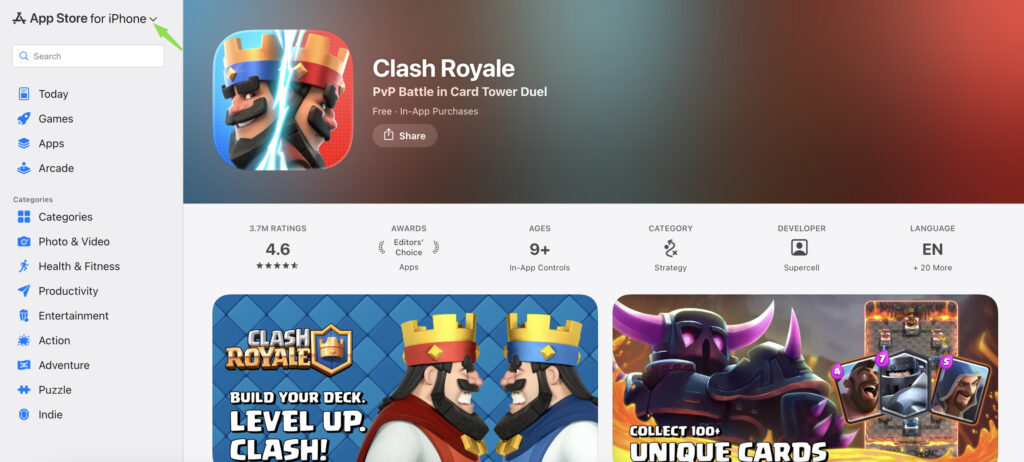
Steps to install iPhone apps on Apple Silicon Mac
- Open the Mac App Store on your browser.
- Search for Clash Royale.
- Click the iPhone & iPad Apps tab.
- Install the app if available.
- Launch the game from your Applications folder.
Not all iOS apps appear on the Mac App Store, but some versions may be available depending on the developer settings.
Play Clash Royale With Remote Desktop
Another option is to run the mobile game on another device and stream it to your Mac using remote access software.
Tools like TeamViewer or AnyDesk can display your phone or tablet screen on a Mac.
Steps to use remote desktop for mobile games
- Install TeamViewer on your Mac.
- Install the mobile version on your phone.
- Connect the devices using your ID.
- Launch Clash Royale on the phone.
- Control or view the game from your Mac display.
While not ideal for competitive play, it works well for casual gaming.
Tips
• Use an Apple Silicon Mac for better compatibility with iOS apps.
• Close background apps when running emulators to improve performance.
• Use a mouse or trackpad for precise control in battles.
• Keep macOS updated to avoid compatibility issues with emulators.
• Use a stable WiFi network when mirroring your iPhone.
Enjoy Clash Royale on a Bigger Screen
Even though Clash Royale does not have a dedicated macOS version, Mac users still have multiple ways to play it. Emulators offer the most flexible solution, while screen mirroring allows you to continue using your iPhone.
Apple Silicon Macs also make it easier to run mobile apps directly. With the right setup, you can enjoy Clash Royale on a larger display without needing a dedicated mobile device.
Key Takeaways
Clash Royale is designed primarily for mobile devices, but it can still be played on a Mac through alternative methods. Android emulators allow users to install the game directly, while screen mirroring lets you stream gameplay from an iPhone. Apple Silicon Macs may also run iPhone apps natively in some cases. These options help Mac users enjoy the game on a larger screen.
FAQ
Not officially. The game is primarily designed for mobile platforms, but you can play it using emulators or screen mirroring.
Yes. Many iPhone and iPad apps run on Apple Silicon Macs because they share the same architecture.
Yes, as long as you download emulators like BlueStacks from official sources.
Most modern Macs run the game smoothly through Android emulators, especially models with Apple Silicon chips.
Some emulators allow custom keyboard mapping so you can control gameplay using keyboard shortcuts.


0 Comments