Best Mac Screenshot Guide: Full Screen, Window, and Selection Tricks
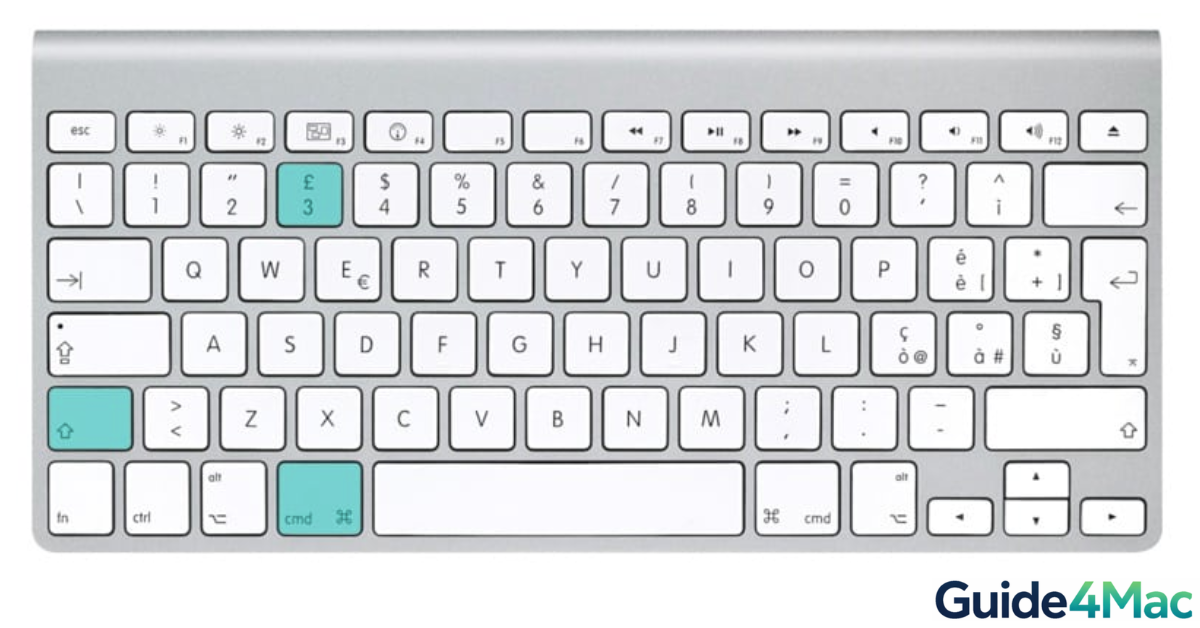
Taking a screenshot on a Mac is quick and easy thanks to built-in keyboard shortcuts in macOS. Whether you want to capture the entire screen, a specific window, or just part of the display, Apple provides several tools that work on any Mac including MacBook Air, MacBook Pro, iMac, and Mac Studio.
In this guide, you will learn the fastest screenshot shortcuts available in modern versions of macOS. If you also want to learn more advanced capture options and file locations, you can check this step-by-step guide on taking screenshots on a Mac.
How Do You Take a Screenshot on Mac?
macOS includes multiple screenshot methods designed for different capture needs. You can grab the full screen, capture a single window, or select a specific portion of the display.
All screenshots are handled by built-in macOS tools and saved directly to the desktop by default. Newer macOS versions such as Ventura, Sonoma, and Sequoia also include a dedicated Screenshot toolbar.
Below are the most useful screenshot methods every Mac user should know.
1. Capture the Entire Screen
This is the fastest way to take a screenshot of everything visible on your Mac display.
- Press Command + Shift + 3.
- Release the keys.
- Wait for the camera shutter sound.
- Find the screenshot saved on your Desktop.
The image will appear as a PNG file named Screen Shot with the date and time.
2. Capture a Selected Area
If you only need part of the screen, this shortcut lets you manually select the exact area.
- Press Command + Shift + 4.
- Move the crosshair cursor to the starting point.
- Click and drag to select the area.
- Release the mouse button.

The screenshot of the selected section will automatically save to your desktop.
3. Capture a Specific Window
This method is useful if you want a clean capture of a single app window without cropping.
- Press Command + Shift + 4.
- Press the Spacebar.
- Move the camera icon over the window.
- Click the window to capture it.
macOS automatically adds a subtle drop shadow around the captured window.
4. Use the Screenshot Toolbar
Modern versions of macOS include a full screenshot control panel with additional options.
- Press Command + Shift + 5.
- Open the screenshot toolbar.
- Choose a capture option.
- Click Capture.
The toolbar allows you to:
- Capture the full screen
- Capture a selected window
- Capture a selected portion
- Record the screen
You can also change the save location and set timers for delayed screenshots.
5. Copy Screenshots to the Clipboard
Sometimes you may want to paste a screenshot directly into an app like Messages, Notes, or Mail instead of saving it.
- Press Command + Control + Shift + 3 for full screen.
- Press Command + Control + Shift + 4 for a selection.
- Open the destination app.
- Press Command + V to paste.
This is especially helpful when sharing screenshots quickly in chats or documents.
| Capture Type | Keyboard Shortcut |
| Entire Screen | Command + Shift + 3 |
| Portion of Screen | Command + Shift + 4 |
| Specific Window | Command + Shift + 4, then Spacebar |
| Screenshot Menu | Command + Shift + 5 |
| To Clipboard | Add “Control” to any of the above |
Where Mac Screenshots Are Saved
By default, macOS saves screenshots to the Desktop. The file name usually follows this format:
Screen Shot [date] at [time].png
You can change the save location using the Screenshot toolbar.
- Press Command + Shift + 5.
- Click Options.
- Select a new save location.
Tips
- Use Command + Shift + 5 if you want advanced screenshot controls.
- Hold Option while capturing a window to remove the drop shadow.
- Press Escape while selecting an area to cancel the screenshot.
- Drag screenshots from the desktop directly into apps.
- Use Preview to edit screenshots quickly.
Capture Your Mac Screen in Seconds
macOS makes taking screenshots extremely simple with a few keyboard shortcuts. Whether you want to capture the entire screen, a specific window, or just a portion of the display, built-in tools handle everything instantly.
Once you learn the shortcuts, screenshots become one of the fastest ways to share information, save images, or document something happening on your Mac.
Key Takeaways
macOS includes several built-in screenshot tools that work across all modern Macs. The most common shortcuts are Command + Shift + 3 for full screen captures and Command + Shift + 4 for selected areas. Users can also access the Screenshot toolbar with Command + Shift + 5 for advanced capture options. These tools allow Mac users to quickly capture and save images without installing additional software.
FAQs
Press Command + Shift + 3 to capture the entire screen instantly.
Press Command + Shift + 4, then drag to select the portion you want to capture.
Screenshots are saved to the Desktop by default unless you change the location.
Yes. Press Command + Shift + 4, then press the Spacebar and click the window.
Yes. Press Command + Shift + 5 to open the built-in Screenshot toolbar with additional capture options.


0 Comments