MacBook Pro HDMI Not Working on TV? Fix Video Output Issues Fast
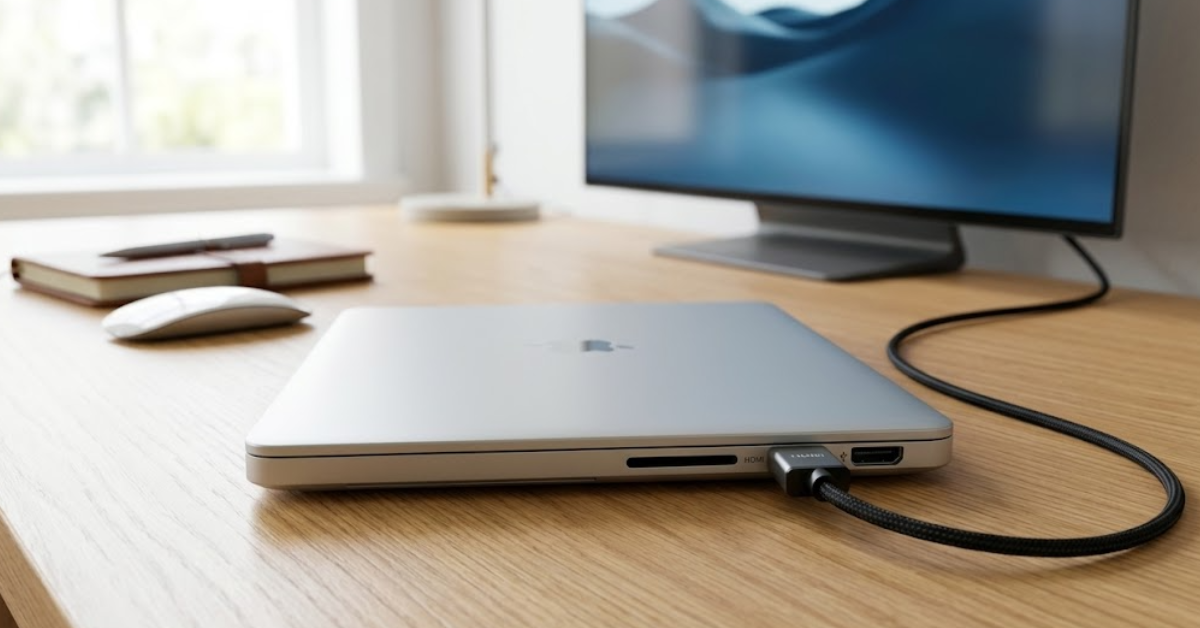
You connect your MacBook Pro to your TV using an HDMI adapter… and nothing shows up. No signal, black screen, or the display simply isn’t detected. This issue is more common than you’d expect—especially with USB-C hubs and newer macOS versions.
According to Apple’s official guidance, most external display problems come down to connection order, cable compatibility, or display settings—not hardware failure. That means in most cases, you can fix it yourself in just a few minutes.
Fix MacBook Pro HDMI Not Working on TV (Complete Guide)

1. Force Your Mac to Detect the TV (Apple Recommended)
Apple recommends manually refreshing display detection when your Mac doesn’t recognize an external screen. This forces macOS to scan for connected displays and activate the HDMI output.
Time needed: 2 minutes
Refreshes display detection and activates HDMI output.
Follow these steps to trigger display detection:
- Connect devices properly
Plug in the HDMI adapter and cable, then turn on your TV and select the correct HDMI input.
- Open display settings
Go to System Settings → Displays.
- Force detection
Hold the Option (⌥) key and click Detect Displays.
- Set display mode
Choose Mirror or Extend Display.
At this point your TV is detected and starts mirroring or extending your Mac screen.
2. Check Cable, Adapter, and Port (Apple Official Check)
Apple specifically highlights that many display issues are caused by faulty cables, incompatible adapters, or dirty ports. Even a small connection issue can prevent video output.
- Inspect the HDMI cable – Make sure it’s not damaged or loose.
- Use a compatible adapter – Prefer Apple-certified or high-quality USB-C to HDMI adapters.
- Check ports – Ensure your MacBook ports are clean and free of debris.
- Try another port or cable – This helps rule out hardware faults.
A stable and properly recognized HDMI connection.
3. Restart and Reconnect Everything
Apple also recommends restarting your Mac if it doesn’t recognize a display. This clears temporary glitches affecting HDMI output.
- Restart your MacBook – Use the Apple menu → Restart.
- Turn off your TV – Wait a few seconds, then turn it back on.
- Reconnect HDMI cable – Plug everything back in after restart.
Your Mac correctly initializes the HDMI connection after reboot.
4. Make Sure the TV Input Is Correct
Apple notes that your display must be set to the correct input source. If the TV is on the wrong HDMI channel, it won’t show your Mac even if everything is connected correctly.
Follow these steps to select the right input:
- Open input menu – Use your TV remote and press Source/Input.
- Find the correct HDMI port – HDMI 1, HDMI 2, etc.
- Select the active input – Match it with your cable connection.
Your Mac display appears immediately after selecting the correct HDMI port.
5. Adjust Resolution and Display Settings
Apple explains that some displays may not support the resolution your Mac is using. Adjusting display settings ensures compatibility with your TV.
- Open Displays settings – Go to System Settings → Displays.
- Select your TV display – Choose the external monitor.
- Change resolution – Click Scaled and try a lower option like 1080p.
6. Update macOS (Apple Recommended)
Apple strongly recommends keeping macOS up to date, as updates often fix bugs related to external displays and HDMI output.
- Open System Settings – Go to General → Software Update.
- Check for updates – Wait for macOS to scan.
- Install updates – Download and install the latest version.
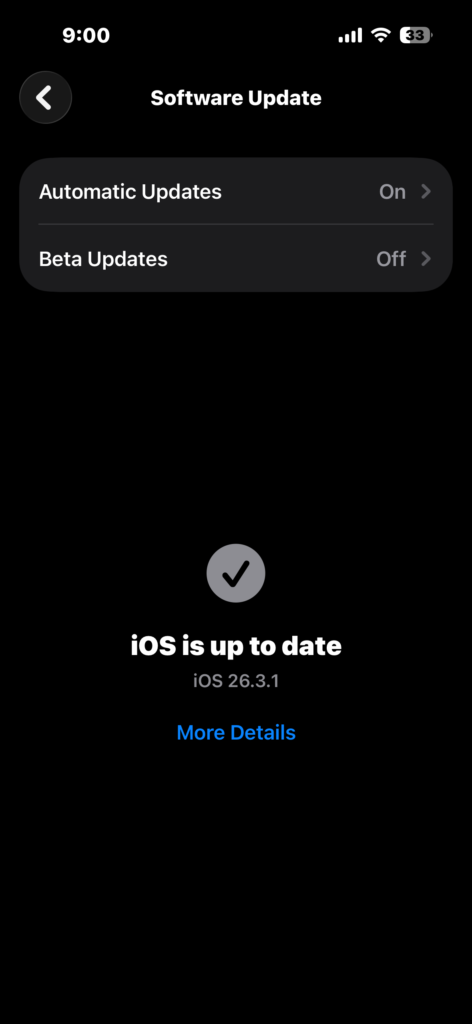
Improved compatibility and stable HDMI connection.
Common Problems Users Report
- No signal on TV
- Black screen after connecting
- Flickering or unstable display
- Mac doesn’t detect the TV
Fixes & Troubleshooting
- Display not detected → Use Detect Displays option
- Black screen persists → Check cable and adapter
- Connection unstable → Lower resolution
- Still not working → Restart devices
If your Mac shows syncing or system inconsistencies, similar fixes apply—like those explained in how to fix Apple Mail not syncing with iCloud.
Tips for Stable HDMI Connection
- Use certified or high-quality adapters
- Keep ports clean and dust-free
- Avoid loose connections
- Update macOS regularly
For smoother performance across Apple devices, make sure your setup is consistent—here’s how to sign in to your Apple account properly.
FAQs (People Also Ask)
Usually due to display detection issues, incompatible adapters, or incorrect TV input.
Yes, Apple-certified or high-quality adapters are recommended for best compatibility.
This happens when the wrong input is selected or the Mac isn’t outputting a signal.
Yes, updates often resolve bugs affecting external displays.
Typically caused by poor cables or unsupported resolution settings.
If all fixes fail, switching to a reliable adapter is often the solution


0 Comments