How to Fix iOS 26.4 Age Verification Not Working on iPhone
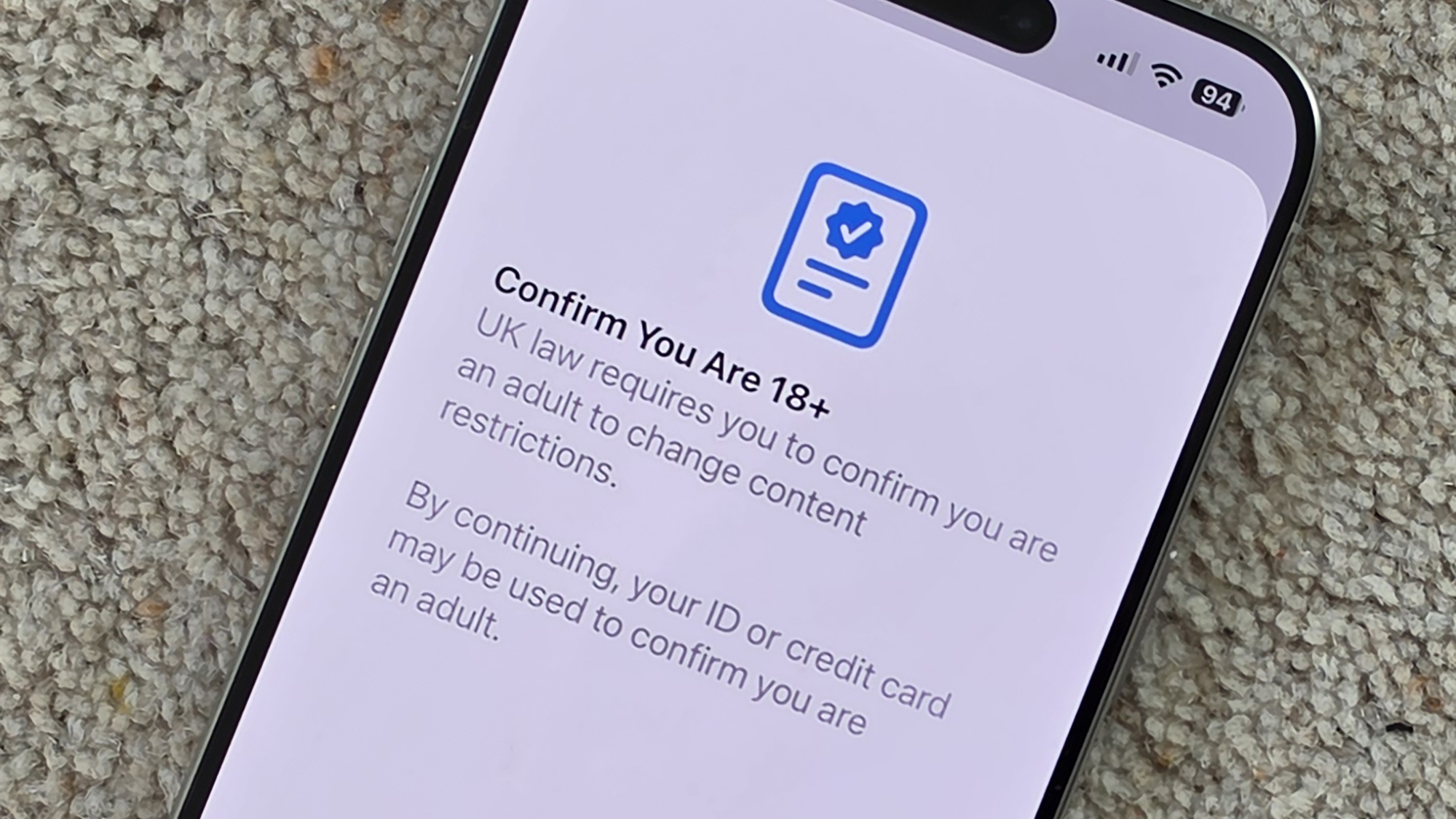
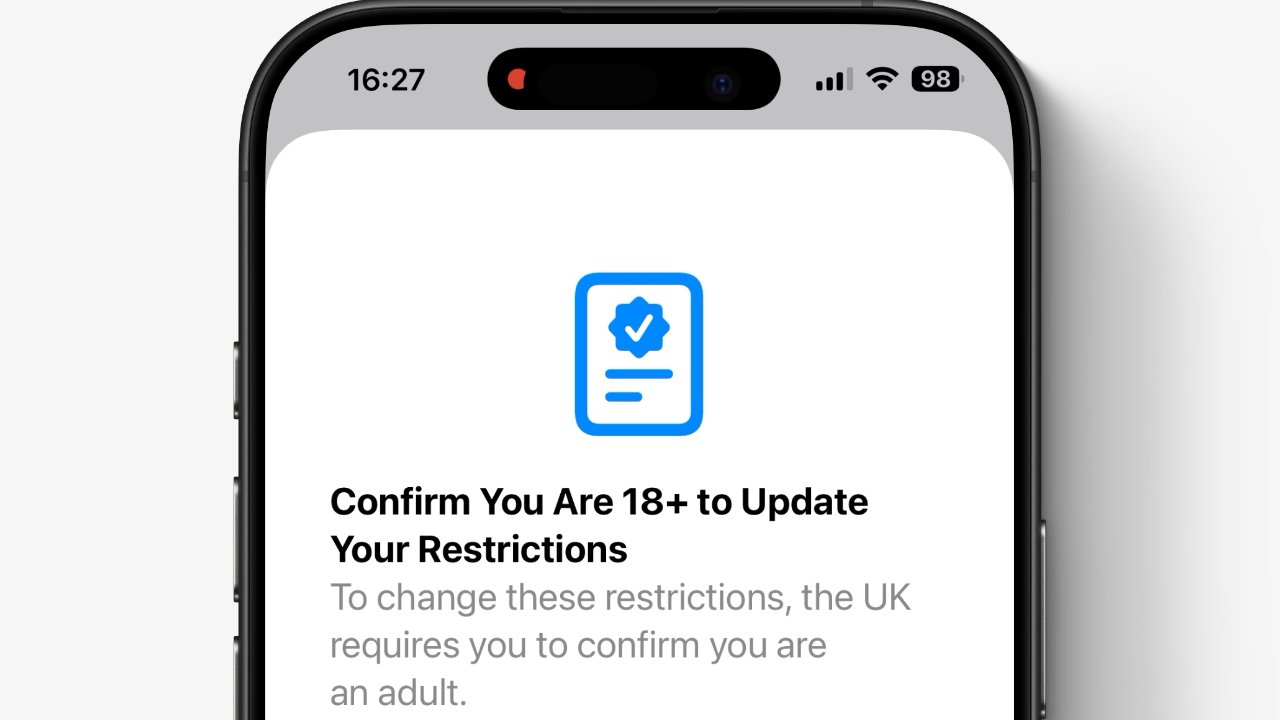
Since the release of iOS 26.4, many iPhone users have run into a frustrating issue: the age verification process fails or loops repeatedly, even when entering correct details. In fact, Apple discussion threads show dozens of users reporting the same problem, with repeated scans or verification requests that never complete. It seems this issue isn’t about missing Apple ID data, but rather how iOS validates age signals from Apple ID information, payment methods, and device scanning.
Age verification is critical for controlling access to adult content and restricted apps. Fortunately, there are several reliable ways to get the process working. Below are practical, step-by-step solutions used by real users that consistently resolve the problem.
Fix iOS 26.4 Age Verification on iPhone
1. Retry the Verification Properly
Interestingly, many verification failures happen simply because the scan conditions aren’t optimal. Properly holding your device and ID can make a big difference.
Steps:
- Go to Settings → [Your Name] → Age Verification to open the verification prompt
- Place your ID or credit card on a flat, well-lit surface
- Hold the iPhone steady for at least 10 seconds to allow the system to scan
- Avoid shadows or glare by adjusting lighting
- Complete the scan and check if the verification succeeds
This works because iOS relies on clear images and stable scanning to validate age accurately. (macobserver.com)

2. Add a Credit Card to Apple ID (Yoast How-To)
Total Time: 5–10 minutes
Description: Apple uses valid credit cards as a trusted age signal. Adding one ensures iOS can verify age automatically and avoids repeated scan failures.
Steps:
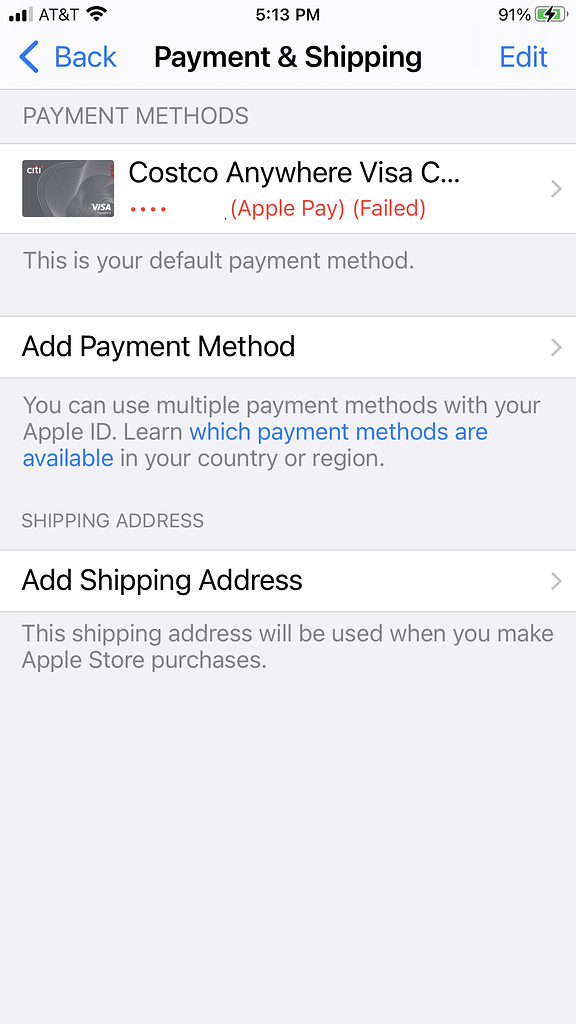
- Go to Settings → [Your Name] → Payment & Shipping → Add Payment Method to open your Apple ID payment menu
- Enter a valid credit card (debit cards may not work) and tap Save
- Confirm the card appears as active in Payment & Shipping
- Retry the age verification scan in Settings
- If it fails, remove the card and re-add it with the same or another credit card
Adding a credit card works because Apple assumes adults can hold valid credit cards, providing a strong age signal for verification. (macobserver.com)

3. Restart Your iPhone
At this point, lingering system glitches can prevent the verification process from completing. A restart refreshes system services and often resolves temporary errors.
Steps:
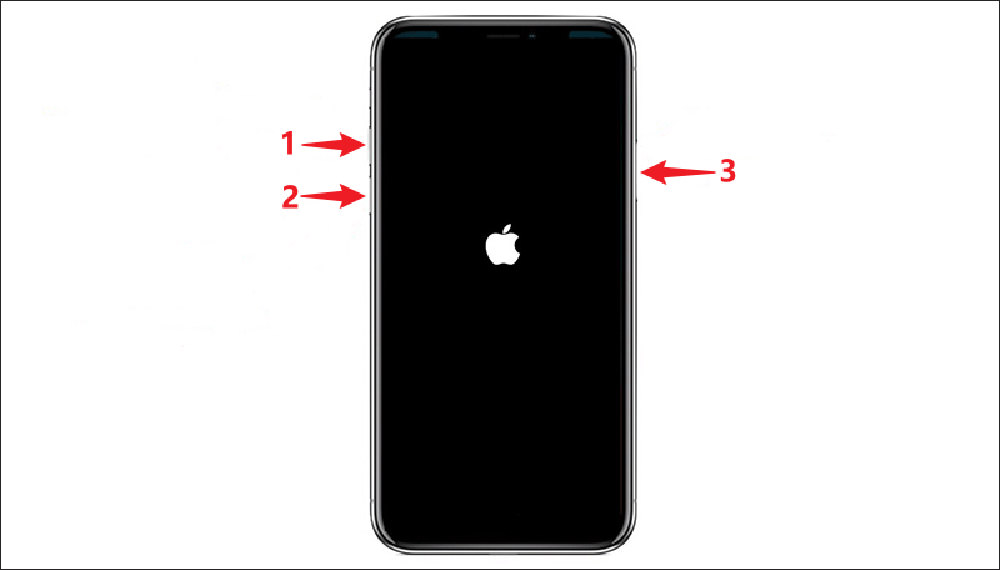
- Press and hold Side + Volume button until the power slider appears
- Slide to power off
- Wait 10–15 seconds
- Turn the iPhone back on
- Open Settings → Age Verification and retry
Many users find that this simple step fixes verification loops and clears scanning errors. (macobserver.com)

4. Check Apple ID Date of Birth
Interestingly, iOS sometimes uses Apple ID birthdate as a secondary verification signal. If it’s incorrect, verification may fail.
Steps:
- Go to Settings → [Your Name] → Name, Phone Numbers, Email → Birthday
- Verify the date of birth is accurate
- Correct it if necessary, then retry age verification
- Ensure your Apple ID reflects your actual age and account information
This step helps iOS confirm your age even if scanning or payment-based signals are delayed. (macobserver.com)

5. Update iOS to the Latest Version
Apple occasionally releases minor updates to fix verification bugs. Running the latest software ensures your iPhone has all the patches.
Steps:
- Go to Settings → General → Software Update
- Install any available updates
- Restart your iPhone and retry age verification
This ensures that known iOS 26.4 bugs affecting verification are patched. (macobserver.com)

6. Try Again Later
Sometimes server-side delays are the real culprit. Apple’s verification services can be busy, causing temporary failures.
Steps:
- Exit Settings
- Wait 10–30 minutes
- Retry Settings → Age Verification
Patience often solves the issue without any additional changes.

What’s Actually Happening
It seems the problem isn’t lost Apple ID data or a failed iPhone scan, but a combination of system scanning quirks, incomplete age signals, and server-side verification timing. iOS relies on three main signals to verify age:
- Apple ID birthdate
- Payment method (credit card)
- Device scanning of ID/credit card
If any signal is delayed or fails, iOS may loop the verification request, which is why manually retrying, adding a credit card, or restarting the iPhone resolves the issue in most cases.
Tips to Make Verification Smooth
- Use a credit card instead of debit
- Ensure good lighting and steady hands during ID scanning
- Confirm your Apple ID birthdate
- Restart your iPhone before retrying
- Keep iOS up to date
- Avoid scanning repeatedly in rapid succession
FAQs (People Also Ask)
Why won’t age verification complete in iOS 26.4?
Because iOS relies on multiple age signals, and if any are missing or delayed, verification may loop.
Do I need a credit card?
Yes, a valid credit card provides a strong age verification signal.
Will restarting the iPhone fix it?
Often yes, because it refreshes system services and clears temporary glitches.
Is this feature global?
Currently mostly in the UK and regions with strict content age restrictions.
Will future updates fix persistent failures?
Yes, Apple frequently releases patches addressing verification bugs.
If you want, I can also cross-link this article with your Messages search article and Apple ID/email setup guides to make a full iOS 26 troubleshooting hub with consistent tone and SEO-friendly internal linking.
Do you want me to do that next?

0 Comments