Full List Of All iPad Generations: As Many As It Gets
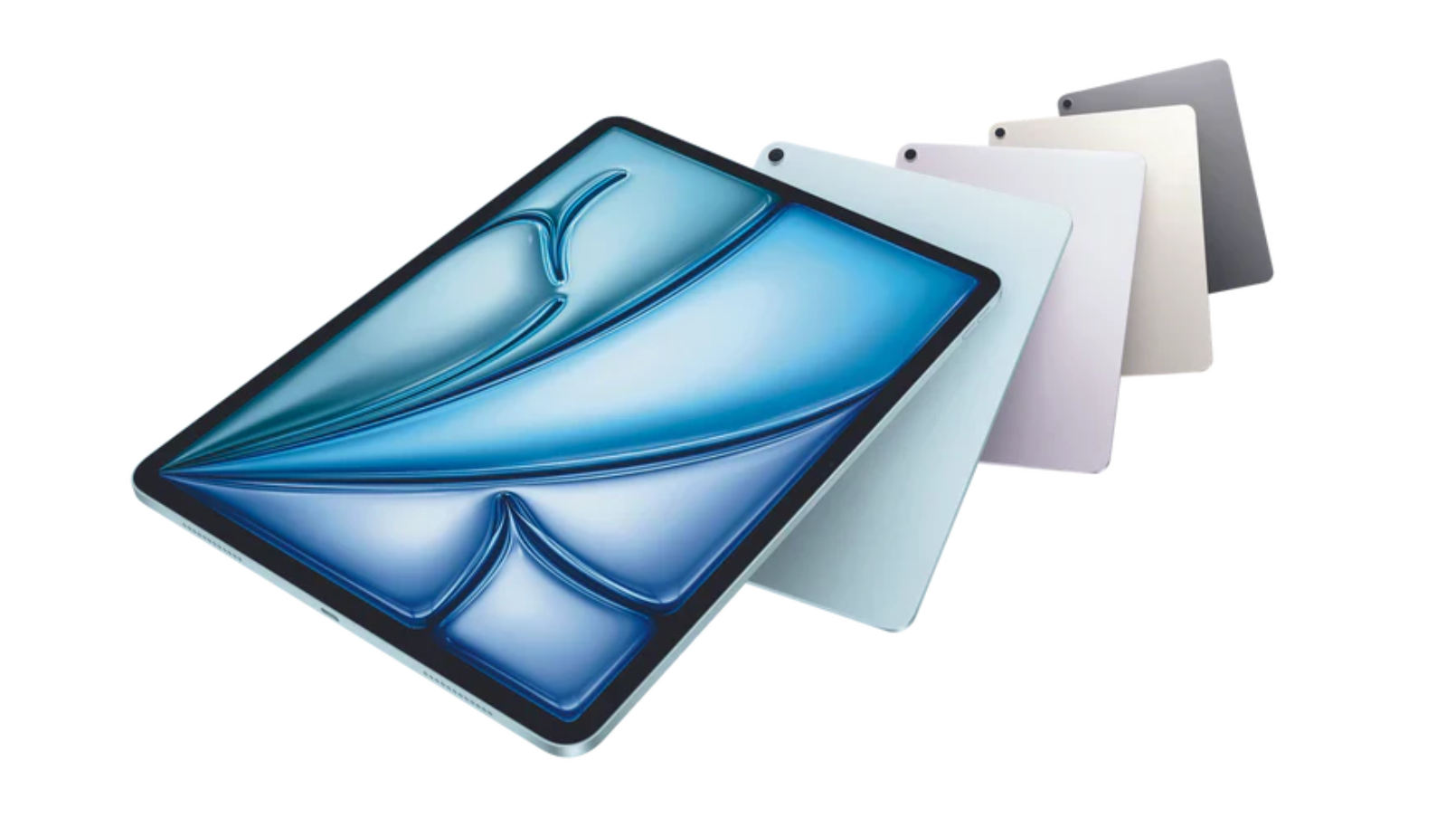
Apple has released dozens of iPad models since 2010, and if somebody’s curious enough about how many are there, well, “get over here”. From the original tablet to powerful Apple Silicon devices, the iPad models have evolved into multiple different product families with various capabilities and features.
For the most curious of you, we compiled a complete, updated list of all iPad generations, grouped by model type and timeline. You will also learn quickly how to identify your device, check its support status, and choose the right iPad for your needs.
Why Are There So Many iPad Generations?
Apple does not follow a single naming structure for iPads. Instead, it splits devices into four main categories, each updated independently over time.
- Standard iPad, entry-level
- iPad mini, compact size
- iPad Air, balanced performance
- iPad Pro, high-end models
Over time, Apple introduced Retina displays, USB-C, and desktop-class chips. If you want a broader Apple ecosystem perspective, you can explore the full history of macOS in this complete macOS versions list.
All Standard iPad Generations
The base iPad remains the most affordable option and is widely used by students and casual users.
Complete List
- iPad (1st generation) – 2010
- iPad 2 – 2011
- iPad (3rd generation) – 2012
- iPad (4th generation) – 2012

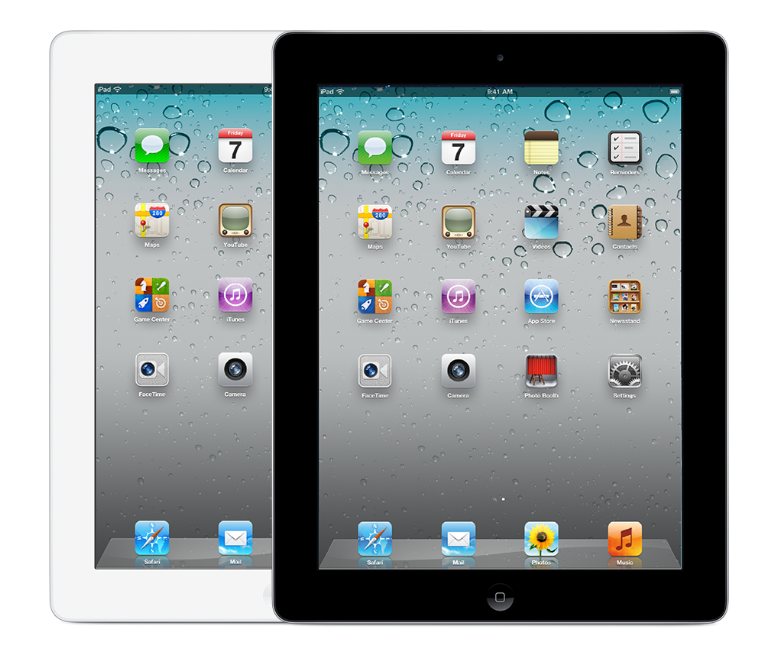

- iPad (5th generation) – 2017
- iPad (6th generation) – 2018
- iPad (7th generation) – 2019

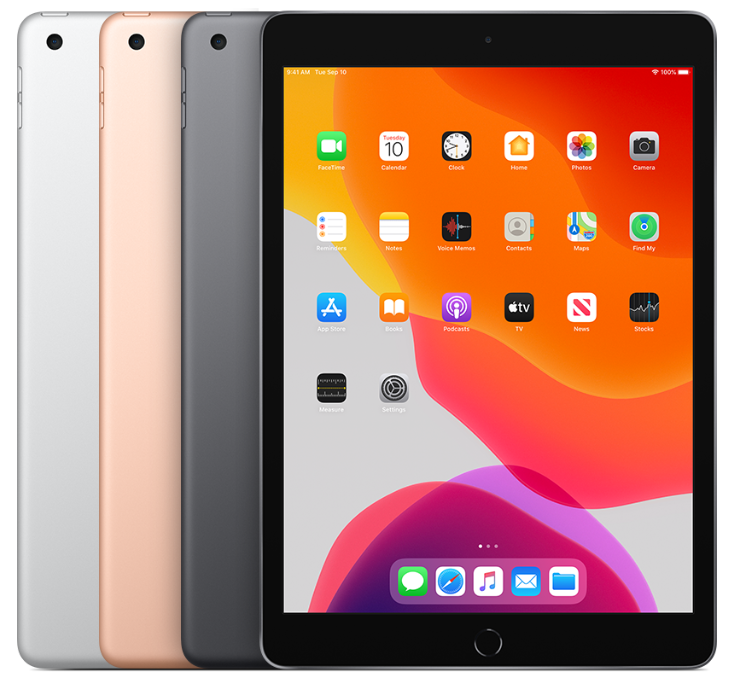
- iPad (8th generation) – 2020
- iPad (9th generation) – 2021
- iPad (10th generation) – 2022
- iPad (11th generation) – 2025
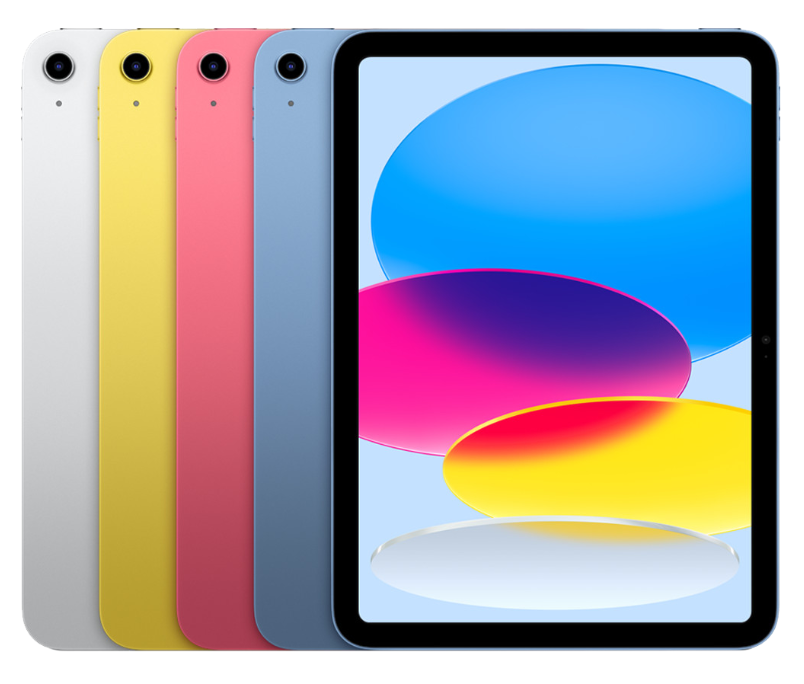
Key Evolution
The standard iPad evolved from a basic media device into a capable productivity tool. Apple added Apple Pencil support, improved displays, and eventually transitioned to USB-C.
If your device starts freezing or becomes unresponsive, you can follow this step-by-step fix for an iPad black screen issue to troubleshoot common problems.
All iPad mini Generations
The iPad mini focuses on portability without sacrificing performance.
Complete List
- iPad mini (1st generation) – 2012
- iPad mini 2 – 2013
- iPad mini 3 – 2014

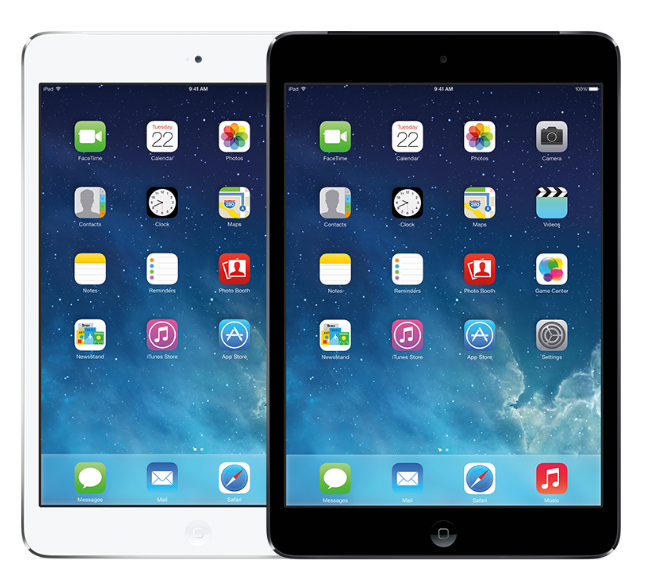

- iPad mini 4 – 2015
- iPad mini (5th generation) – 2019
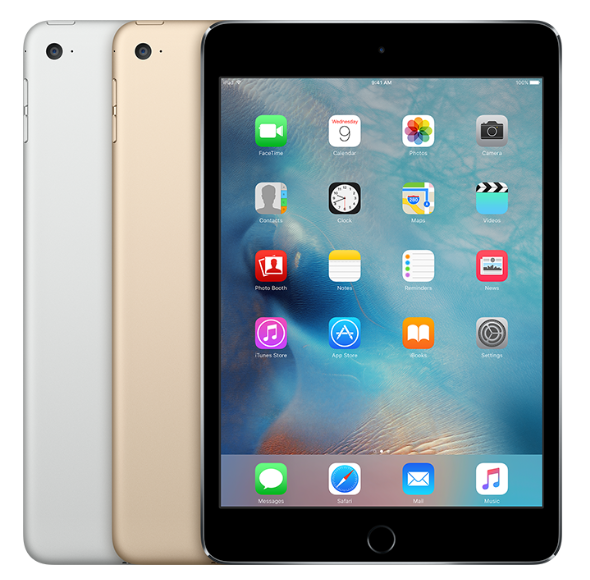

- iPad mini (6th generation) – 2021
- iPad mini (7th generation) – 2024
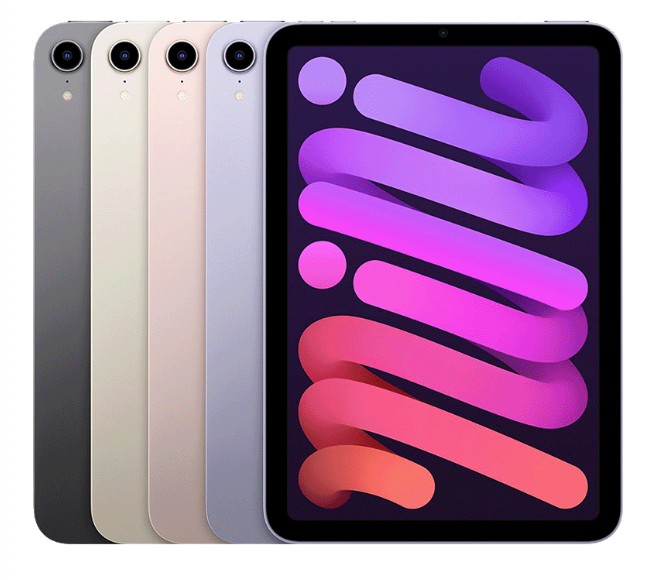
Key Evolution
The biggest shift came with the 6th generation, which introduced a modern design, USB-C, and removed the Home button. The latest models now deliver performance similar to flagship iPhones.
All iPad Air Generations
The iPad Air offers a balance between price and performance.
Complete List
- iPad Air (1st generation) – 2013
- iPad Air 2 – 2014
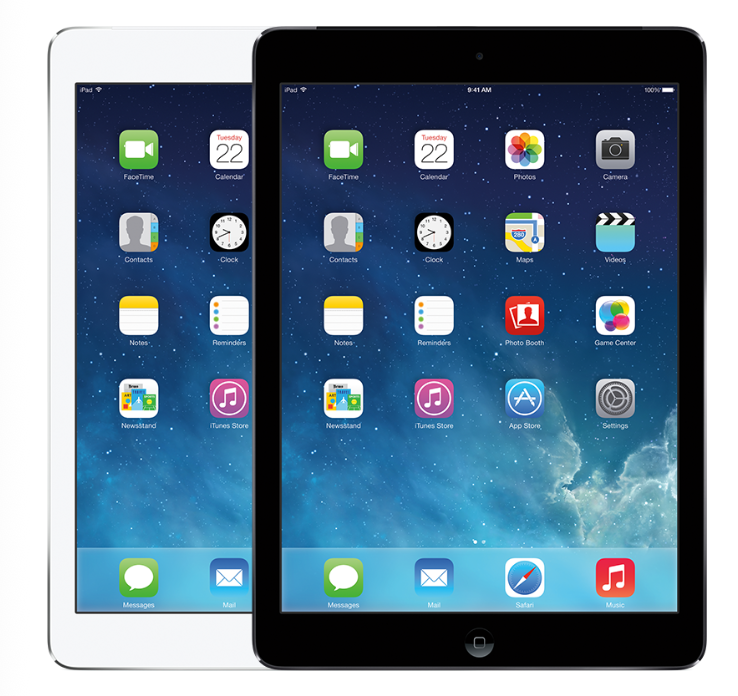

- iPad Air (3rd generation) – 2019

- iPad Air (4th generation) – 2020
- iPad Air (5th generation) – 2022
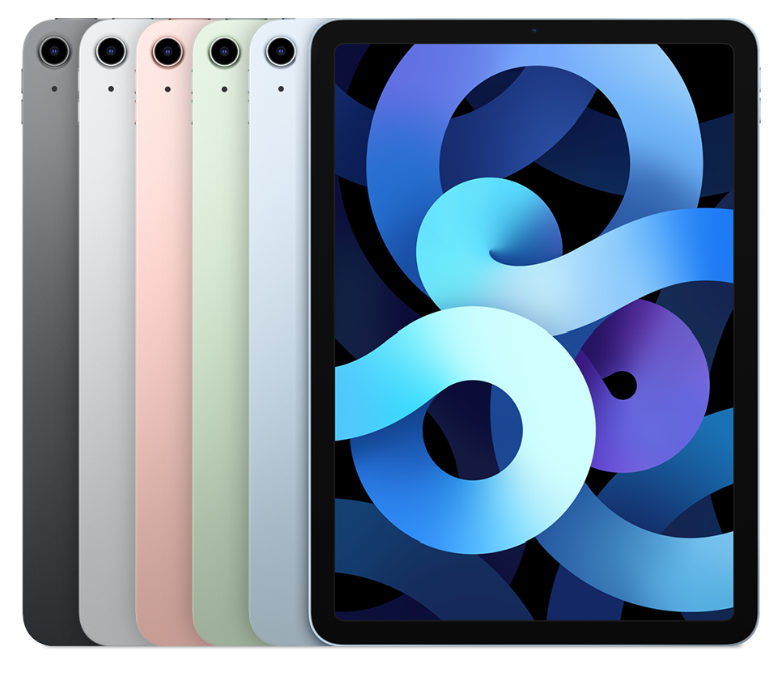
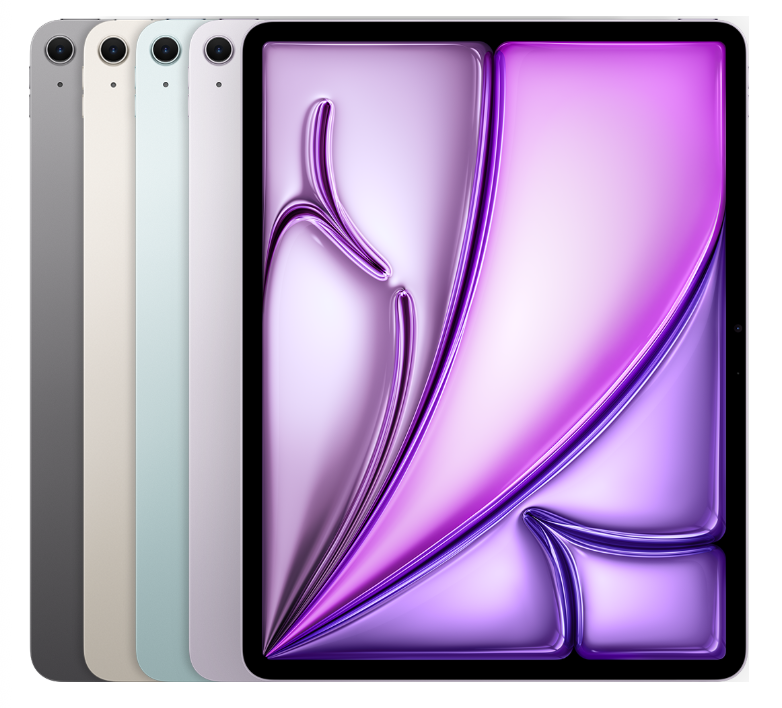
- iPad Air (6th generation, M2) – 2024
- iPad Air updates (M3 and M4) – 2025 to 2026
Key Evolution
The Air lineup adopted the iPad Pro design in 2020 and later transitioned to Apple Silicon chips. This makes it one of the best value devices for most users.
All iPad Pro Generations
The iPad Pro lineup delivers the most advanced features and performance.
Complete List
- iPad Pro 12.9-inch (1st generation) – 2015
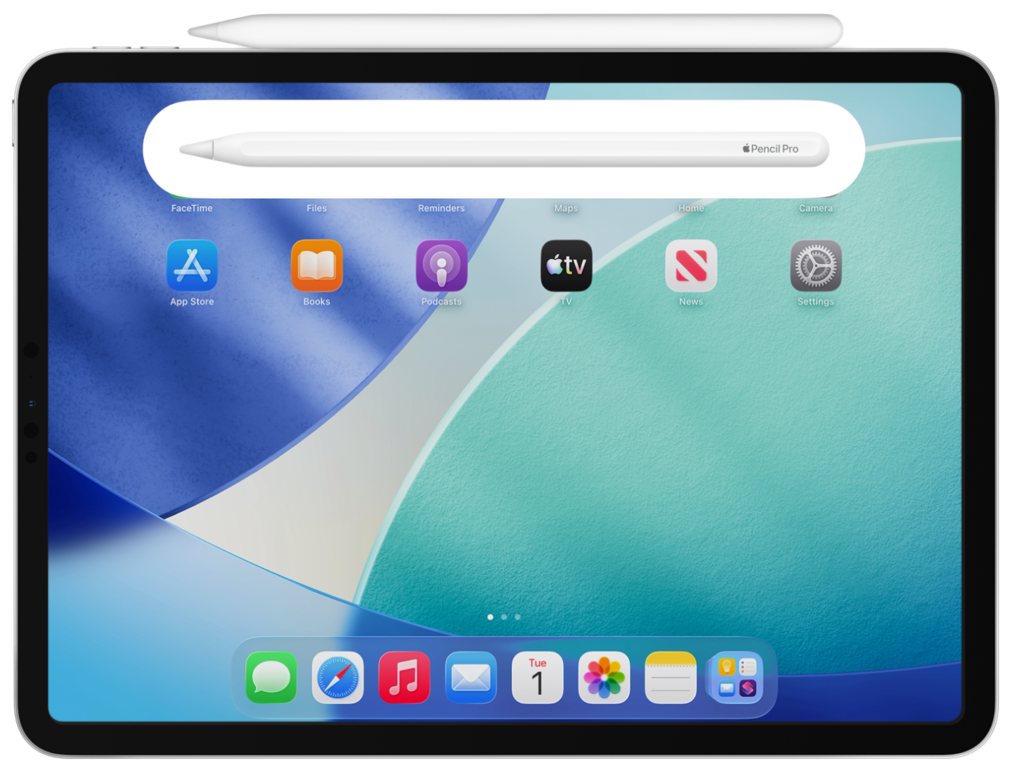
- iPad Pro 9.7-inch – 2016
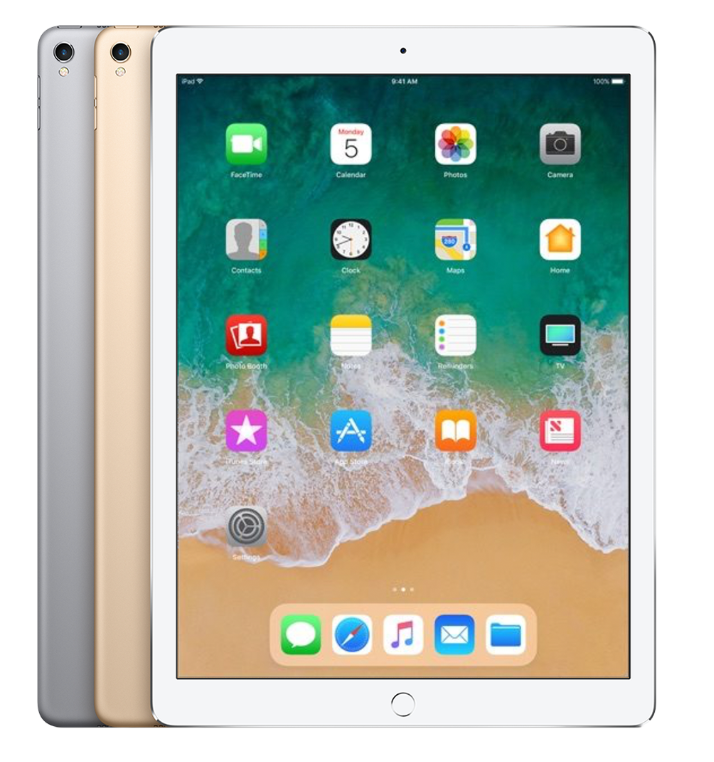
- iPad Pro 10.5-inch – 2017
- iPad Pro 12.9-inch (2nd generation) – 2017
- iPad Pro 11-inch (1st generation) – 2018
- iPad Pro 12.9-inch (3rd generation) – 2018
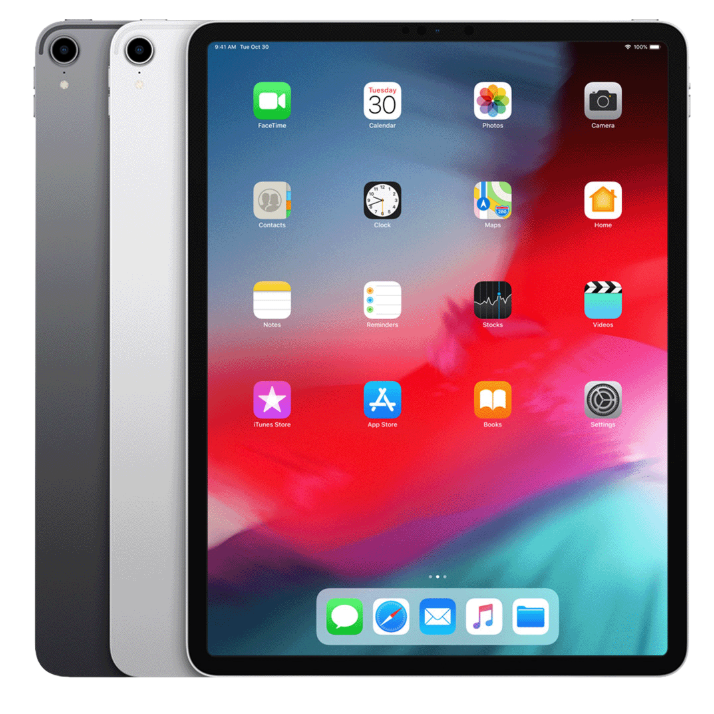
- iPad Pro 11-inch (2nd generation) – 2020
- iPad Pro 12.9-inch (4th generation) – 2020
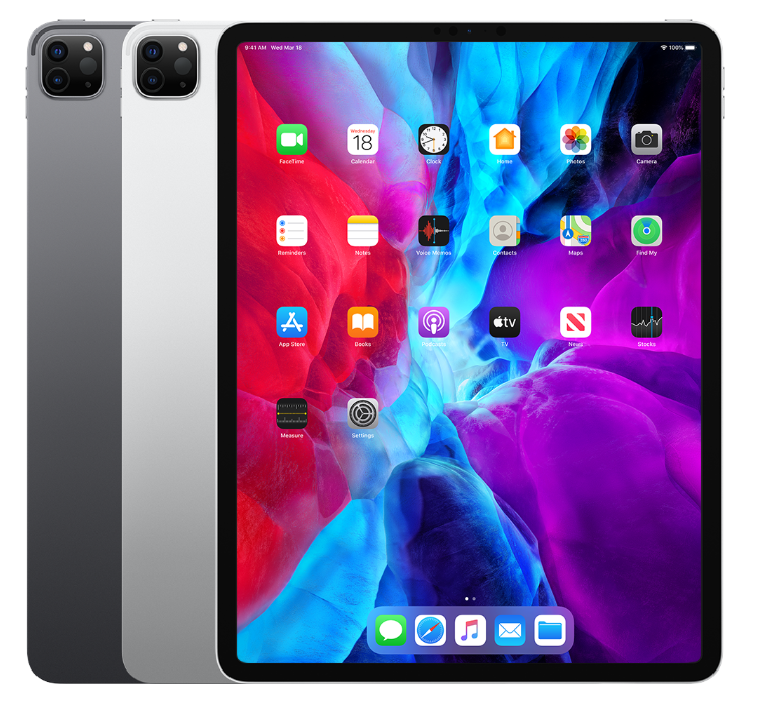
- iPad Pro (M1 models) – 2021
- iPad Pro (M2 models) – 2022
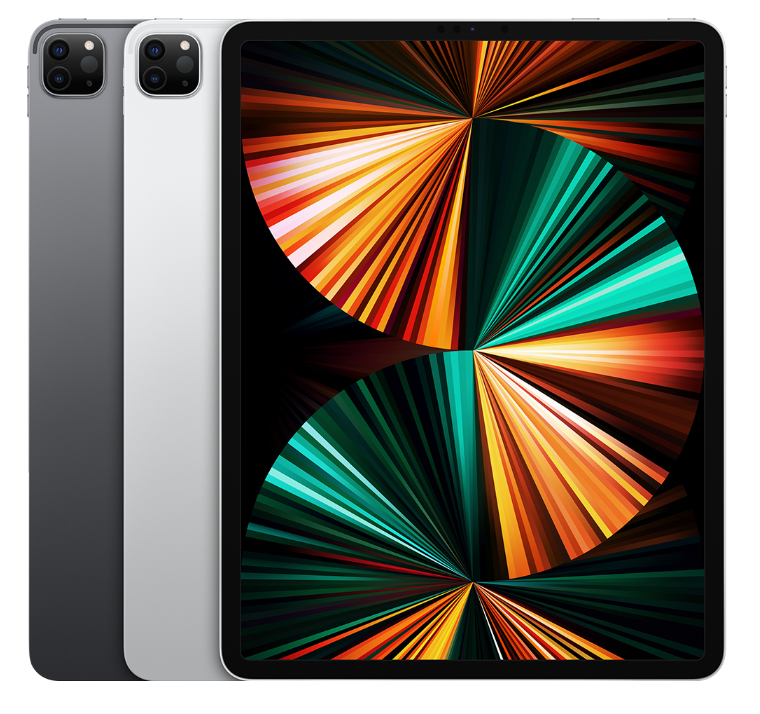
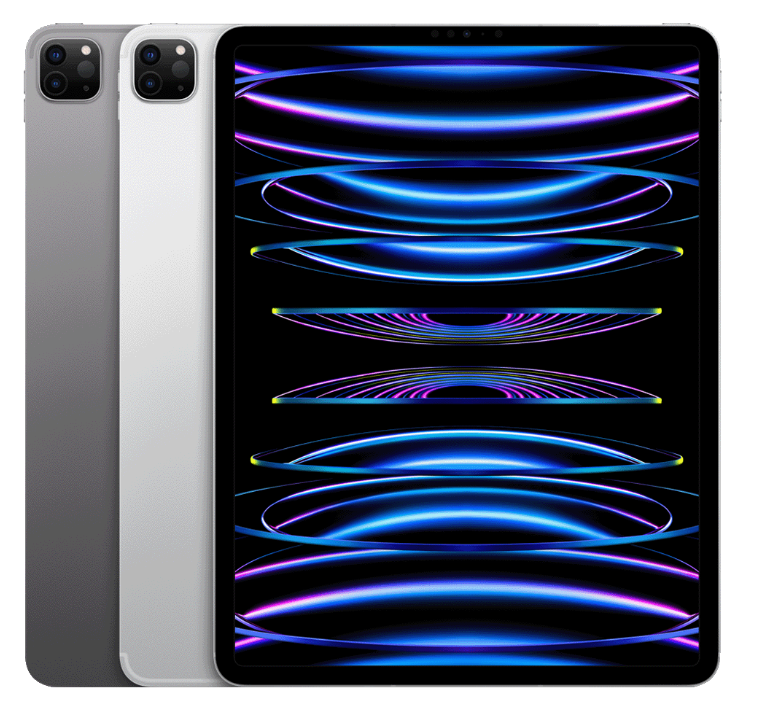
- iPad Pro (M4 OLED models) – 2024
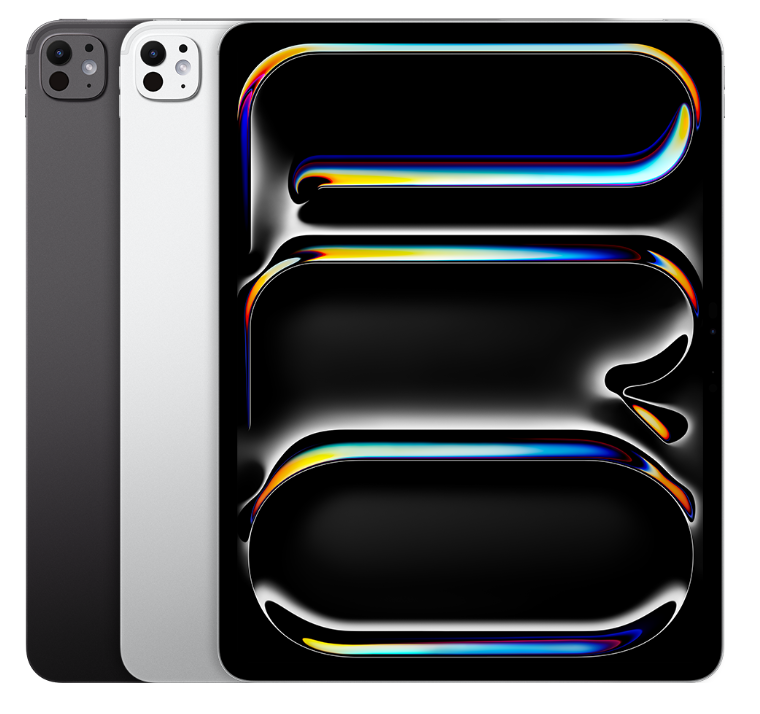
Key Evolution
The iPad Pro introduced ProMotion displays, Face ID, and USB-C. With Apple Silicon chips, it now rivals laptops in performance.
If you use your iPad for productivity tasks, knowing how to take a screenshot on Mac can also improve your workflow across Apple devices.
How To Identify Your iPad Model
If you are unsure which iPad you own, you can quickly identify it using system settings.
- Open Settings.
- Tap General.
- Select About.
- Check Model Name.
- Tap Model Number.
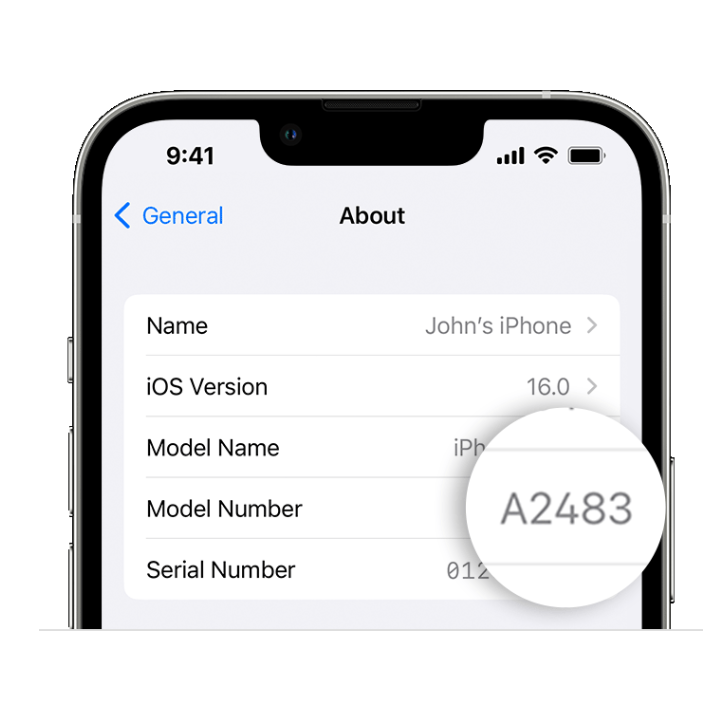
For more detailed identification, you can also follow the methods used to find your Apple serial number and confirm your exact device.
How To Check If Your iPad Is Still Supported
Apple devices receive updates for several years, but older models eventually stop getting support. You can quickly verify if your iPad is still supported by following the steps below.
Check Software Update Availability
- Open Settings.
- Tap General.
- Select Software Update.
- Wait for the system to check for updates.
- Review the result shown on screen.
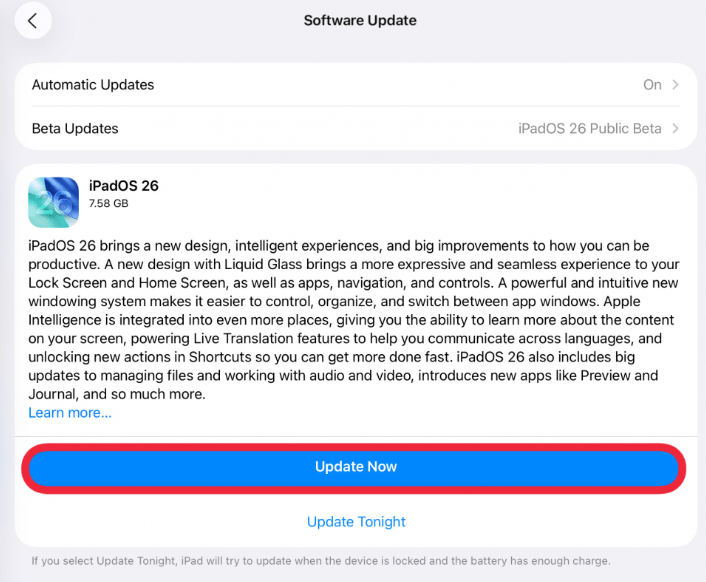
If a new iPadOS version is available, your device is still supported. If you see a message that your iPad is up to date, but it runs an older iPadOS version, it may no longer receive major updates.
Verify Apple Support Coverage
- Open a browser on your iPad.
- Go to Apple’s coverage website.
- Enter your serial number.
- Submit the form.
- Check the support status displayed.
If you are not sure how to locate your serial number, you can use this method to find your Apple serial number quickly.
Understand Apple Support Status
Apple classifies devices into different categories.
- Supported, receives updates and repairs
- Vintage, limited repair availability
- Obsolete, no hardware support
If your iPad is no longer supported and starts experiencing issues, performing a full reset using this guide to reset your iPad properly can still improve performance.
Which iPad Should You Buy Today?
Choosing the right iPad depends on your usage needs.
- Standard iPad for basic tasks
- iPad mini for portability
- iPad Air for performance and value
- iPad Pro for professional workflows
If you use multiple devices, ecosystem features become important. For example, you can even AirDrop files from iPhone to Windows PC when working outside Apple’s ecosystem.
Tips
- Always check Apple Pencil compatibility
- Prefer USB-C models for future-proofing
- Avoid devices older than 5 to 6 years
- Keep your iPad updated
- Back up your data regularly
Understanding Your iPad’s Place Today
The iPad has transformed from a simple tablet into a powerful computing platform. Each generation introduced meaningful upgrades that improved performance, display quality, and usability.
Understanding the full list of iPad generations helps you identify your device, decide when to upgrade, and avoid compatibility issues with apps and accessories.
Key Takeaways
The iPad lineup includes multiple categories, each evolving at a different pace. Apple introduced major improvements like Retina displays, USB-C, and M-series chips over time. This guide helps users identify their iPad, check support status, and choose the right model. It is useful for both new buyers and existing users.
FAQs?
There are over 30 iPad models across four categories, including standard, mini, Air, and Pro.
The newest models include iPad Pro with M4 chip and iPad Air with M2, alongside the latest standard iPad.
You can check in Settings under General and About to find the model name and number.
Devices older than around 7 years are usually considered obsolete and no longer receive updates.
Yes, especially if your device no longer receives updates or struggles with performance and app compatibility.




0 Comments