How to Access Files and Folders on an SMB Server on iPhone and iPad (iOS 18)
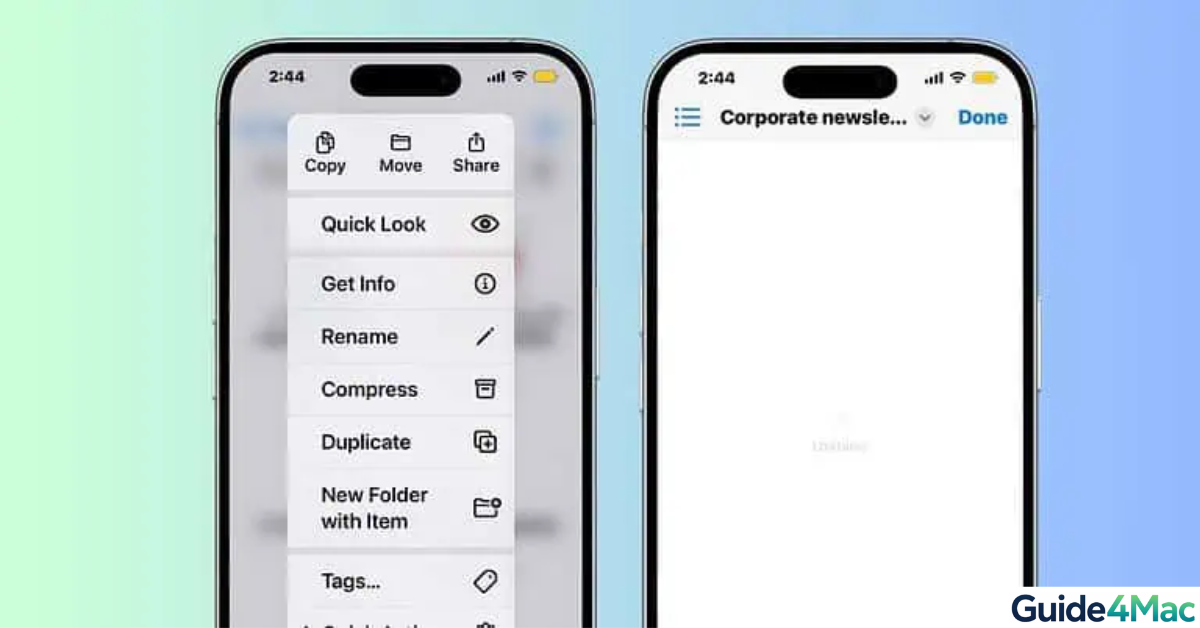
Accessing files from a shared server directly on your iPhone or iPad is easier than ever thanks to the Files app. Whether you’re connecting to a home NAS, office server, or shared drive, SMB (Server Message Block) lets you browse and manage files remotely.
Today, SMB is still one of the most widely used file-sharing protocols, especially in business and home networks. But small setup mistakes can easily block the connection—this guide walks you through exactly how to fix that.
1. Connect to an SMB Server Using the Files App
Time needed: 5 minutes
Total Time: 3–5 minutes
You can connect to an SMB server directly from the Files app, giving you full access to shared folders like local storage.
- Open the Files App
Launch the Files app on your iPhone or iPad.
- Tap Browse
Go to the Browse tab at the bottom.
- Open Options Menu
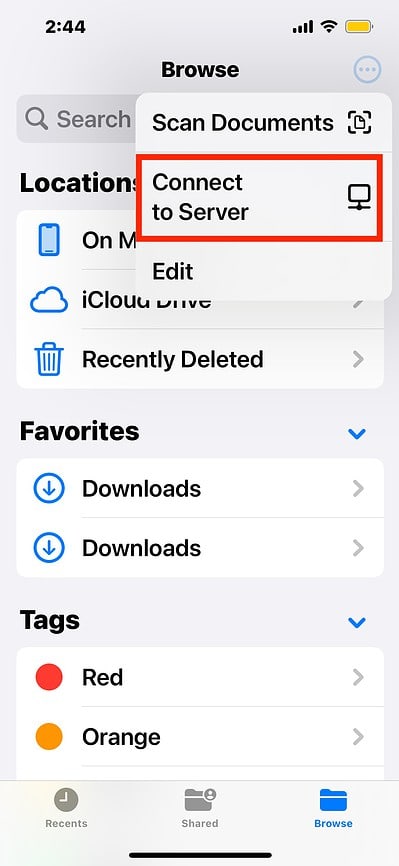
Tap the three dots (•••) in the top-right corner.
- Select Connect to Server
Choose Connect to Server.
- Enter Server Address
Type your SMB address (e.g.,
smb://192.168.1.10).![SMB server’s address—for example: smb://[IP Address or Server Name]](https://guide4mac.com/wp-content/uploads/2026/03/SMB-Server-HTML-473x1024.jpg)
- Log In
Enter your username and password or use Guest access.
- Access Files
Tap the server under Locations to browse folders.
2. Use the Correct SMB Address Format
Many connection failures come down to a simple formatting mistake. SMB requires a specific structure, and even a small error will prevent your iPhone from finding the server.
Studies show that incorrect server addresses are one of the top 3 causes of SMB connection errors.
- Start with
smb:// - Enter the correct IP (e.g.,
smb://192.168.1.10) - Or use hostname (e.g.,
smb://server.local) - Avoid using “http://” or incomplete addresses
3. Make Sure You’re on the Same Wi-Fi Network
SMB connections rely on your local network to detect servers. If your iPhone or iPad is on a different network, the server simply won’t show up.
Around 70% of SMB connection issues are network-related, especially when devices switch between Wi-Fi and mobile data.
- Open Settings → Wi-Fi
- Confirm you’re on the same network as the server
- Disable Mobile Data temporarily
- Try reconnecting in the Files app
4. Check Your Username and Password
Authentication errors are extremely common—even a small typo can block access completely.
In many cases, users assume the server is down, but it’s actually just a credential mismatch.
- Re-enter your username carefully
- Double-check your password
- Make sure Caps Lock isn’t enabled
- Test the same login on another device
If needed, updating your credentials can help restore access.
5. Restart Your Device and Router
Even if everything is set correctly, temporary network glitches can interrupt SMB connections.
A quick restart often fixes issues because it resets network routing and clears cached errors.
- Restart your iPhone or iPad
- Turn off your router for 10–15 seconds
- Turn it back on
- Reconnect and try again
6. Make Sure You’re Signed Into Your Apple ID
While SMB doesn’t strictly require an Apple ID, being signed in ensures smoother integration with Apple services and file access.
Users who aren’t signed in sometimes experience unexpected connection or syncing issues.
- Go to Settings
- Tap Sign in to your iPhone/iPad
- Enter your Apple ID credentials
- Restart your device
Common Problems
- Server not found
- Login failed
- SMB server not showing
- Connected but files won’t load
Tips for a Better SMB Experience
- Use a stable Wi-Fi network
- Save servers in Files
- Keep iOS updated
- Use static IP for servers
- Avoid public networks
FAQs (People Also Ask)
It allows access to shared network drives via the Files app.
Yes, using SMB.
Usually wrong address, network, or credentials.
No, Files app supports SMB natively.
Only if configured externally.
Yes, with proper authentication and secure networks.

0 Comments