How to View Your Safari History on iPhone And Keep It Private?
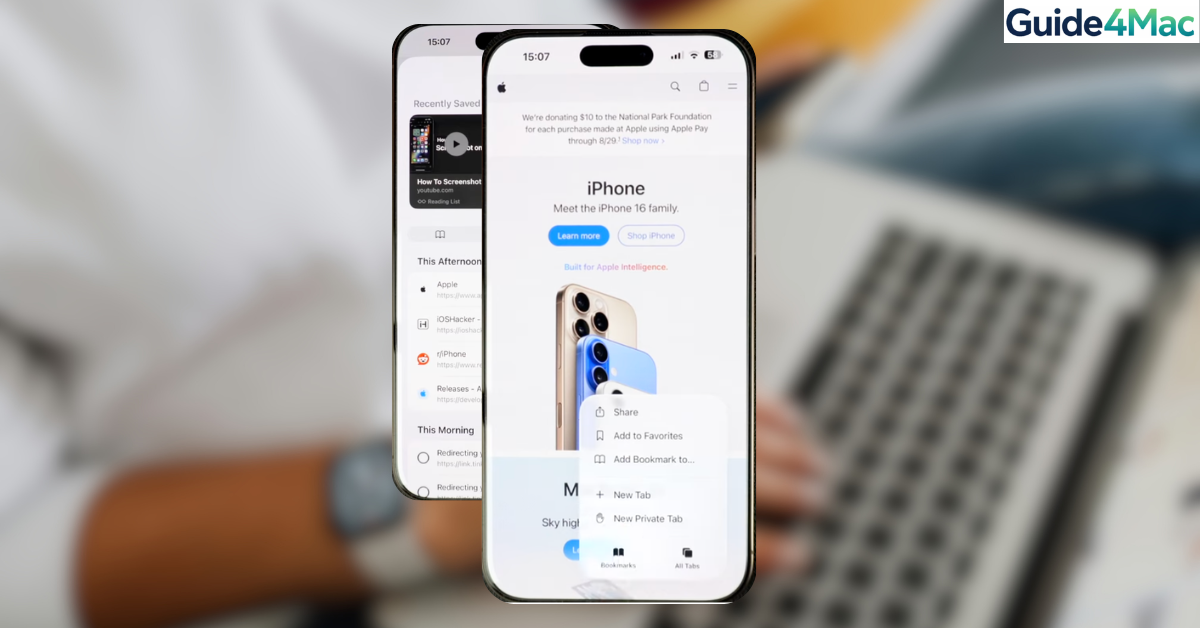
Finding a website you visited a few days ago shouldn’t feel like a digital archeology project. Whether you are trying to find an article you didn’t finish or need to track down a specific resource, Apple makes it relatively simple to access your browsing logs. With the recent updates in iOS 18 and the upcoming iOS 26, the interface has become more streamlined, though the core steps remain familiar for long-time users.
Managing your history is also a key part of maintaining your device’s performance. Over time, cached data and extensive history logs can occupy valuable storage space. If you find your device acting sluggish after heavy browsing sessions, you might need to how to fix macOS system data huge to ensure your iCloud synced data isn’t bloating your local storage.
How do I see my Safari browsing history on iPhone?
To view your history directly within the Safari app, follow these specific steps. This method allows you to search for specific terms or delete individual entries if you don’t want to wipe your entire browsing session.
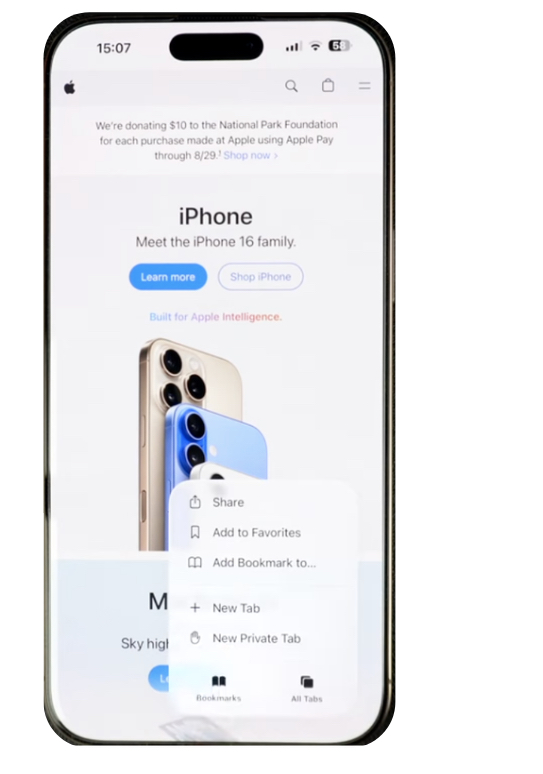
- Open the
 Safari app on your iPhone.
 - Locate the
 Bookmarks icon, which looks like an open book, at the bottom of the screen.
 - Tap the Bookmarks icon.
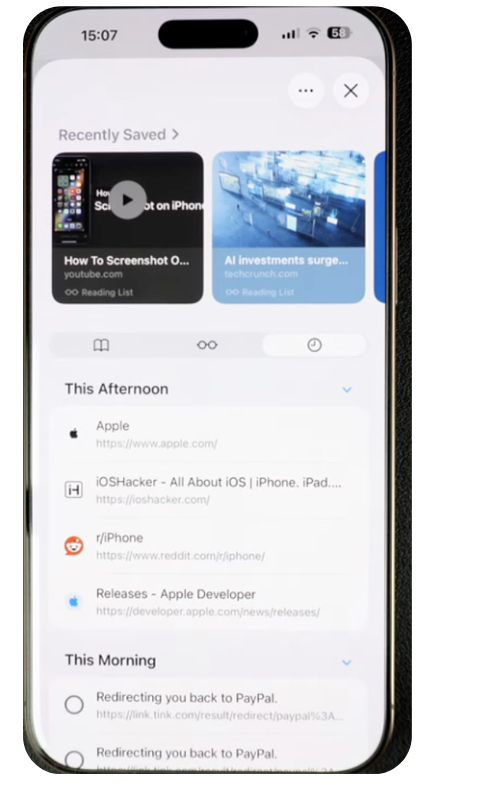
- Tap the History icon, which resembles a clock face, located at the top right of the menu.
- Scroll through the list to find your desired website.
- Use the Search bar at the top to find specific keywords if the list is too long.
Accessing History via Settings
If you cannot open Safari or prefer a more administrative view, you can check some browsing data through the system settings. This is also the primary area where you can clear Mac cache the ultimate guide style for your mobile device to keep things running smoothly.
- Open the Settings app.
- Scroll down and tap Safari.
- Scroll to the very bottom of the Safari menu.
- Tap on Advanced.
- Tap on Website Data.
Restore Recently Closed Tabs
Sometimes you don’t need the full history, but rather a tab you accidentally swiped away five seconds ago. iOS has a hidden shortcut for this exact scenario that saves you the trip to the Bookmarks menu. For those who frequently lose their place, learning how to restore accidentally closed Safari tabs on iPhone is a genuine life-saver.
- Open Safari.
- Tap the Tabs icon (the two overlapping squares) in the bottom right corner.
- Long-press the “+” (plus) icon in the center of the bottom bar.
- Review the list of Recently Closed Tabs that appears.
- Tap the specific site you wish to reopen.
Syncing History Across Devices
If you are using an iPad or a Mac alongside your iPhone, your history should sync automatically via iCloud. This allows you to start a search on your phone and finish it on your desktop. If you find that your devices aren’t talking to each other, you may need to how to turn on iMessage on iPhone iPad Mac and ensure your general iCloud sync settings are active across the board.
- Open Settings.
- Tap your Apple ID name at the top.
- Tap iCloud.
- Tap Show All under the “Apps Using iCloud” section.
- Ensure the toggle for Safari is turned on (green).
Essential Browsing Tips
- Use Search: Don’t scroll manually if you remember even one word of the URL or page title; the search bar in the History tab is surprisingly fast.
- Long-Press for Previews: In the history list, you can long-press any entry to see a small preview of the page without fully navigating away from your list.
- Private Browsing: If you don’t want a site to appear in this list at all, tap the Tab groups button and select Private before you start your session.
- Check Link Coverage: If you are browsing official Apple support pages through Safari, you can how to check Apple service support coverage for all devices directly to see your hardware status.
Master Your Mobile Timeline
Navigating your Safari history is a fundamental skill for any iPhone power user. By utilizing the Bookmarks menu for deep searches or the “plus” button shortcut for quick restores, you can move through your digital past with zero friction. Keeping this data organized not only helps your productivity but ensures your device remains responsive and clutter-free.
FAQ
Open Safari, tap the Bookmarks (book) icon, and then tap the History (clock) icon to see your full list of visited sites.
Generally, once history is cleared, it is gone from the device. However, you may find remnants under Settings > Safari > Advanced > Website Data.
You might be in Private Browsing mode, which does not record history, or your iCloud Safari sync might be disabled in your Apple ID settings.
Safari history is categorized by date (e.g., Today, Yesterday). Use the search bar at the top of the History menu to filter by keyword to find specific entries from previous days.


0 Comments