Fix “macOS Cannot Verify This App Is Free From Malware” Error Message
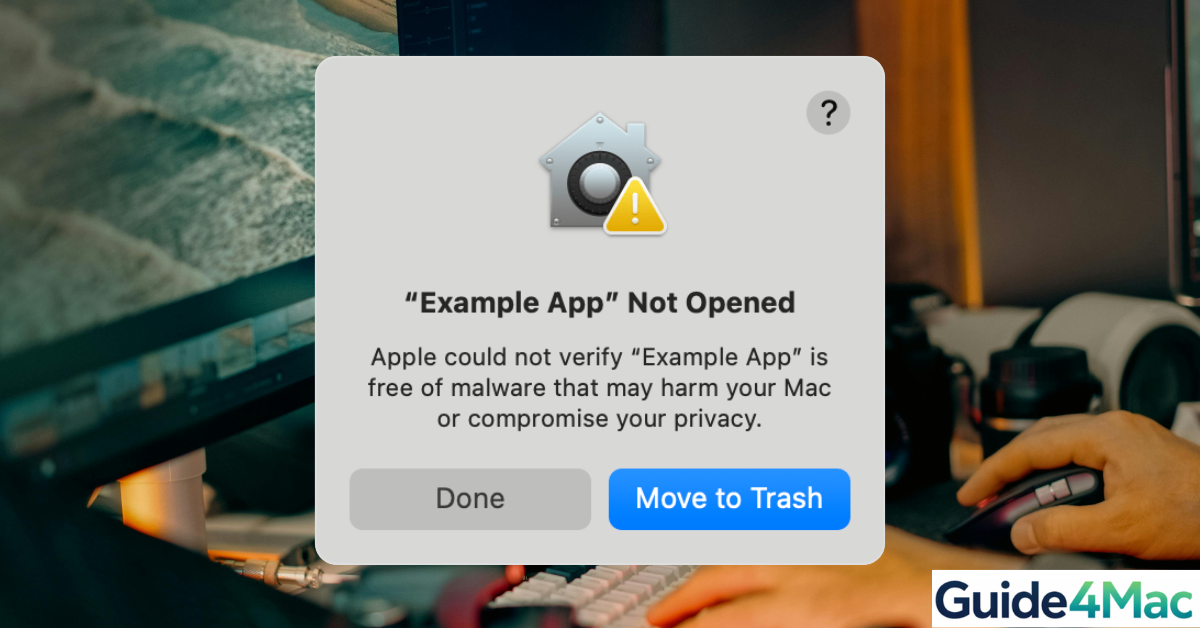
The “macOS cannot verify that this app is free from malware” error appears when Apple’s security system blocks an application that is not notarized or downloaded from an unidentified developer. This protection comes from Gatekeeper, a built-in macOS security feature that prevents potentially unsafe apps from running on your Mac.
Although the warning looks alarming, it does not always mean the app is malicious. Many legitimate utilities trigger this alert simply because they are distributed outside the App Store. In this guide, you will learn several safe ways to open the app, adjust Gatekeeper settings, and verify whether the software is trustworthy before installing it.
Why Does macOS Say It Cannot Verify an App Is Free From Malware?
Apple introduced strict app verification through Gatekeeper to protect Macs from harmful software. When you try to open an app downloaded from the internet, macOS checks whether the developer is verified and whether the app was notarized by Apple.
If the app fails this verification, macOS blocks it and shows the malware warning message.
This issue commonly appears on modern macOS versions such as macOS Ventura, Sonoma, and Sequoia, especially on Apple Silicon devices like MacBook Air, MacBook Pro, iMac, and Mac Studio.
Before changing security settings, it is a good idea to confirm the file is safe and downloaded from the official developer website.
1. Open the App Using Right Click
One of the easiest ways to bypass the Gatekeeper warning is by opening the application using the contextual menu. This method tells macOS that you trust the file.
- Open Finder.
- Navigate to the downloaded app file.
- Right-click the application.
- Select Open from the menu.
- Click Open again in the confirmation dialog.
After the first launch, macOS will remember your choice and allow the app to open normally.
If you frequently manage files on your Mac, learning how screenshots and files are stored can also help organize downloads, as explained in this guide on taking screenshots on a Mac which explains Finder storage locations.
2. Allow the App in Privacy & Security Settings
Time needed: 2 minutes
This is the most reliable way to open an app that macOS blocked.
- Open System Settings
Open the Apple menu and select System Settings.
- Go to Privacy & Security
Scroll down and open Privacy & Security.
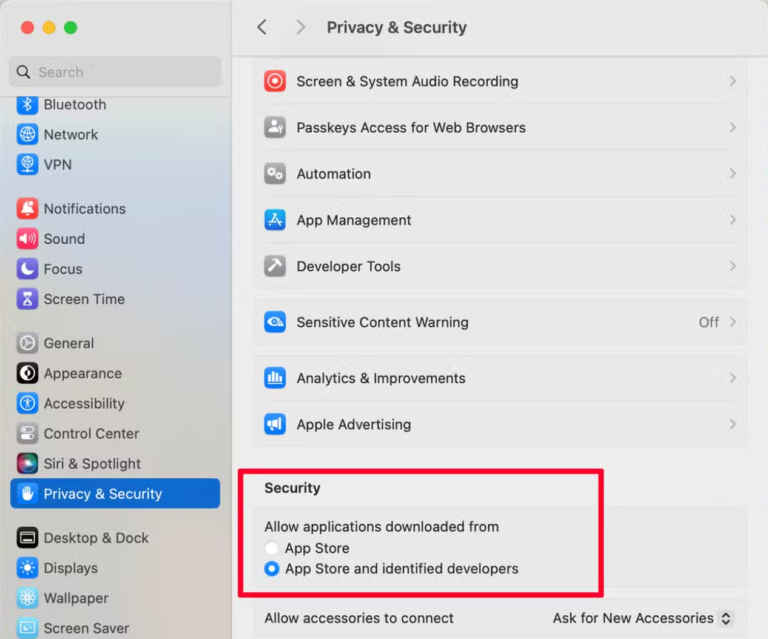
- Find the blocked app notification
Look for the message that says the app was blocked because it cannot be verified.
- Click Open Anyway
Select Open Anyway to allow macOS to launch the application.
- Confirm the action
Click Open in the confirmation window.
After you allow the app once, macOS will remember your decision and stop blocking it.
3. Remove the App From Quarantine Using Terminal
macOS automatically places downloaded files in a quarantine state. Removing that attribute can bypass the verification warning.
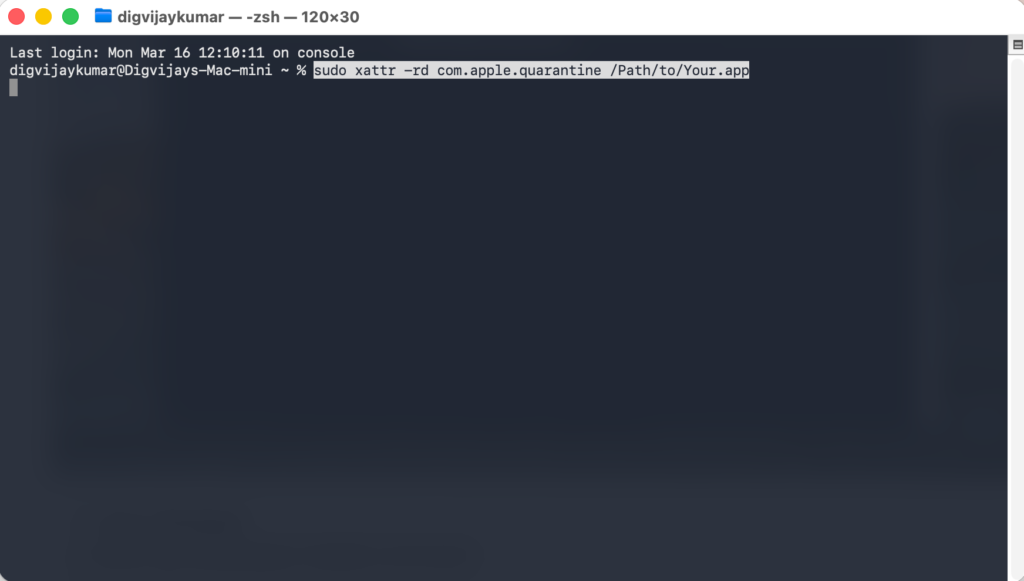
- Open Terminal using Spotlight Search.
- Type the quarantine removal command.
- Drag the application file into the Terminal window.
- Press Return to run the command.
- Launch the app again.
This method removes the security flag from the file. Only use it if you trust the source of the application.
If you often use Terminal to manage macOS issues, cleaning unnecessary system files can also improve performance. You can learn more in this guide about fixing large macOS system data storage problems.
4. Check the App With Apple Security Tools
Before bypassing the warning, verify the file is safe.
- Scan the file using macOS security tools.
- Check the developer’s official website.
- Look for a notarized or signed version of the app.
- Download the latest version if available.
- Try opening the updated installer.
Apple’s security ecosystem, including XProtect and Gatekeeper, constantly scans apps for known malware signatures. Updating the app often resolves the verification issue.
5. Temporarily Allow Apps From Anywhere
Older macOS versions allowed installing apps from anywhere. This option still exists but is hidden by default.
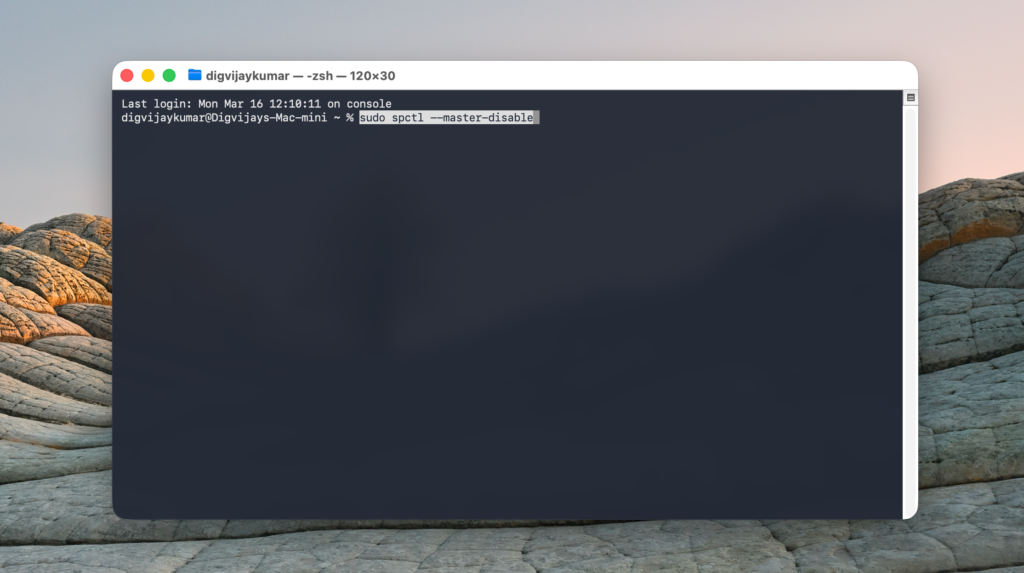
- Open Terminal.
- Enter the Gatekeeper disable command.
- Press Return.
- Open System Settings.
- Allow apps from Anywhere.
This method lowers system security and should only be used temporarily. Re enable Gatekeeper after installing the trusted application.
Tips
- Download apps only from trusted developer websites.
- Avoid disabling Gatekeeper permanently.
- Always scan unknown apps before opening them.
- Keep macOS updated to ensure security patches are installed.
- Use Finder and Activity Monitor to track suspicious processes.
If your Mac behaves strangely after installing software, it may help to restart or force restart your computer using the steps explained in this guide on forcing a Mac to shut down or restart.
Get Your App Running Safely
The “cannot verify that this app is free from malware” warning is a normal part of macOS security. Gatekeeper blocks apps that Apple cannot confirm as safe, but that does not always mean the software is dangerous.
In most cases, simply opening the app through Finder or allowing it in Privacy & Security settings solves the issue. Always verify the source before bypassing security checks to keep your Mac protected.
If you regularly troubleshoot Apple devices, learning other recovery methods such as resetting an iPad properly can also help when dealing with system level errors.
Key Takeaways
The macOS malware verification warning appears when Gatekeeper blocks an unidentified app. This usually happens when the software is not notarized by Apple or downloaded outside the App Store. You can safely bypass the warning using Finder, System Settings, or Terminal if you trust the app source. These solutions work on both Intel based Macs and Apple Silicon devices running modern macOS versions.
FAQs?
It means Apple’s Gatekeeper system cannot confirm the developer or notarization status of the application.
No. Many legitimate apps trigger this warning because they are distributed outside the Mac App Store.
Yes, if the app comes from a trusted source. You can open it using Finder or allow it in Privacy & Security settings.
Yes. The warning appears on both Intel based Macs and Apple Silicon devices such as M1, M2, M3, and newer chips.
Updating macOS can help because newer versions improve Gatekeeper verification and developer notarization support.


0 Comments