How To Force Restart or Shut Down a Mac Or Macbook Easily?

If your computer freezes or becomes unresponsive, knowing how to force restart or shut down a Mac can quickly restore control. While macOS normally handles shutdown and restart tasks smoothly, system crashes, frozen apps, or hardware issues may require a manual restart.
Whether you are using a MacBook Air, MacBook Pro, iMac, or Mac Studio, there are several ways to force restart the system safely. If the problem is caused by frozen apps, you may also want to learn how to clear Mac cache files to improve performance and prevent recurring slowdowns.
This guide explains when you should force restart a Mac and the safest methods to do it.
Why Would You Need to Force Restart a Mac?
A force restart interrupts the normal macOS shutdown process. It should only be used when the system stops responding to normal commands.
Common situations include:
- The mouse or trackpad stops responding
- The screen is frozen
- A specific app causes the entire system to lock up
- macOS stops responding to the Apple menu
If possible, always try a normal restart first before forcing the system to shut down.
1. Restart the Mac Using the Apple Menu
The safest way to restart your Mac is through the Apple menu.
- Click the Apple menu in the top-left corner.
- Select Restart.
- Confirm the restart when prompted.
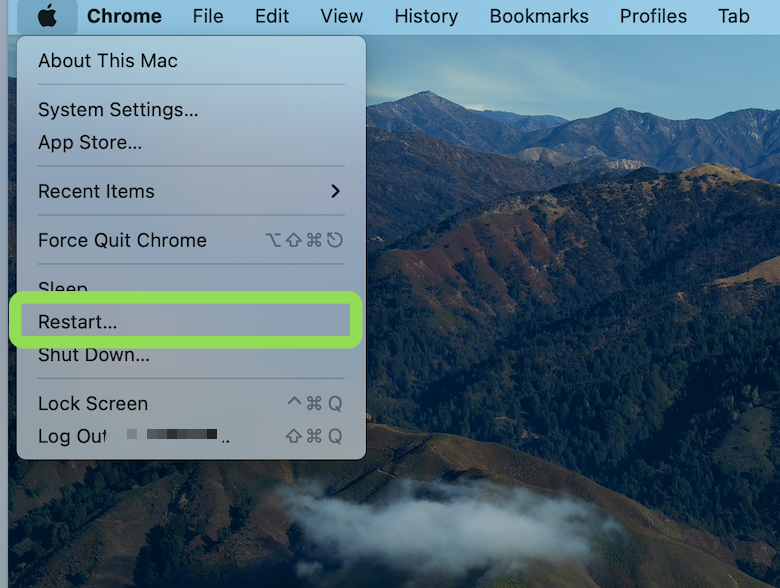
This allows macOS to close apps and save system data before restarting.
2. Force Quit Frozen Apps First
Sometimes the Mac itself is still working, but one application becomes frozen.
- Press Command (⌘) + Option (⌥) + Escape (esc).
- Wait for the Force Quit Applications window.
- Select the frozen application.
- Click Force Quit.
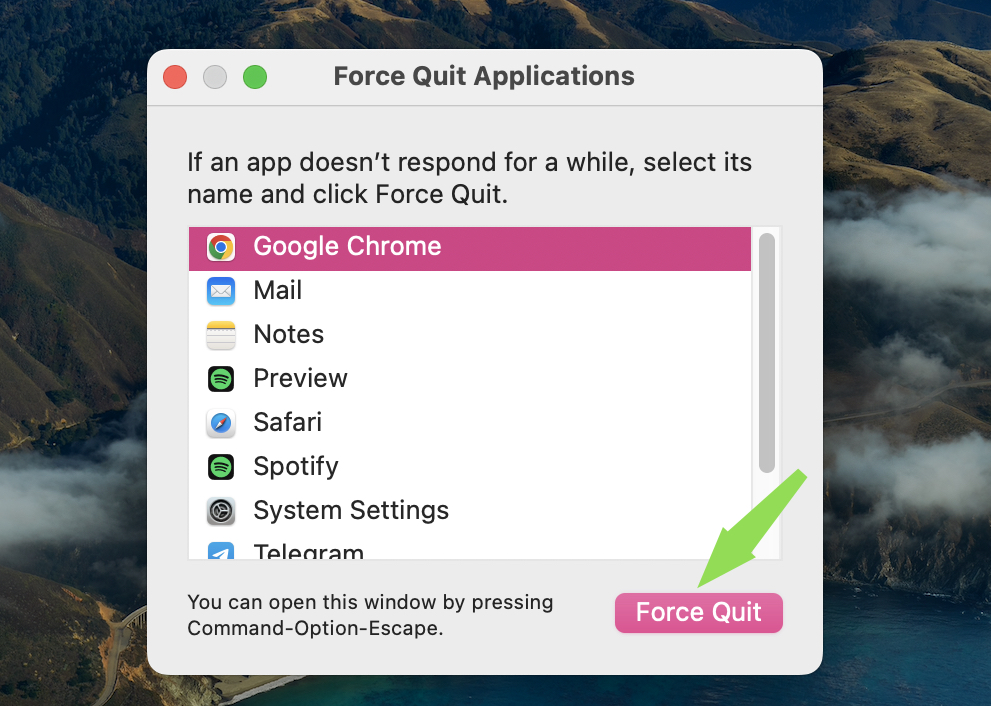
Closing the problematic app may restore normal system operation without needing a restart.
If apps frequently freeze, restarting the computer can help reset background processes.
3. Force Restart a Mac Using the Power Button
If your Mac does not respond to keyboard commands or menus, you can force restart it using the power button.
- Press and hold the Power button.
- Continue holding for about 10 seconds.
- Wait until the Mac powers off completely.
- Press the Power button again to turn it back on.
This method works on both Intel-based Macs and newer Apple Silicon models such as M1, M2, M3, and M4 Macs.
Use this option only when the system is completely frozen.
4. Force Restart Using Keyboard Shortcuts
If the keyboard is still responsive, you may be able to restart the Mac with a shortcut.
- Press Control (⌃) , Command (⌘) and Power button (on MacBooks, this is also the Touch ID sensor at the top right).
- Hold the keys until the screen turns off.
- Release the keys once the Mac restarts.
This shortcut forces the system to reboot immediately.
5. Shut Down a Mac When the Screen Is Frozen
In some cases, you may want to shut down instead of restarting.
- Press and hold the Power button.
- Keep holding until the screen goes black.
- Wait about 10 seconds.
- Press the Power button again to start the Mac.
This process cuts power to the system and stops all processes immediately.
6. Disconnect External Devices
Sometimes external devices can cause macOS to freeze during shutdown.
- Turn off the Mac using the Power button.
- Disconnect USB drives, monitors, and accessories.
- Restart the Mac again.
- Reconnect devices one by one.
This helps identify whether an accessory is causing system conflicts.
7. Update macOS to Prevent Freezing
Frequent system freezes can indicate outdated software.
- Click the Apple menu.
- Select System Settings.
- Open General.
- Click Software Update.
- Install any available macOS updates.
Keeping macOS updated improves stability and fixes many known bugs.
Tips
- Always try a normal restart first before forcing shutdown.
- Save open files frequently to avoid data loss.
- Keep macOS updated for better stability.
- Use Force Quit for frozen apps instead of restarting immediately.
- Avoid holding the power button unless the Mac is fully unresponsive.
Getting Your Mac Running Again
Force restarting a Mac is sometimes necessary when the system becomes completely unresponsive. While it interrupts the normal shutdown process, it is a reliable way to recover from system freezes and application crashes.
In most cases, simply restarting the Mac or force quitting a frozen app will restore normal operation. If freezing continues, updating macOS and reviewing installed apps can help prevent future issues.
Key Takeaways
Force restarting a Mac is useful when the system becomes frozen or unresponsive. The safest method is restarting through the Apple menu, but the power button or keyboard shortcuts can force a reboot when macOS stops responding. Using Force Quit to close frozen apps can sometimes solve the problem without restarting the entire system.
FAQs?
Yes, but it should only be used when the system is completely unresponsive because it can interrupt active processes.
Holding the power button forces the computer to shut down immediately by cutting power to the system.
Hold the power button for about 10 seconds until the device shuts down, then press it again to restart.
Occasional force restarts are safe, but frequent forced shutdowns may risk data loss.
Common causes include outdated macOS versions, software bugs, low storage space, or problematic applications.




0 Comments