How to Fix Messages Search Not Working in iOS 26 on iPhone
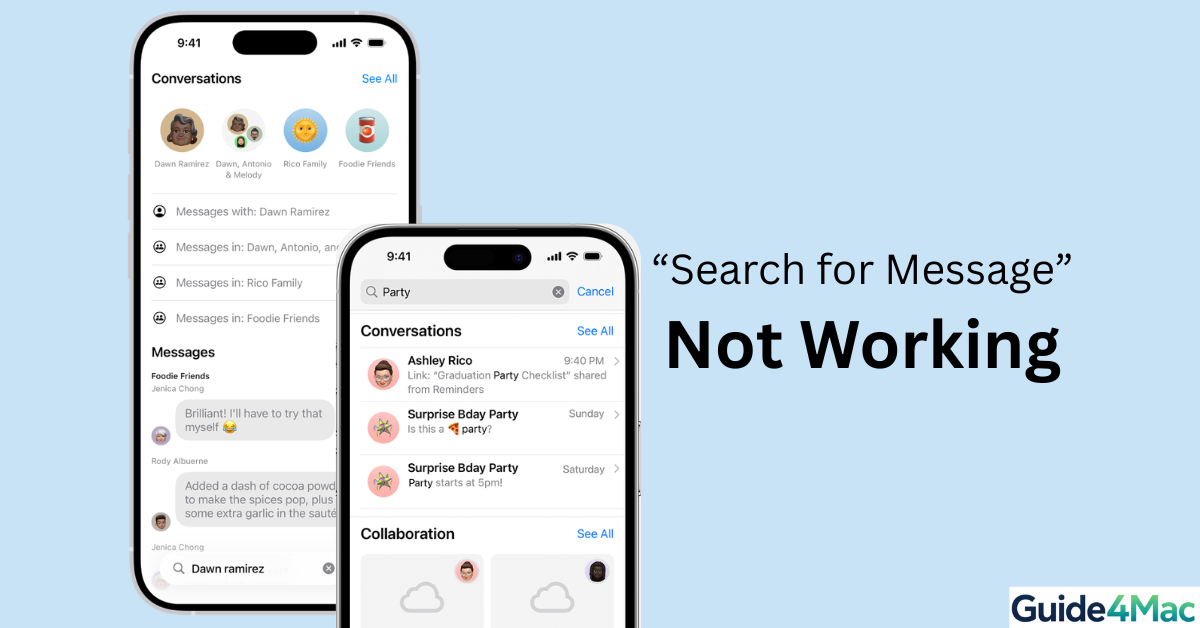
After installing iOS 26, many iPhone users started noticing something frustrating: Messages search suddenly stops working, even though conversations are still there. In fact, across Apple Community discussions, users with years of chat history report that even exact keywords—like a name or address—return no results.
It seems the issue isn’t with Messages itself. Instead, it’s tied to Spotlight indexing, the system your iPhone uses to search content. When this indexing fails or gets interrupted during an update, your device simply can’t “see” your messages anymore.
The good news? There are a few reliable ways to fix it—and they’re simpler than you might expect.
Fix Messages Search Not Working on iPhone
1. Restart Your iPhone to Reset Background Processes
To start with, a simple restart can go a long way. After a major update, background services like indexing may freeze or fail to restart properly.
- Go to Settings → General → Shut Down to access the power screen
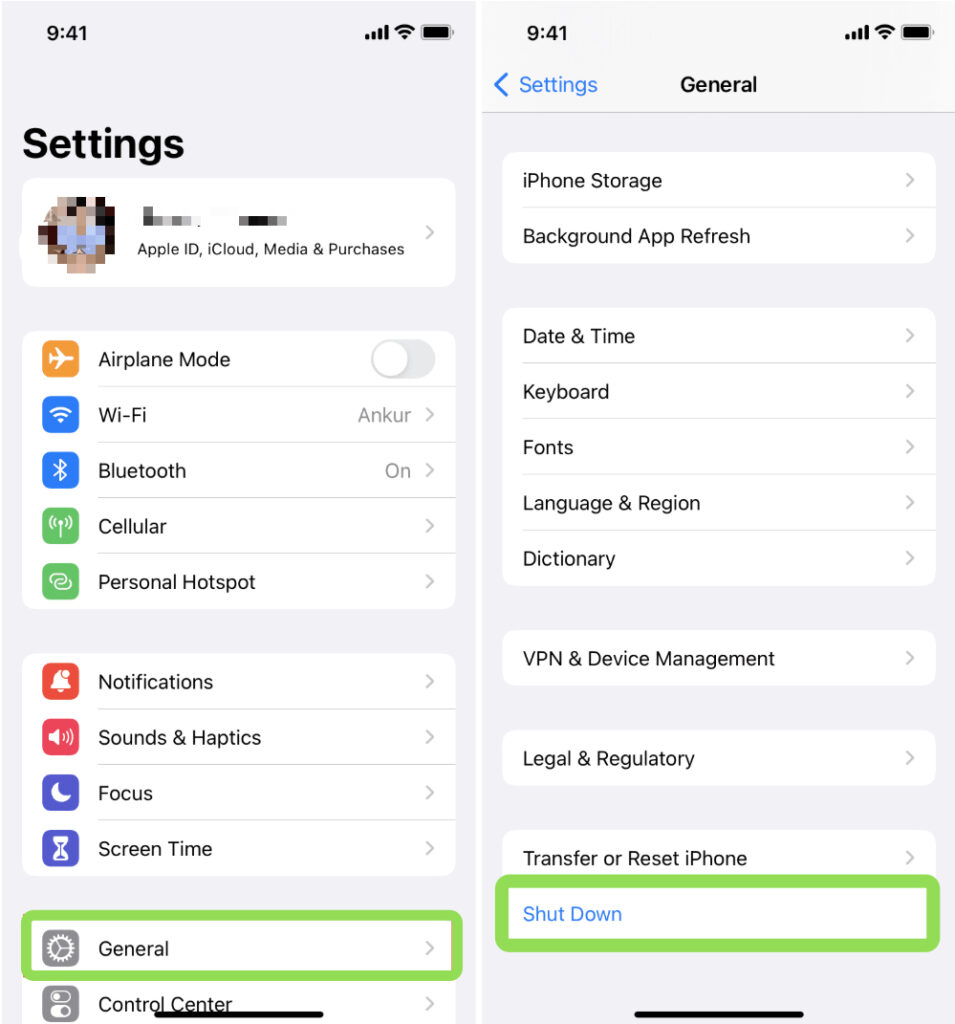
2. Drag the slider to turn off your iPhone
3. Wait 30 seconds so the system fully resets
4. Press and hold the Side button until the Apple logo appears
5. Unlock your iPhone and try searching again
In many cases, users notice that recent messages begin to reappear first, which suggests indexing has resumed.
2. Toggle Messages in Spotlight Search Settings
Now, if restarting didn’t fully fix the issue, this next step targets the root of the problem. By resetting search settings, you force iOS to rebuild the Messages index.
- Go to Settings → Search → Messages to open Messages search settings
- Turn OFF Show App in Search
- Turn OFF Show Content in Search
- Wait 30 seconds to let the system reset indexing
- Turn both options back ON
Interestingly, users consistently report that this step restores missing results because it rebuilds the entire Spotlight database for Messages.
3. Free Up Storage Space
Time needed: 13 minutes
At first glance, storage might not seem related—but in fact, it plays a crucial role. When your iPhone is low on space, indexing often stops or never completes. That’s why many users only see results return after clearing storage.
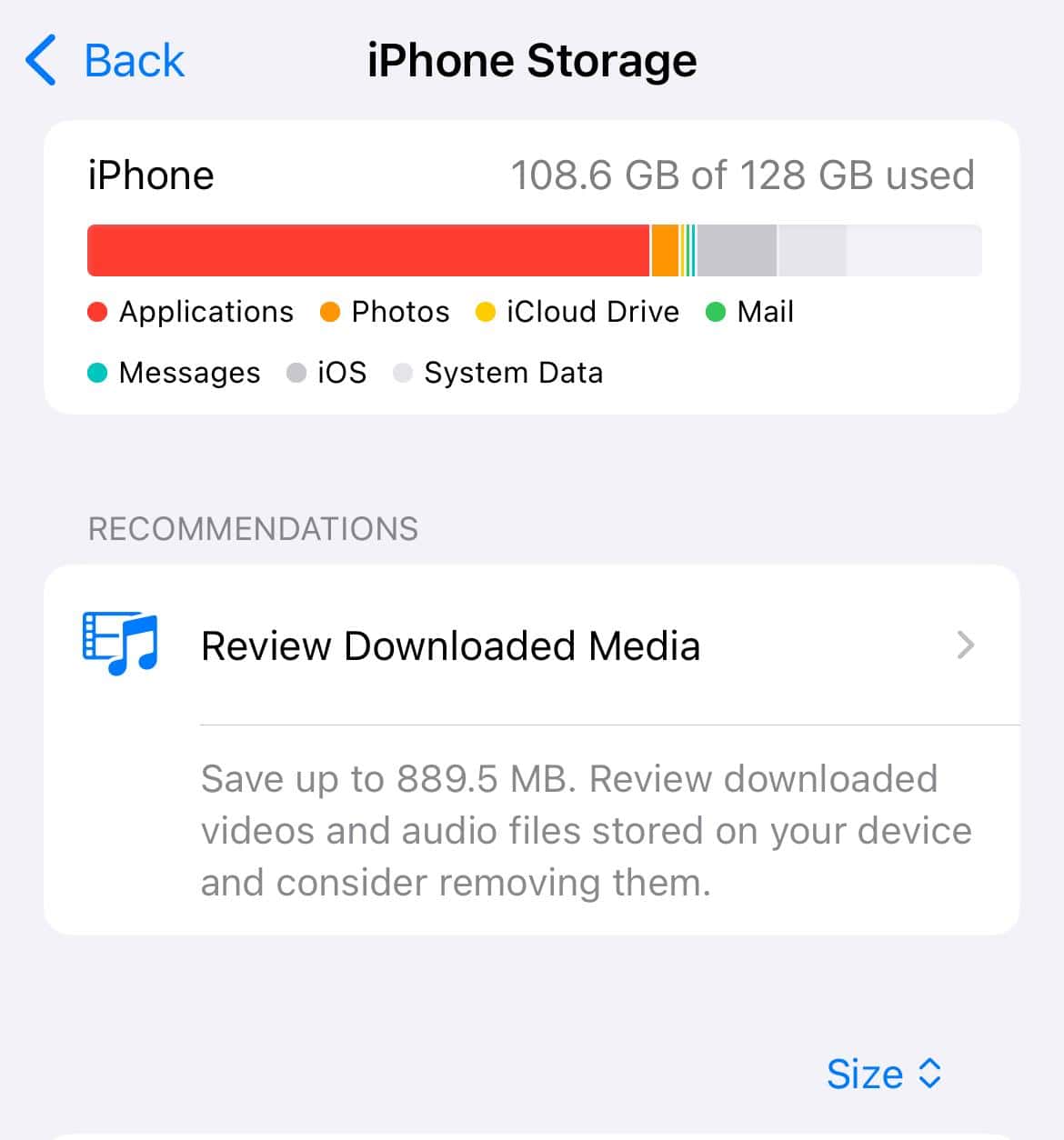
- Open iPhone Storage
Go to Settings → General → iPhone Storage to check how your storage is being used.
- Identify What’s Taking Space
Look through the list and focus on large apps, media files, and message data.
- Remove Unused Apps
Tap on apps you don’t use and delete them to quickly free up space.
- Clean Up Message Attachments
Open Messages and delete large photos or videos from conversations.
- Ensure Enough Free Space
Aim for at least 5–10 GB of available storage so indexing can complete properly.
4. Toggle iMessage Off and On
Moreover, refreshing the Messages service itself can help resolve syncing conflicts that affect search.
- Go to Settings → Messages to access iMessage settings
- Turn OFF iMessage
- Wait 30 seconds to reset the service
- Turn iMessage back ON
- Allow a few moments for messages to sync again
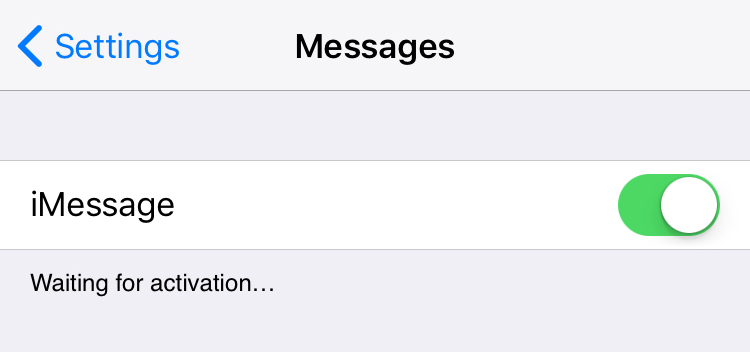
From user feedback, this step often helps bring older conversations back into search, especially when combined with storage cleanup.
5. Leave Your iPhone Charging Overnight
Finally, there’s one step that many people overlook. Indexing doesn’t always happen instantly—in fact, iOS prioritizes it when your iPhone is idle.
- Connect your iPhone to a charger
- Go to Settings → Wi-Fi and make sure you’re connected
- Lock your iPhone using the Side button
- Leave it untouched for several hours (overnight works best)
- Check Messages search again the next day
It turns out that many users only see full results return after a full night of charging, once indexing finally completes.
Alternative Method: Update iOS 26
If the issue still persists, it may not be something you can fix manually. Sometimes, it’s simply a bug that Apple addresses in updates.
- Go to Settings → General → Software Update
- Download and install any available update
- Restart your iPhone once the installation completes
- Test Messages search again
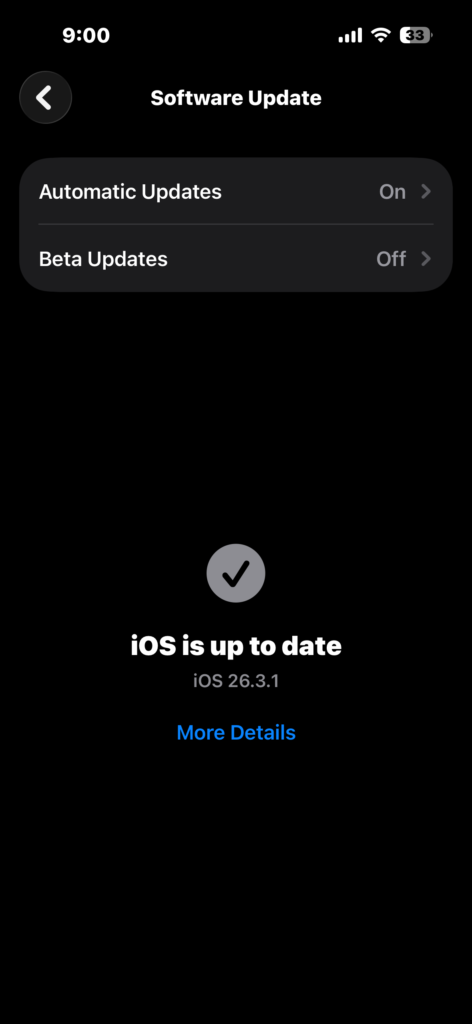
Many users confirm that later updates resolve indexing issues without further action.
What’s Really Going On Behind the Scenes
At this point, it’s worth understanding what’s actually happening. Messages search depends entirely on Spotlight indexing, not the Messages app itself.
So when you update iOS:
- Your iPhone needs to reindex all messages from scratch
- This process can fail due to low storage, interruptions, or background limits
- And if it fails once, search may remain broken until you manually trigger it again
That’s exactly why the fixes above work—they force iOS to rebuild that index properly.
Tips to Prevent This in the Future
- Keep at least 5–10 GB of free storage at all times
- After updating iOS, leave your iPhone charging overnight
- Avoid interrupting your device during the first hours after an update
- Make sure your Apple ID is properly connected for stable syncing
- If syncing feels inconsistent, updating your account credentials can help
- Keeping accounts properly configured (like adding email accounts) improves system stability
FAQs?
Because Spotlight indexing may fail or not complete after the update.
It depends on your data, but it can take from minutes to several hours.
Yes—in fact, it’s one of the most effective fixes.
No, your data remains safe.
Older messages may not be indexed yet or are still syncing.
Yes, Spotlight indexing issues can impact Mail, Notes, and more.


0 Comments