How to Remove “Your Apple iPhone Is Infected” Popup Scam (iPhone and Mac) [2026 Tested Guide]
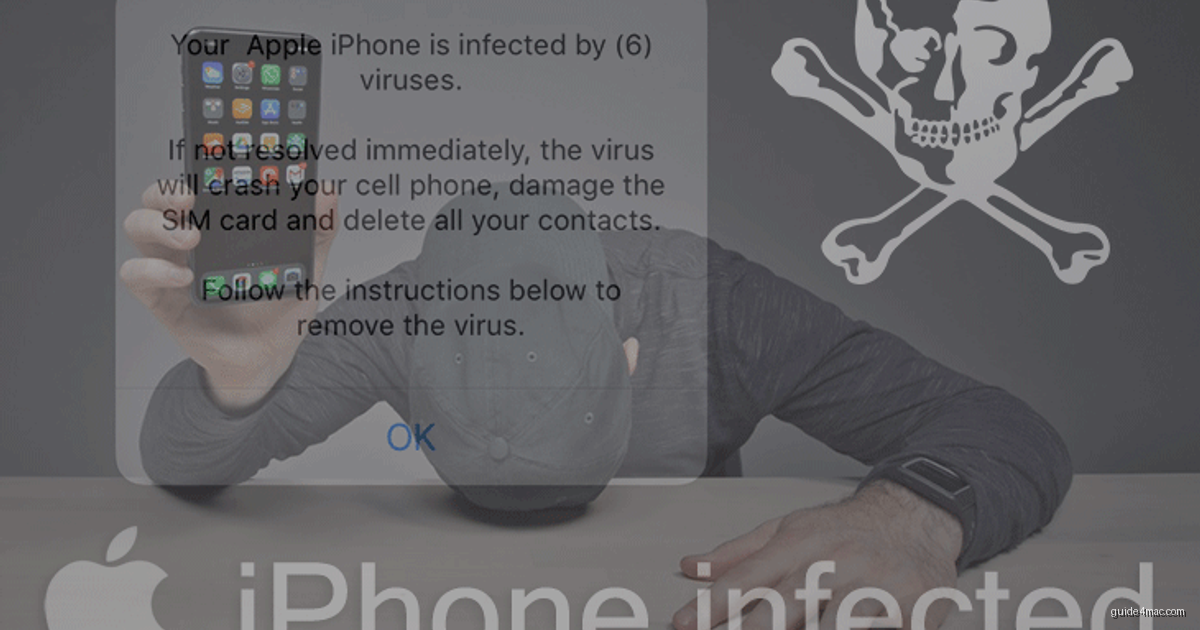
- “Your Apple iPhone Is Infected” Threat Profile
- What the “Your Apple iPhone Is Infected” Popup Actually Is
- Remove the “Your Apple iPhone Is Infected” Popup on iPhone and iPad
- Remove the “Your Apple iPhone Is Infected” Popup on Mac
- Detect the Scam’s Persistence Using Terminal
- Where to Find These Settings in macOS Ventura, Sonoma, and Sequoia
- Verify the Scam Is Fully Removed
- Common Mistakes When Removing This Scam
- Frequently Asked Questions
Apple’s own data confirms that iOS blocks the vast majority of traditional malware, yet browser-based scams targeting iPhone users have surged because they require zero code execution on the device itself. The “Your Apple iPhone is infected” popup is one of the most widely reported of these scams, targeting iOS and macOS browsers alike through rogue ad networks and adware-driven redirects. It uses fabricated virus counts and urgent language to pressure you into installing a VPN or other app the scammer earns a commission on. This guide walks you through removing the threat from both iPhone and Mac using only built-in tools. If you’re also dealing with unexpected redirects in your desktop browser, the steps in our guide on how Safari’s privacy features compare to Chrome’s defaults are worth reading alongside these instructions.
The popup is not a genuine Apple security warning. Apple does not deliver virus alerts through web pages, and no website has the ability to scan your iPhone for malware. What you’re seeing is a social engineering script embedded in a landing page, designed to look alarming enough that you tap through it without thinking.
“Your Apple iPhone Is Infected” Threat Profile
| Name | “Your Apple iPhone is infected” popup scam |
| Category | Browser-based scareware, adware-driven redirect, affiliate fraud |
| Affected Browsers/Systems | Safari and Chrome on iOS (iPhone, iPad); Safari and Chrome on macOS |
| Symptoms | Fake virus count popups, forced browser redirects, inability to close the tab without tapping OK, repeated prompts to install a VPN app |
| Severity | Medium: no direct file infection, but persistent redirects and potential installation of unwanted apps |
| Potential Damage | Installation of unwanted or harmful apps, browser settings hijacked, exposure to further scam pages, affiliate revenue sent to attackers |
What the “Your Apple iPhone Is Infected” Popup Actually Is?
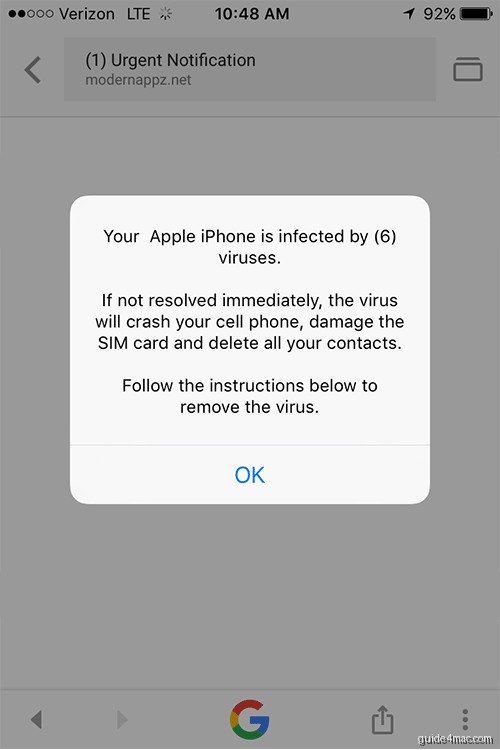
The “Your Apple iPhone is infected” popup is a browser-based scareware script that fabricates a virus infection count to frighten you into tapping through to a promoted app. It is not a system alert from Apple, and it has no ability to scan your device. It belongs to the same family of fake Apple alerts as the “your iPhone has been hacked” popup. iOS’s app sandboxing model means a webpage cannot access your file system, contacts, or installed apps, so any claim about a specific virus count is fabricated.
The popup typically displays a number in parentheses, such as “(6) viruses” or “(17) threats”, to make the warning feel precise and credible. That number is hardcoded or randomly generated in the page’s JavaScript. It has no relation to anything on your device.
The scam operates on an affiliate marketing model. The people behind it join a legitimate software promotion network, then use deceptive tactics to drive installs of a VPN or utility app. Each install earns them a commission. The app being promoted may itself be legitimate, but the method of promotion is fraudulent.
How “Your Apple iPhone Is Infected” Scam Escalates After You Tap OK?
After tapping OK, the second page displays:
“Your Apple iPhone is severely damaged by (6) viruses! We have detected that your Mobile Safari is (45.4%) DAMAGED by BROWSER TROJAN VIRUSES picked up while surfing recent corrupted sites. Immediate action is required to prevent it from spreading and infecting sensitive data like your Facebook account, WhatsApp messages, photos and private applications.”
These percentages and app names are invented. They exist only to push you toward tapping the download button. here is the screenshot with the popup message:
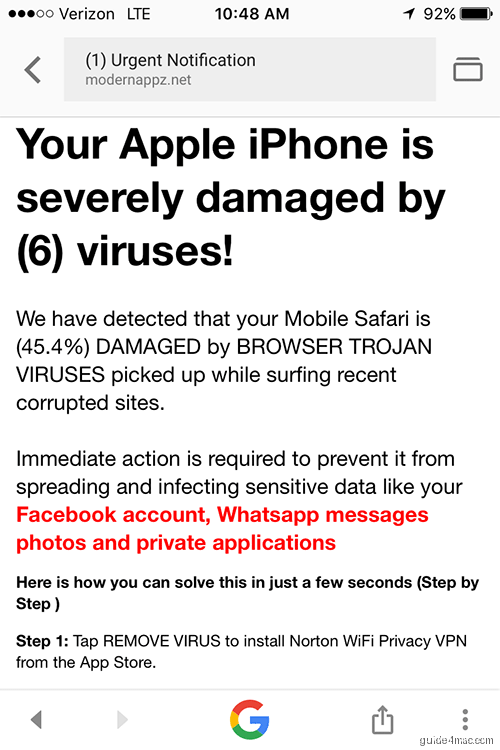
The second page also mimics the visual style of a legitimate App Store prompt. This is a deliberate design choice: matching Apple’s UI patterns reduces the moment of hesitation before a user taps through. The linked app varies depending on which affiliate campaign the scammer is running at the time.
How You End Up on the Scam Page?
There are two common paths to the scam page. The first is a rogue ad network: you tap a banner ad on a normal website, and the redirect chain lands you on the scam landing page, which auto-runs the popup script. You didn’t do anything wrong, and it can happen on reputable sites that use third-party ad networks.
The second path involves adware or a potentially unwanted application (PUA) already on your device. This type of software quietly redirects your browser to the scam domain on a schedule or trigger. If you’re seeing the popup repeatedly without clicking any ads, a PUA is the more likely cause. The removal steps below address both scenarios.
Remove the “Your Apple iPhone Is Infected” Popup on iPhone and iPad
Fixing the popup on iOS comes down to resetting the affected browser’s stored data. The scam page plants scripts or cookies that can trigger the alert again on your next visit, so a full data clear is the right move. You don’t need any third-party app to do this.
Fix Safari on iPhone or iPad
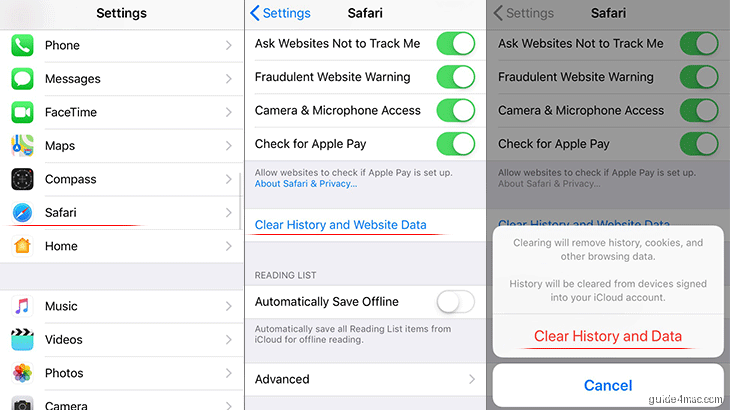
- Open Settings and scroll down to Safari.
- Tap Clear History and Website Data. This wipes the rogue scripts along with your normal Safari history.
- Confirm by tapping Clear History and Data. Check whether the popup has stopped. If it returns, continue to the next step.
- Return to the Safari settings screen and tap Advanced.
- Find the JavaScript toggle and switch it off. This prevents the popup script from loading at all.
Note that disabling JavaScript will break some legitimate websites. Once you’ve confirmed the scam is gone, you can re-enable it in Settings > Safari > Advanced. The scam scripts are tied to the specific domain you visited, not to JavaScript itself.
Reset Chrome on iPhone or iPad
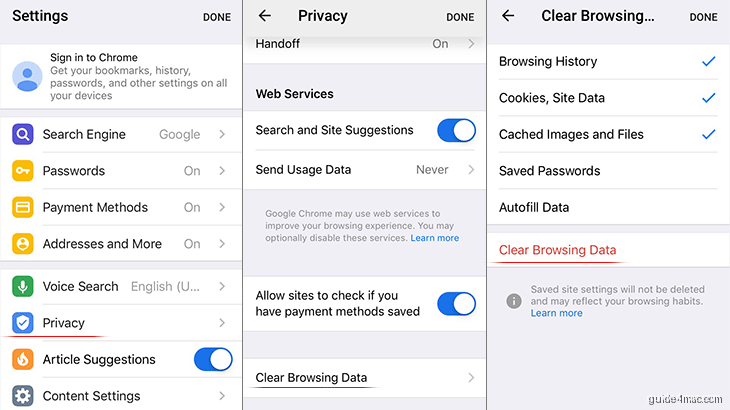
- Open Chrome and tap the three-dot menu in the bottom-right corner.
- Go to Settings and select Privacy.
- Tap Clear Browsing Data.
- Make sure Browsing History, Cookies, Site Data, and Cached Images and Files are all checked.
- Tap Clear Browsing Data and confirm. Redirect and popup activity in Chrome should now stop.
Remove the “Your Apple iPhone Is Infected” Popup on Mac
When this scam appears on a Mac, a PUA or adware app is almost always the underlying cause. The same kind of Chrome adware also drives the “Managed by your organization” message on Mac. Clearing your browser data alone won’t stop the redirects if a rogue background process is still running. Work through the steps below in order: quit the process first, then remove the app, then clean up Login Items.
Step 1: Quit the Suspicious Process in Activity Monitor
- Open Finder, click Go in the menu bar, and select Utilities.
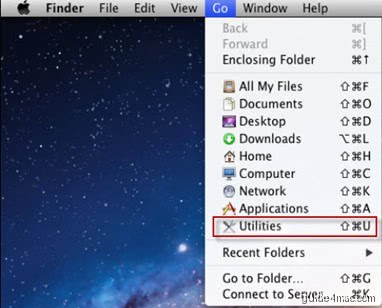
- Double-click Activity Monitor to open it.
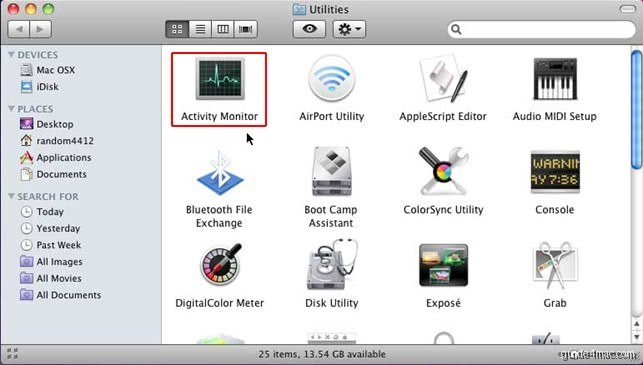
- Scan the process list for anything unfamiliar or suspicious, particularly processes with random strings of characters, names that mimic system tools, or names you don’t recognise. Select the suspicious entry.
- Click the X (Stop) button in the top-left of the Activity Monitor window and choose Force Quit when prompted.
Step 2: Delete the Rogue App from Applications
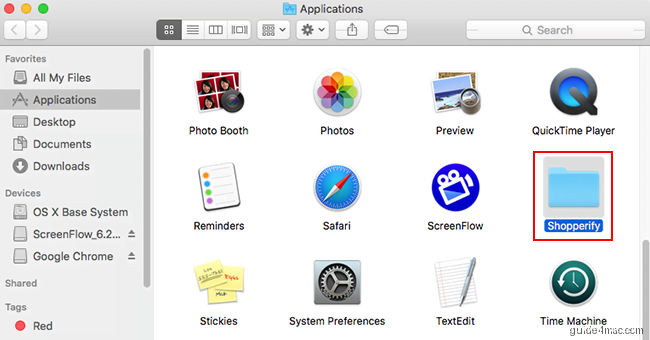
- In Finder, click Go and select Applications.
- Locate the same app you identified in Activity Monitor. If you’re not sure which app it is, look for recently installed apps you don’t remember adding.
- Right-click the suspicious app and select Move to Trash. Enter your Mac password if prompted. If macOS warns that it can’t verify the app is free from malware, that warning is expected for unsigned adware.
Step 3: Remove the App from Login Items
- Click the Apple menu and open System Settings (macOS Ventura and later) or System Preferences (macOS Monterey and earlier).
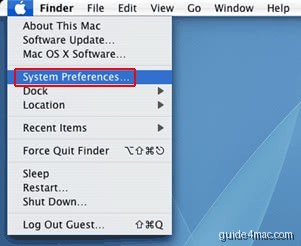
- In System Settings, go to General, then Login Items & Extensions. In older macOS versions, go to Users & Groups, select your account, and click Login Items.
- Find the unwanted app in the list. Select it and click the minus ( – ) button to remove it from startup. This prevents it from relaunching when you restart your Mac.
Detect the Scam’s Persistence Using Terminal
The GUI steps above cover the most visible components of the threat. Terminal diagnostics go a layer deeper, checking for launch agents, proxy settings, and configuration profiles that adware commonly uses to survive a basic app deletion. All commands in this section are read-only and make no changes to your Mac.
Check for Rogue Launch Agents and Daemons
Launch agents and daemons are background processes that macOS starts automatically. Adware frequently plants a launch agent in your Library folder to restart itself after you delete the main app.
- Open Terminal (found in Finder > Go > Utilities).
- Run the following command to list all active non-Apple background processes:
launchctl list | grep -v com.appleA clean output shows only Apple-signed services or entries you recognise from apps you intentionally installed. Any entry with a random string, an unfamiliar developer name, or a name resembling a system process but with slight misspelling is worth investigating further.
- Run this command to inspect the physical launch agent folders:
ls -la ~/Library/LaunchAgents /Library/LaunchAgents /Library/LaunchDaemonsLook for .plist files you don’t recognise, especially ones with recent modification dates that coincide with when the popups started. Note any suspect file names, then remove only the specific app files through Finder’s Library folder view, not through Terminal deletion commands.
Check for Hidden Persistence: Proxy, DNS, and Configuration Profiles
Adware that targets browser traffic often installs a web proxy or alters DNS settings to intercept and redirect your requests. Configuration profiles can enforce these settings and prevent you from changing them through System Settings. Check all three with the commands below.
- Check your current web proxy settings:
networksetup -getwebproxy Wi-Fi
networksetup -getsecurewebproxy Wi-Fi
networksetup -getsocksfirewallproxy Wi-Fi
A clean result shows Enabled: No for all three. If any shows Enabled: Yes with a server address you don’t recognise, a rogue proxy is active. If you’re on Ethernet rather than Wi-Fi, replace Wi-Fi with Ethernet in each command.
- Check your DNS servers:
networksetup -getdnsservers Wi-FiIf the output is “There aren’t any DNS Servers set on Wi-Fi”, your DNS is handled automatically by your router. Any IP addresses you don’t recognise here could indicate DNS hijacking. DNS hijacking works at the network layer, which is why clearing browser data alone doesn’t fix redirects when this method is active.
- Check for installed configuration profiles:
profiles listA clean Mac will either return no output or list only profiles from your employer or mobile device management system. Any profile with an unfamiliar name or publisher that appeared recently is suspicious.
- Inspect the hosts file for rogue redirects:
cat /etc/hostsA stock macOS hosts file contains only a few lines starting with # (comments) and the standard loopback entries for localhost. Any additional domain entries you don’t recognise could be redirecting traffic.
Reset Rogue Proxy or DNS Settings
If the diagnostic commands above revealed an active proxy or altered DNS, use the following commands to reset them. These commands modify your network configuration.
Before running either command below, confirm the setting is genuinely rogue. Disabling a proxy or resetting DNS on a managed corporate Mac may disrupt your network access.
- To disable a rogue web proxy:
networksetup -setwebproxystate Wi-Fi off- To reset DNS to automatic (your router handles it):
networksetup -setdnsservers Wi-Fi EmptyWhere to Find These Settings in macOS Ventura, Sonoma, and Sequoia
Apple redesigned system settings navigation in macOS Ventura (13), and the layout carried forward into Sonoma (14) and Sequoia (15). If older guides refer to System Preferences with a different layout, here’s where to find the relevant sections in the current design.
Login Items and Background Extensions
Go to Apple menu > System Settings > General > Login Items & Extensions. The top section, Open at Login, lists apps that launch at startup. The lower section, Allow in the Background, lists apps with background activity permissions. Check both lists for anything you don’t recognise and remove it with the minus ( – ) button.
Configuration Profiles
In macOS Ventura and later, configuration profiles appear in System Settings > Privacy & Security, then scroll to the Profiles section near the bottom. This section only appears if at least one profile is installed. If you see a profile there that you didn’t install from a trusted source (such as your employer’s IT team), click it, then click the minus ( – ) button and enter your password to remove it.
Alternatively, you can remove a known rogue profile by its identifier using Terminal. Run the command below only if you have confirmed the profile identifier from the profiles list output and are certain it is not a legitimate corporate or school profile.
sudo profiles remove -identifier {PROFILE_ID}Replace {PROFILE_ID} with the exact identifier string shown in the profiles list output for the suspicious profile.
Verify the Scam Is Fully Removed
After completing the removal steps, run the same read-only diagnostics again to confirm every component is gone. A clean Mac should produce consistent results across all checks.
- Re-run
launchctl list | grep -v com.appleand confirm the suspicious entry is no longer listed. - Re-run
ls -la ~/Library/LaunchAgents /Library/LaunchAgents /Library/LaunchDaemonsand confirm the rogue plist file is gone. - Re-run
networksetup -getwebproxy Wi-Fi,networksetup -getsecurewebproxy Wi-Fi, andnetworksetup -getsocksfirewallproxy Wi-Fi. All three should return Enabled: No. - Re-run
networksetup -getdnsservers Wi-Fi. The result should be “There aren’t any DNS Servers set on Wi-Fi” or your known, trusted DNS addresses. - Re-run
profiles list. The suspicious profile should no longer appear. - Open your browser and visit a few normal sites. No redirects or popups should appear.
Also check that your Mac’s built-in XProtect signatures are current. XProtect is Apple’s on-device malware detection layer that updates silently in the background. You can verify the version with:
system_profiler SPInstallHistoryDataType | grep -A4 XProtectThis confirms the date of the most recent XProtect update. If it hasn’t updated recently, check that your Mac has internet access and that automatic updates are enabled in System Settings > General > Software Update > Automatic Updates.
Common Mistakes When Removing This Scam
These are the four most frequent errors that leave the scam partially active after a cleanup attempt.
- Closing the tab instead of clearing data. Dismissing the popup tab stops the immediate noise, but the scam’s scripts and cookies remain in the browser. They will trigger again the next time you open the browser or visit a similar page. A full data clear (history, cookies, and cache) is required.
- Deleting the app but ignoring its launch agent. Moving an app to Trash removes the visible component, but adware typically installs a separate launch agent plist that relaunches the process independently. Check the LaunchAgents folders after deleting the app.
- Changing browser settings while a configuration profile is still active. If a profile is enforcing proxy or search engine settings, any manual change you make in the browser will be overwritten the next time the profile is applied. Remove the profile first, then adjust browser settings.
- Assuming iPhone popups mean iOS is infected. No webpage can infect iOS in the way traditional malware infects a desktop OS. The popup is a scare tactic. Clearing Safari data and avoiding the linked download is sufficient on a stock, unmodified iPhone.
Frequently Asked Questions
No. Apple does not deliver virus alerts through web pages or browser popups. This popup is a scareware script embedded in a rogue landing page. It has no ability to scan your device and the virus counts it displays are fabricated.
No. iOS uses strict app sandboxing, which means a webpage cannot access your file system, installed apps, or device data. A browser-based scam can mislead you into installing a harmful app voluntarily, but it cannot install anything on your device without your action.
Delete the app immediately. On iPhone, press and hold the app icon and select Remove App. On Mac, move it to Trash and empty the Trash. Then clear your browser data as described in this guide. If the app requested any account access or passwords, change those credentials from a separate, clean device.
Persistent redirects after a browser clear usually point to a rogue launch agent or configuration profile on your Mac, or adware that reinstalls itself. On Mac, check your LaunchAgents folders and configuration profiles using the Terminal commands in this guide. On iPhone, try disabling JavaScript in Safari settings temporarily.
The app itself may be a legitimate product, but the promotion method is fraudulent. The bigger risk is that some apps promoted this way are not legitimate and can collect browsing data or display their own ads. Avoid installing anything recommended by a popup scam, regardless of how the app store listing looks.
Yes. The same popup script can appear in desktop browsers on Mac, typically Safari or Chrome. On Mac there is usually an underlying adware app or PUA driving the redirects, so a browser-only fix is not enough. Use the Activity Monitor and Terminal steps in this guide to find and remove the source.
Keep your browser and macOS updated, since security patches close the vulnerabilities ad networks exploit. Use Safari, which has built-in tracker and pop-up blocking that is more aggressive than most third-party browsers on Apple platforms. Avoid clicking banner ads on unfamiliar sites, and review your Login Items and browser extensions periodically for anything you don’t recognise.


0 Comments