Fix Safari Can’t Connect to iCloud Private Relay
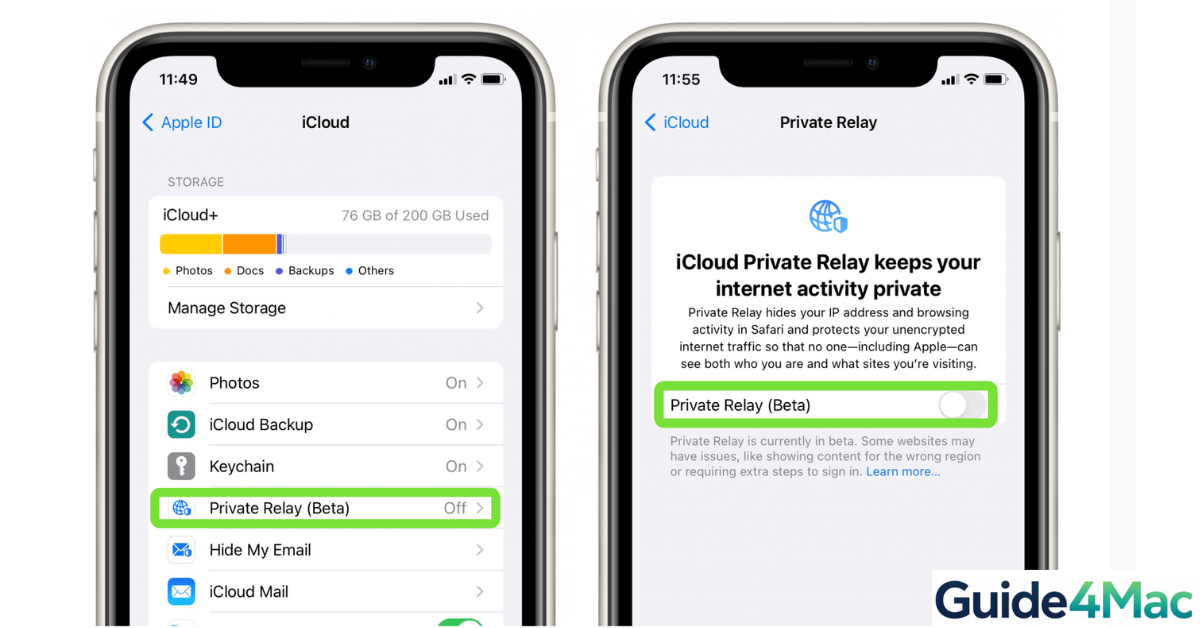
If you see the error “Safari can’t connect to iCloud Private Relay”, it usually means your connection is being blocked or interrupted. This feature is designed to protect your privacy, but it depends on network compatibility, Apple servers, and your device settings.
In most cases, the issue is caused by network restrictions, VPN conflicts, or temporary iCloud glitches. Below, you’ll find proven fixes that work on iPhone, iPad, and Mac running modern versions of iOS and macOS.
Why Can’t Safari Connect to iCloud Private Relay?
Safari may fail to connect to iCloud Private Relay due to several common reasons. The feature relies on routing your traffic through Apple servers, which can be disrupted by network conditions or system settings.
Common causes include:
- Poor or unstable internet connection
- VPN or proxy conflicts
- Disabled iCloud Private Relay settings
- Apple server outages
- Incorrect date and time settings
- Network restrictions from Wi-Fi providers
If Safari fails to load websites, you might also notice related issues like pages not opening or slow browsing. In some cases, it overlaps with problems like Safari not connecting to Private Relay.
1. Check Your Internet Connection
A weak or unstable connection is the most common cause of this error. Private Relay requires a stable internet connection to function properly.
- Open Settings.
- Tap Wi-Fi.
- Toggle Wi-Fi off.
- Wait a few seconds.
- Turn Wi-Fi back on.
You can also try switching to mobile data or enabling Airplane Mode briefly, then turning it off again.
2. Disable VPN or Proxy Services
VPNs and proxy services often conflict with iCloud Private Relay because both attempt to route your traffic through external servers.
- Open Settings.
- Tap VPN.
- Toggle the VPN off.
On Mac:
- Open System Settings.
- Click Network.
- Select your VPN connection.
- Click Disconnect.
After disabling the VPN, try loading a website again in Safari.
3. Turn iCloud Private Relay Off and On
Restarting the feature can resolve temporary glitches with Apple’s servers.
- Open Settings.
- Tap your Apple ID.
- Select iCloud.
- Tap Private Relay.
- Turn it off.
- Wait a few seconds.
- Turn it back on.
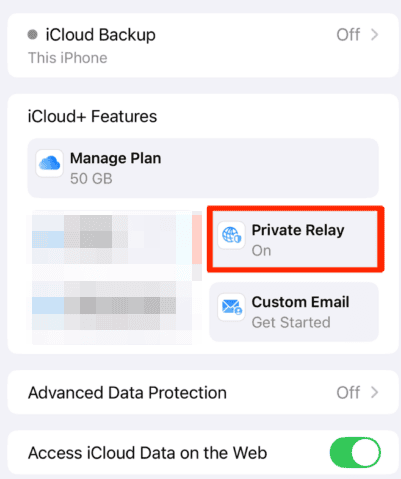
This refreshes your connection to Apple’s relay servers.
4. Check Apple System Status
Sometimes the issue is not on your device. Apple servers may be temporarily down or experiencing issues.
- Open Safari.
- Visit Apple’s System Status page.
- Look for iCloud Private Relay.
- Check if the status is green.
If the service is down, you’ll need to wait until Apple resolves the issue.
5. Disable Low Data Mode
Low Data Mode can restrict network features, including Private Relay.
- Open Settings.
- Tap Wi-Fi.
- Tap the info (i) icon next to your network.
- Turn off Low Data Mode.
On cellular:
- Open Settings.
- Tap Mobile Data.
- Select Data Mode.
- Choose Standard or Allow More Data.
6. Reset Network Settings
If the issue persists, resetting network settings can clear corrupted configurations.
- Open Settings.
- Tap General.
- Select Transfer or Reset iPhone.
- Tap Reset.
- Choose Reset Network Settings.
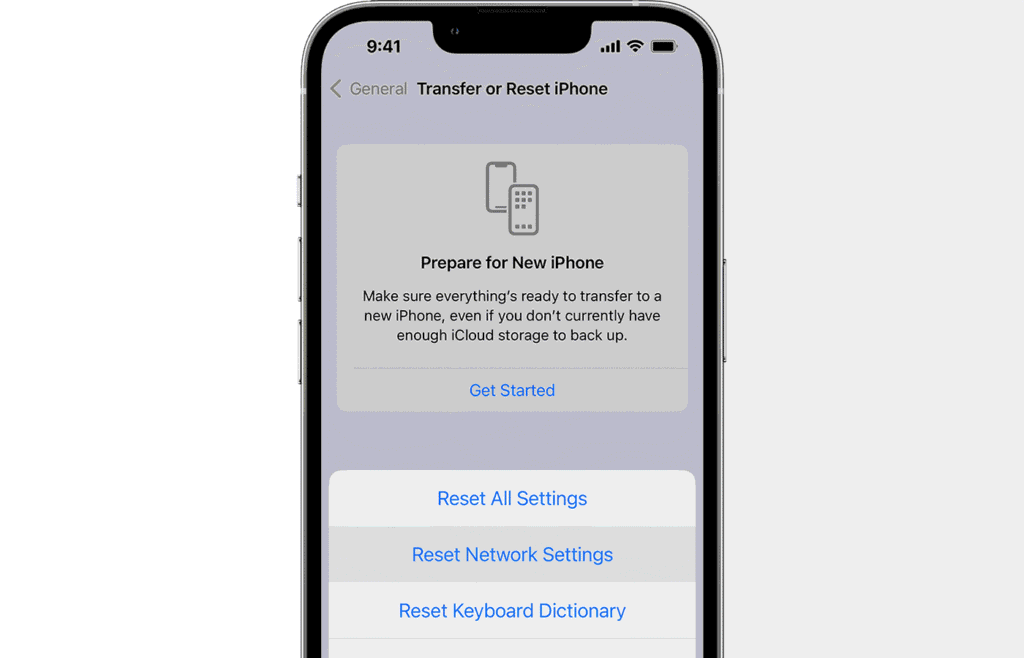
This will remove saved Wi-Fi passwords, so make sure you have them available before proceeding.
7. Sign Out and Back Into iCloud
If iCloud services are not syncing properly, signing out and back in can refresh your account connection.
- Open Settings.
- Tap your Apple ID.
- Scroll down and tap Sign Out.
- Restart your device.
- Sign back in with your Apple ID.
If you run into login issues, this guide on signing into your Apple account can help.
Tips
- Avoid using VPN and Private Relay at the same time.
- Keep your device updated to the latest iOS or macOS version.
- Restart your device regularly to clear temporary bugs.
- Use reliable Wi-Fi networks when browsing with Private Relay.
- Check Apple System Status before troubleshooting deeply.
Get Safari Back Online
When Safari can’t connect to iCloud Private Relay, the issue is usually tied to network conflicts or temporary service disruptions. Most users can fix it quickly by checking their connection, disabling VPNs, or toggling Private Relay off and on.
If the problem continues, resetting network settings or refreshing your iCloud account often resolves deeper issues. Once fixed, Safari should return to normal browsing with Private Relay enabled.
Key Takeaways
The “Safari can’t connect to iCloud Private Relay” error is typically caused by network issues, VPN conflicts, or Apple server outages. Simple fixes like reconnecting to Wi-Fi, disabling VPNs, or restarting Private Relay usually solve the problem. Advanced steps such as resetting network settings or signing out of iCloud can resolve persistent issues. This guide helps iPhone, iPad, and Mac users restore Private Relay quickly.
FAQ
This usually happens due to unstable internet, VPN conflicts, or Apple server issues.
No, using both at the same time often causes conflicts and connection errors.
No, it may be unavailable in certain regions or during Apple service outages.
Yes, it can fix corrupted network configurations that block the feature.
No, Safari works without it, but Private Relay adds an extra layer of privacy.


0 Comments