How to Login to Gmail on iPad (Easy Guide for Beginners)
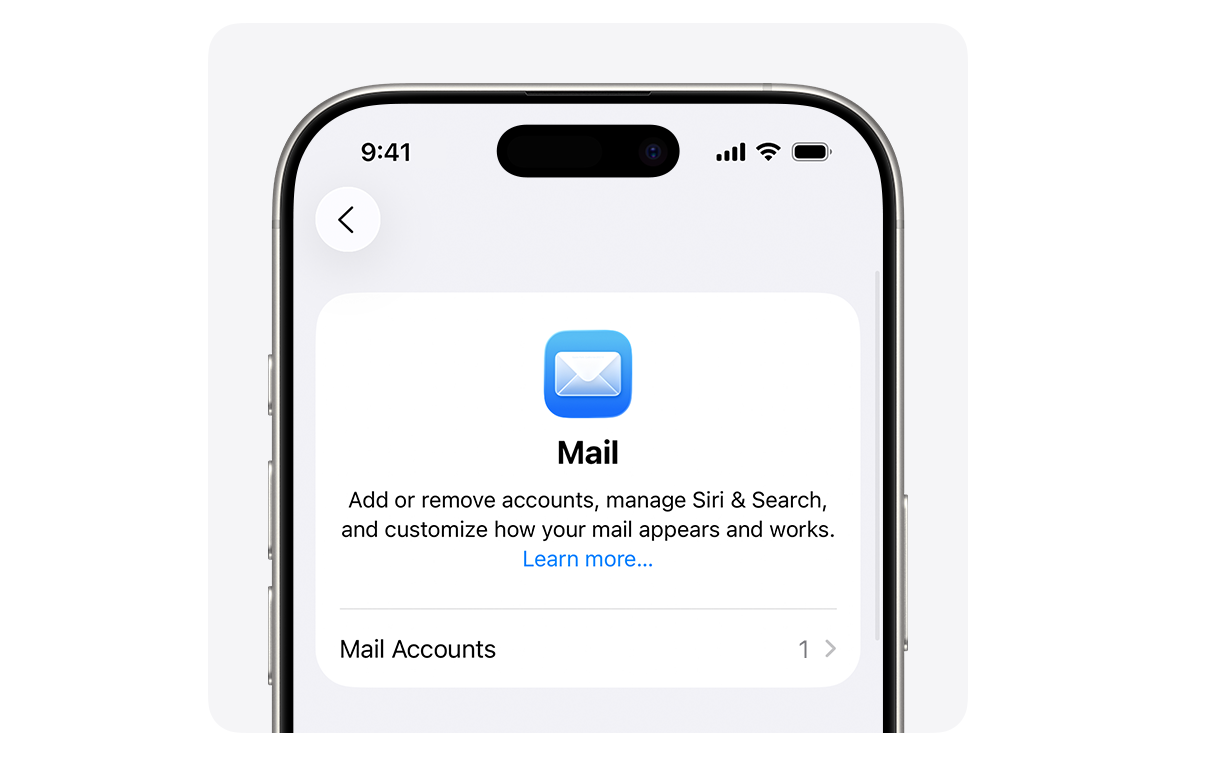
Logging into Gmail on an iPad is easier than most people expect. Whether you want quick access through Safari, prefer using the official Gmail app, or like everything organized inside Apple Mail, iPadOS gives you multiple simple ways to check your emails.
What Are The Best Ways to Login to Gmail on iPad?
1. Login to Gmail on iPad Using Safari
Time needed: 2 minutes
This is the fastest way to access Gmail on your iPad without installing anything. You simply log in through Safari or another browser.
- Open Safari
Tap the Safari browser on your iPad home screen to get started.
- Go to Gmail Website
Type mail.google.com in the address bar and press Go.
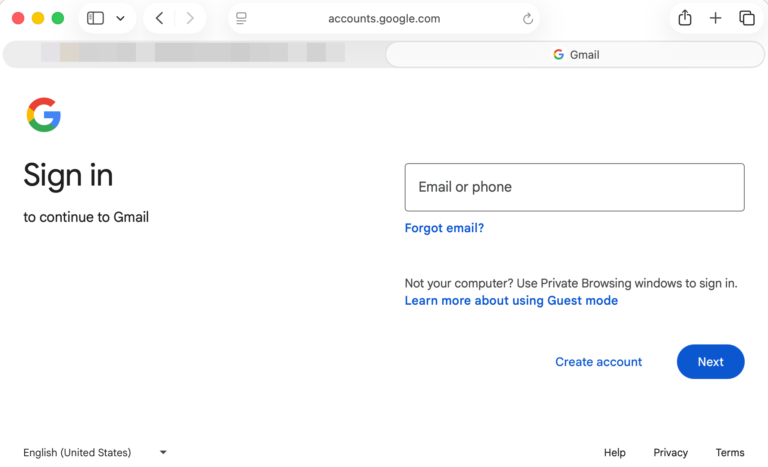
- Enter Your Email Address
Input your Gmail address and tap “Next”.
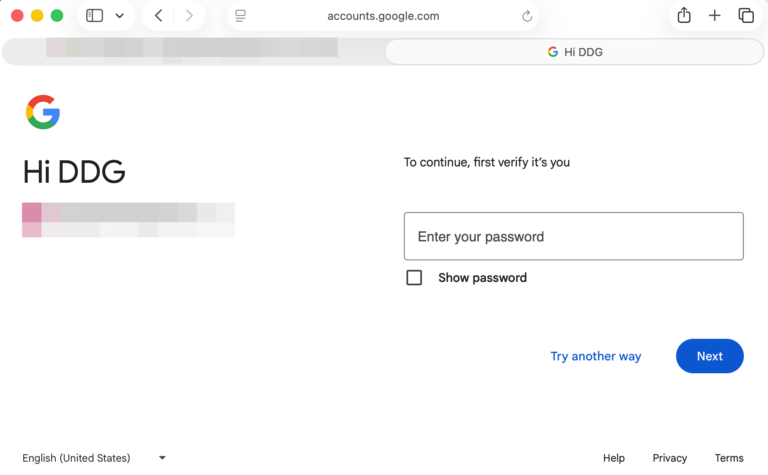
- Enter Your Password
Type your password carefully, then tap “Next” again.
- Complete Verification
If you use two-step verification, confirm the login using your phone or another method.
- Access Your Inbox
Once signed in, your Gmail inbox will load and you can start reading or sending emails.
2. Login Using the Gmail App (Recommended on iPad)
Many users prefer the official Gmail app because it’s optimized for iPadOS and supports notifications and account switching.
- Open the App Store and install the Gmail app.
- Launch the app.
- Tap Sign in.
- Enter your Google account email and password.
- Complete verification if required.
The Gmail app also makes it easier to switch between multiple accounts and stay signed in.
3. Add Gmail to Apple Mail on iPad
If you prefer using Apple’s built-in Mail app, you can add your Gmail account in just a few steps.

- Open Settings on your iPad.
- Scroll to Mail → Accounts.
- Tap Add Account.
- Select Google.
- Sign in with your Gmail details.
- Enable Mail (and optionally Contacts, Calendar).
This is a great option if you want all your emails in one place. If syncing ever stops working, understanding how to fix Apple Mail not syncing with Gmail can save you time.
4. Sync Gmail with iPadOS for Full Integration
You can also connect your Google account directly to iPadOS so everything stays in sync.
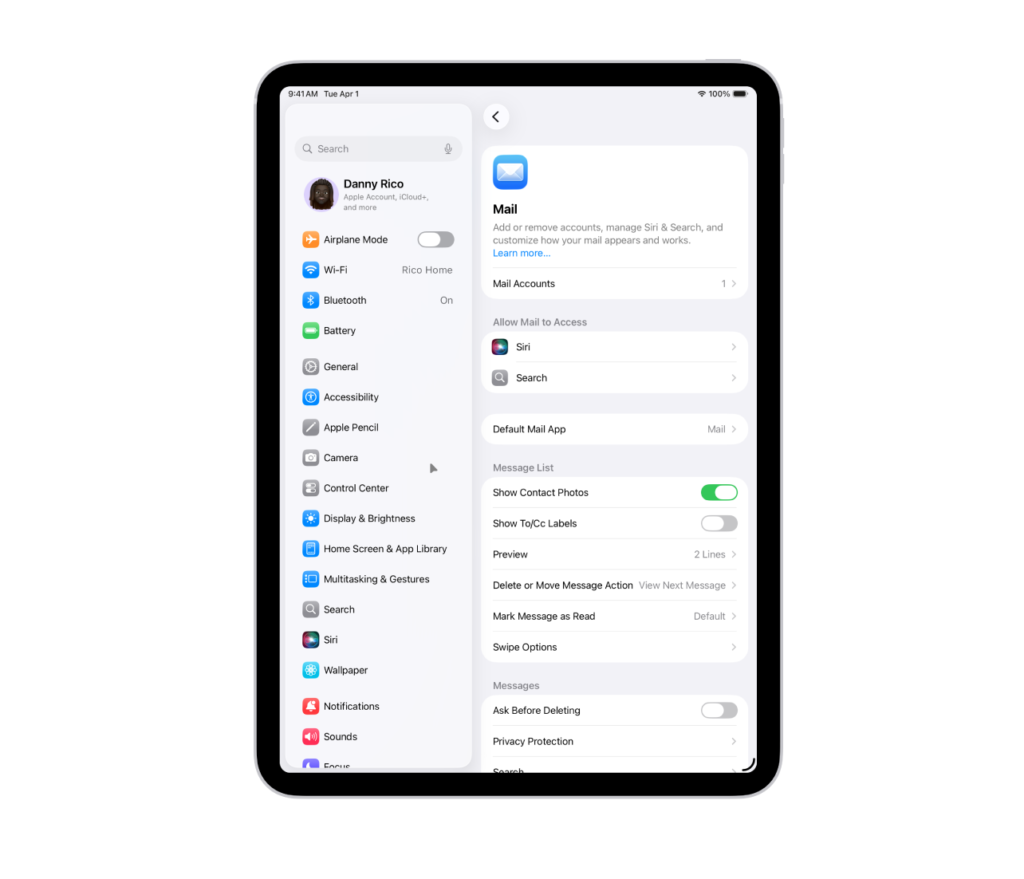
- Open Settings.
- Tap Mail → Accounts.
- Choose Google.
- Sign in and select what to sync (Mail, Contacts, Calendar).
This ensures your Gmail, contacts, and events stay updated across apps.
5. Alternative Method: Use Gmail Across Apple Devices
If you switch between devices, keeping your Gmail connected everywhere makes things easier.
For example, you can quickly log into Gmail on iPhone using similar steps, or log into Gmail on MacBook.
If you’re setting up email accounts for the first time, understanding how to add an email account to iPad helps keep everything organized.
For account safety, it’s also smart to know how to change your email password on iPhone and how to sign in into your Apple account properly if you get logged out.
Common Problems When Logging Into Gmail on iPad
When trying to sign in, some users may run into a few common obstacles that can interrupt access to their inbox.
Here are the most frequent Gmail login problems on iPad:
-Incorrect password or email errors
-Gmail not loading properly in Safari
-Gmail app freezing or crashing unexpectedly
-Apple Mail not syncing new emails
-Google blocking the sign-in attempt for security reasons
Fixes and Troubleshooting
If Gmail isn’t working as expected, a few quick adjustments can usually solve the problem without much effort. Try these practical fixes to restore access:
- Double-check your login details and re-enter them carefully
- Restart Safari or the Gmail app to clear temporary glitches
- Update your iPadOS to the latest version available
- Remove your Gmail account and add it again in Settings
- Make sure your internet connection is stable
- Turn off VPN services temporarily if you’re using one
Helpful Tips for Using Gmail on iPad
To get a smoother and more productive Gmail experience on your iPad, a few simple habits can make a big difference:
- Use Split View to check emails while working in another app
- Turn on notifications so you never miss important messages
- Add multiple Gmail accounts to separate work and personal emails
- Connect an external keyboard for faster typing
- Sync contacts and calendar to keep everything organized
FAQs?
Yes, you can access Gmail through Safari or any web browser without installing the app.
It could be due to incorrect credentials, app issues, poor internet, or Google blocking the login attempt.
Yes, the official Gmail app is available on the App Store and works well on iPadOS.
Go to Settings → Mail → Accounts → Add Account → Google, then sign in.
Yes, both the Gmail app and Apple Mail allow you to add and switch between multiple accounts easily.

0 Comments