iPad Stuck on Apple Pay Setup? Here’s How to Fix It Fast
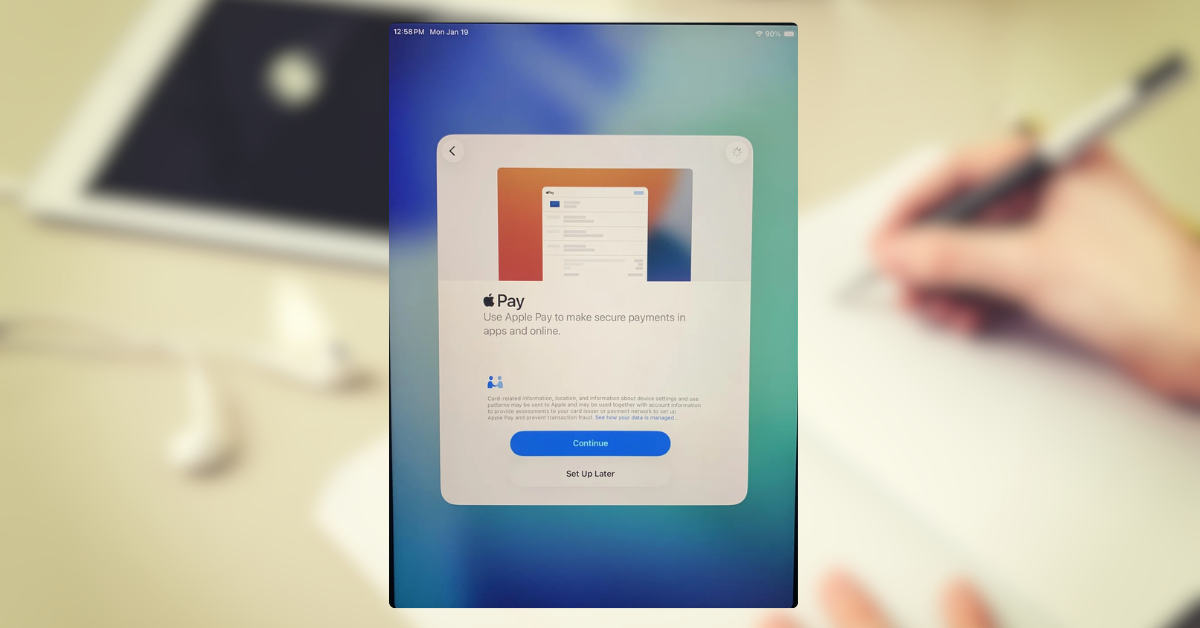
Setting up a new iPad should be quick and smooth—but sometimes it gets stuck on the Apple Pay screen during setup. If your iPad won’t move past this step, don’t worry. This is a fairly common issue, and there are a few simple ways to fix it.
The problem usually comes from Apple ID syncing, network issues, or Apple Pay verification delays. Let’s walk through the most effective solution first.
How to Fix iPad Stuck on Apple Pay During Setup
Time needed: 10 minutes
When your iPad freezes on the Apple Pay setup screen, the easiest fix is to skip the step temporarily or restart the setup process. This allows you to complete the device setup and configure Apple Pay later without interruptions.
- Try to Skip Apple Pay Setup
On the Apple Pay screen, tap Set Up Later in Settings if available. This lets you continue the setup without adding a card. You can always add Apple Pay afterward once your iPad is fully configured.
- Restart the Setup Process
If the screen is frozen, press and hold the Power button → slide to power off → turn the iPad back on. Then restart the setup process from the beginning.
- Check Your Internet Connection
Make sure your iPad is connected to a stable Wi-Fi network. Go to Settings → Wi-Fi and confirm the connection is active. Apple Pay setup requires a strong and stable connection to verify your card and Apple ID.
- Sign In to Your Apple Account Again
Sometimes the issue comes from account syncing. Go to Settings → Sign in to your iPad and re-enter your Apple ID credentials.
- Complete Setup and Add Apple Pay Later
Once you finish setting up your iPad, you can add your card anytime via Settings → Wallet & Apple Pay → Add Card.
Alternative Methods to Fix Apple Pay Setup Issues
If skipping the step doesn’t work, there are a few other approaches that can help you move forward.
You can try setting up your iPad without signing in initially, then logging in later once the device is fully configured. This often avoids temporary syncing issues during setup.
Another option is to remove any problematic payment methods linked to your Apple ID and re-add them later. Payment verification errors can sometimes block the process.
If you recently changed your account details, it may also help to update your credentials to avoid conflicts.
Common Problems During Apple Pay Setup
When your iPad gets stuck, it’s usually due to one of these underlying issues:
- Apple ID not syncing properly
- Weak or unstable Wi-Fi connection
- Payment method verification failure
- Software glitch during setup
- Outdated iPadOS version
These problems are often temporary but can interrupt the setup flow.
Fixes and Troubleshooting
To resolve the issue more reliably, try these fixes:
- Restart your iPad and begin setup again
- Switch to a different Wi-Fi network
- Skip Apple Pay and add it later
- Update your iPadOS after setup
- Remove and re-add your Apple ID if needed
If you’re experiencing similar syncing issues across Apple apps, they often follow the same pattern as Mail problems—where data doesn’t update correctly due to account or connection issues.
Helpful Tips to Avoid This Issue
To prevent getting stuck during setup in the future:
- Always use a stable Wi-Fi connection
- Keep your Apple ID credentials up to date
- Avoid adding payment methods during initial setup if your connection is weak
- Complete setup first, then configure services like Apple Pay
If you’re setting up multiple accounts or services, make sure everything is added correctly to avoid conflicts later.
FAQs (People Also Ask)
Yes, you can add any compatible credit or debit card at any time via the Settings app under “Wallet & Apple Pay.”
No, a force restart only interrupts the current software processes and does not affect the files or settings stored on your device.
Yes, older iPadOS versions can sometimes cause setup glitches, so updating later is recommended.
This is usually caused by a slow Wi-Fi connection or a temporary outage on Apple’s verification servers.
You may be facing an iPad Black Screen of Death, which requires a deeper hardware reset or a connection to a computer for recovery.

0 Comments