How to Fix iOS 26.4 Age Verification Not Working on iPhone
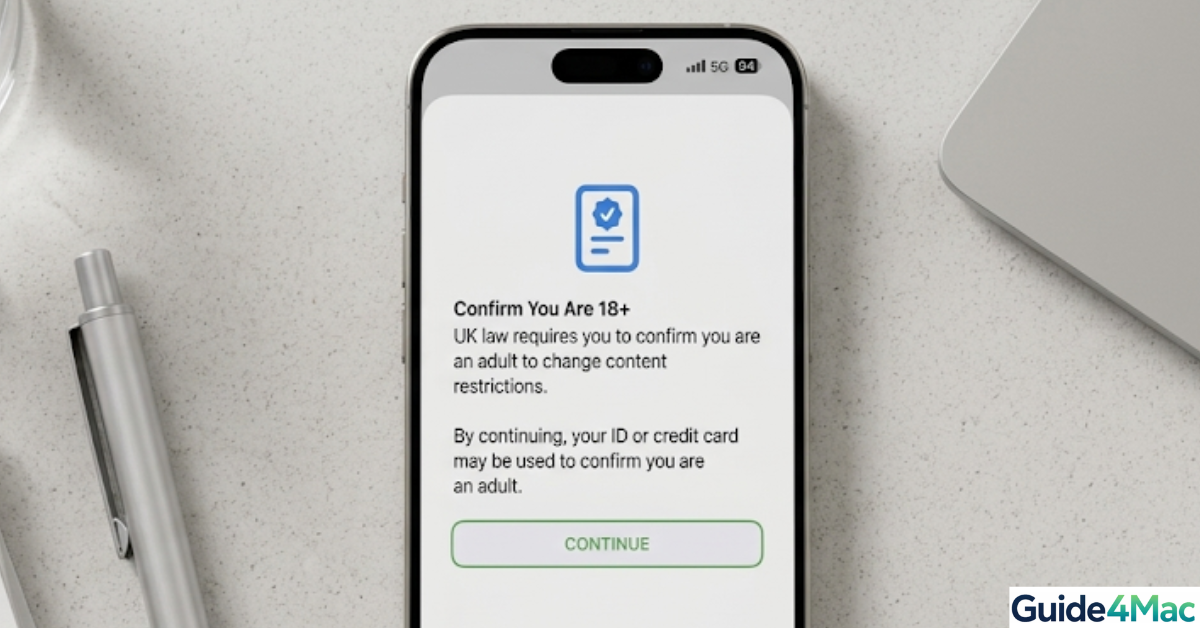
If you’ve tried to access age-restricted apps or services on iOS 26.4, you may have noticed that age verification keeps failing. In fact, Apple community discussions show that even valid credit cards or official IDs sometimes get rejected, leaving users stuck in repeated verification loops. This can be frustrating, especially when you just want to use your apps without interruptions.
Apple introduced age verification to comply with the UK Online Safety Act, which requires apps and content to restrict access to users under 18. The system checks Apple ID age, payment methods, and scanned documents, but server delays or scan errors can sometimes cause verification to fail. Fortunately, there are several practical ways to fix it.
1. Retry Age Verification Properly
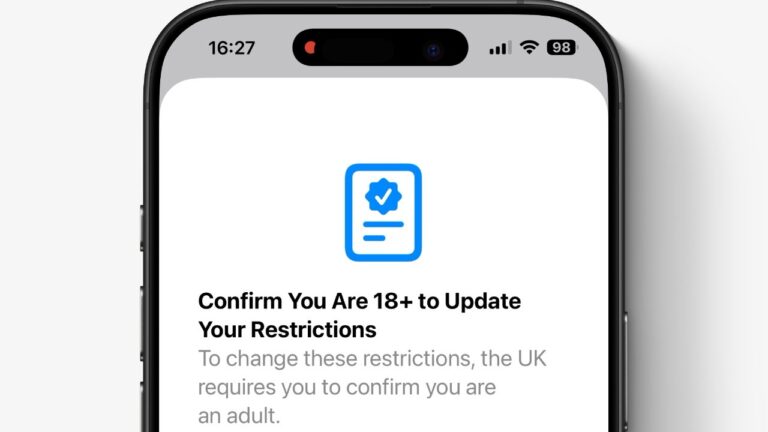
Most verification failures occur because the ID scan is not read correctly. Following this step-by-step guide ensures your iPhone can complete the process smoothly.
Time needed: 10 minutes
- Open Age Verification
Go to Settings → [Your Name] → Age Verification to open the scan prompt.
- Prepare Your ID
Place your ID or credit card on a flat, well-lit surface.
- Hold Device Steady
Keep your iPhone still for at least 10 seconds until the confirmation appears.
- Avoid Glare and Shadows
Make sure no shadows, glare, or quick movements interfere with the scanner.
- Retry If Needed
Adjust the distance or lighting slightly and try again if the scan fails.
iOS needs a clear, stable scan to confirm your age. Even minor shadows or motion can cause the scanner to fail. By giving your iPhone optimal conditions, you allow it to read your ID successfully, which often ends verification loops in a single attempt.
2. Add a Credit Card to Your Apple ID
Apple often uses credit cards as a reliable age signal. Adding a valid card increases the likelihood of a successful verification.
- Go to Settings → [Your Name] → Payment & Shipping → Add Payment Method.
- Enter a valid credit card and tap Save.
- Make sure the card is active.
- Retry the age verification scan.
- If it fails, remove and re-add the card or try another one.
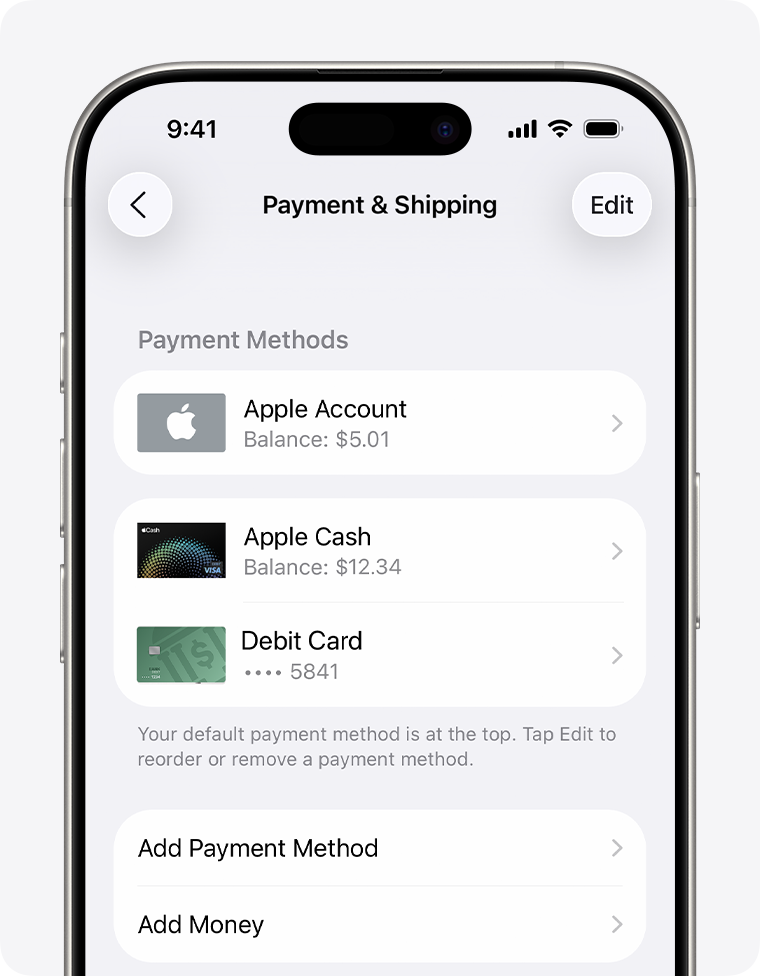
Apple trusts credit cards as evidence of adulthood. Adding one provides a strong age signal, which the system can use to automatically approve verification without repeated scanning. Users who add a credit card often skip multiple failed attempts.
3. Restart Your iPhone
A simple restart can clear temporary glitches that prevent verification from completing.
- Press and hold Power + Volume button until the slider appears.
- Slide to power off.
- Wait 10–15 seconds.
- Turn your iPhone back on.
- Retry the age verification scan.
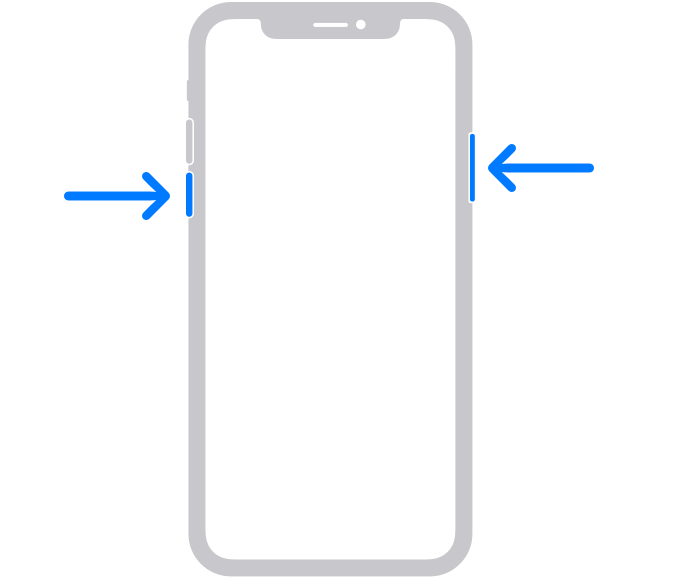
Restarting closes apps and background processes that may interfere with verification. It also refreshes system memory and network connections, giving your iPhone a clean state for scanning your ID or processing credit card information.
4. Check Apple ID Details
Your Apple ID contains your date of birth and purchase history, which iOS can use to verify age automatically.
- Go to Settings → [Your Name].
- Check that your date of birth is correct.
- Make sure your account has some purchase history.
Apple sometimes bypasses scans if your account data already confirms your age. Ensuring accurate information increases the chances that verification succeeds without repeated attempts.
5. Update iOS
Software bugs can cause verification failures, so make sure your iPhone is up to date.
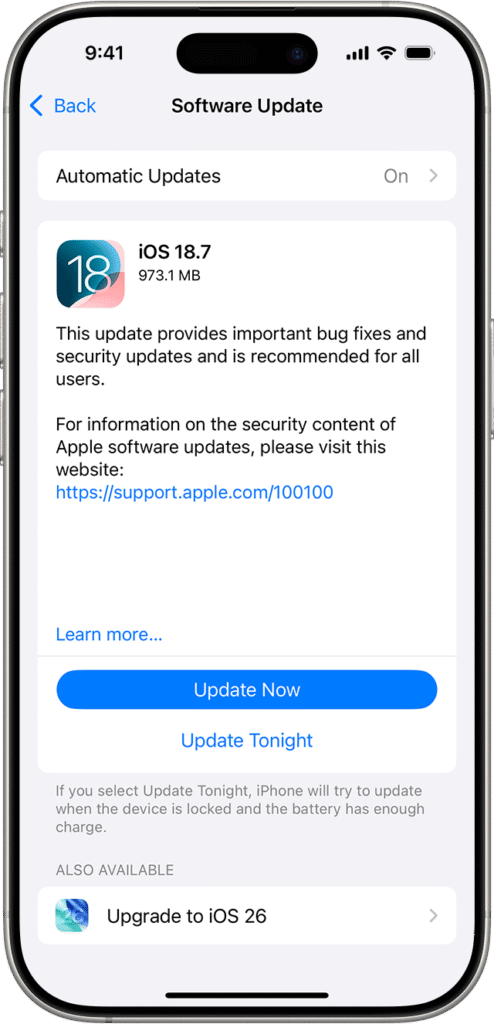
- Go to Settings → General → Software Update
- Install any available updates
- Avoid beta versions
Tips for a Smooth Verification
- Use a credit card, not a debit card
- Hold your device steady with good lighting
- Make sure your Apple ID details are accurate
- Restart your iPhone before retrying
- Avoid beta versions for stability
- Be patient if the system seems unresponsive
FAQs?
To comply with UK regulations and restrict access to age-restricted content.
Generally no; Apple prefers credit cards for verification.
Some apps or features remain restricted until verification succeeds.
Currently focused on the UK, but Apple may expand it globally.
Yes, updates improve verification reliability.
Sometimes, but adding a credit card or valid ID ensures faster success.


0 Comments