iPhone Alarm Not Going Off? Here’s How to Fix It (Without Oversleeping Again)
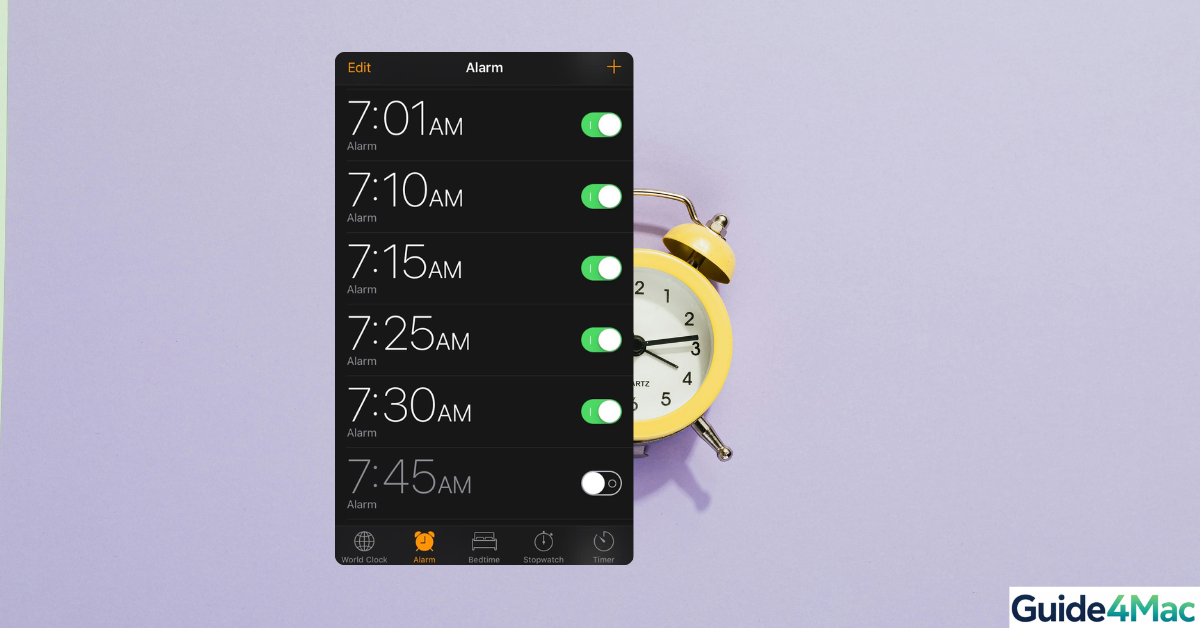
Ever trusted your iPhone alarm like it was your most reliable friend… only to wake up late, confused, and slightly betrayed? You’re not alone. Ironically, one of the smartest devices we own can still fail at the simplest job: waking us up.
The truth is, in most cases, your alarm did go off—it was just too quiet, misconfigured, or redirected somewhere you couldn’t hear it. Let’s fix that step by step so it never happens again.
How to Fix iPhone Alarm Not Going Off
Adjust Alarm Volume Properly
Time needed: 2 minutes
Most alarm failures occur because the iPhone’s alarm volume is too low or controlled incorrectly. Adjusting the right settings ensures your alarm will always be audible.
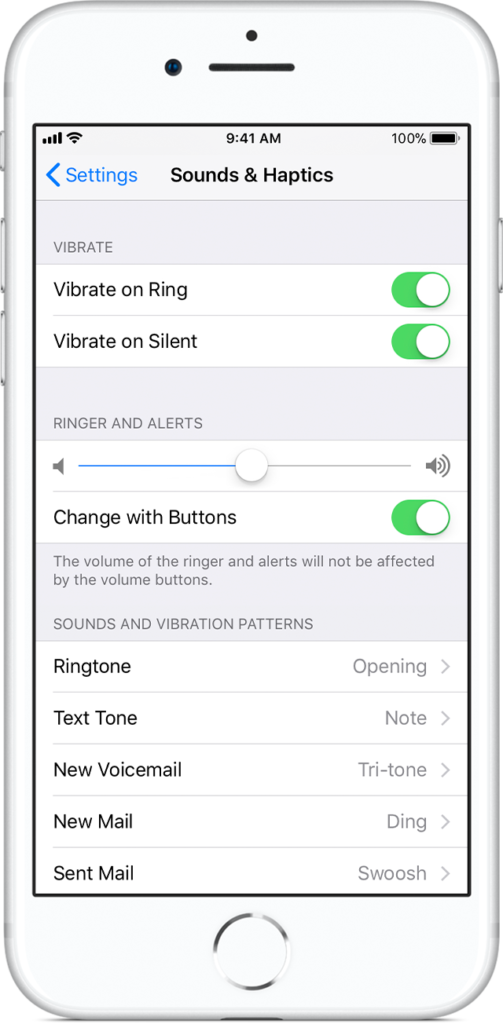
- Open Sounds & Haptics
Go to Settings → Sounds & Haptics, where the iPhone controls alarm volume, not media apps.
- Set Ringer and Alerts
Increase the Ringer and Alerts slider to a clear, audible level.
- Disable “Change with Buttons”
Turn off Change with Buttons to prevent accidental volume changes via side buttons.
- Verify Alarm Sound
Open Clock → Alarm → Edit → Sound and select a ringtone. Test it to confirm it’s loud enough.
Additional Fixes
1. Confirm Alarm Sound Is Not “None”
Even active alarms won’t play if the sound is set to None.
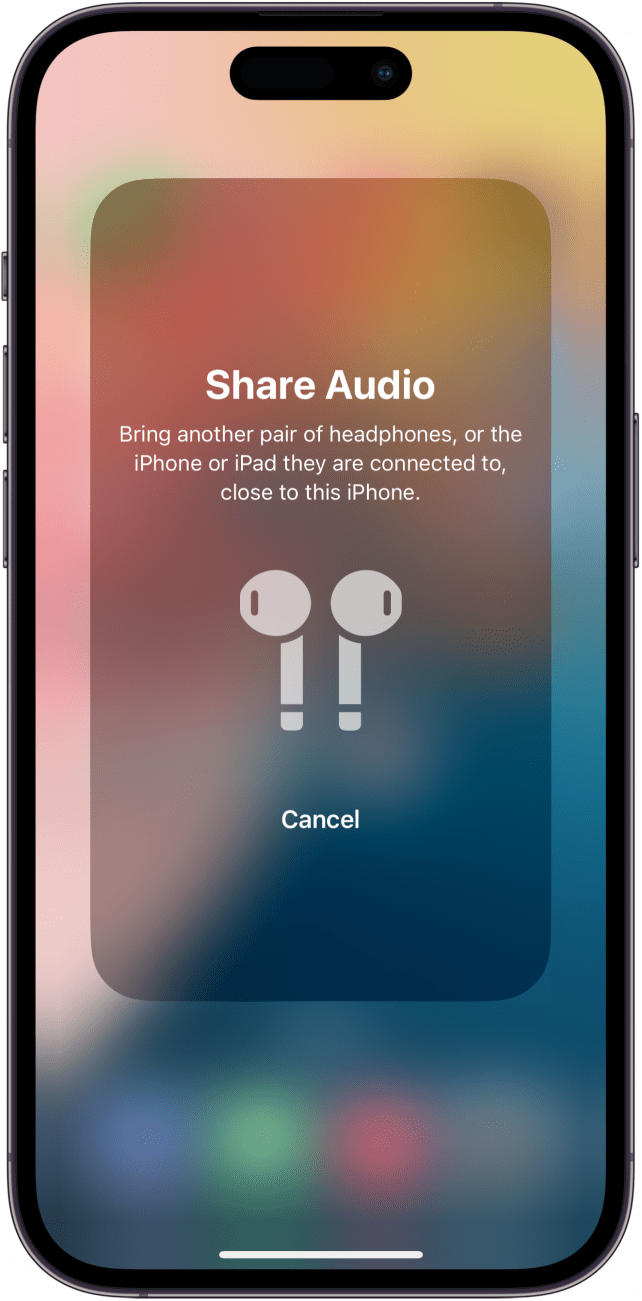
2. Disconnect Bluetooth Devices
Alarms may route to connected AirPods or speakers instead of the iPhone speaker.
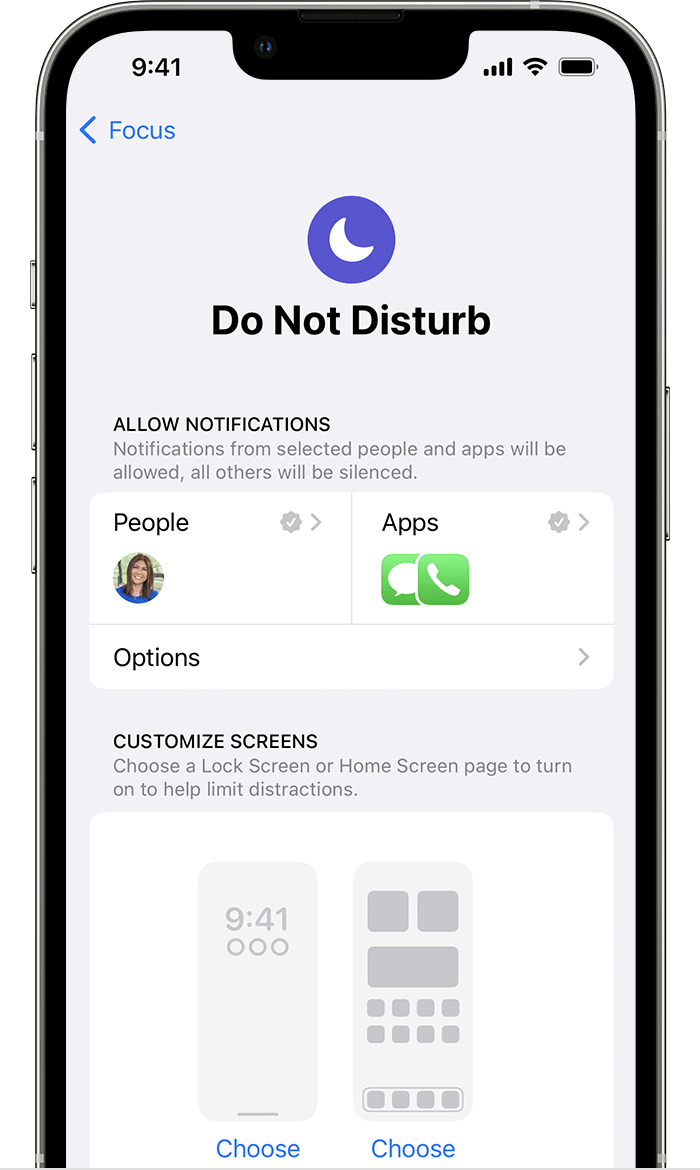
3. Check Focus / Do Not Disturb Settings
Focus modes, including Sleep, can interfere with alarm notifications if misconfigured. Go to Settings → Focus and check if Do Not Disturb or Sleep Focus is active.
4. Verify AM/PM and Alarm Time
Incorrect AM/PM settings are a frequent cause of missed alarms. Always double-check the scheduled time.

5. Restart the iPhone
A quick restart resolves temporary software glitches that may prevent alarms from sounding. Go to Settings → General → Transfer or Reset iPhone → Reset → Reset All Settings.
6. Update iOS
Some iOS updates fix alarm-related bugs. Check Settings → General → Software Update.
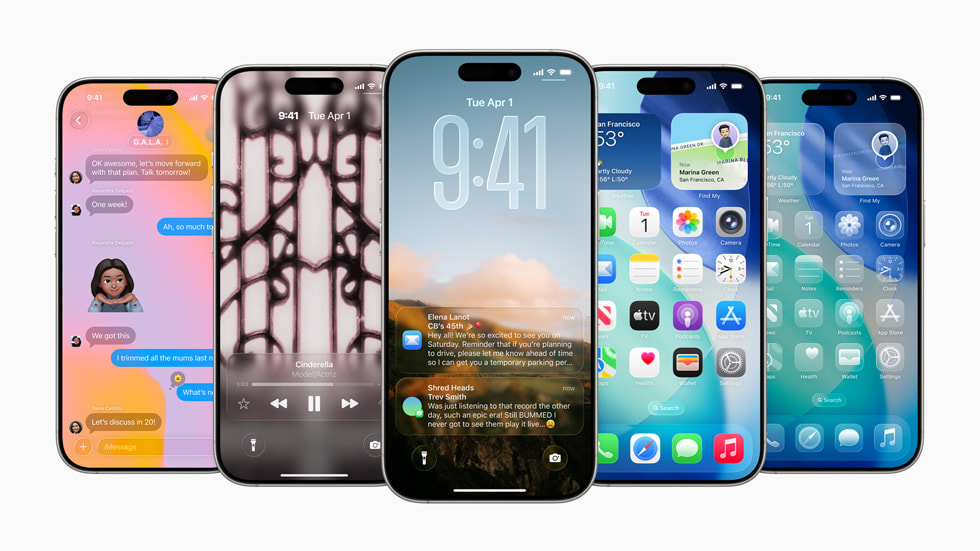
7. Delete and Recreate the Alarm
Glitched alarms may fail silently. Deleting and creating a new alarm ensures proper configuration.
FAQs (People Also Ask)
Volume is too low, the sound is set to None, or audio is routed to Bluetooth devices.
Yes, but misconfigured Focus modes can block them.
Yes, alarms may play through connected headphones or speakers instead of the iPhone.
Sometimes. Updates often patch bugs that affect alarms.
Adjusting Ringer and Alerts volume and ensuring a valid alarm sound resolves most cases.


0 Comments