How to Fix AirPods Pro Static Noise in One Ear (Step-by-Step Guide)
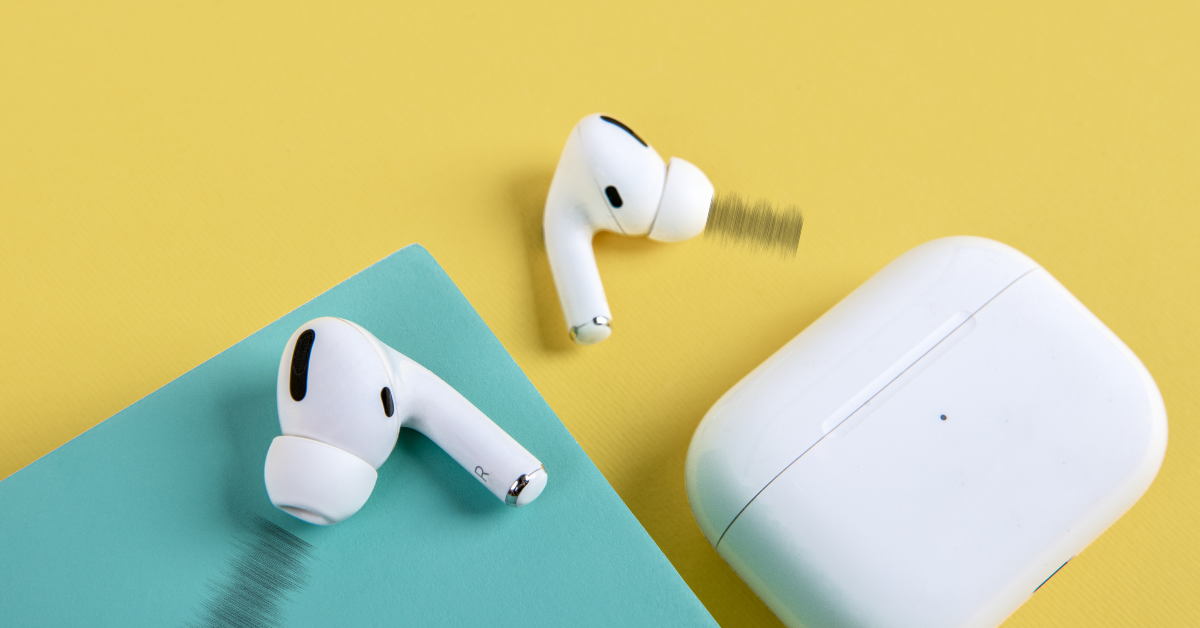
If you’ve noticed a crackling or static noise in one AirPod, you’re not alone. This issue has affected thousands of users—so much so that Apple officially acknowledged it in certain AirPods Pro models. The problem can appear suddenly, even if your AirPods were working perfectly before.
In most cases, the cause isn’t serious. It’s usually linked to software glitches, microphone interference, or simple buildup of debris. The best part? You don’t need technical skills or special tools to fix it. With a few quick adjustments on your iPhone, you can often restore clear sound in minutes.
Fix AirPods Pro Static Noise [Complete Guide]
1. Reset Your AirPods Pro (Most Effective Fix)
Resetting your AirPods completely refreshes their connection with your iPhone and removes hidden glitches that build up over time. This process is especially effective if the static started after an update or randomly appeared.
Time needed: 2 minutes
A full reset clears firmware bugs and restores normal sound behavior.
- Place AirPods in the Case
Put both AirPods inside the charging case, then close the lid and wait about 30 seconds to fully disconnect them.
- Forget the Device on iPhone
Go to Settings → Bluetooth → tap (i) next to your AirPods → tap Forget This Device.
If your devices are not syncing properly, making sure your account is correctly set up can help.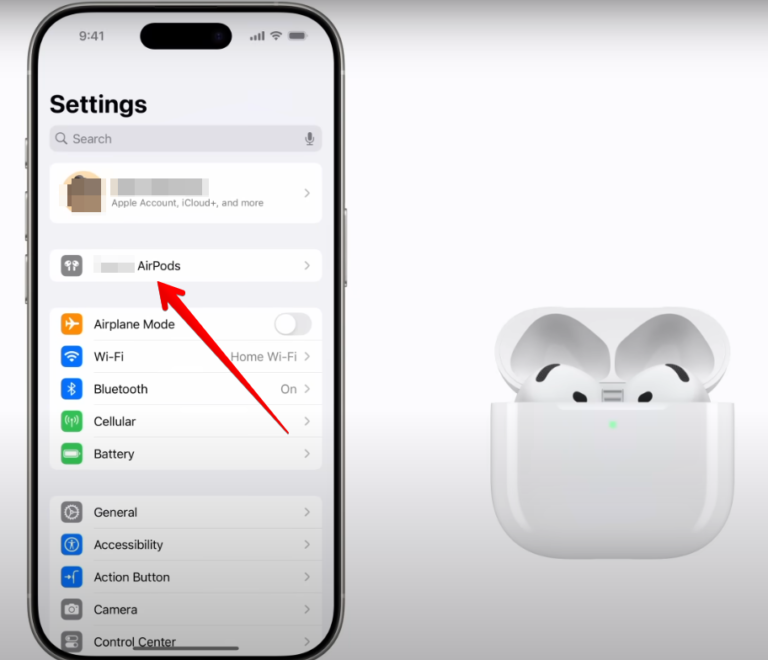
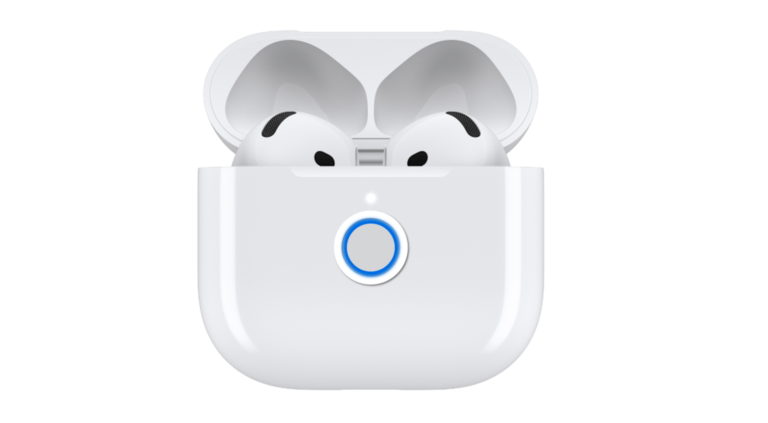
- Reset the AirPods
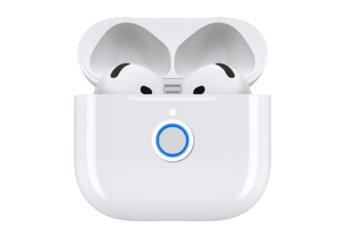
Open the lid, then press and hold the button on the back for about 15 seconds until the light flashes amber → white.
- Reconnect Your AirPods
Bring the AirPods close to your iPhone, then follow the on-screen instructions to reconnect.
2. Turn Off Noise Cancellation (Quick Diagnosis)
Active Noise Cancellation relies on external microphones to cancel background sound. When these microphones glitch, they can produce unwanted static or crackling. This quick test helps you identify if ANC is the root cause. Now:
- Open Control Center
- Long-press the volume slider
- Set Noise Control → Off
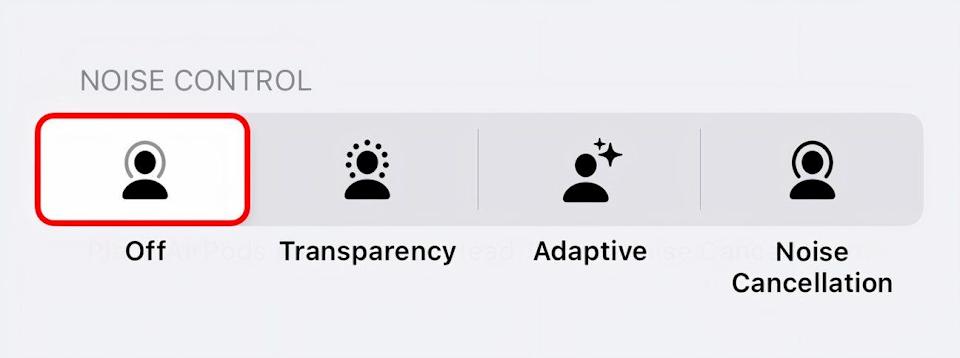
If the noise stops when ANC is off, you’ve confirmed the issue is software or microphone-related—not a full hardware failure.
3. Clean Your AirPods Pro (Often Overlooked)
Over time, earwax, dust, and moisture can block the speaker mesh and microphones. This affects how sound travels and often leads to distortion or crackling in one ear.
- Remove the silicone ear tips
- Gently clean the mesh using a dry cotton swab
- Wipe the AirPods with a microfiber cloth
Audio becomes clearer and more balanced, with reduced or completely removed static noise.
4. Update iPhone and AirPods Firmware
Software bugs are a common cause of sound issues, especially after major iOS updates. Keeping your devices updated ensures compatibility between your iPhone and AirPods.
- Go to Settings → General → Software Update
- Install any available updates
- Keep AirPods charging near your iPhone
System-level bugs causing audio glitches are removed, improving overall stability and sound quality.
5. Reconnect AirPods (Bluetooth Refresh)
Sometimes, the connection between your AirPods and iPhone becomes unstable. Refreshing Bluetooth can quickly resolve temporary interference or pairing issues.
- Turn Bluetooth OFF and ON
- Reconnect your AirPods
A stable connection is restored, eliminating random crackling or dropouts.
6. Check for Hardware Issues (Last Step)
If none of the previous solutions work, the issue may be physical rather than software-related. Some AirPods Pro units are known to develop internal faults over time.
- Static only in one ear
- Noise persists after reset
- Issue occurs even with ANC OFF
You’ll determine whether repair or replacement is necessary. If all are true, contacting Apple Support is recommended.
Fixes & Troubleshooting
- Reset didn’t work → Repeat carefully step-by-step
- Noise still present → Disable ANC to isolate the issue
- Only one side affected → Likely hardware-related
- Random glitches → Usually caused by firmware bugs
Tips to Prevent Static Noise
- Keep AirPods clean and dry
- Avoid exposure to moisture or sweat
- Update your iPhone regularly
- Store them in the case when not in use
Also, keeping your Apple account updated can prevent hidden conflicts—sometimes changing your email password on iPhone is needed.
FAQs (People Also Ask)
This usually happens due to ANC microphone issues or debris blocking the mesh.
Yes, in most cases it removes software glitches causing the issue.
Because ANC uses microphones that can malfunction and create interference.
Yes—most issues are software or cleaning-related and easy to fix.
If the issue continues after all fixes, it’s likely hardware damage.
Yes, outdated software or Bluetooth conflicts can trigger sound issues.

0 Comments