How to See Safari History on iPhone (iOS 26) and Recover Browsing Pages
If you’ve ever lost a tab or couldn’t find a website again, Safari history is the quickest way to recover it. On iOS 26, Apple keeps everything simple, but many users still struggle to locate or properly use their browsing history.
Below is a clean, structured guide with practical steps you can follow instantly on iPhone or iPad.
View Safari History on iPhone (iOS 26)
Time needed: 3 minutes
This method shows how to open Safari history, search for websites, and reopen previously visited pages on iPhone or iPad.
- Open Safari
Open the Safari app from your Home Screen. Safari automatically stores history unless Private Browsing is enabled.
- Open History Menu
Tap the Bookmarks icon, then select the Clock (History tab).
- Browse Your History
Scroll through the list of visited websites and tap any entry to reopen it.
- Search Specific Pages
Use the Search bar at the top to find a specific website or keyword.
Open Recently Closed Tabs in Safari
- Open Safari and press and hold the Tabs button.
- Tap any page under Recently Closed Tabs.
- The page will reopen instantly.

Sync Safari History Across Apple Devices
- Go to Settings.
- Tap your Apple ID (your name at the top).
- Tap iCloud.
- Turn ON Safari.
Fix Safari History Not Showing
- Go to Settings > Apple ID > iCloud and ensure Safari is enabled.
- Close Safari completely and reopen it to refresh the app.
- Go to Settings > Apple ID, sign out, then sign back in.
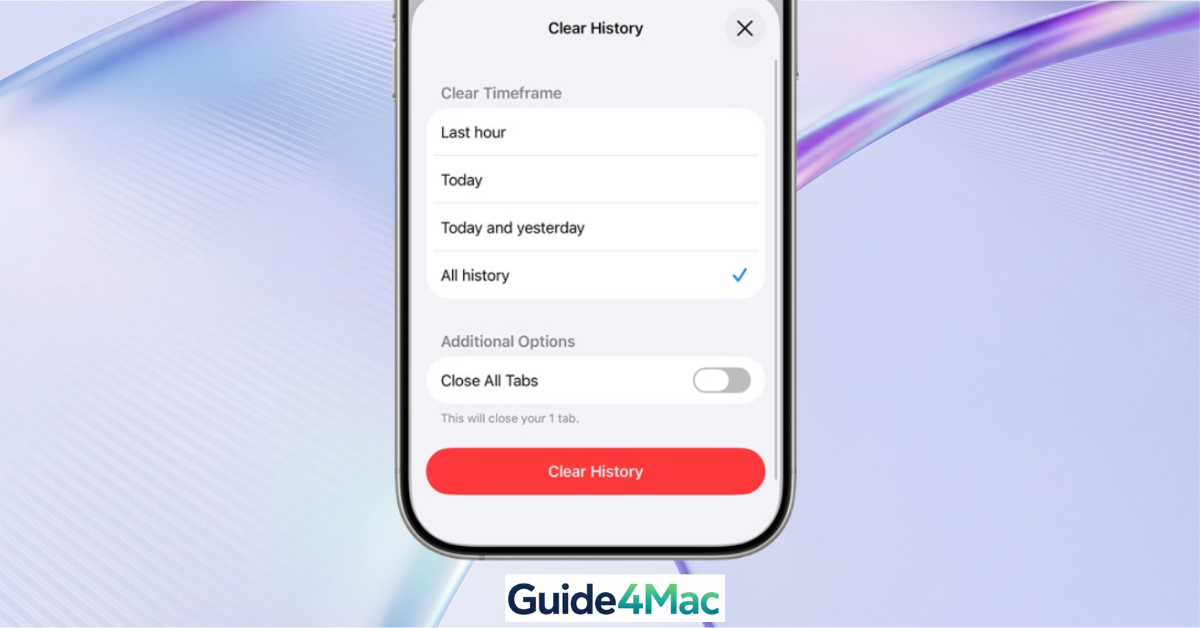
Clear Safari History (Optional)
- Go to Settings.
- Tap Safari.
- Tap Clear History and Website Data.
- Confirm your choice.

Tips for Managing Safari History
- Avoid using Private Browsing if you want history saved
- Enable iCloud Safari sync for access across devices
- Use the search bar instead of scrolling
- Bookmark important pages
- Clear history occasionally for better performance
FAQ
Yes. If you have Safari iCloud Sync enabled (Settings > [Your Name] > iCloud > Show All), your history will be shared homogeneously across all your Apple devices.
Safari does not record any history, search terms, or AutoFill information while you are in Private Browsing Mode. Once a private tab is closed, that history is gone forever.
Yes. When you use the “Clear History” function in Safari, it removes your browsing history as well as cookies and other cached website data.


0 Comments