How to See Photos in Messages on iPhone (iOS 26 Guide)
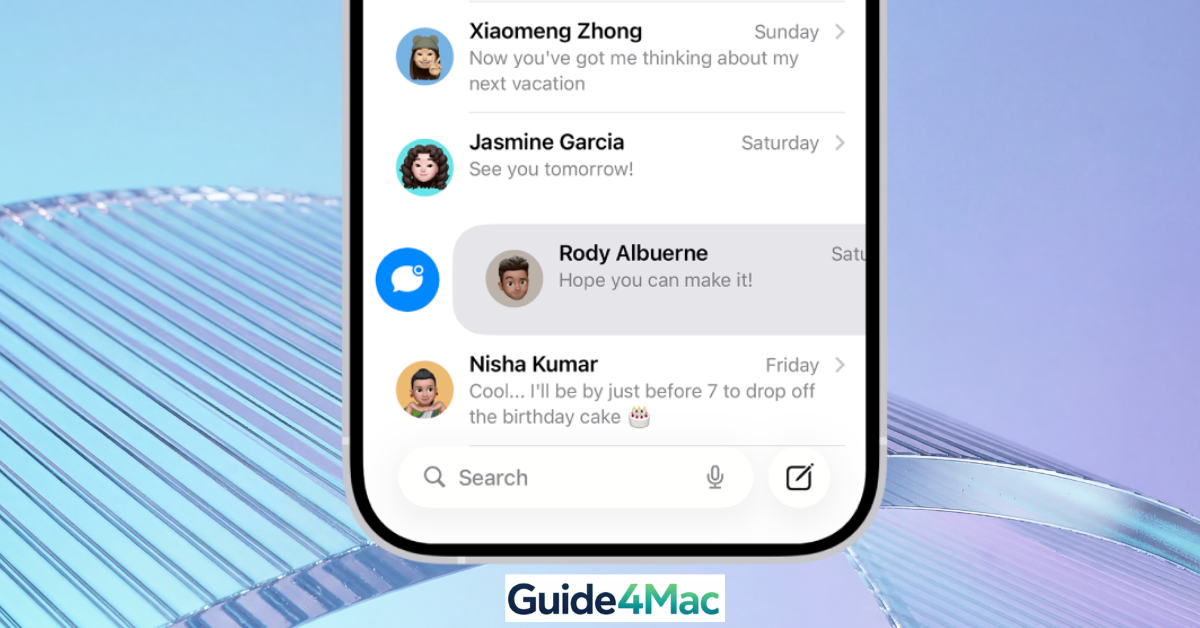
If you’ve ever tried to find a photo someone sent you weeks ago, you already know how frustrating scrolling through messages can be. In iOS 26, Apple made this much easier by grouping shared photos and improving search inside Messages.
Below are the most effective ways to quickly find any photo in your conversations.
How To View Photos in Messages on iPhone (iOS 26)
Time needed: 2 minutes
This method shows how to access all shared photos inside a Messages conversation using the built-in info panel.
- Open Messages
Open the Messages app on your iPhone.

- Open a Conversation
Tap the conversation where the photos were shared.
- Open Contact Info
Tap the contact name or profile picture at the top.
- View Photos Section
Scroll to the Photos section.
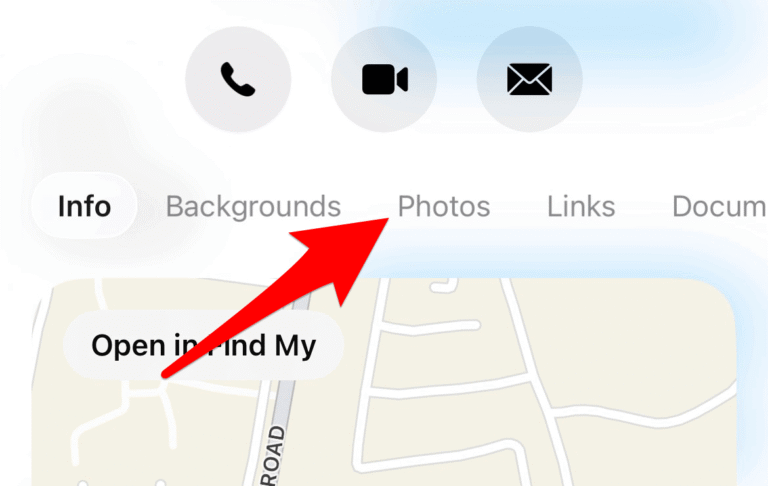
- Tap “See All”
Tap See All to view every shared image.
Other Ways to See Photos in Messages:
1. Scroll Through Messages Manually
- Open the Messages app.
- Tap the conversation you want.
- Scroll through messages until you find the photo.
2. Use Search to Find Photos Faster
- Open the Messages app.
- Swipe down to open Search.
- Type a keyword (name, place, or object).
- Tap results under Photos.
3. Save Photos to Your iPhone
- Open a conversation in Messages.
- Tap a photo.
- Tap the Share icon.
- Select Save Image.
Common Problems When Viewing Photos in Messages
- Photos not showing → Conversation not fully loaded
- Missing images → iMessage not synced
- Blurry images → Not fully downloaded
- No Photos section → Wrong menu opened
Fix Photos Not Showing in Messages
- Restart your iPhone.
- Check your internet connection.
- Go to Settings > Messages and enable iMessage.
- Go to Settings > Apple ID, sign out, then sign back in.
Tips for Managing Photos in Messages
- Use See All instead of scrolling
- Save important images to Photos app
- Use search for faster results
- Keep iMessage enabled
- Clean old conversations
FAQs (People Also Ask)
No. If you delete a message thread or a specific text containing a photo, the image is removed from the “See All” gallery as well.
If you have blocked a contact, their existing photos will remain in the gallery until you delete the conversation, but you will not receive any new images from them.
If you have “Optimize iPhone Storage” enabled, high-resolution versions of older photos may be stored in iCloud. Tap the image to download the full-quality version from the server.
iOS 26 makes it much easier to find photos in Messages. Instead of scrolling endlessly, using the Photos section or search feature helps you locate images instantly.


0 Comments