How to Unhide Apps on iPhone (iOS 26 Guide)
If an app suddenly disappears from your iPhone, it doesn’t always mean it’s deleted. In iOS 26, Apple introduced more ways to hide apps for privacy and organization—making it easier to lose track of them.
The good news? Hidden apps are usually still on your device, and you can restore them in seconds using the right method. Below are the most effective ways to find and unhide apps on iPhone.
Unhide Apps on iPhone: Practical Guide
Time needed: 4 minutes
This method shows how to find hidden apps using Spotlight Search and restore them to your Home Screen.
- Open Search
Swipe down on your Home Screen to open Search (Spotlight).
- Type App Name
Enter the name of the hidden app.
- Locate the App
If the app appears in results, it is still installed on your iPhone.
- Add Back to Home Screen
Press and hold the app, then tap Add to Home Screen.
Other Ways to Unhide Apps on iPhone
1. Check App Library
- Swipe left to reach the App Library.
- Use the Search bar at the top.
- Find the hidden app.
- Press and hold it, then tap Add to Home Screen.
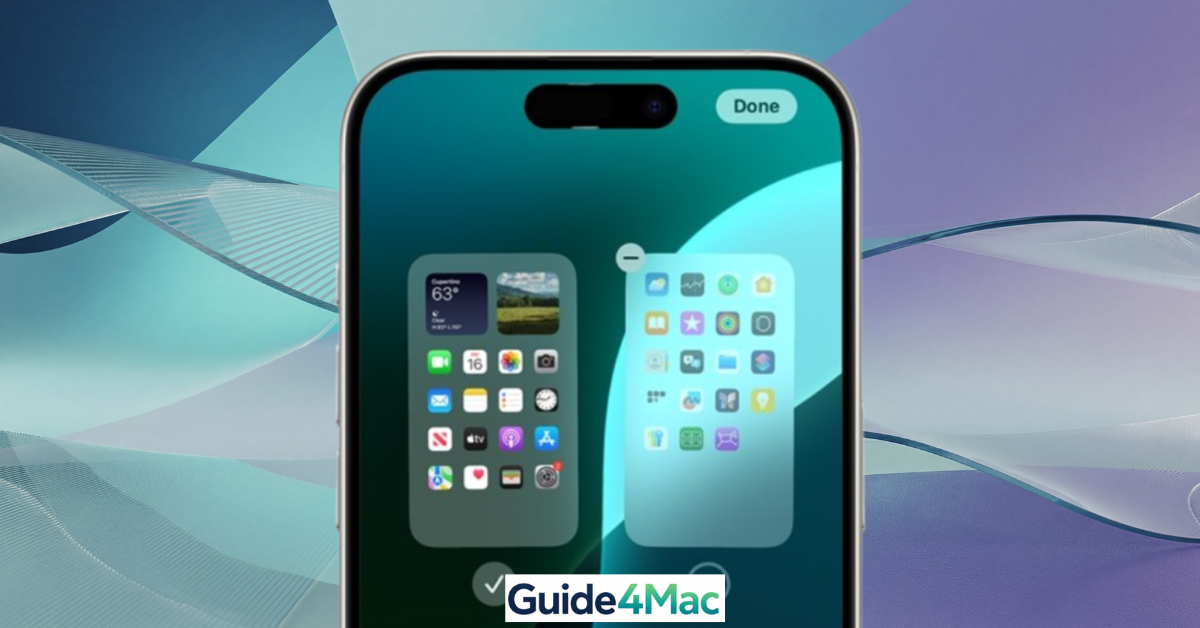
2. Check Hidden Home Screen Pages
- Press and hold on the Home Screen.
- Tap the page dots at the bottom.
- Look for hidden pages (unchecked).
- Enable them again.
3. Check Screen Time Restrictions
- Go to Settings.
- Tap Screen Time.
- Tap Content & Privacy Restrictions.
- Check Allowed Apps and enable the missing app.
4. Reinstall the App
- Open the App Store.
- Search for the app.
- Tap Download if it’s not installed.
Common Problems When Apps Are Hidden
- App not appearing in search → Search disabled
- App missing from Home Screen → Hidden page
- App blocked → Screen Time restrictions
- App removed → Needs reinstall
Fix Apps Not Showing on iPhone
- Restart your iPhone.
- Go to Settings > Siri & Search and ensure apps appear in search.
- Disable and re-enable Screen Time restrictions.
- Go to Settings > General > iPhone Storage and check if the app is installed.
If login or account problems persist, you may also need to change your email password.
Tips to Avoid Losing Apps Again
- Use folders instead of hiding pages
- Keep App Library enabled
- Avoid unnecessary Screen Time restrictions
- Regularly organize your Home Screen
- Use search instead of scrolling
FAQs (People Also Ask)
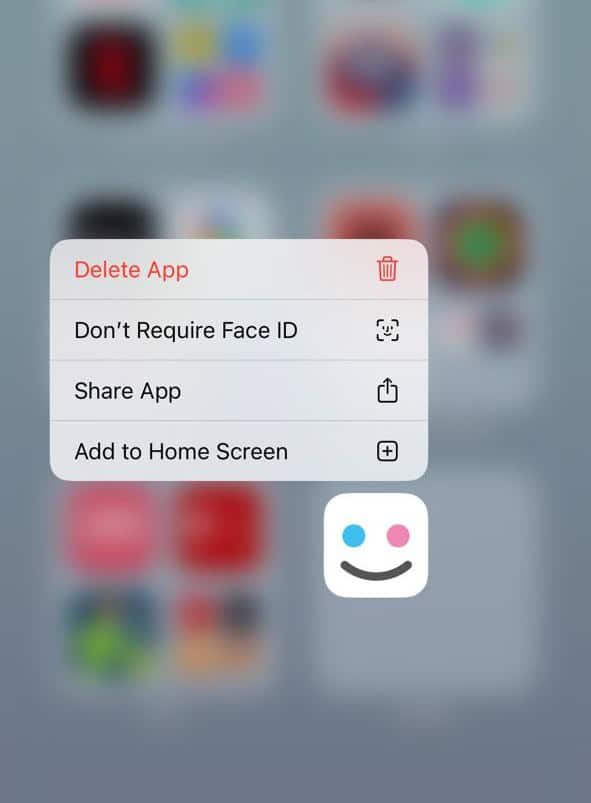
Yes. iOS 26 allows you to “Require Face ID” for specific apps. If an app is locked, it may not show previews in search or notifications until you authenticate.
Check your settings at Settings > App Store. Ensure that “Newly Downloaded Apps” is set to Add to Home Screen rather than “App Library Only.”
Open the App Store, tap your profile icon, and go to Purchased. If an app was hidden from this list, you must go to Account Settings > Hidden Purchases to restore it to your history.
Final Note
Hidden apps on iPhone are usually just a few taps away from being restored. Whether they’re in App Library, hidden pages, or restricted settings, iOS 26 gives you multiple ways to find and bring them back quickly.

0 Comments